
FaceTime Like a Pro
Get our exclusive Ultimate FaceTime Guide 📚 — absolutely FREE when you sign up for our newsletter below.

FaceTime Like a Pro
Get our exclusive Ultimate FaceTime Guide 📚 — absolutely FREE when you sign up for our newsletter below.


I tested Live Translation with AirPods on iOS 27 to see how well it handles real-time conversations. Here’s how the feature works, which AirPods and iPhones support it, and how to set it up.

 ByVikhyat and Ava Biswas
The first time I tried Apple’s Live Translation with AirPods in iOS 26, the idea felt almost too futuristic: someone speaks another language, and I hear what they’re saying in my own language through my earbuds.
With iOS 27 and the latest Apple Intelligence features, Apple has continued expanding this feature, making it available on more AirPods models and supporting more languages. If the other person doesn’t have compatible AirPods, you can still use your iPhone to show or play the translated version of your response.
Here’s everything you need to know about Live Translation on AirPods, including the compatible iPhones and AirPods, supported languages, setup process, and how to use it during a real conversation.
Live Translation is an Apple Intelligence feature that lets compatible AirPods translate what another person is saying into your preferred language in real time.
The experience is designed to be hands-free. Instead of repeatedly typing or looking at your iPhone, you can listen to the conversation through your AirPods while the Translate app provides a transcript on your iPhone.
Here’s how it works:
This makes conversations smoother, whether you’re traveling, on a call, or speaking with someone in person.
Before you can use Live Translation on your AirPods, make sure you meet these requirements:
Apple notes that availability can vary by language and region.
Currently in iOS 27, Live Translation supports these languages:
Apple may add more language support in upcoming updates.
For Live Translation to work, you’ll need to download language models in advance. For example, if someone is speaking Spanish and you want to hear English, download both Spanish and English.
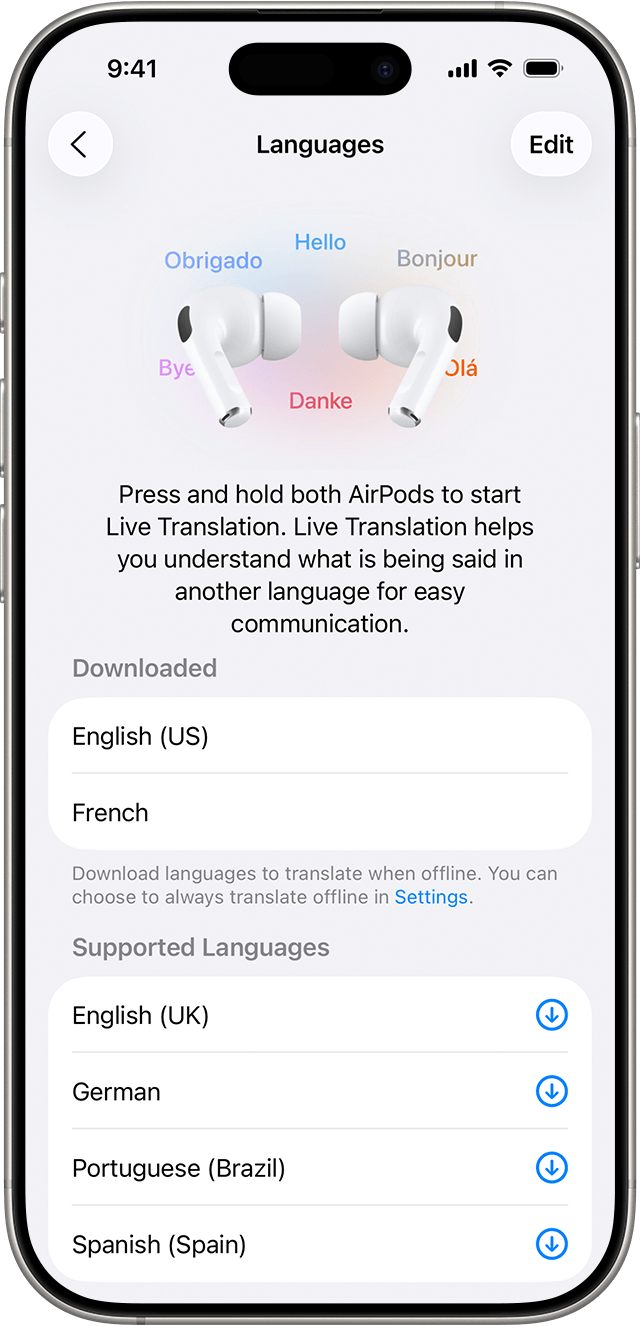
Once downloaded, the entire translation process happens on-device to keep all conversation data private.
Unlike Adaptive Audio, Live Translation isn’t enabled by default. Here’s how to set it up:
This gives you full control over the conversation settings, including the languages and whether translations are spoken aloud or displayed on-screen.
You’re now ready to start the translation.
Once setup is complete, Apple gives you several ways to activate Live Translation, so you don’t have to open the Translate app every time.
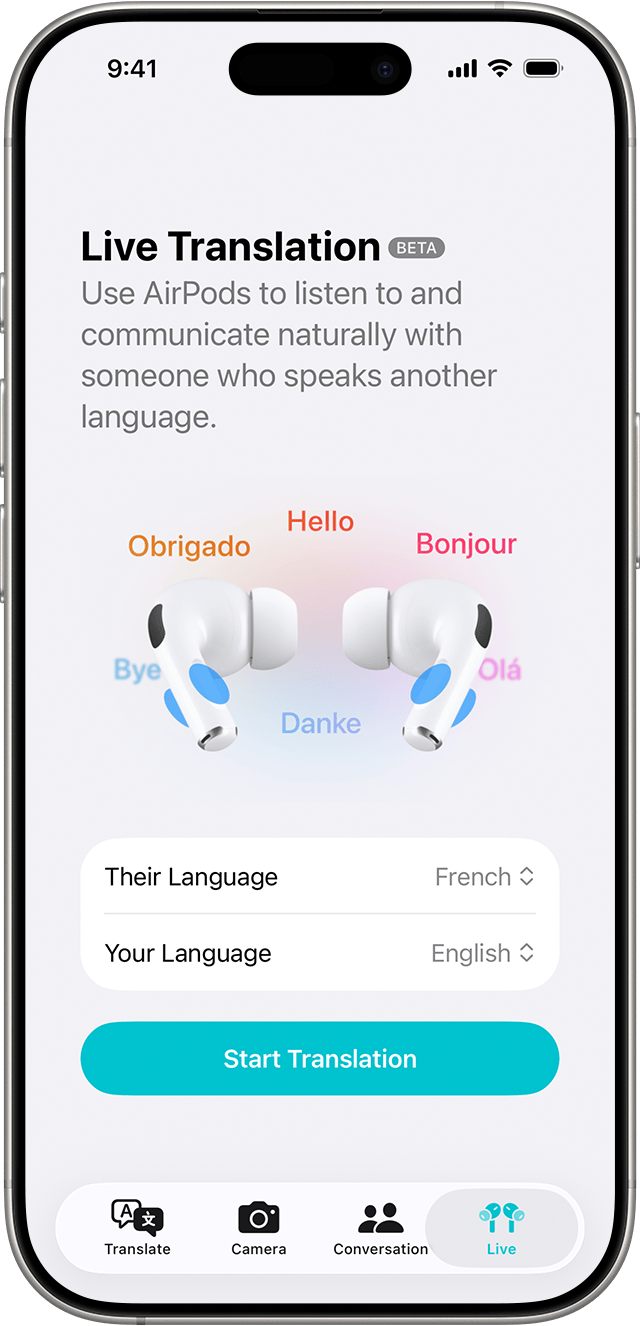
This is probably the easiest method when you first use the feature.
If you have AirPods 4 with ANC, AirPods 5, AirPods Pro 2, or AirPods Pro 3, press and hold the stems on both AirPods at the same time.
If you’re using AirPods Max 2, press and hold the listening mode button.
You can also say: “Siri, start Live Translation.”
Siri will start the feature when the necessary settings and supported hardware are in place.
If your compatible iPhone has an Action button, you can configure it to launch Translate.
When you’re wearing your AirPods, using the Action button can automatically start Live Translation.
You can also add Translate to Control Center and use it as a quick way to access Live Translation.

Once Live Translation is running, you don’t have to keep looking at your iPhone.
Simply listen while the other person speaks. Your AirPods will automatically detect the other person’s language, reduce background noise with ANC, and deliver translations directly to your ears.
When it’s your turn to respond:
If the other person also has compatible AirPods and has started Live Translation, they can hear your translated response through their AirPods. Otherwise, use your iPhone to communicate your response.
Tip: When I’m using Live Translation in a noisy place, I use the iPhone’s microphones to improve the translation input. You may move your iPhone closer to the other person so their speech is captured clearly in addition to the microphones on your AirPods.
Live Translation isn’t limited to face-to-face conversations.
Apple also supports Live Translation during calls in the Phone app and FaceTime while you’re wearing compatible AirPods.
On an active call:
The other person is notified that the call is being translated. As you speak, they hear the translated version, and their response is translated for you. You can also see an on-screen transcription.
Note: Apple warns that Live Translation uses generative models and that translations can sometimes be inaccurate, unexpected, or offensive. For anything important, you should verify the translation rather than treating it as perfect.
When you’re finished:
To get the most accurate translations, keep these in mind:
Apple’s Live Translation for AirPods makes global conversations more natural and effortless. Whether you’re traveling, working, or just connecting with someone in a new language, this feature helps you stay focused on the conversation rather than the translation.
Have you tried Live Translation on your AirPods yet? Share your experience in the comments below.











