
FaceTime Like a Pro
Get our exclusive Ultimate FaceTime Guide 📚 — absolutely FREE when you sign up for our newsletter below.

FaceTime Like a Pro
Get our exclusive Ultimate FaceTime Guide 📚 — absolutely FREE when you sign up for our newsletter below.


Keep your iPhone on Silent Mode? This Apple Shortcut automatically turns off Silent Mode and sets the volume to maximum, making it much easier to find a misplaced iPhone.
 ByVikhyat
I keep my iPhone on Silent Mode almost all the time, and it’s rarely an issue until I misplace it. I’ve spent more time than I’d like searching under couch cushions, inside blankets, and around the house because simply calling my phone wasn’t enough to locate it.
Recently, I came across a clever Apple Shortcuts automation that solves this exact problem. Instead of relying on Find My or another Apple device, this trick automatically turns off Silent Mode and sets your iPhone’s volume to 100% whenever it receives a text containing a specific keyword from someone you trust.
Once it’s set up, all you need to do is ask that person to send your chosen keyword. Your iPhone becomes loud enough that you can immediately call it and find it within seconds.
Here’s how to set it up.
The setup only takes a few minutes, and once it’s configured, you won’t have to think about it again.
Before you begin, choose a trusted contact who can send the trigger message whenever you can’t find your iPhone. You’ll also want to pick a unique keyword, such as Ring, that isn’t likely to appear in your normal conversations.
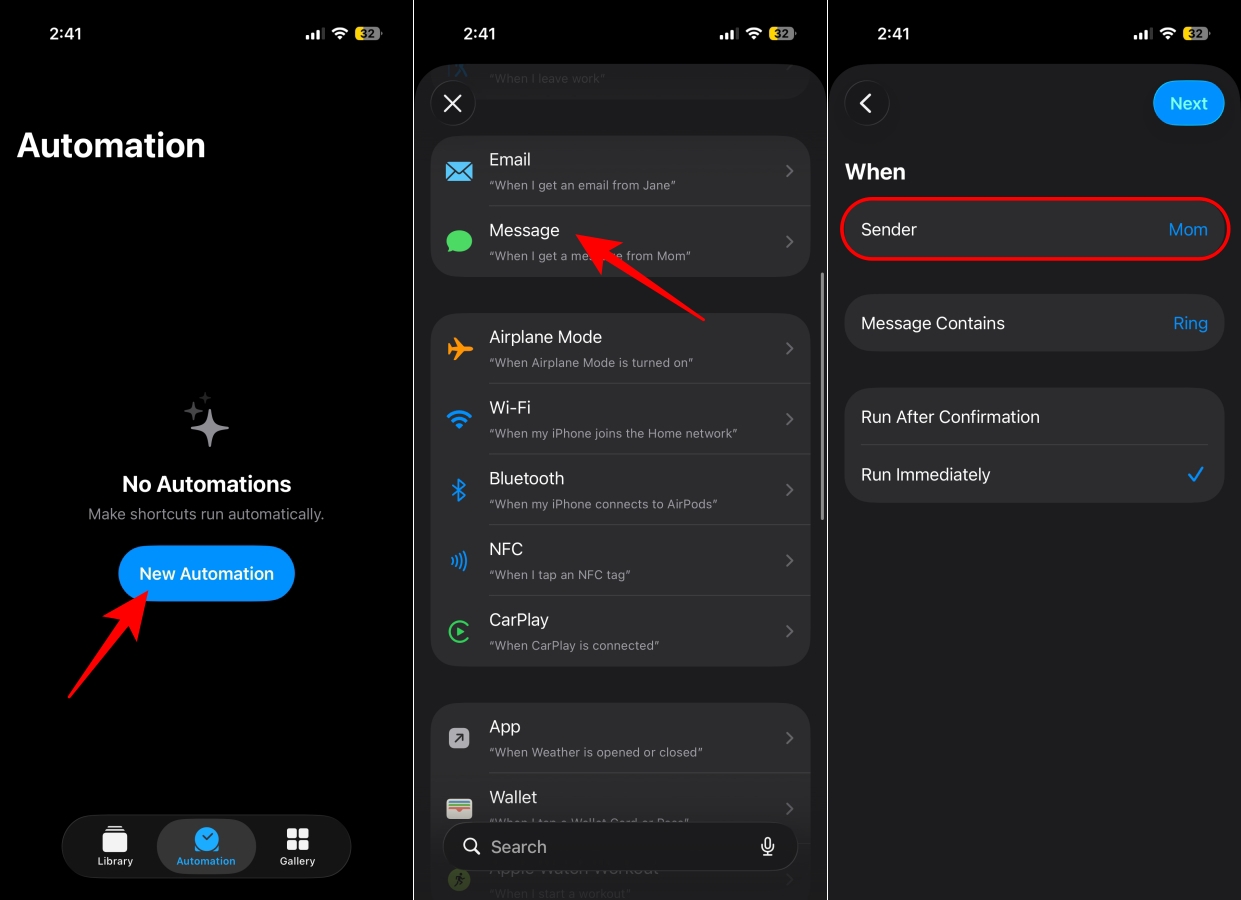
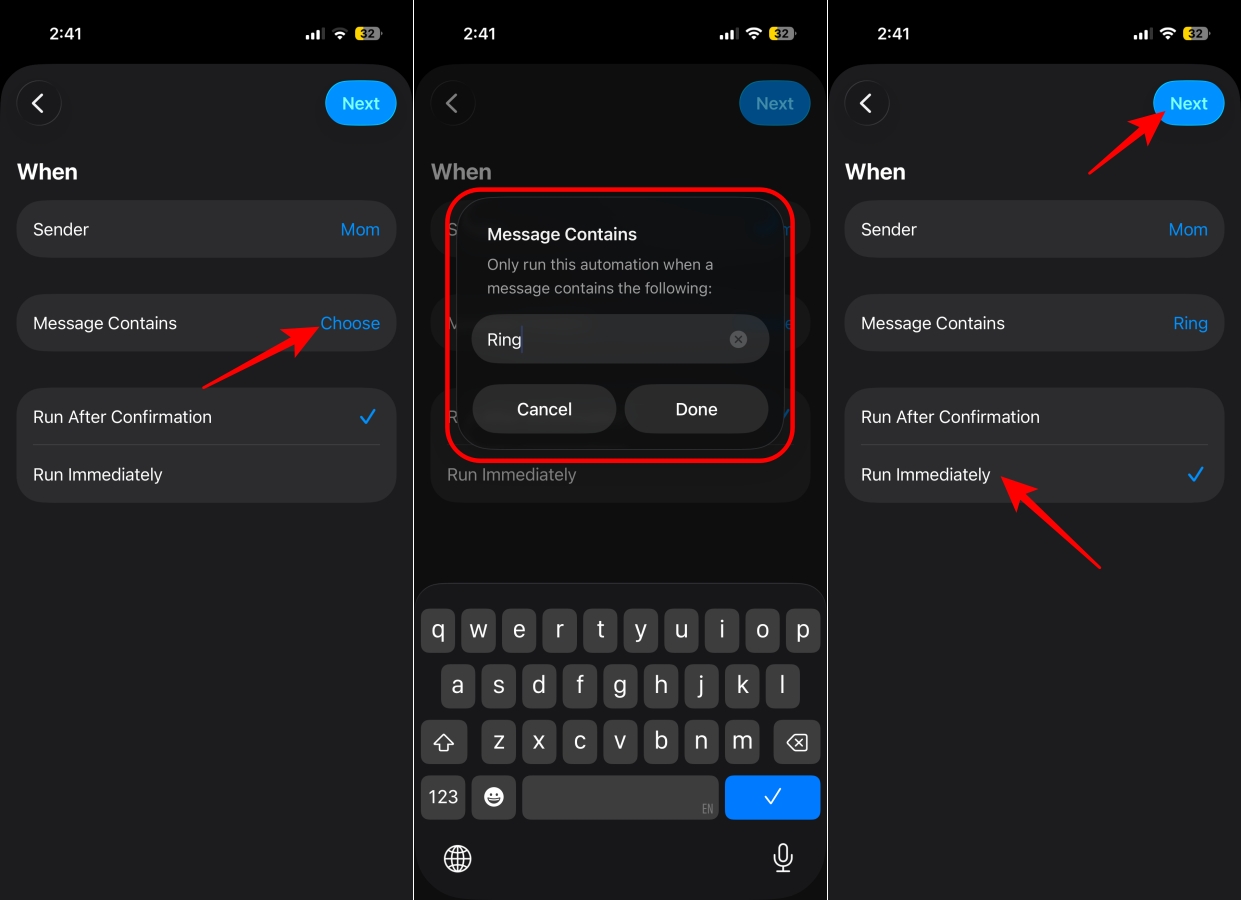
At this point, you’ve told your iPhone exactly which messages should trigger the automation. It won’t run for every text you receive, only when your chosen contact sends the specific keyword.
Now it’s time to decide what happens when the message arrives.
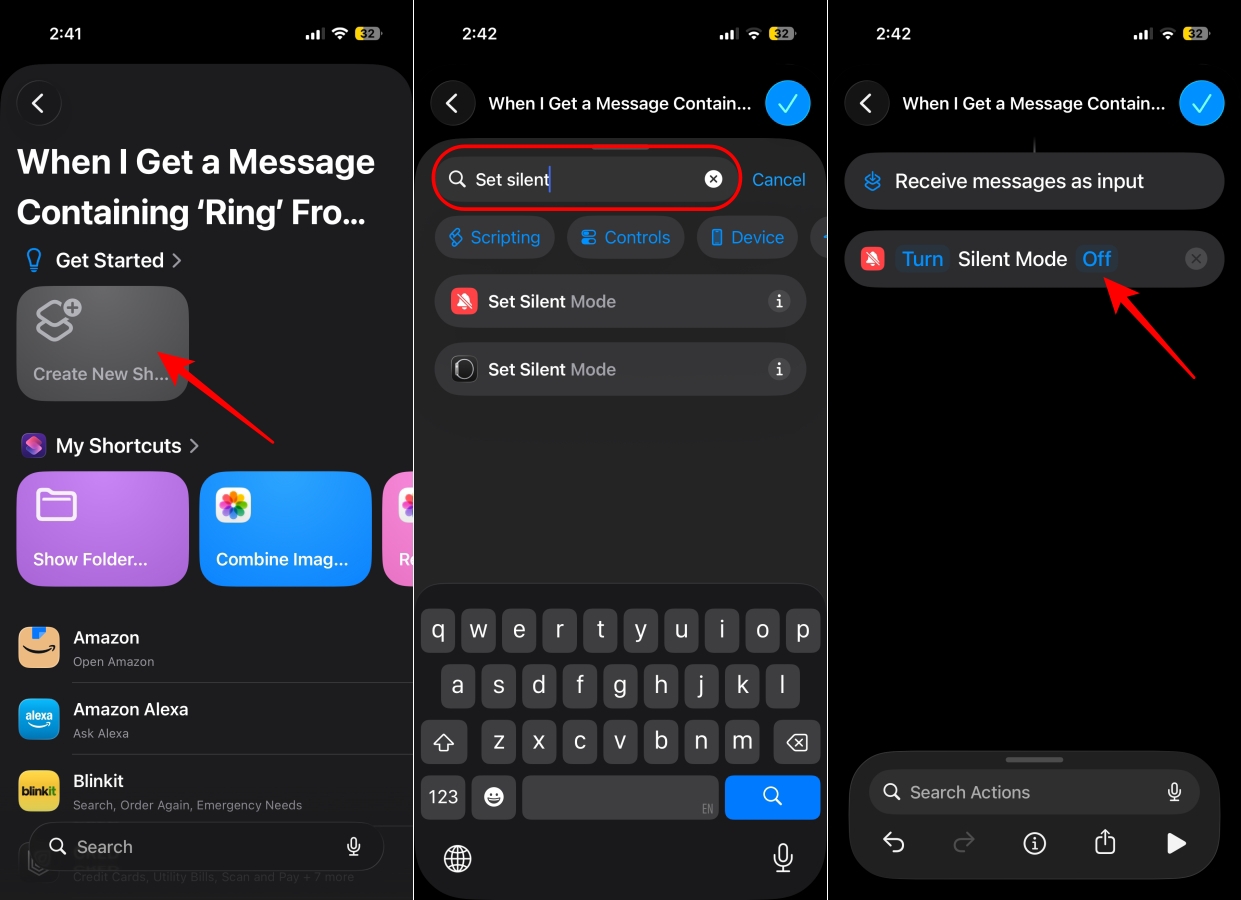
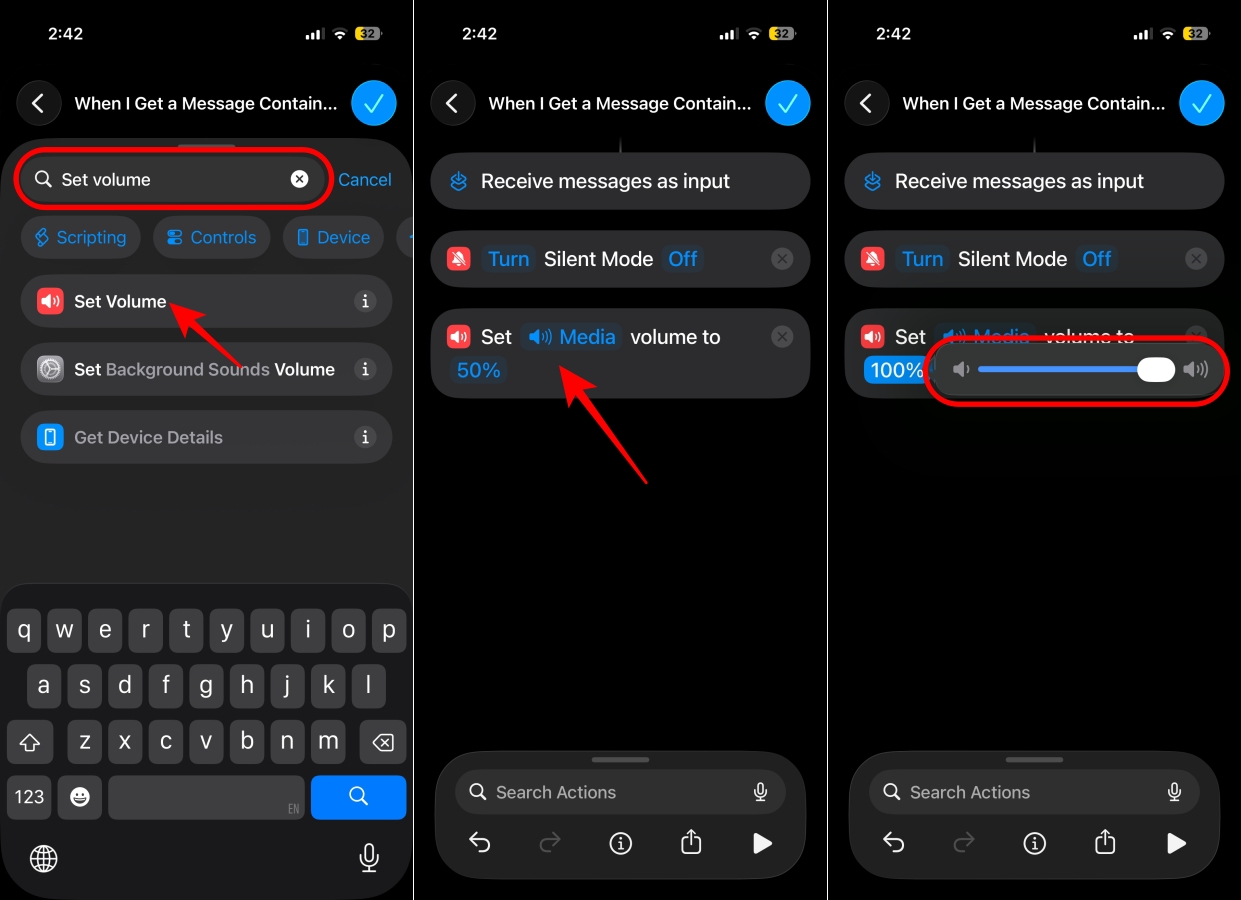
That’s it. Your automation is now ready to use.
If you have an Apple Intelligence-compatible iPhone running iOS 27, the setup becomes even easier. Instead of manually adding each action, you can simply describe what you want the Shortcut to do, and Apple Intelligence can build it for you automatically.
The next time you can’t find your iPhone, simply ask your trusted contact to send the keyword you configured.
As soon as the message arrives, the automation runs automatically.
First, it disables Silent Mode. Then it raises your iPhone’s volume to 100%, ensuring it’s ready to ring at full volume.
From there, all you need to do is call your phone. Instead of quietly vibrating somewhere under a pillow, inside a backpack, or beneath a pile of clothes, your iPhone rings loudly enough for you to locate it within seconds.
The best part is that there’s nothing to remember besides asking someone to send the keyword. Everything else happens automatically.
Although this automation works extremely well, there are a few things worth remembering:
Not necessarily.
Apple’s Find My app is still the best option if your iPhone is lost outside your home, left behind somewhere, or if no one is available to send the trigger message.
Where this Shortcut really shines is when your iPhone is nearby, but you simply can’t see it. Maybe it’s slipped between the couch cushions, landed in the laundry basket, or disappeared under a blanket.
In those situations, automatically disabling Silent Mode and raising the volume can save several minutes of frustrating searching. I also like that this method doesn’t require another Apple device. As long as someone you trust can send the keyword, you’re ready to go.
This is one of those Apple Shortcuts automations that solves a surprisingly common problem with very little effort. It takes only a few minutes to set up, but it can save you a lot of frustration the next time your iPhone mysteriously disappears around the house.
If, like me, you leave your iPhone on Silent Mode all the time, this is one Shortcut I’d genuinely recommend adding. It’s simple, reliable, and one of the fastest ways to find a misplaced iPhone without turning your entire house upside down.
Have you discovered any other useful Apple Shortcuts automations? Share your favorites in the comments below.
You might also like:











