FaceTime Like a Pro
Get our exclusive Ultimate FaceTime Guide 📚 — absolutely FREE when you sign up for our newsletter below.

FaceTime Like a Pro
Get our exclusive Ultimate FaceTime Guide 📚 — absolutely FREE when you sign up for our newsletter below.


Google Chrome Skills is a handy productivity feature that lets you save and reuse your favorite Gemini prompts. Here's how to create Skills, use them effectively, and speed up everyday AI tasks.
 ByVikhyat
If you use AI every day, you’ve probably realized the biggest time sink isn’t waiting for responses. It’s typing the same prompts again and again.
Whether you’re asking Gemini to summarize articles, rewrite emails, extract action items, or simplify technical content, chances are you’ve reused the same instructions dozens of times. Google Chrome now has a feature that solves exactly that problem.
The browser’s Skills feature lets you save your best AI prompts and reuse them whenever you need them. Instead of copying prompts from a notes app or searching through old conversations, you can trigger them directly from Chrome’s Gemini side panel with just a few keystrokes.
Here’s everything you need to know about Google Chrome Skills and how to start using them.
If you’ve ever found yourself typing the same Gemini prompt every morning, Chrome Skills was built for exactly that. Whether it’s asking Gemini to summarize a webpage, clean up an email, or pull action items from a document, you can save those instructions once and reuse them whenever you need them.
Saved prompts appear inside Chrome’s Gemini side panel, so you don’t have to dig through old chats or keep a document full of prompt templates. Just launch the Skill, and Gemini runs the same instructions again on the page you’re viewing or the content you’ve pasted.
If Gemini is already part of your workflow, Chrome Skills can save a surprising amount of repetitive work.
Here are a few reasons why it’s worth using:
Saving a prompt as a Skill only takes a few clicks:
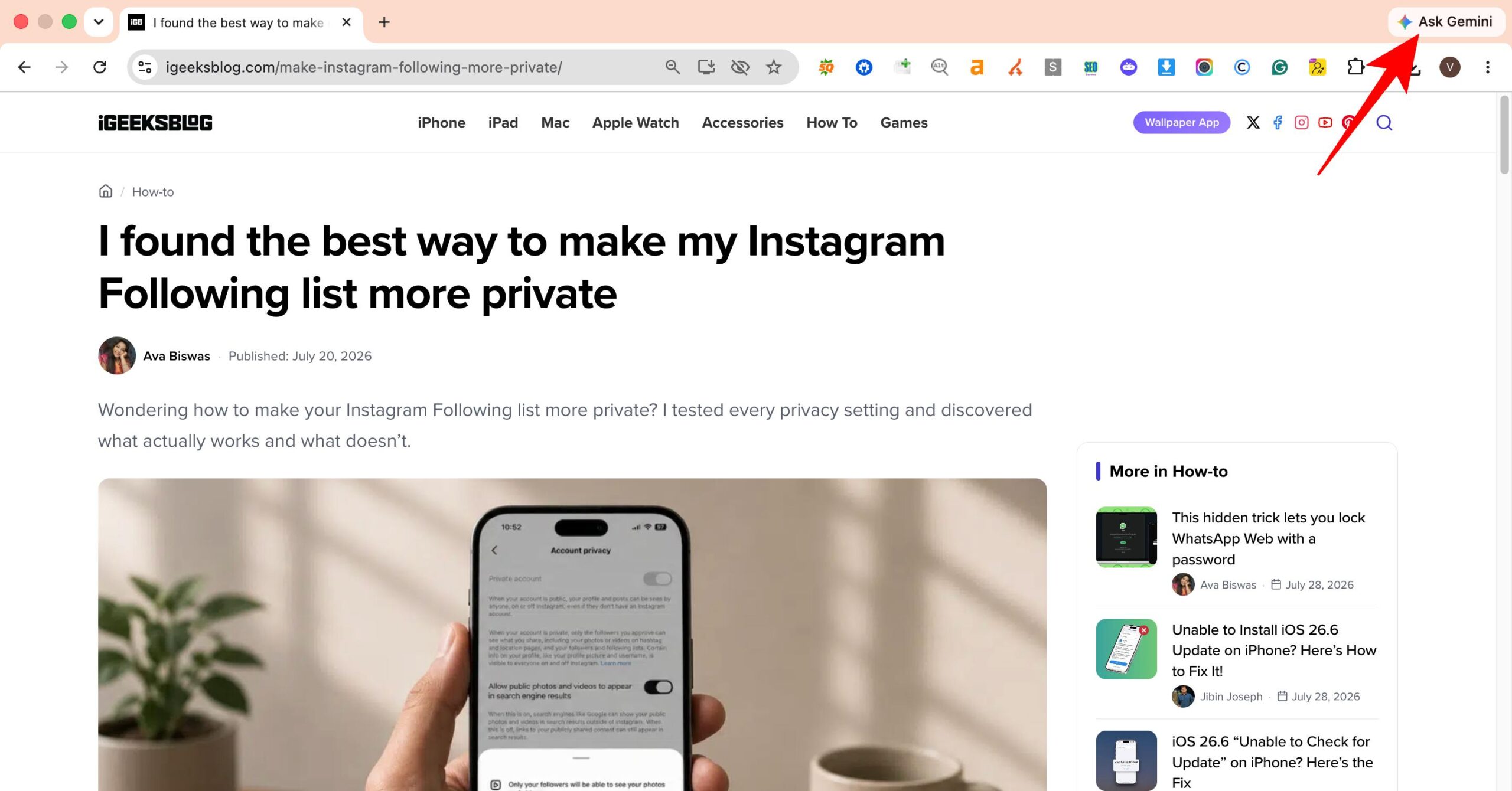
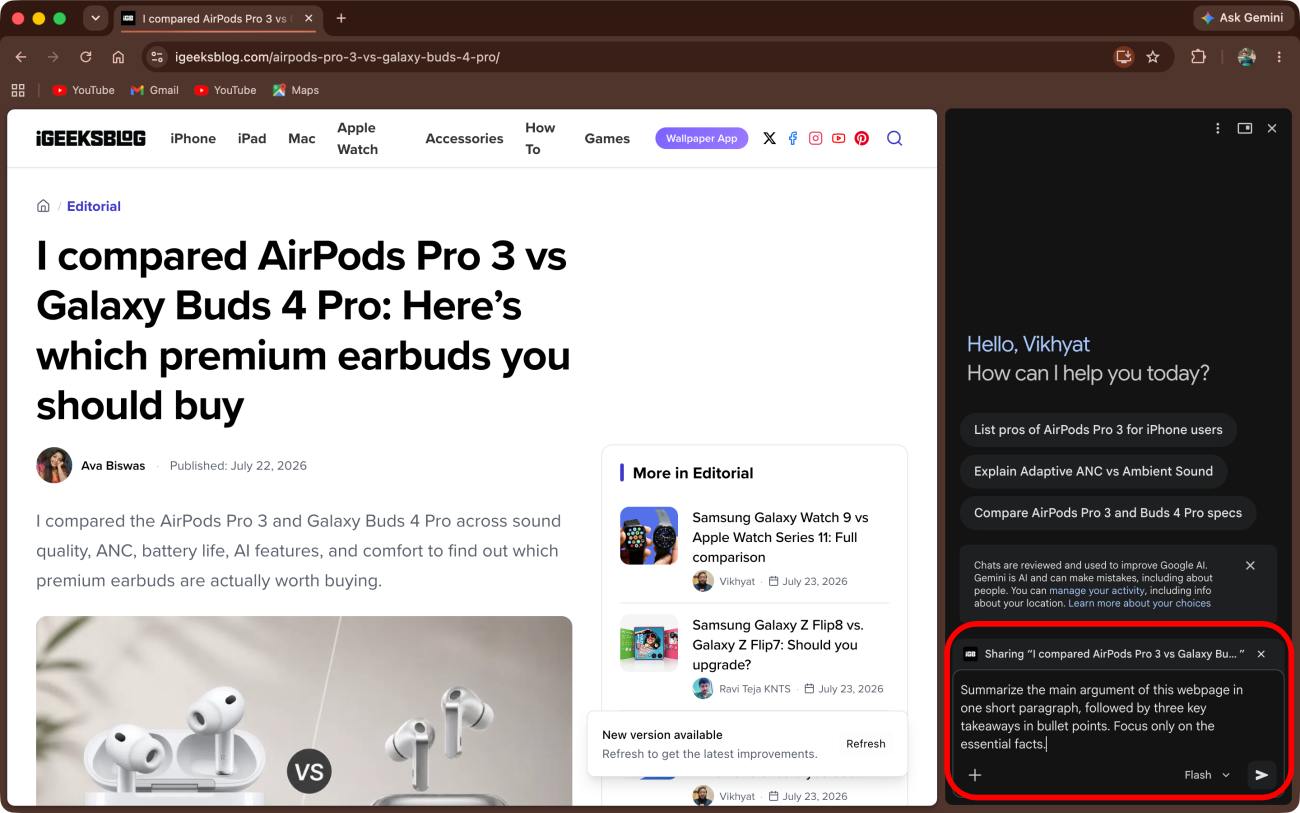
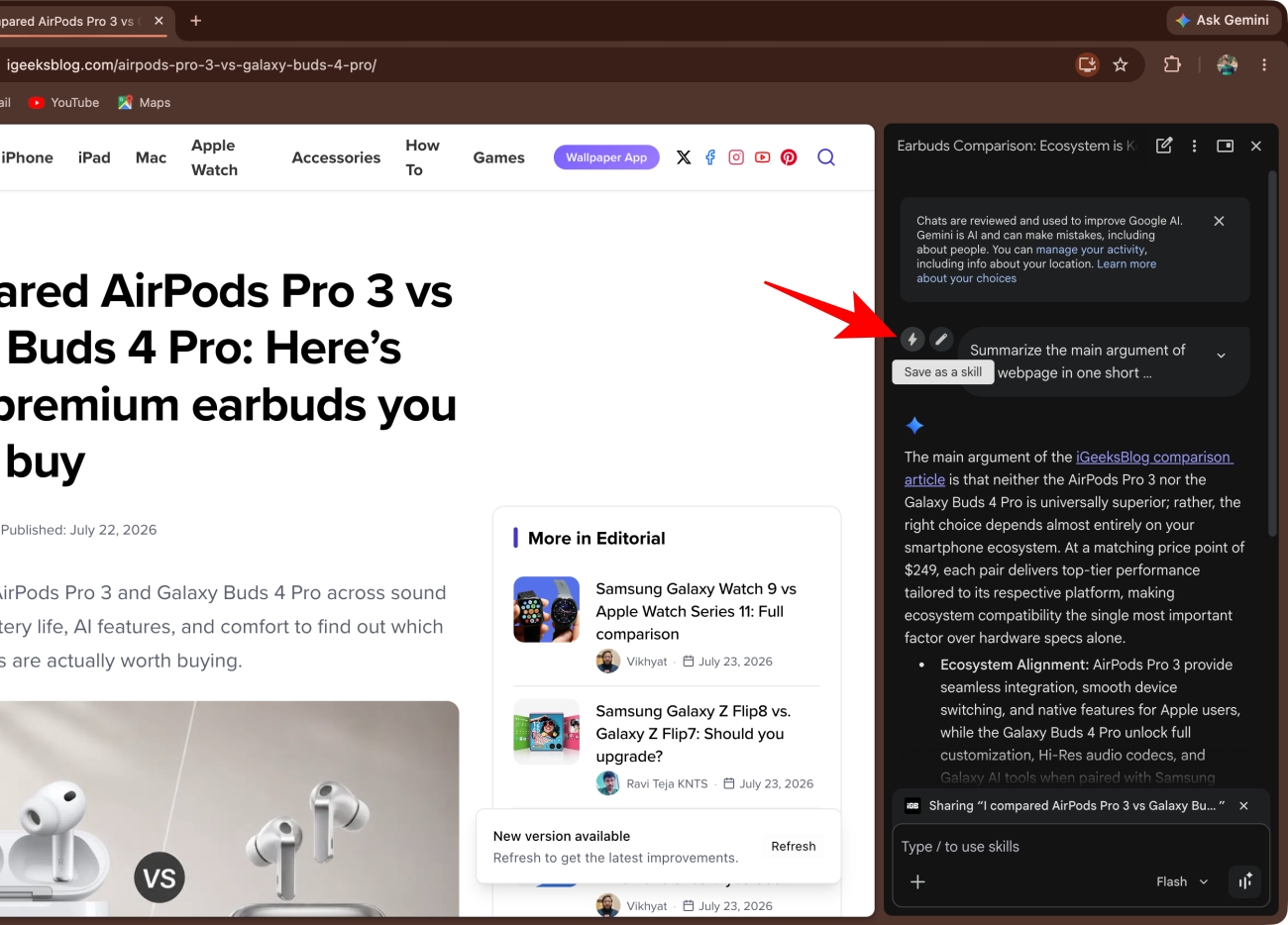
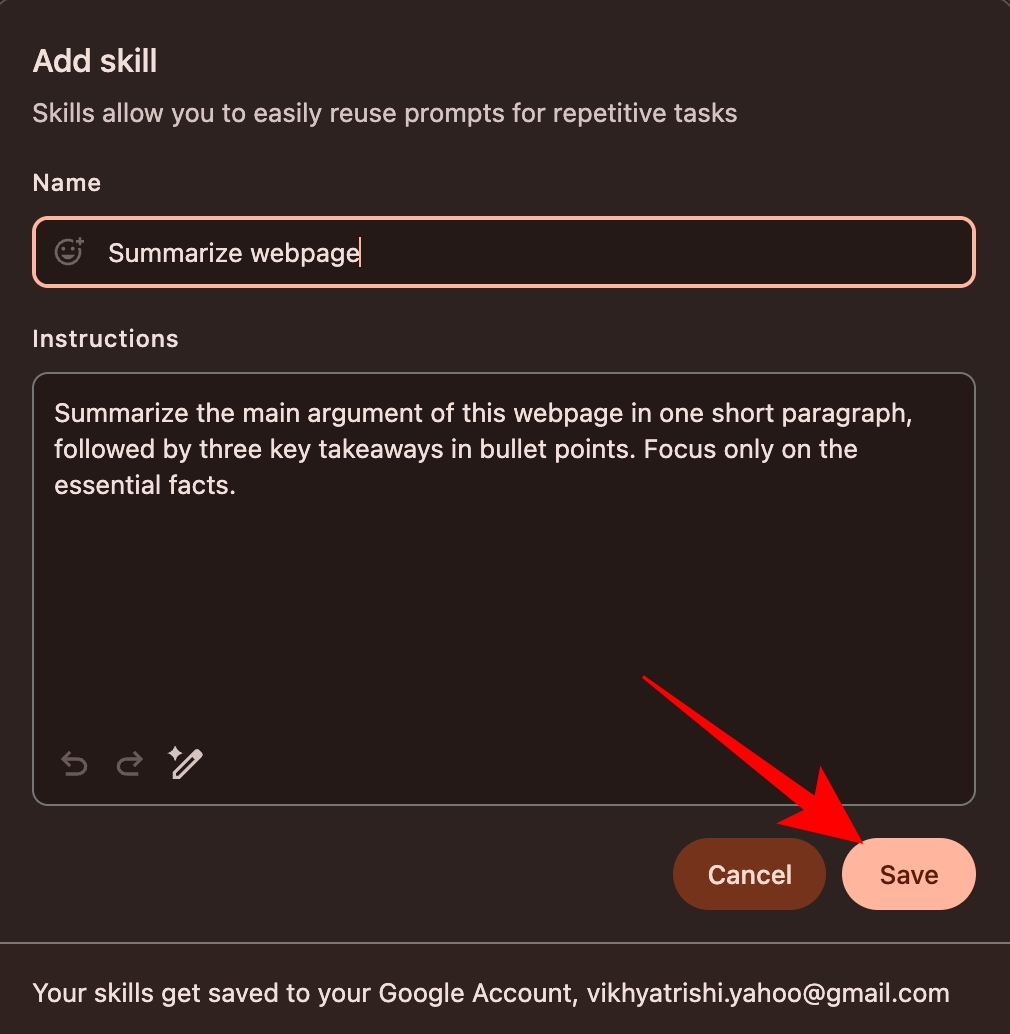
The saved prompt is now available whenever you need it.
Using a saved Skill is even easier than creating one.
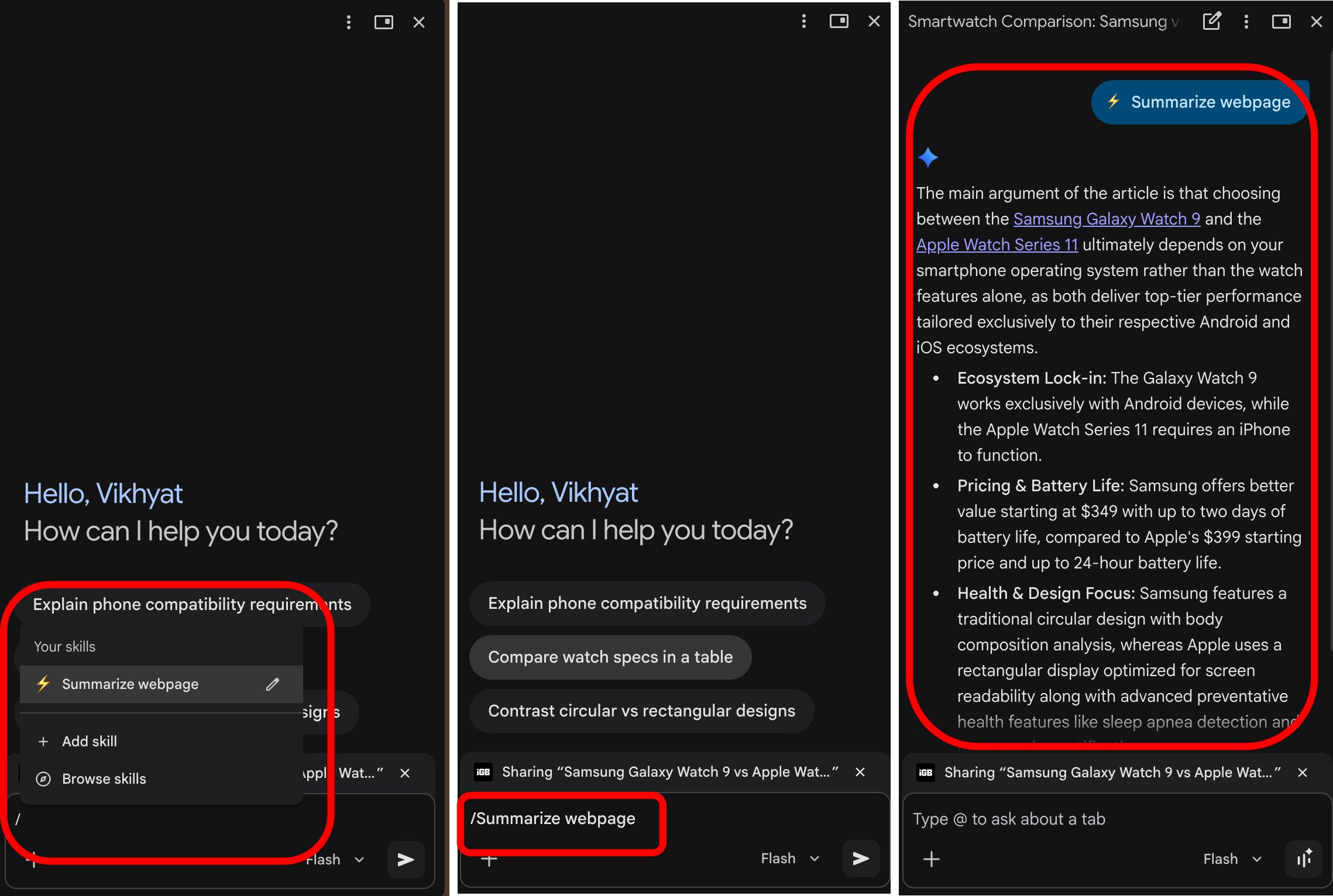
Once done, Chrome will automatically insert the saved prompt and run it.
Not every prompt deserves to become a Skill. The best ones are the tasks you perform repeatedly.
Summarize long articles
Summarize the main argument of this webpage in one short paragraph, followed by three key takeaways in bullet points. Focus only on the essential facts.
This works well for news articles, research papers, documentation, and lengthy blog posts.
Polish emails
Rewrite this email to improve grammar, clarity, and flow while keeping it professional, polite, and concise.
Perfect for replying to clients, coworkers, or recruiters without spending extra time polishing every message.
Extract tasks and deadlines
Read this document and identify all action items, deadlines, responsibilities, and deliverables. Present everything as a checklist.
Useful for meeting notes, project briefs, contracts, and shared documents.
Explain complex topics
Explain this topic in simple language using everyday examples. Avoid technical jargon.
Ideal when you’re reading documentation or learning something unfamiliar.
Make complex content easier to understand
Rewrite this content so someone with no background knowledge can easily understand it. Keep sentences short and conversational.
Helpful for educators, technical writers, marketers, and content creators.
If you can’t find Chrome Skills yet, check these requirements:
Also remember that Skills are tied to Chrome’s Gemini integration. They won’t automatically work inside ChatGPT, Claude, Perplexity, or other AI assistants.
Chrome Skills is useful for anyone who regularly uses Gemini in Chrome, especially if you find yourself repeating the same prompts throughout the day.
Even if you don’t fit into one of these categories, Chrome Skills can save time whenever you rely on the same Gemini prompts again and again.
Chrome Skills doesn’t look like a major feature at first, but it can save a lot of time if you regularly use Gemini. Once your favorite prompts are saved, you can reuse them in seconds instead of typing them from scratch every time.
What’s the one AI prompt you use every day? Share it in the comments below.
Related articles worth reading: