
FaceTime Like a Pro
Get our exclusive Ultimate FaceTime Guide 📚 — absolutely FREE when you sign up for our newsletter below.

FaceTime Like a Pro
Get our exclusive Ultimate FaceTime Guide 📚 — absolutely FREE when you sign up for our newsletter below.


Safari lets you choose the search engine that fits your browsing habits. Here’s how to change it on iPhone, iPad, and Mac, including Private Browsing and troubleshooting tips.

 ByAyush Patel and Ava Biswas
Your search engine choice shapes privacy, relevance, and even sustainability. With iOS 27, changing Safari’s default across your Apple devices is simple and puts you in control. No need to install another browser!
Whether you lean toward DuckDuckGo to leave fewer digital trails, use Ecosia to plant trees while browsing, or stick with Google because the results align with real-world work, this guide shows you the exact steps on iPhone, iPad, and Mac. I’ll also cover setting a different engine for Private Browsing, as well as quick fixes when Safari refuses to adhere to your choice.
By the end of this walkthrough, you will be able to control Safari search across all your Apple devices. No surprises—just the engine you picked.
Before changing the setting, it’s worth knowing what it affects.
When you change Safari’s default search engine, it is used when you type a search query into Safari’s Smart Search field. That choice controls suggestions and the results page you land on.
This doesn’t mean every search feature on your iPhone suddenly switches to the same provider. Spotlight Search, swipe down on an iPhone or iPad, or press Command + Space on a Mac, and Siri continues to use its own blended results, regardless of Safari’s pick.
So, I think of it this way: you’re customizing Safari’s search engine, not the device’s entire search capabilities. Also, changing Safari’s search engine doesn’t turn Safari into a different browser. Your other browsers, such as Chrome or Firefox, have their own search settings.
Safari typically includes five main search engine options, although availability can vary by region. You will find them in Safari Settings on iPhone, iPad, and Mac.
Each engine has distinct strengths, so choose based on priorities, whether that’s comprehensive results, privacy, environmental impact, or features you prefer. Simple.
Changing your search engine on iOS is straightforward and takes just a few taps:
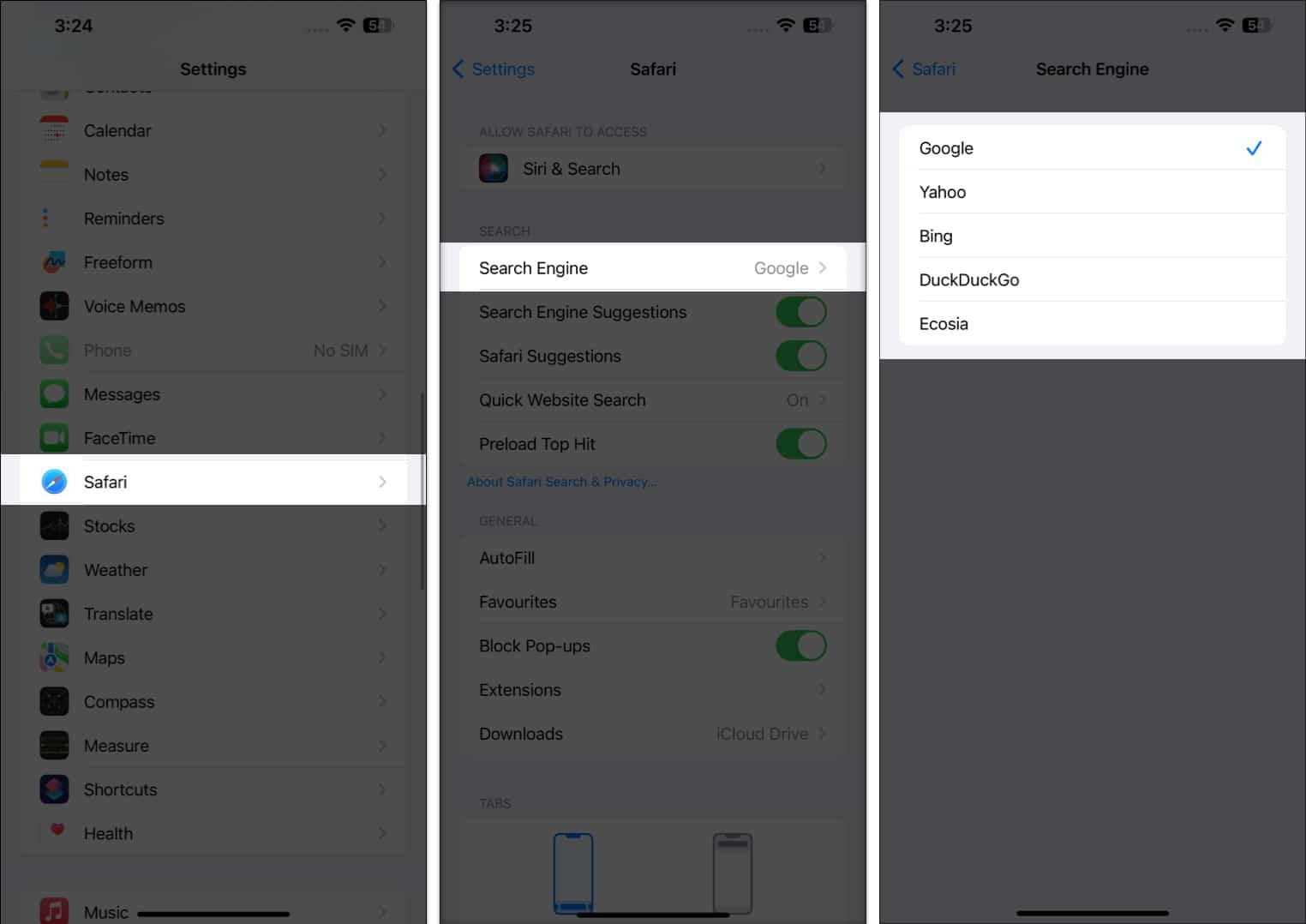
Your changes are saved automatically; there’s no need to tap “Done” or confirm anything. The next time you search in Safari, you will see results from your chosen engine.
The process on Mac is equally simple:
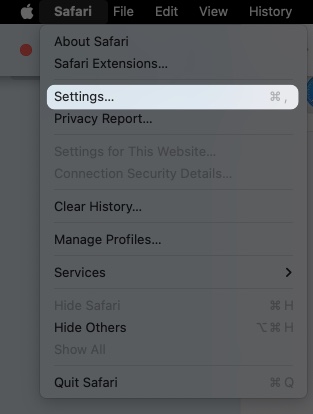
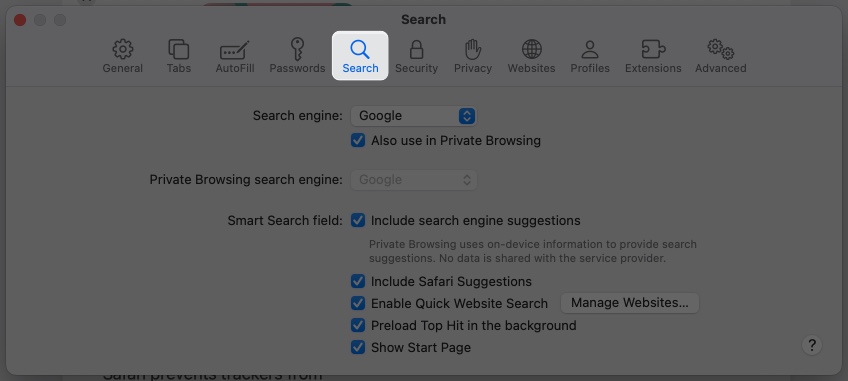
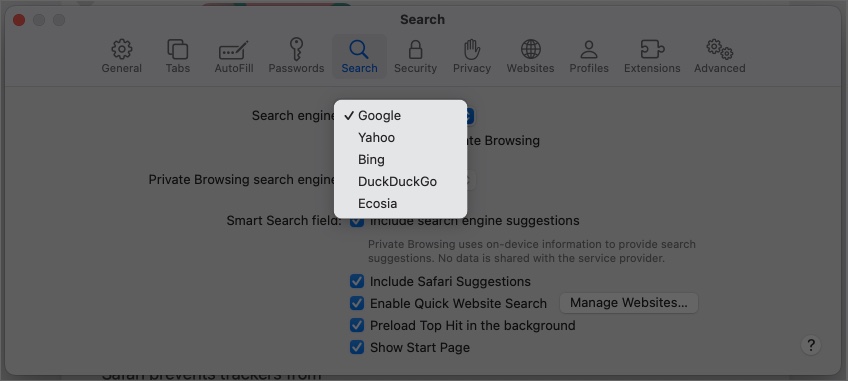
Your selection is applied immediately across all Safari windows and tabs. If the menu is grayed out, check Screen Time or a managed profile.
Note: Alternatively, you can click the search icon from the search bar to switch between different search engines in a single click.
This is one of the more useful Safari settings if you don’t want your normal and private searches going through the same search provider. This is perfect if Google’s wide results help day-to-day, and DuckDuckGo’s privacy matters for sensitive topics.
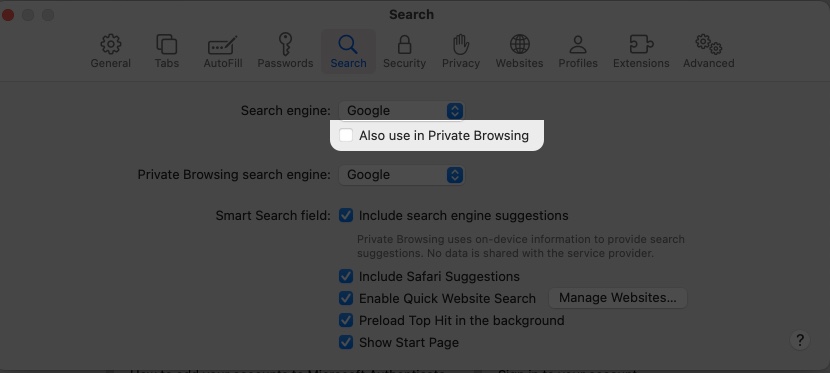
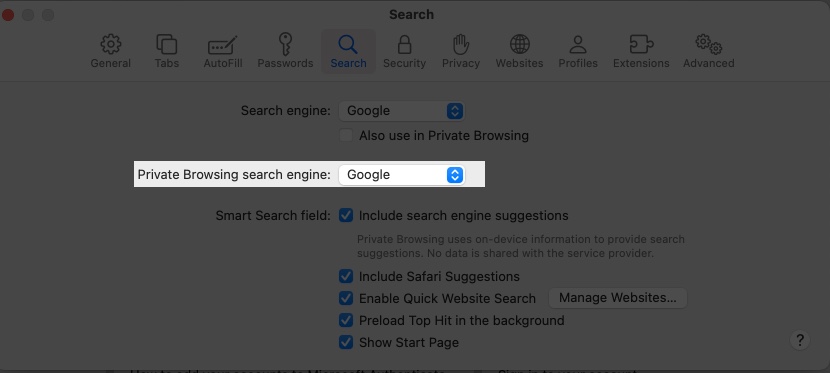
When you make this switch, Safari will use the search engine you chose in Private mode the next time you browse the web.
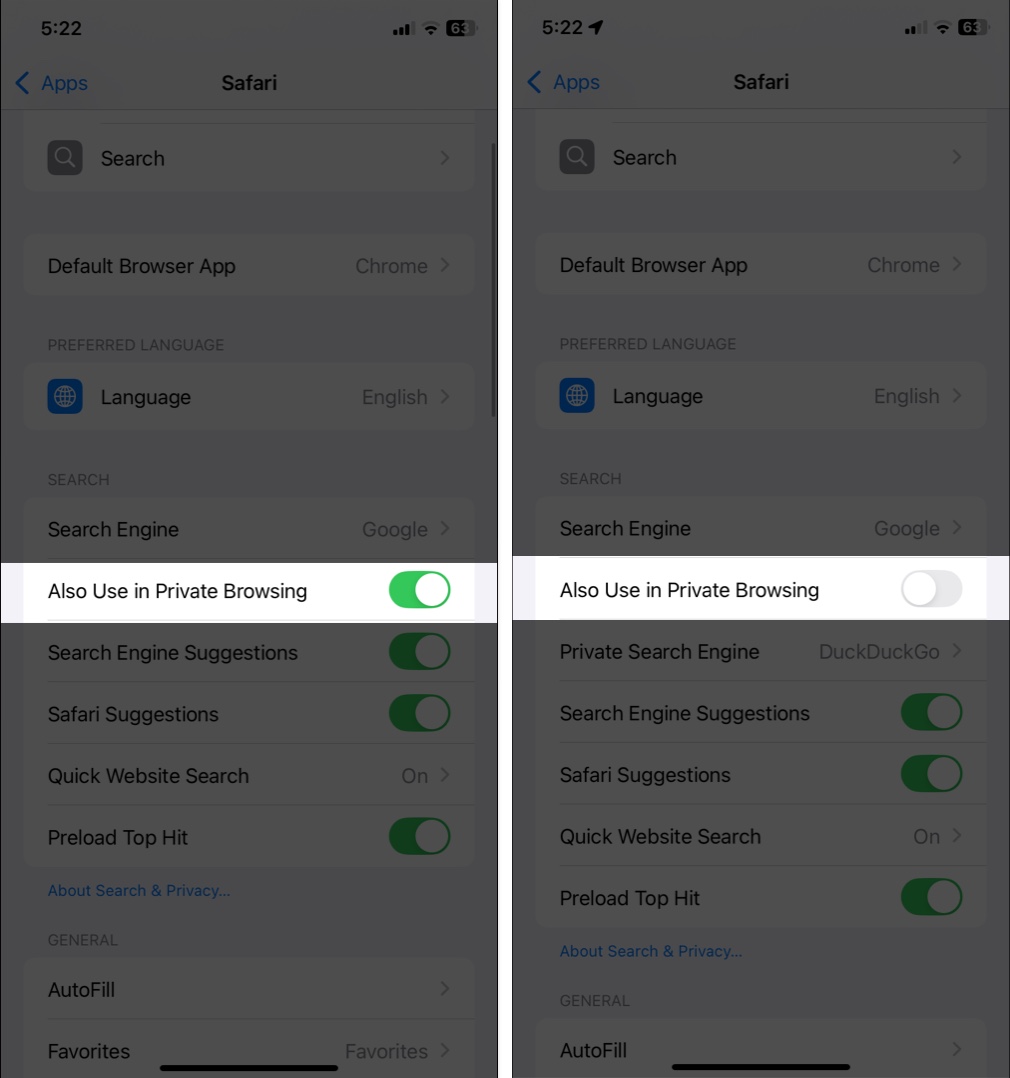
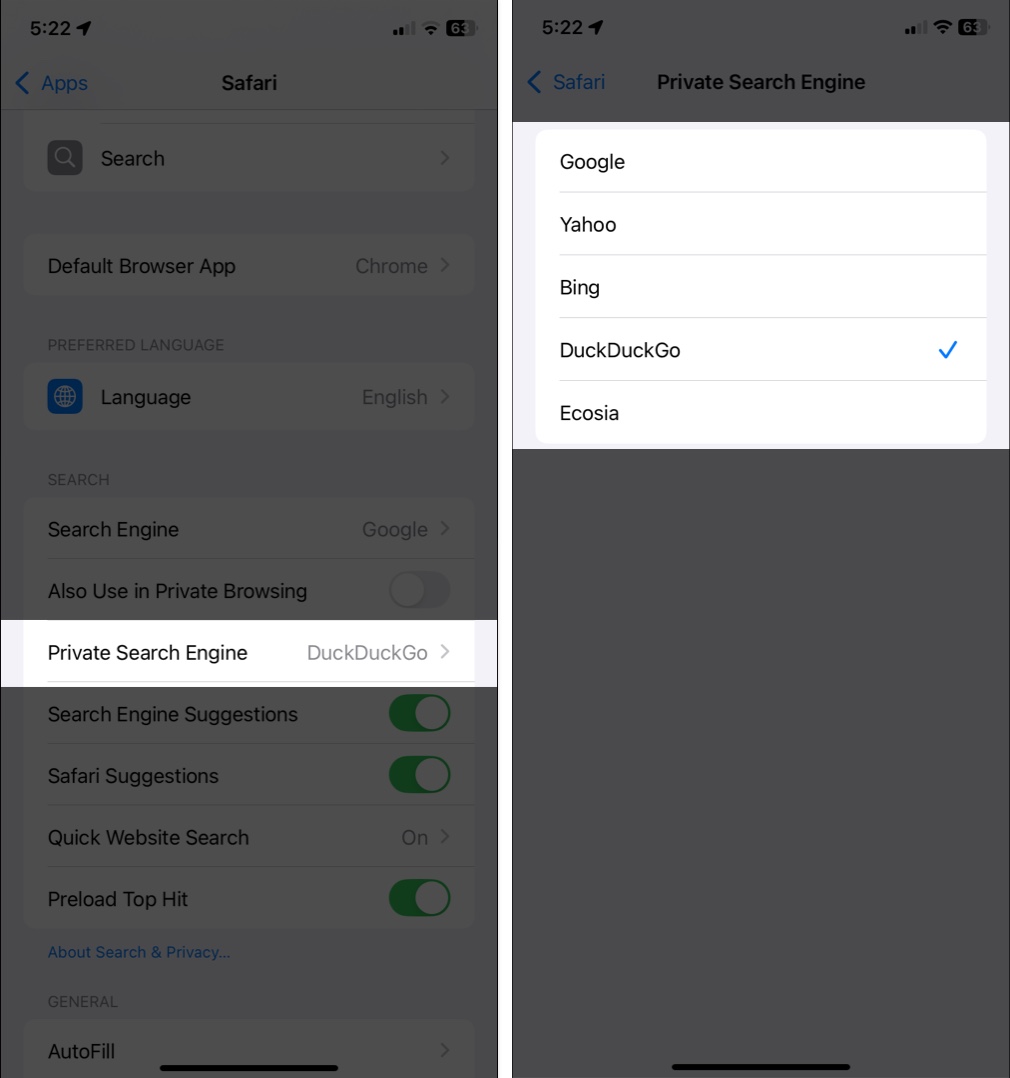
Once you have selected your preferred search engine, Safari will automatically use it whenever you open a new Private Browsing tab.
Safari Profiles, like “Work” and “Personal”, keep contexts separate, but there is a key limitation. The default search engine typically applies across all profiles.
You cannot assign different default engines per profile, although you can search with different engines inside each profile when needed. Quick workaround: keep each engine’s homepage in Favorites and jump as required. This keeps profile-specific browsing tidy while search behavior stays consistent.
If changing the engine is not working, these are the usual culprits and fixes.
This almost always points to Screen Time limits. Annoying, but fixable:
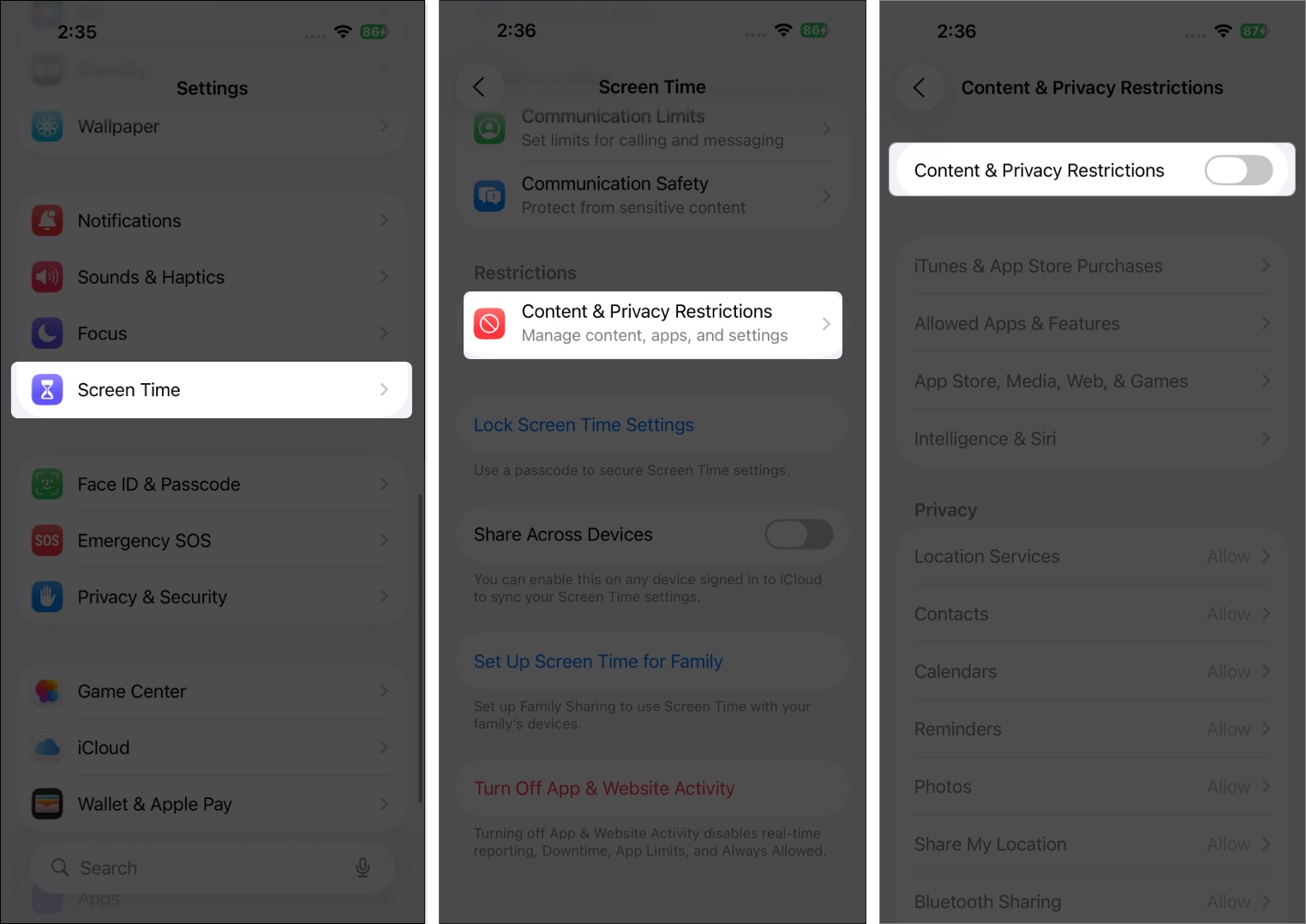
If your iPhone, iPad, or Mac is managed by a school or company, policies may block changes. Contact your IT team if you need this adjusted.
Some engines are not available in every country due to local regulations or licensing requirements. The list you see is what is available in your region. If you want another provider, bookmark its homepage and search from there.
Troubleshooting common issues in the Safari browser can be a daunting task. To make things easier, we have compiled some helpful tips and tricks for the best Safari experience. Below are a few other hacks:
I don’t think there is one search engine that makes sense for everyone. After using different search engines, I would choose based on what I actually care about when searching.
If you want the search experience you’re already familiar with, you might stick with Google. If privacy is more important, consider DuckDuckGo. If you want to try something different, Bing or Ecosia are easy alternatives. The nice thing is that you’re not locked into the decision.
So, test a few engines and notice what works best for you!
FAQs
On a Mac, open Safari, select Settings, then choose Search, and use the “Private Browsing search engine” dropdown. On your iPhone or iPad, go to Settings > Safari > Private Search Engine, located just below the primary Search Engine setting, and select your preferred option.
This usually means Screen Time restrictions are active. Go to Settings, Screen Time, Content & Privacy Restrictions, adjust Web Content or turn the switch off.
Safari typically offers Google, DuckDuckGo, Ecosia, Bing, and Yahoo, although availability varies by region.
No. This only changes Safari’s address bar, while Spotlight and Siri continue to use their own systems.
No. The search engine setting applies across all profiles, although you can still visit a different engine’s homepage or use a bookmark within each profile when needed.
It depends on your organization’s device management policies. Managed devices may block this setting.
Clear Safari history and website data in Settings, Safari, Clear History and Website Data, then force quit and relaunch Safari. On Mac, Safari’s Clear History feature also works.











