
FaceTime Like a Pro
Get our exclusive Ultimate FaceTime Guide 📚 — absolutely FREE when you sign up for our newsletter below.

FaceTime Like a Pro
Get our exclusive Ultimate FaceTime Guide 📚 — absolutely FREE when you sign up for our newsletter below.


Want to keep your phone number private when making calls? Here’s how to hide Caller ID on iPhone, including options for all calls, single calls, and different carriers.
I sometimes want to make a phone call without handing over my phone number, especially when I’m contacting a business, responding to an unfamiliar listing, or simply don’t want the person to call me back. If you are looking for the same, the good news is that iPhone gives a simple way to hide your Caller ID.
This guide explains how to hide your Caller ID on an iPhone running iOS 27, including the settings path, single-call options, carrier limitations, and how to turn Caller ID back on.
Hiding your Caller ID masks your phone number, so the person you’re calling sees an incoming call banner or a full-screen call with a “No Caller ID”, “Private,” or “Unknown” label. No name or number will be displayed. Thus, they won’t be able to know who called them.
People hide Caller ID for several reasons:
Whatever your reason, iOS 27 offers built-in tools to hide your number for all outgoing calls or a single call.
This is the easiest and most common way to hide your number. Once enabled, every call you make will display “No Caller ID.”
How to turn off your Caller ID in iOS 27:
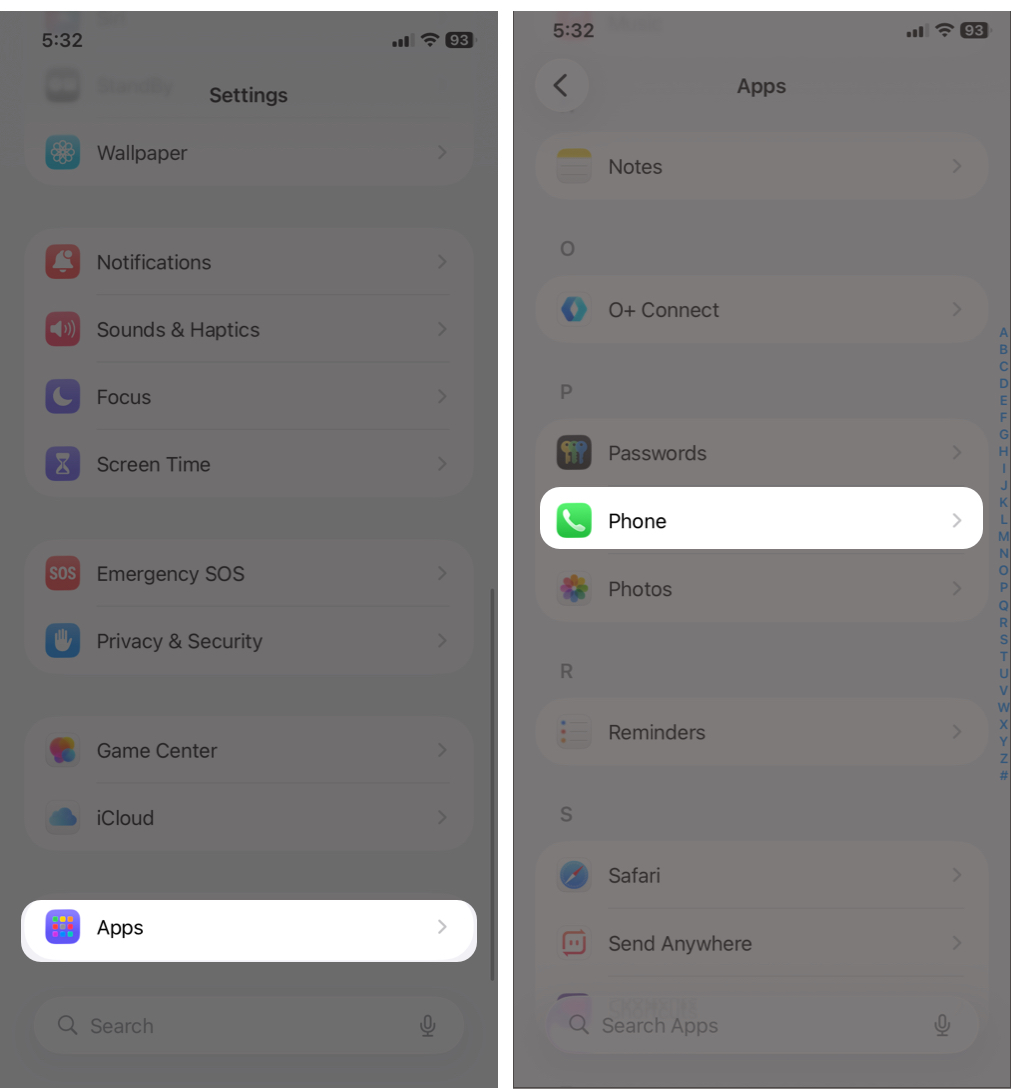
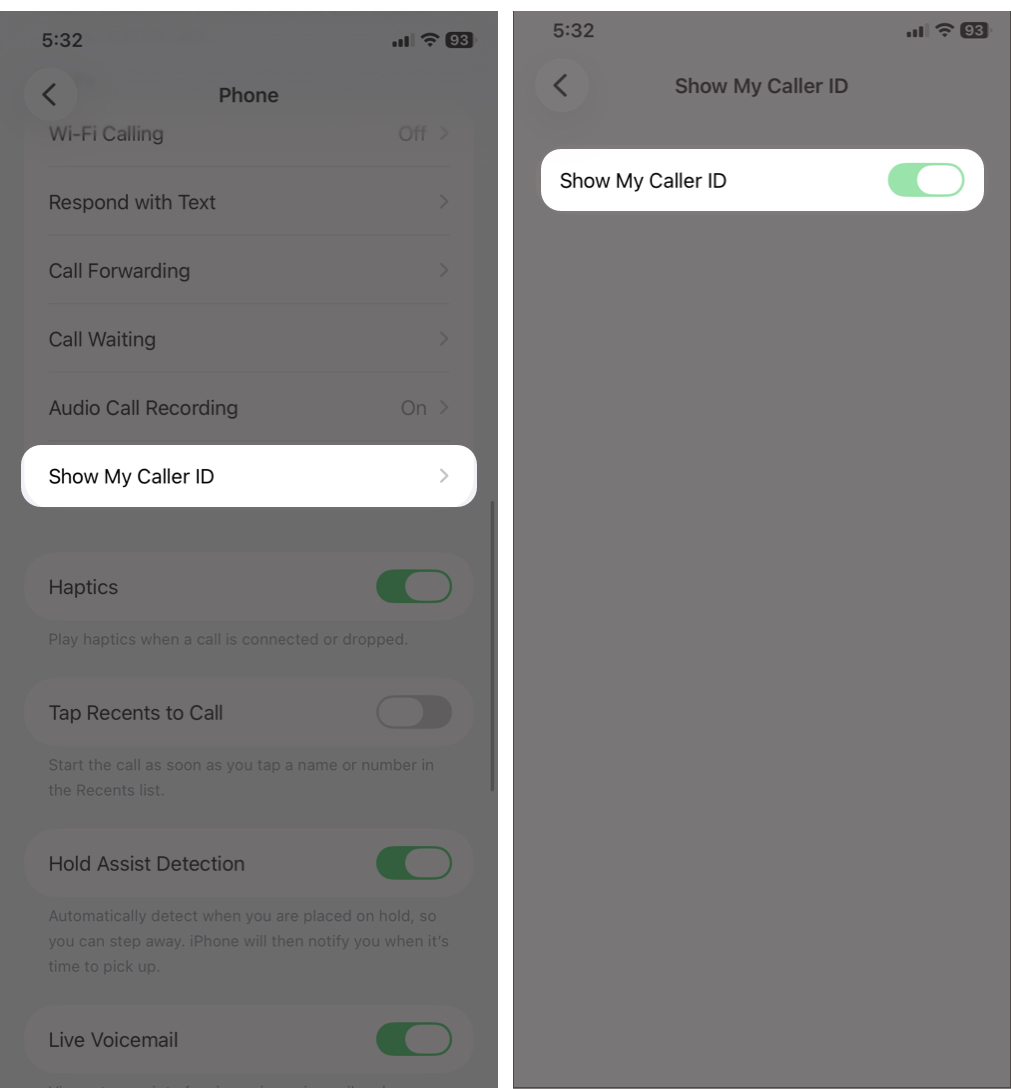
When this switch is off, your number stays hidden for all outgoing calls unless you intentionally reveal it (more on that later).
Note: Some carriers don’t allow Caller ID disabling systemwide. If the toggle is missing or grayed out, your carrier may require you to use a code (see Method 2) or contact carrier support.
If you want to reveal your number normally but hide it for a single call, iOS supports this via a carrier prefix. It temporarily blocks Caller ID for one outgoing call.
The important part here is that the code isn’t universal. It depends on your country and carrier.
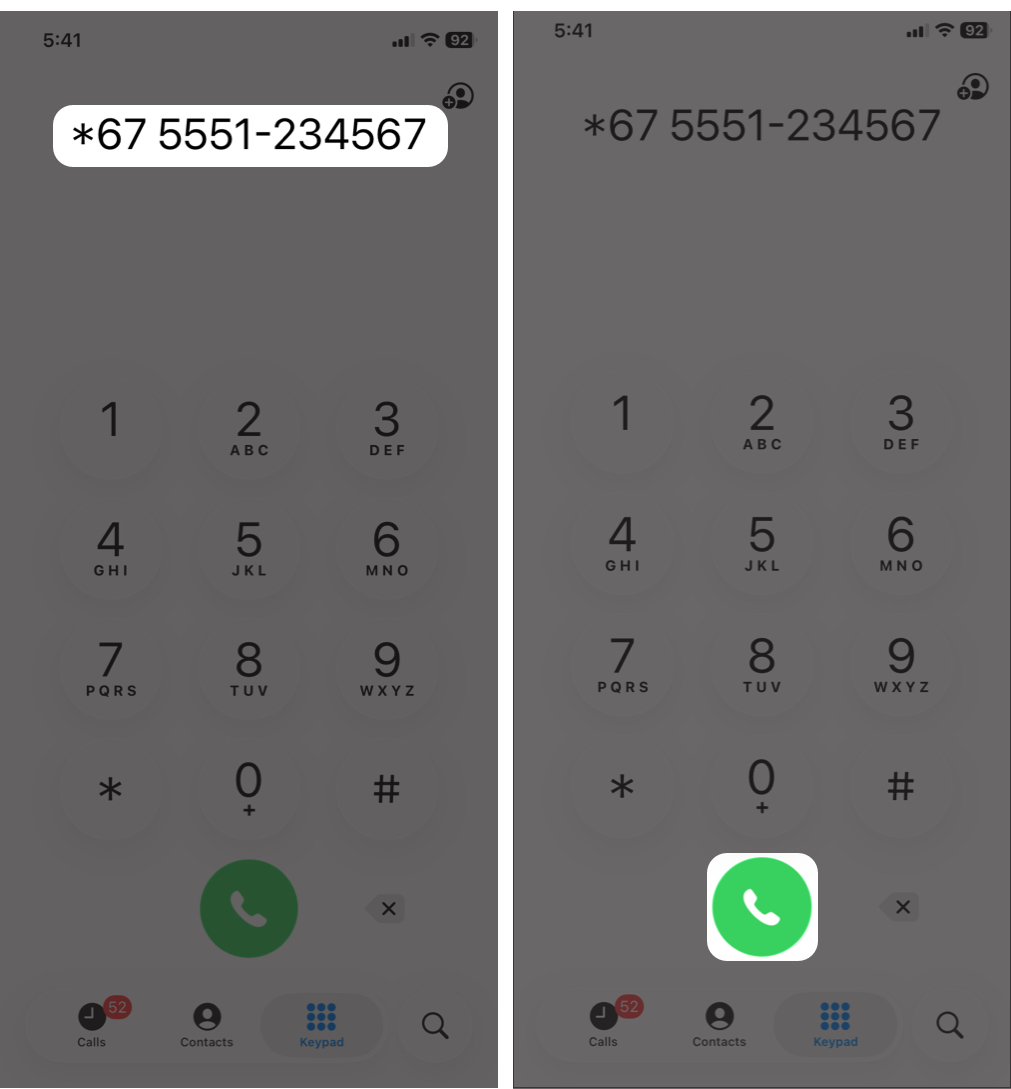
The person you’re calling will see No Caller ID, whereas your number is visible to others.
If you use other US carriers, stay in European countries, or travel to countries such as Australia, South Africa, Canada, or India, the code to hide Caller ID is #31#. For South Korea, it is *23#, and for the United Kingdom and Ireland, it is 141. Check the code for your country here.
This is ideal when:
If you want total privacy without relying on settings or prefixes, your mobile carrier can disable your Caller ID at the account level. Also, this method is the only way if your carrier doesn’t support short codes.
What carrier blocking does
Some carriers provide Calling Line Identification Restriction (CLIR) for free; others may charge a small fee. You need to enable this option in the carrier’s official app or on its website.
For Verizon, you will have to sign in to your account. Next, under Block Services or Additional Services, you will find the Caller ID option. From here, you can hide it.
For Sprint, sign in to your carrier account. Next, select your phone, then click Change my service > Set up your phone > Block Caller ID.
Note: AT&T and T-Mobile allow you to use the code or the iPhone Settings app to hide the caller ID.
If the app or website method (or the first two methods) does not work, contact your carrier’s customer care via phone, email, or in-store and ask for help blocking the caller ID.
Even when Caller ID is off, there will still be some instances where your number will show.
Caller ID may still show if you call:
These systems override privacy settings for safety or verification reasons.
If you want your phone number to show normally:
Hiding Caller ID on an iPhone is fast, easy, and even adaptable to your needs. You can make your calls totally private or hide them for just a single call. And you have multiple options that work reliably. If you liked this guide, check out more comprehensive iPhone tips and tricks.
FAQs
No. It prevents your number from being displayed through normal Caller ID, but your carrier still knows which number placed the call. Certain emergency or specialized services may also handle caller information differently.
Yes. Caller ID hiding only affects voice calls, not SMS or iMessage.
No. FaceTime has separate Caller ID controls. You can choose whether your phone number or Apple Account email address is used for FaceTime Caller ID in Settings > Apps > FaceTime.
Most countries support Caller ID blocking, but availability varies by carrier.
Read More:












