FaceTime Like a Pro
Get our exclusive Ultimate FaceTime Guide 📚 — absolutely FREE when you sign up for our newsletter below.

FaceTime Like a Pro
Get our exclusive Ultimate FaceTime Guide 📚 — absolutely FREE when you sign up for our newsletter below.


Gboard adds glide typing, search, and translation to the iOS keyboard. Here is how to install it, grant full access, set it as your keyboard, and remove it if you change your mind.
Do you know you can boost your iPhone’s productivity just by switching to a Google Gboard keyboard? Here, I will share how to add Gboard to your iPhone and iPad and use it properly. So, say goodbye to the mundane and embrace a dynamic communication method.
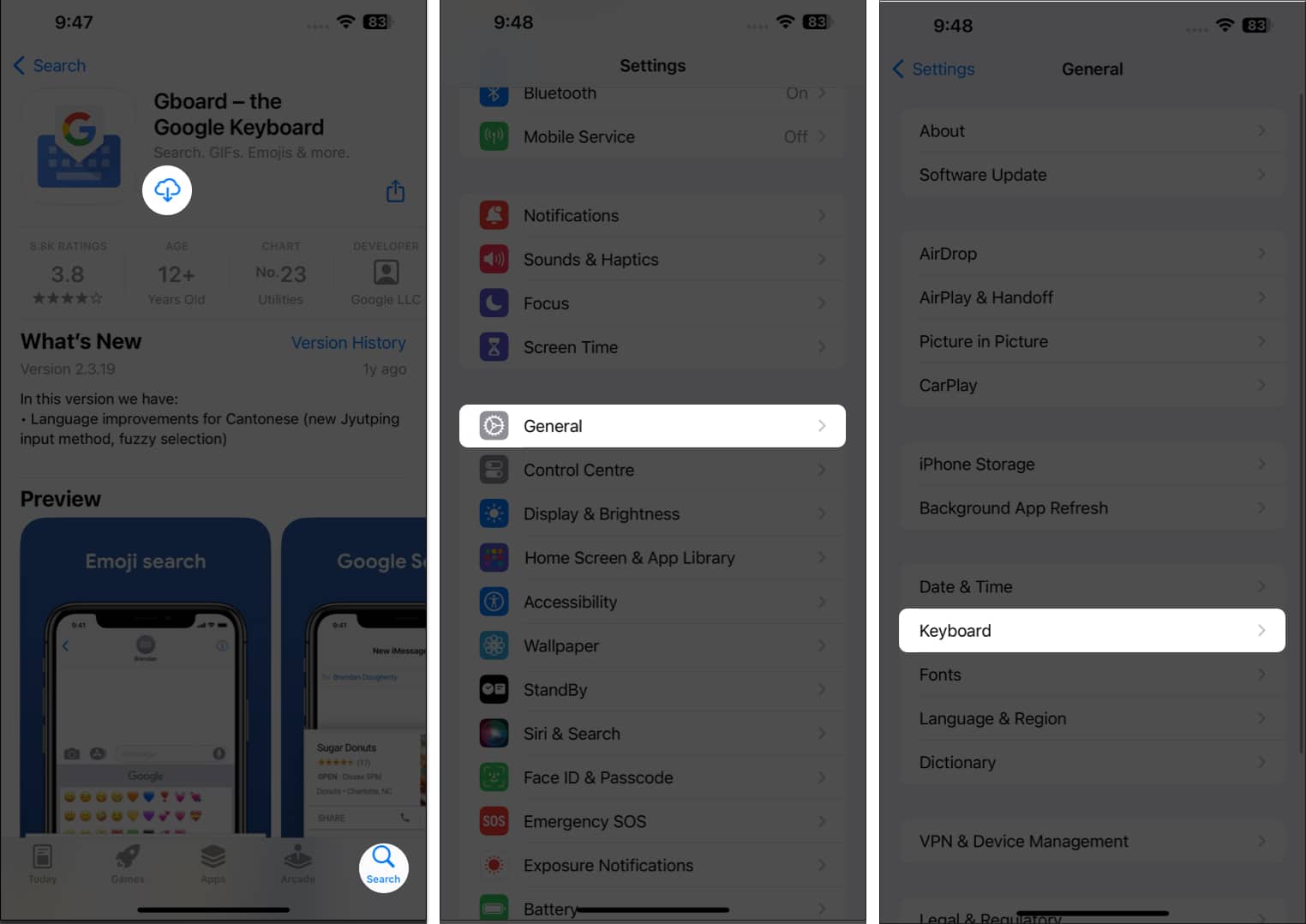
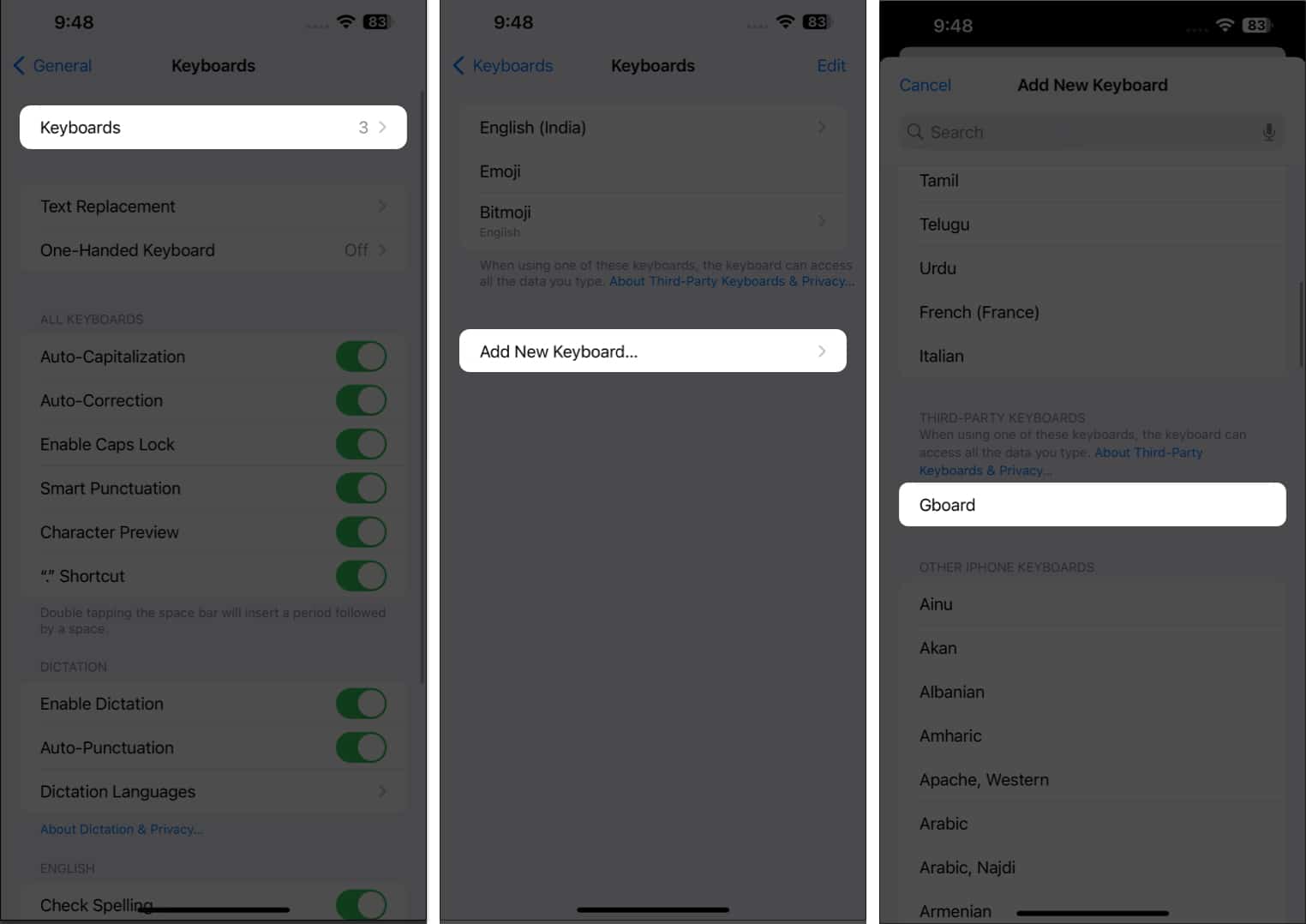
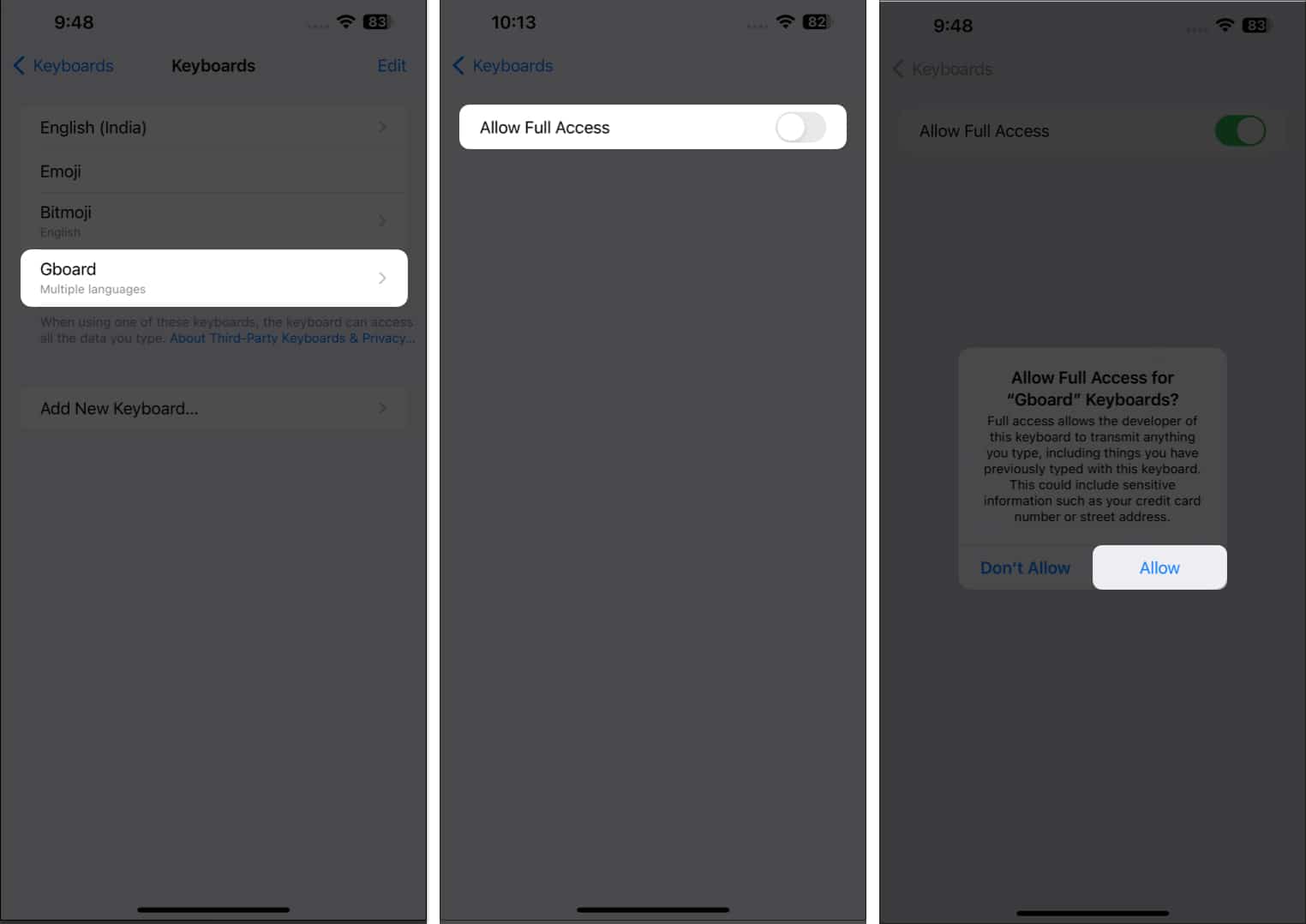
If you do not wish to switch back and forth while using a keyboard, make Gboard your default. To do so:
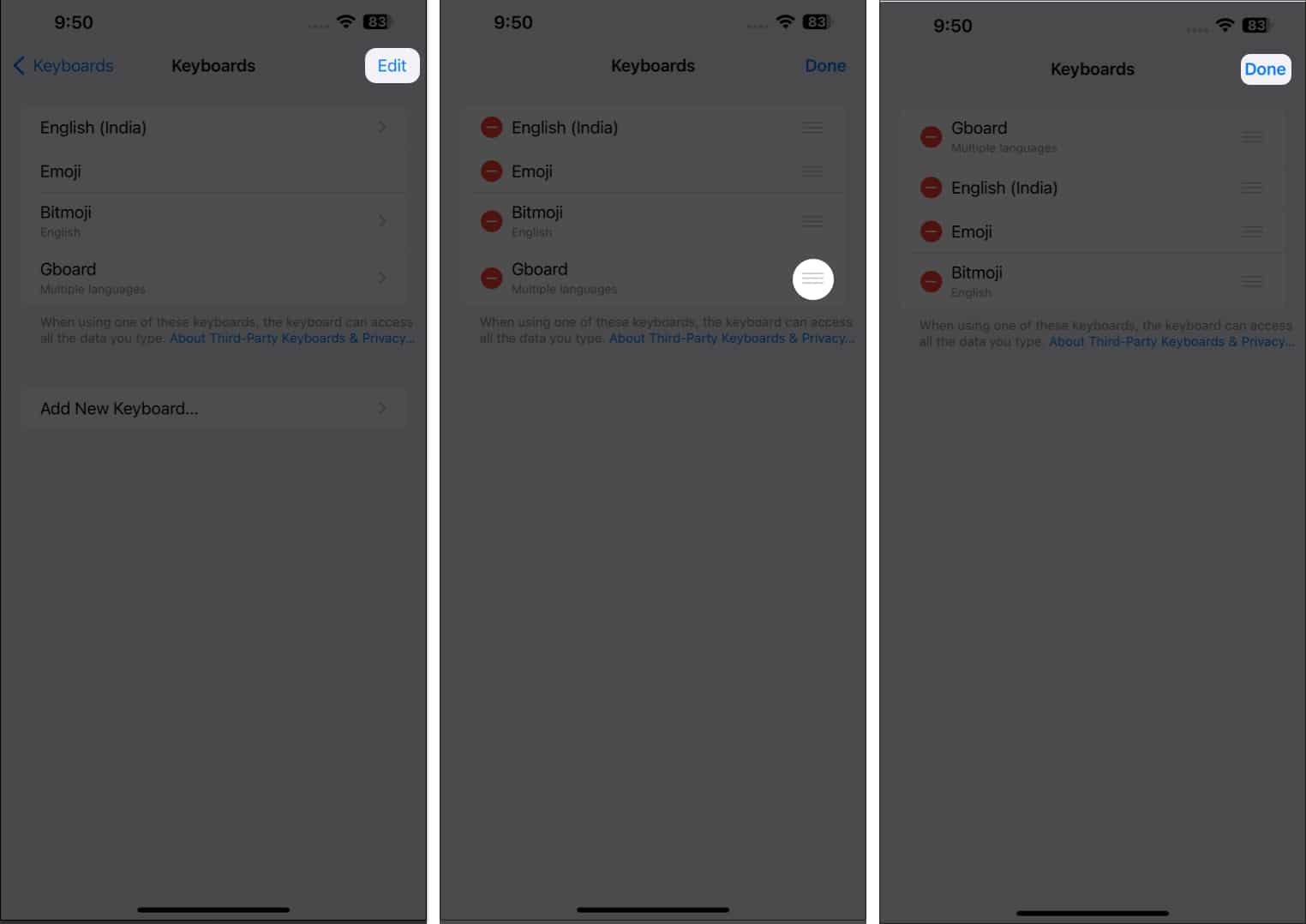
However, if you’re unsure about Gboard, you can give it a whirl and then decide. Simply,
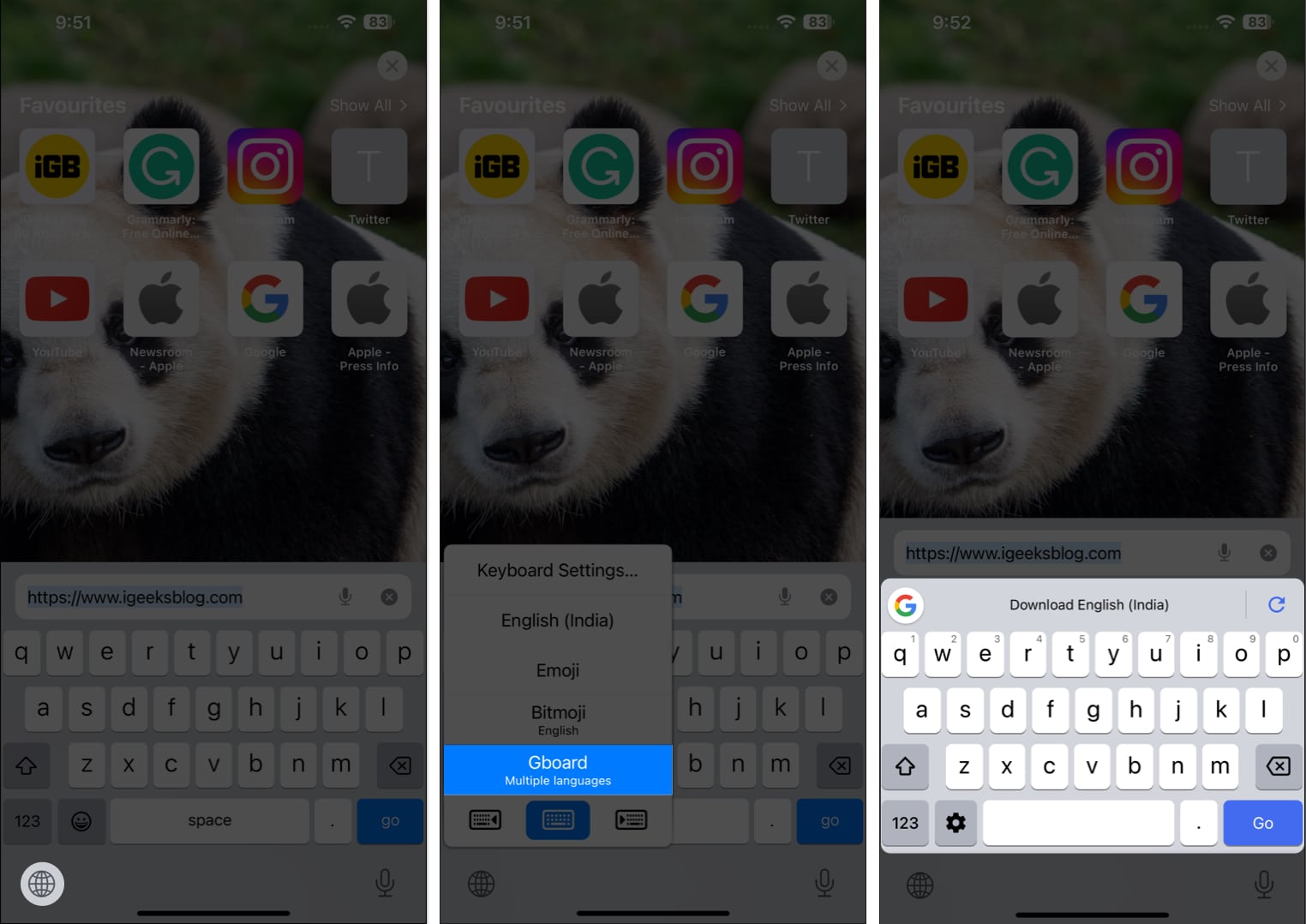
Well, you gave it a try! In case you’re not satisfied with Gboard, you can always switch back to using your device’s native keyboard.
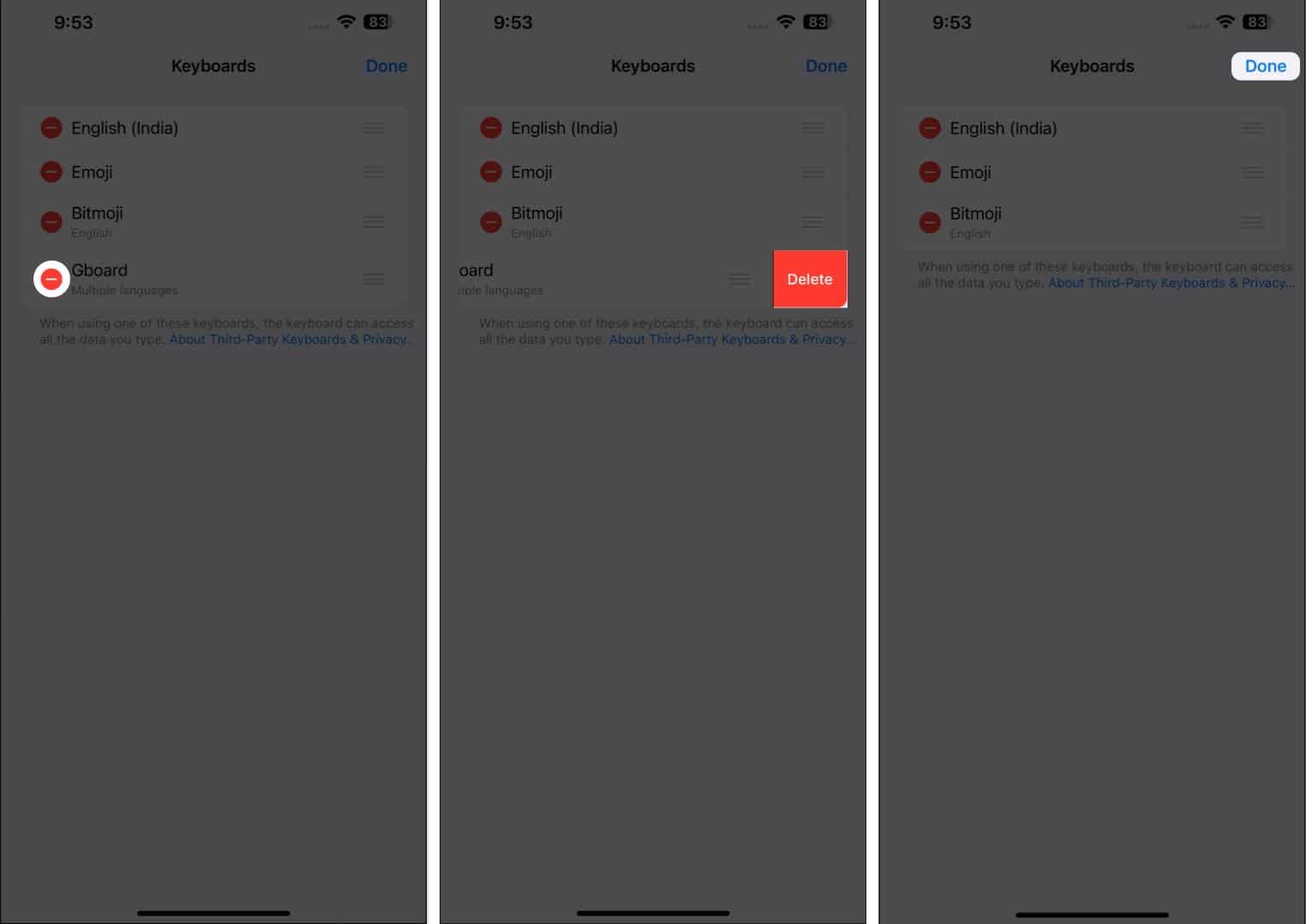 Note: If desired, you can also permanently delete Gboard app from your iPhone and iPad.
Gboard awaits!
I personally enjoy using the Gboard keyboard a lot more than the default iOS keyboard for many reasons. Its swiftness is what hooks me. What about you? What Gboard feature do you like the most? Let me know in the comments.
Read more: