FaceTime Like a Pro
Get our exclusive Ultimate FaceTime Guide 📚 — absolutely FREE when you sign up for our newsletter below.

FaceTime Like a Pro
Get our exclusive Ultimate FaceTime Guide 📚 — absolutely FREE when you sign up for our newsletter below.


Safari on iPhone offers customizable website settings, including page zoom, Reader Mode, desktop views, and privacy permissions. These preferences can also be synced across compatible Apple devices for a consistent browsing experience.

 ByAnkur Thakur and Ava Biswas
Safari browser on iPhone lets you customize website settings to ensure a comfortable experience. For example, you can change text size, use Reader Mode, request the desktop version of a site, set privacy permissions, etc., even for an individual website. You can also sync these Safari settings across your devices.
Here, I will explain each feature and help you access, customize, and sync website settings in Safari.
Customizing and syncing Safari settings can enhance your browsing experience in several ways. Here’s why you should take advantage of these features:
By customizing and syncing Safari settings, you gain more control, privacy, and convenience while browsing on your iPhone. Now, let’s explore how to do it step by step!
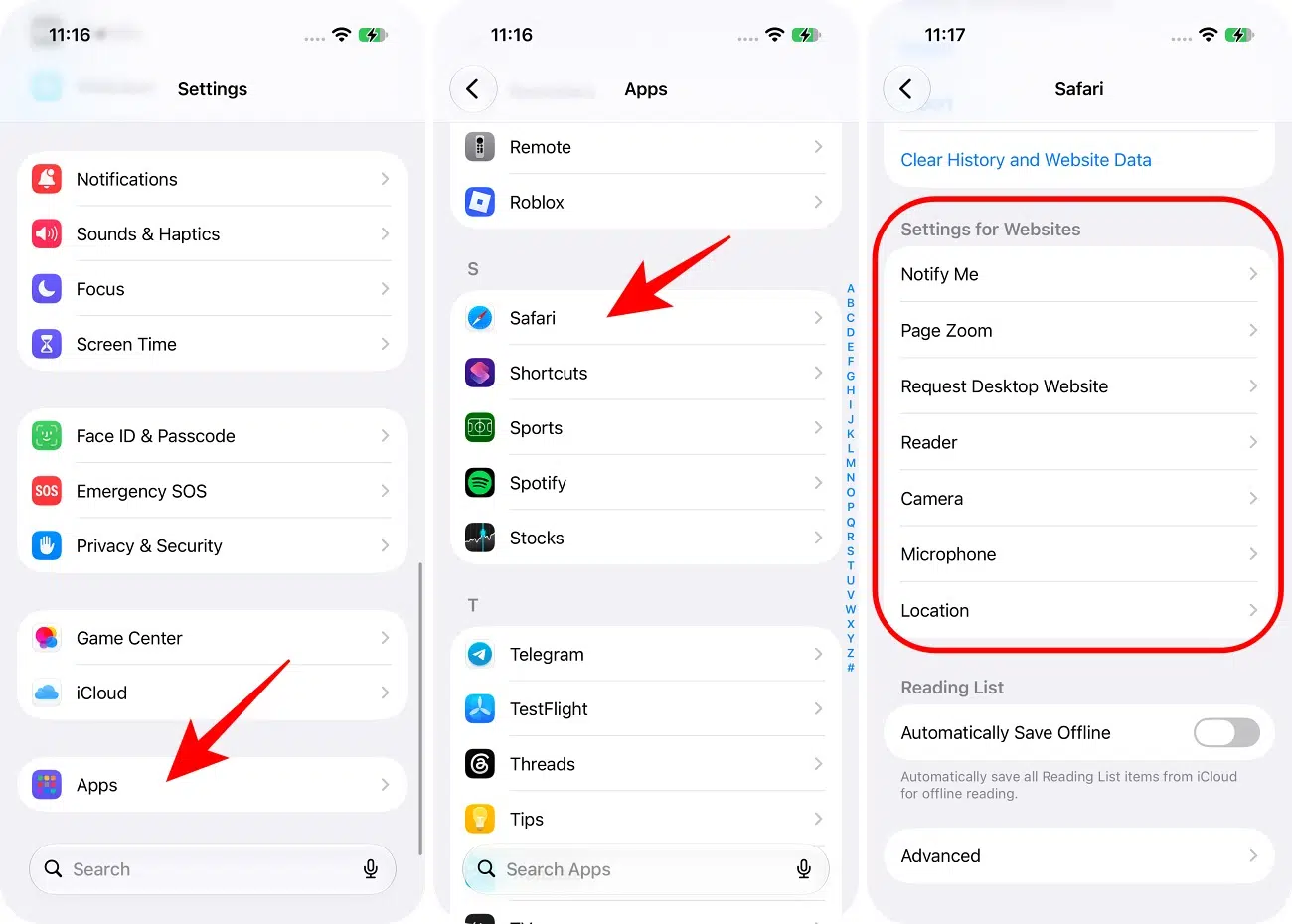
You can either customize the Safari settings from iPhone Settings or do it directly from Safari.
Tip: You can also modify Safari’s accessibility settings. In Settings, go to Accessibility, scroll down, and select Per-App Settings. If Safari isn’t listed, tap Add App, then tap Safari. Here, you can adjust text size, disable Auto-Play Video Previews, enable Reduce Transparency, and more for a smoother browsing experience.
In the steps above, you will see how to apply these settings to all websites. However, for most people (myself included), it doesn’t make much sense to use them universally. Fortunately, Safari allows you to customize these settings on a per-website basis. Let me show you how.
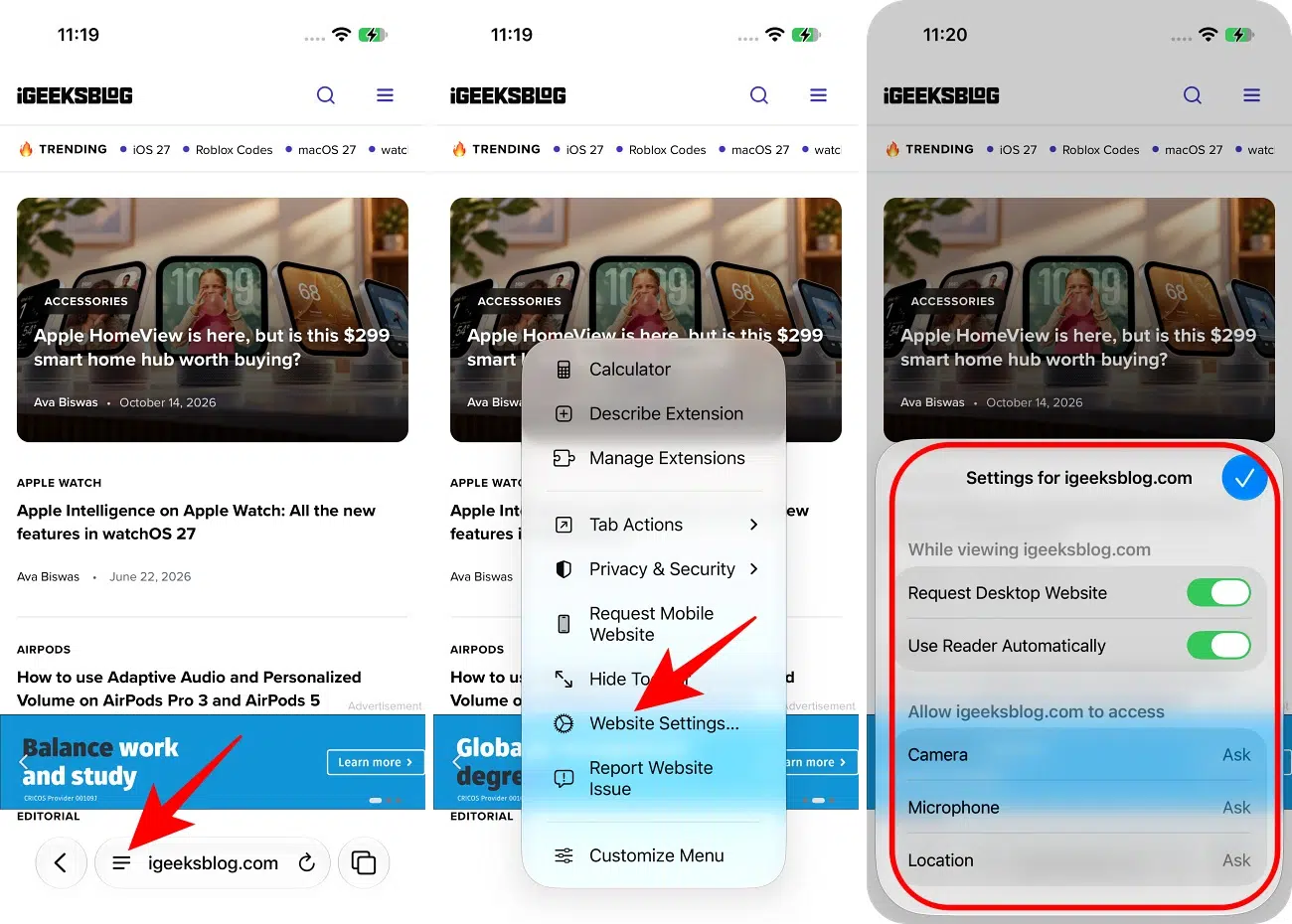
This will set the default for the active website. To change the text size for the current website, tap the Page Menu icon on the left side of the search field, then tap Page Zoom. Tap the large A to increase the font size or the small A to decrease it.
Tip: You can also hide unnecessary sections of a website by tapping the Hide Distracting Items option in the menu. Go through our guide on how to use Safari’s Distraction Control feature.
Now that you’ve configured all the necessary website settings, you can sync your customizations across all your devices. Just ensure you’re signed into the same Apple account on each device and that iCloud is enabled for Safari.
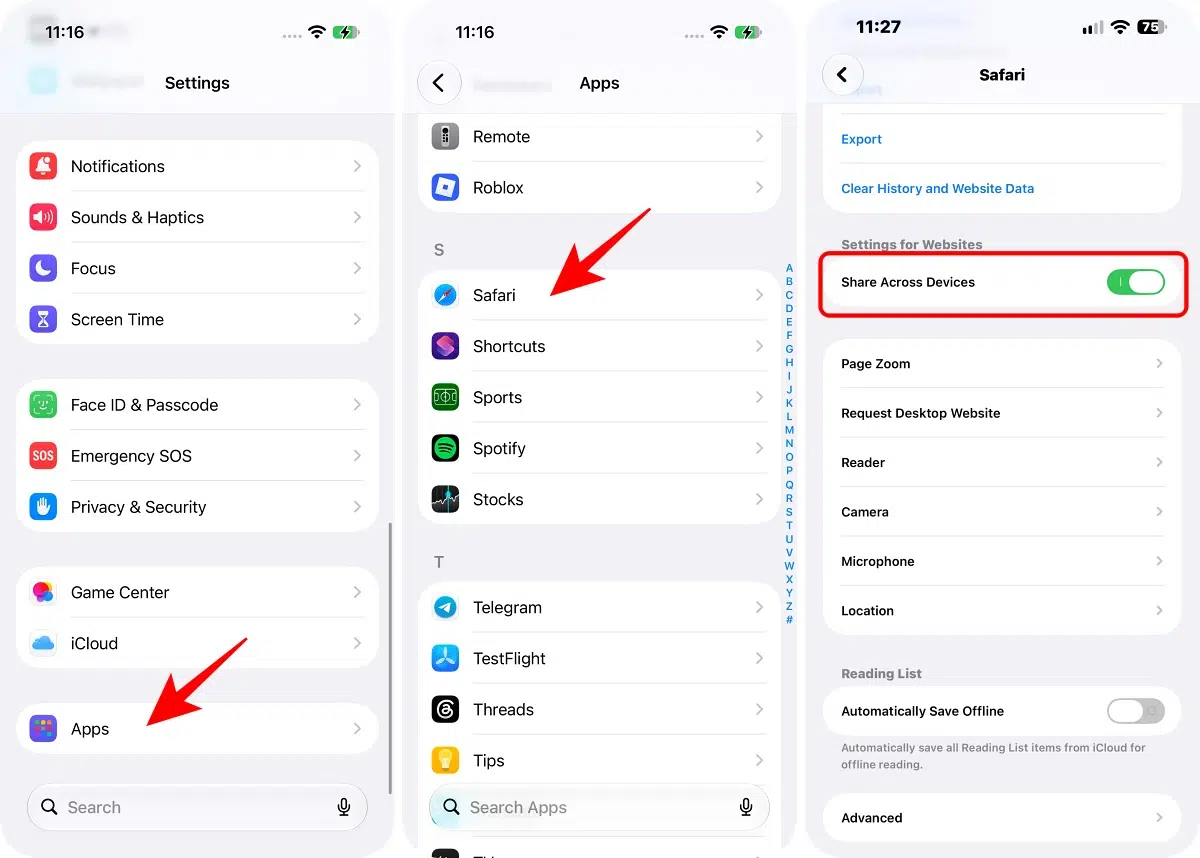
And just like that, your website settings are now shared across all devices synced via iCloud.
If you have customized the Safari Start Page, you can also sync it. To do so, go to Safari, tap the tab icon at the bottom right corner, and select the plus sign. It will open the Start Page. Now, scroll down and select Edit. Finally, toggle on “Use Start Page on All Devices.” From here, you can also edit the Start Page.
This is how you can manage website settings in Safari on iPhone and iPad. These ensure that you have a pleasant experience browsing the web via Apple’s in-house mobile browser. If you have any further questions, I am just a comment away.
Read more: