
FaceTime Like a Pro
Get our exclusive Ultimate FaceTime Guide 📚 — absolutely FREE when you sign up for our newsletter below.

FaceTime Like a Pro
Get our exclusive Ultimate FaceTime Guide 📚 — absolutely FREE when you sign up for our newsletter below.


Running iOS 27 beta on your iPhone? Now that Apple has released the stable iOS 27 update, it’s time to switch. Here’s how to remove the beta and install the official version without losing your data.
The wait is finally over! Apple just dropped the stable iOS 27 update, right alongside the new iPhone 18 Pro lineup. If you’ve been running the iOS 27 beta to test its features, now’s the perfect time to switch over to the official release. Because beta builds can contain bugs, compatibility problems, and unfinished features.
The good news is that Apple makes it relatively easy to stop receiving future beta updates. However, there’s an important distinction: turning beta updates off doesn’t uninstall the beta version already running on your iPhone.
In this step-by-step guide, I’ll walk you through how to remove iOS 27 beta from your iPhone and install the polished, bug-free version.
The answer is simple: betas are buggy.
Depending on the build, these can include:
Apple constantly tweaks features in each beta based on feedback. That’s the trade-off for getting access to upcoming iOS features before the general public.
On the other hand, the official iOS 27 update is stable, polished, and designed for everyday users. You can fully enjoy the new iOS 27 features, including all the Apple Intelligence-powered tools such as Siri AI, Notify Me in Safari, Describe a Shortcut, automatic password fixing, Extend and Reframe in Photos, and much more.
So, if you no longer need early access to upcoming features, switching back to the public release channel can make your iPhone experience more predictable.
This is the part I would pay the most attention to.
Turning off Beta Updates doesn’t instantly remove the beta version from your iPhone. Instead, it tells your iPhone that you don’t want to receive future beta updates.
For example, if you’re currently running an iOS 27 beta that is newer than the available public version, turning beta updates off won’t magically replace that software with an older public build.
You’ll generally have two options:
This distinction is important because many users assume that switching Beta Updates to Off automatically downgrades the iPhone. It doesn’t.
Before upgrading from iOS 27 beta to the stable release, do some prep work. Trust me, it saves time and avoids frustration.
These steps keep everything smooth and stress-free, so you’re all set for the fun part!
Apple makes it super easy to stop beta updates.
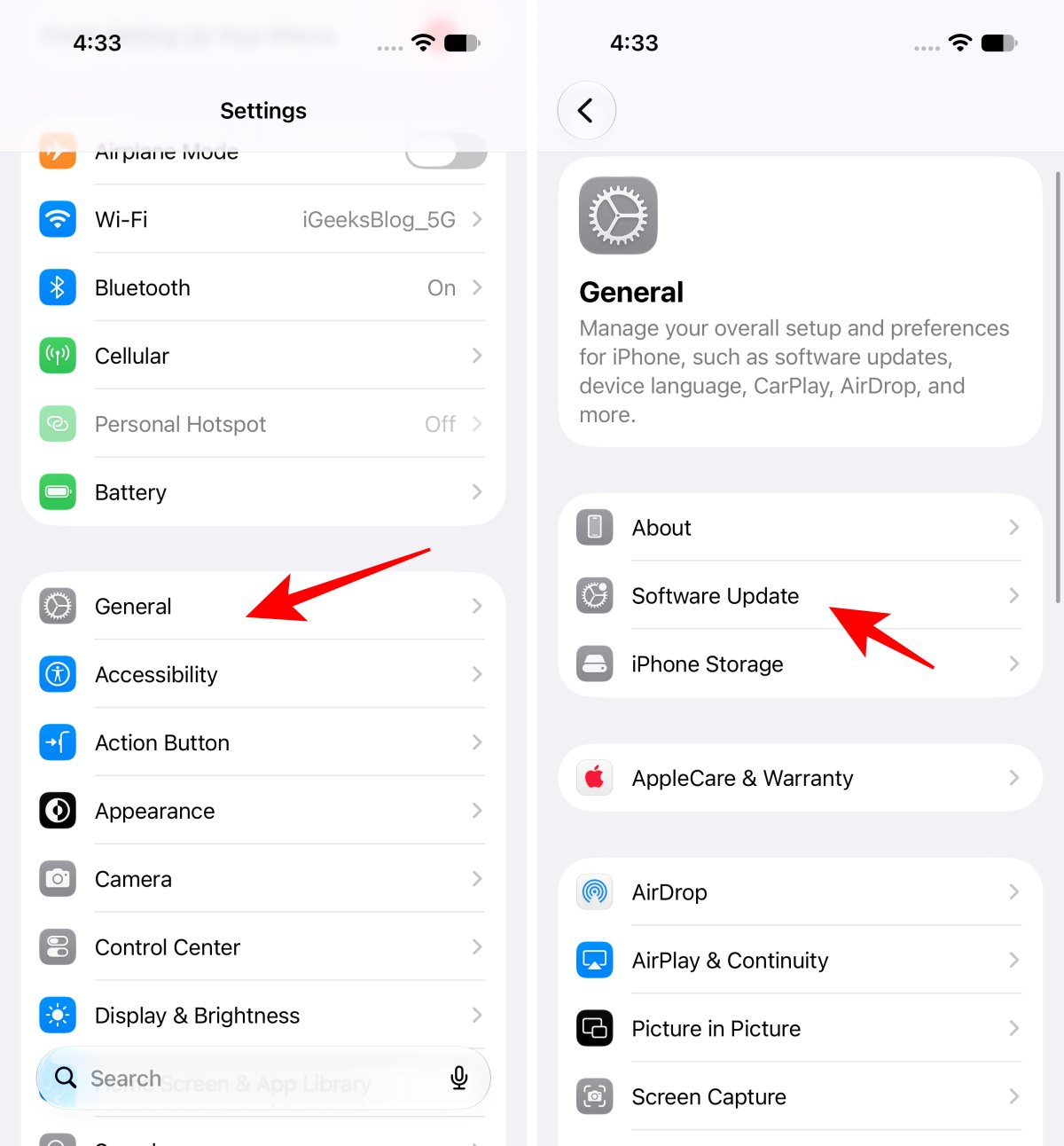
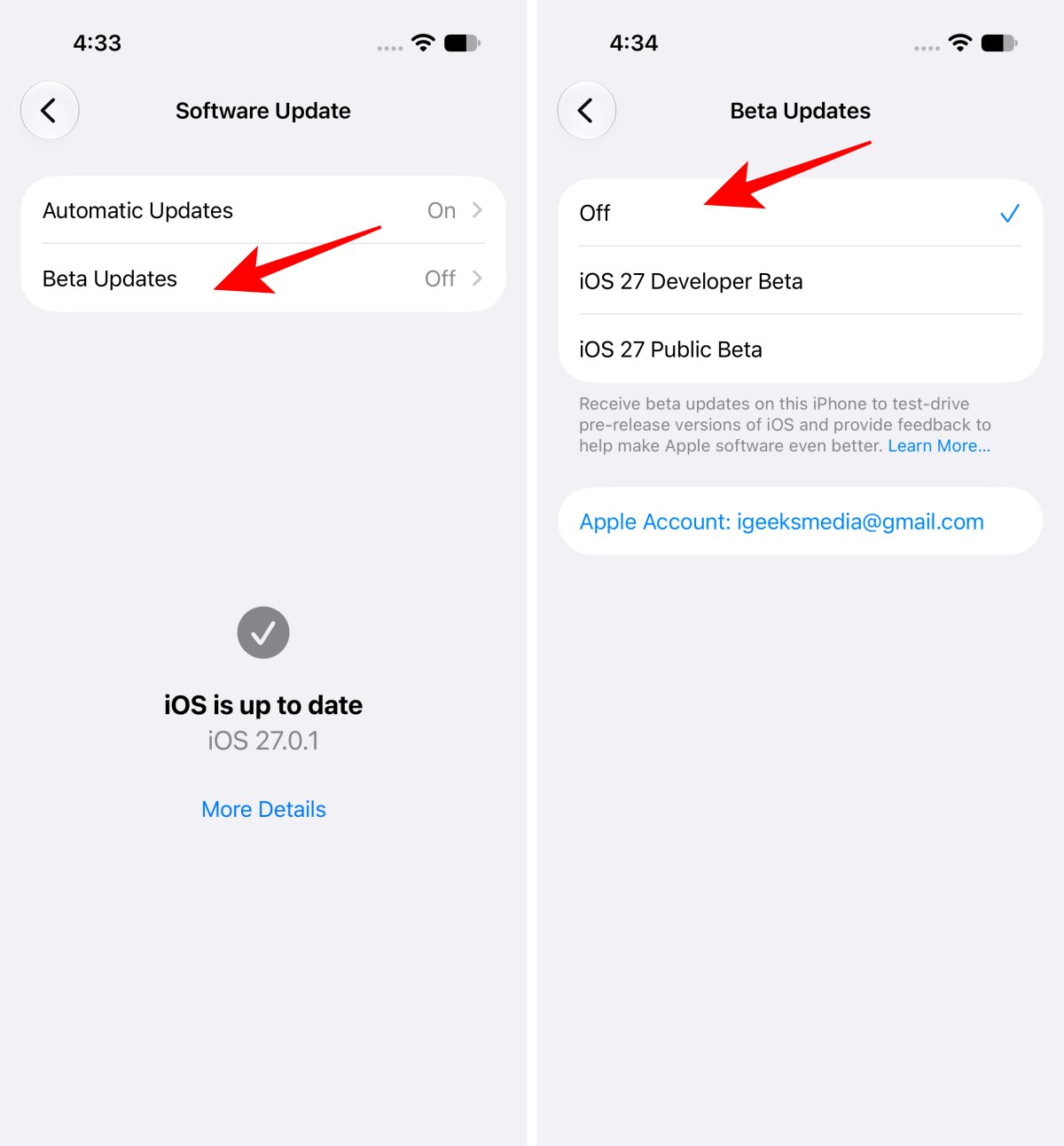
Your iPhone will no longer receive future beta updates through the beta channel. However, remember that your current beta version remains installed.
Once beta updates are turned off, your iPhone will automatically fetch the stable iOS 27 release.
Your iPhone will restart a couple of times. Once it boots up, you’ll see the setup screen. Unlock your device, and you’re officially on the stable iOS 27!
If you see “Unable to Check for Update,” don’t panic. Apple’s servers get busy right after launch. Just try again later.
Don’t assume something is wrong.
If your beta build is newer than the current public release, the public version may not appear as an available downgrade through Software Update.
In that situation, you can either:
If you don’t want to wait for the public release to catch up with your beta, you’ll need to restore the iPhone.
Important: This process erases the iPhone.
Before continuing, make sure you have a backup that can be restored to the public iOS version you’re installing.
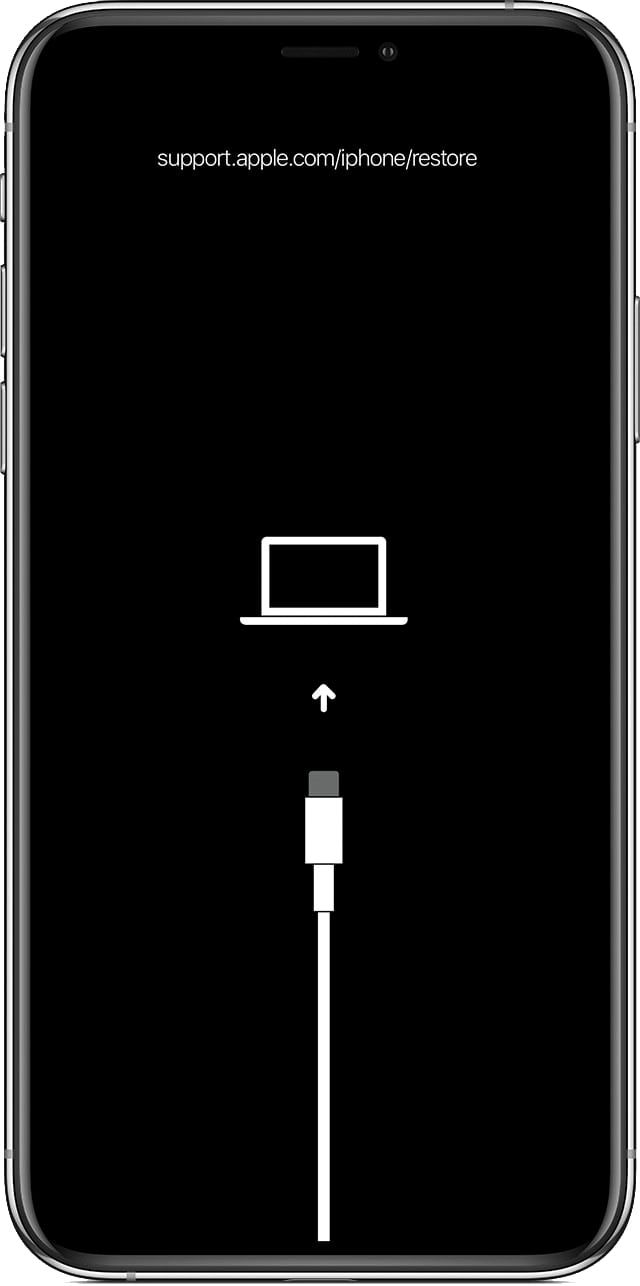

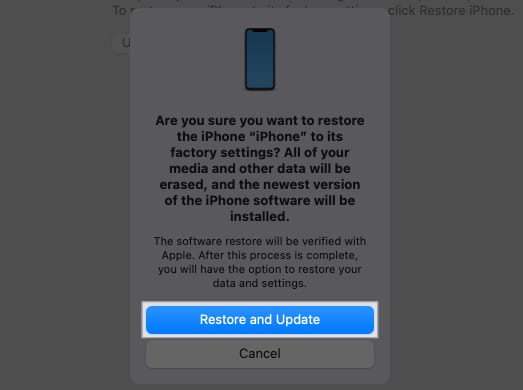
Once the restore finishes, your iPhone will run the latest stable iOS version. Then you can download iOS 27 and restore your backup.
And that’s it! You’ve successfully switched from iOS 27 beta to the official release. Now you can enjoy all the new features—minus the bugs.
Pro tip: Always back up your iPhone before major updates. It’s your safety net in case something goes wrong.
If you hit a snag, drop a comment below or reach out to Apple Support for help. Happy updating!












