
FaceTime Like a Pro
Get our exclusive Ultimate FaceTime Guide 📚 — absolutely FREE when you sign up for our newsletter below.

FaceTime Like a Pro
Get our exclusive Ultimate FaceTime Guide 📚 — absolutely FREE when you sign up for our newsletter below.


AirPods 5 supports Personalized Spatial Audio with dynamic head tracking. Create a profile with a TrueDepth iPhone, then use it with supported content and apps.

 ByJibin Joseph and Ravi Teja KNTS
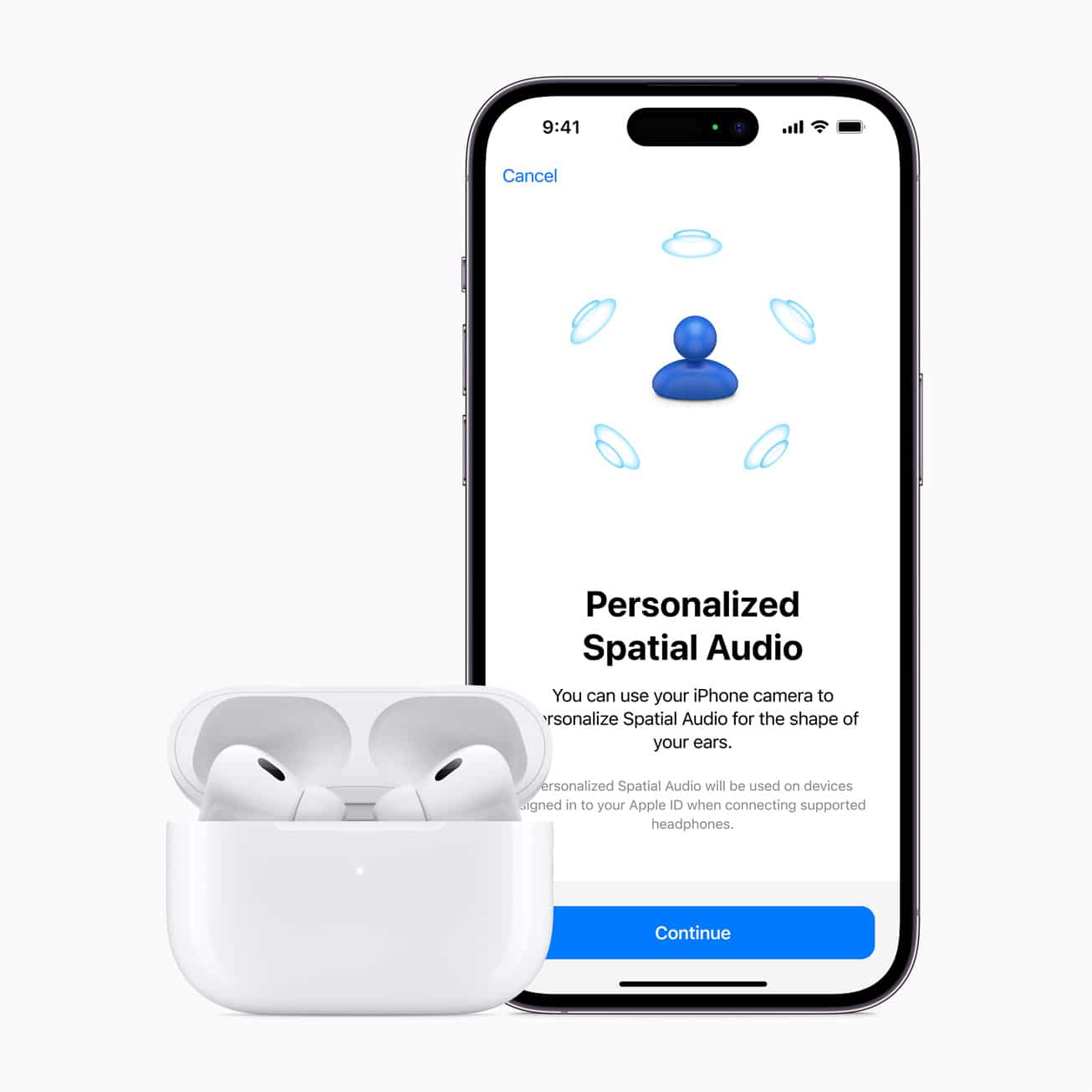
Personalized Spatial Audio is an Apple feature that customizes audio playback according to your ear and head shape profile. It creates a more immersive and theater-like listening experience, especially when watching movies and TV shows. Excited to try it out? Here’s how you can set up Personalized Spatial Audio for AirPods.
According to Apple, “With Personalized Spatial Audio, the AirPods listening experience is even more immersive. Users perceive sound individually based on the size and shape of their heads and ears. Using the TrueDepth camera on iPhone, users can create a personal profile for Spatial Audio that delivers a listening experience precisely tuned just for them.”
Spatial Audio is Apple’s way of creating a precise 360° surround sound experience. In conjunction with customized Spatial Audio, everyone is assigned their personalized profile. This profile adjusts audio tuning to match how you hear sound.
With the help of the TrueDepth cameras, Apple has created technology that can give you an experience like no other brand. The best part is that your Spatial Audio profile syncs across your Apple devices signed in to the same Apple Account.
To create a Personalized Spatial Audio profile, you need an iPhone with a TrueDepth camera running iOS 16 or later. Here is a list of supported AirPods:
After setup, your Personalized Spatial Audio profile syncs to compatible Apple devices signed in to the same Apple Account, including iPad with iPadOS 16.1 or later and Mac with macOS Ventura or later.
The initial face and ear scan needs an iPhone with a TrueDepth camera, so iPhone SE models cannot create the profile.
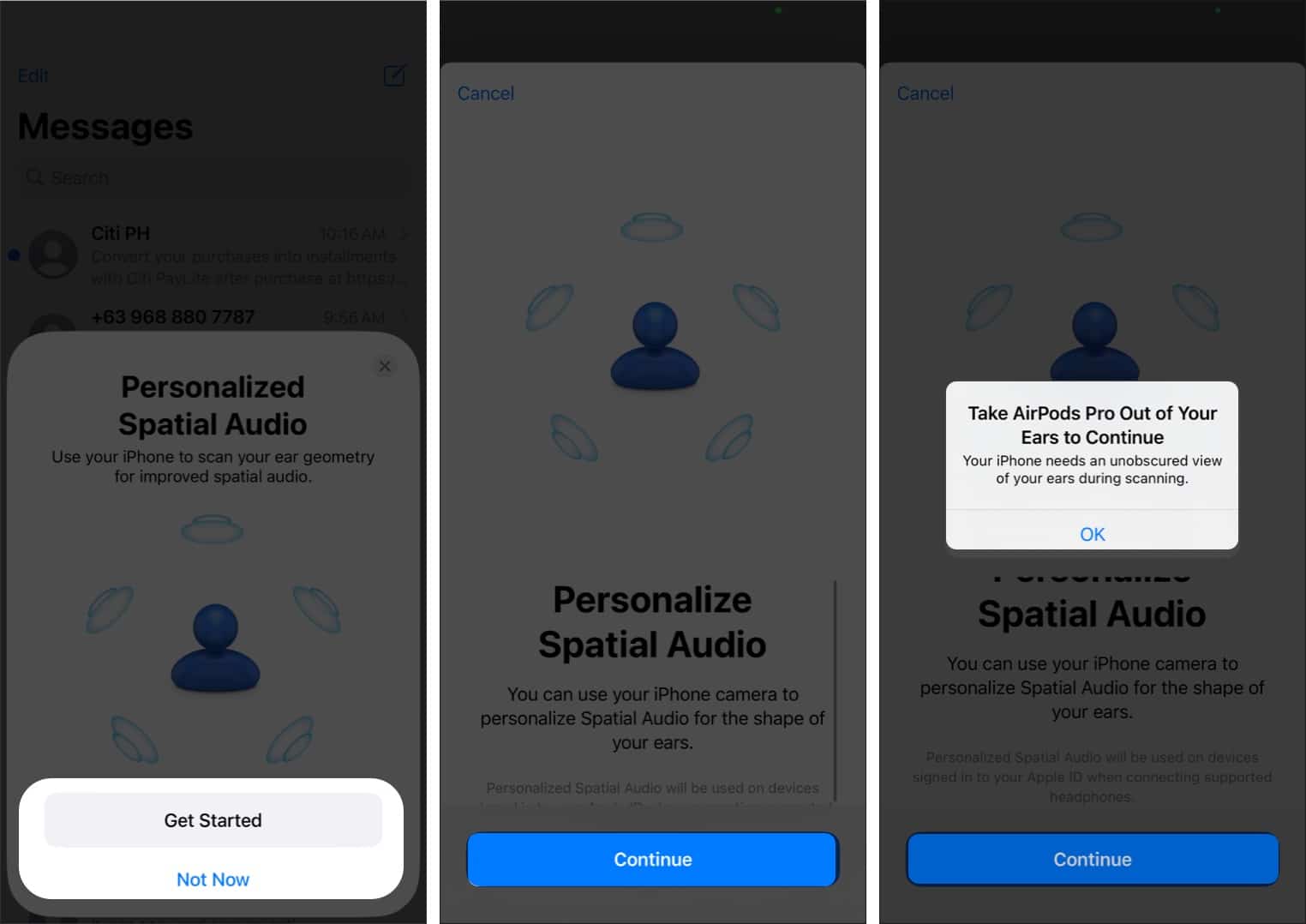
If you don’t see the prompt, you can manually start the setup. To do so, connect your AirPods and wear it. Then, go to Settings on your iPhone and select the connected AirPods or Beats name at the top. Now, open Audio & Routing → Personalized Spatial Audio → Personalize Spatial Audio.
You can choose See & Hear How It Works to see how Spatial Audio differs from Stereo Audio. If you like the sound experience, you can continue the setup.
Now, take the AirPods out of your ear, as the iPhone Camera needs to scan your ear with an unobstructed view.
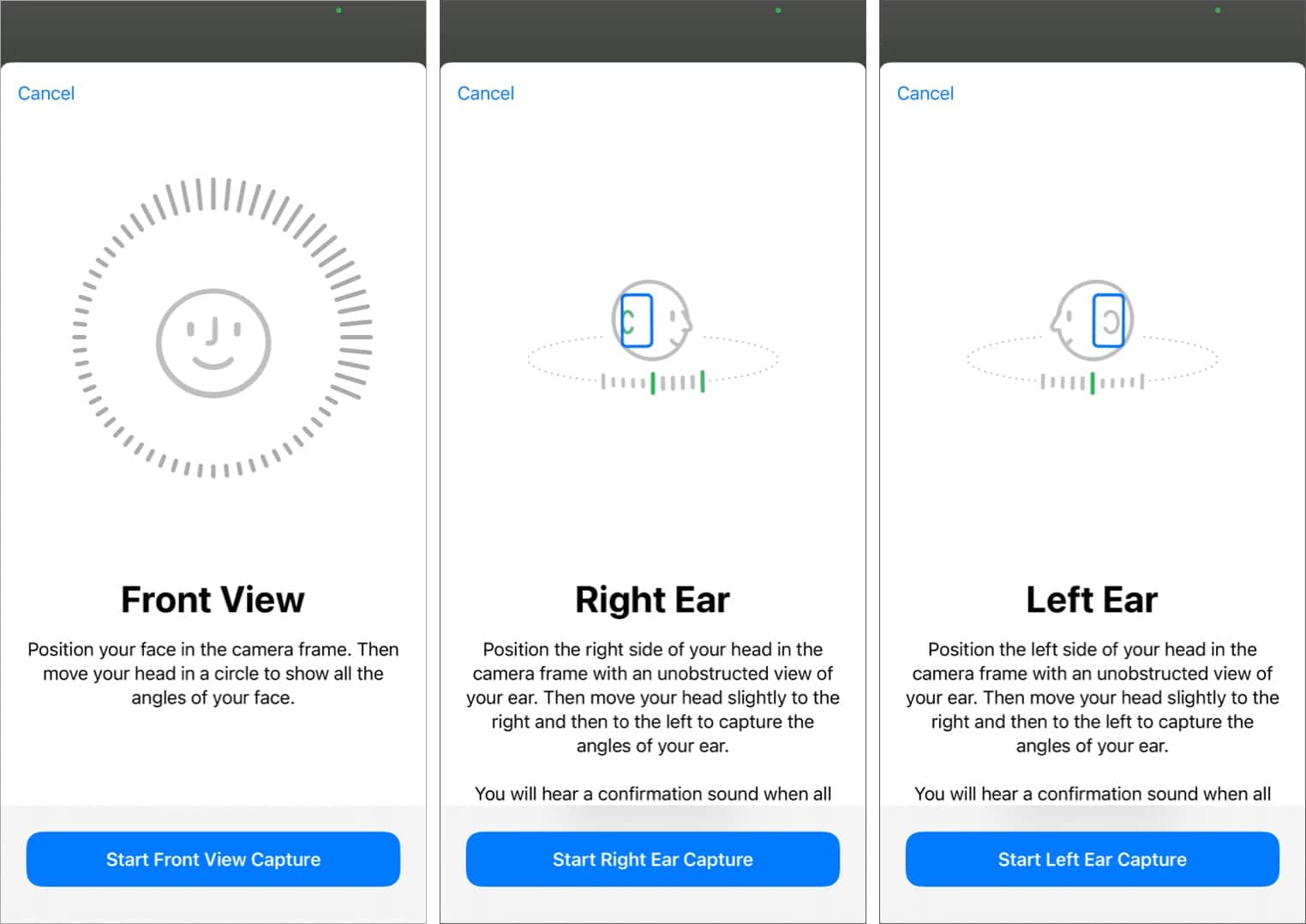
Once the setup is done, you can enjoy the surreal immersive audio experience. However, note that you must disable certain settings, including Balance, Mono Audio, and Headphone Accommodations, to ensure the feature works best.
If the Personalized Spatial Audio setup is not working, reset your AirPods once and try these steps again.
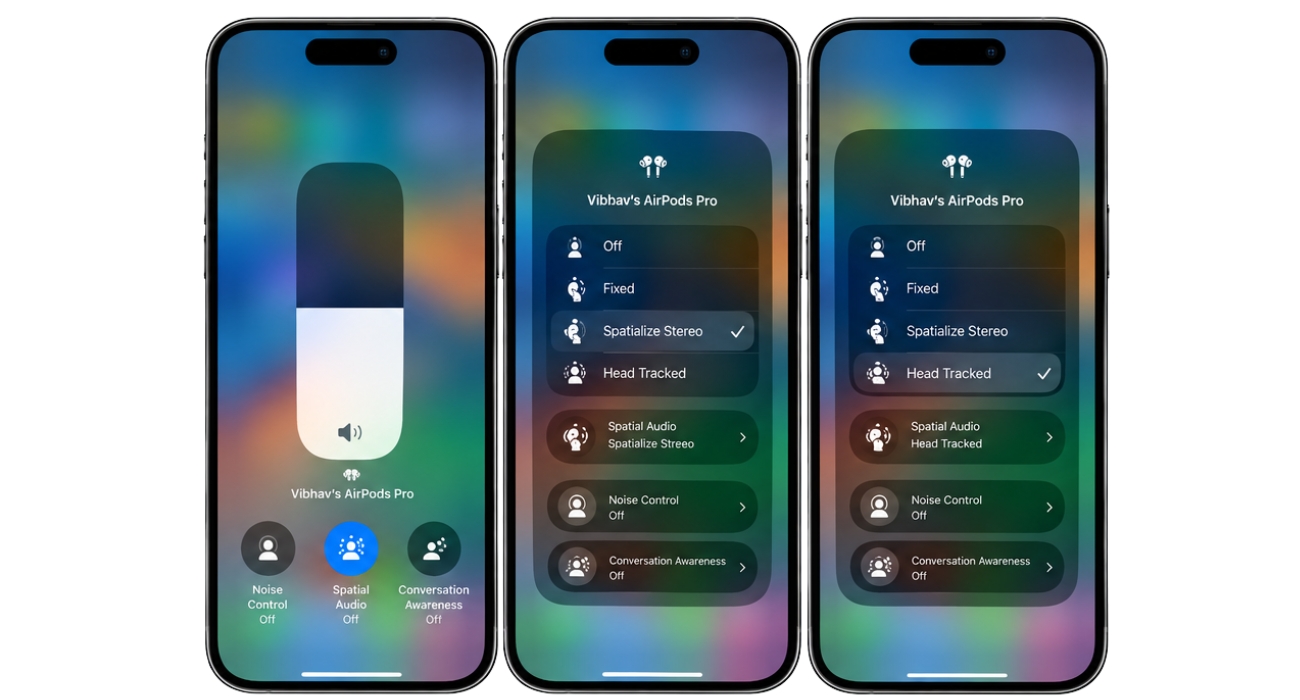
Your iPhone will remember your choice. For instance, you have followed the above steps while listening to the Music app. The next time you play a song in the app, the Head Tracked option is immediately enabled.
You will also see an option called Fixed in the Control Center. It makes the audio sound like you are in the middle of the environment. So, it has a smaller range of sound projection locations. To make the sound all around you, personalized spatial audio tracks your head or device movements.
By default, spatial audio follows your iPhone’s motion to make the music sound like it’s coming from your iPhone. To change this, go to Settings and select Accessibility. Then tap AirPods and toggle off Follow iPhone. The audio will now seem to follow your head movements.
Apple is making great strides in providing its users with a personalized experience. Over the years, the company has made itself synonymous with spell-binding experiences, and personalized spatial audio is a valuable addition to them.
Read more:











