
FaceTime Like a Pro
Get our exclusive Ultimate FaceTime Guide 📚 — absolutely FREE when you sign up for our newsletter below.

FaceTime Like a Pro
Get our exclusive Ultimate FaceTime Guide 📚 — absolutely FREE when you sign up for our newsletter below.


Is your iPhone stuck while preparing iOS 27 update? Here are some tested solutions to resolve the iOS Update Requested stuck problem.

 ByVikhyat and Ava Biswas
As Apple finally rolled out the stable iOS 27 update, you must be excited to install it. During installation, iOS typically moves through Downloading → Preparing Update → Verifying → Installing. The Preparing Update stage can take time, and a slowly moving progress indicator doesn’t necessarily mean something is wrong.
However, if your iPhone is stuck on “Preparing Update…” for an unusually long time, it’s usually a network, storage, or cached update-file issue, not a hardware failure. In this guide, I’ll walk through the fixes I’d try, starting with the safest and easiest ones. I’ll also explain when you should stop waiting and use a computer to update your iPhone.
When your iPhone shows “Preparing Update”, it basically means your device has already downloaded the iOS update and is now getting it ready to install. It’s like the final stage, so your iPhone needs to organize files, check compatibility, and make sure everything is in place before the actual update begins.
Now, here’s the catch: sometimes this step takes longer than it should, depending on the size of the update and the number of files on your device. It can be around one hour if you’re upgrading from an older iOS. If your iPhone gets stuck here forever, it usually points to things like:
So, if your phone seems frozen on this iOS 27 update screen, don’t panic; it doesn’t mean your iPhone is broken. It just needs a little push to get past this step, and that’s exactly what the fixes below will help with.
This is the step I’d normally try first.
If your iPhone has just moved to “Preparing Update,” don’t restart it immediately. Depending on the update and the amount of data on your iPhone, the process can take longer than expected.
While you’re waiting:
If the iPhone eventually moves past Preparing Update, you don’t need to do anything else.
If it remains there for an unusually long time, continue with the fixes below.
Insufficient storage is one of the first things I’d check when an iOS update is stuck on Preparing to Update and refuses to progress.
Go to Settings > General > iPhone Storage and check the amount of available storage shown at the top.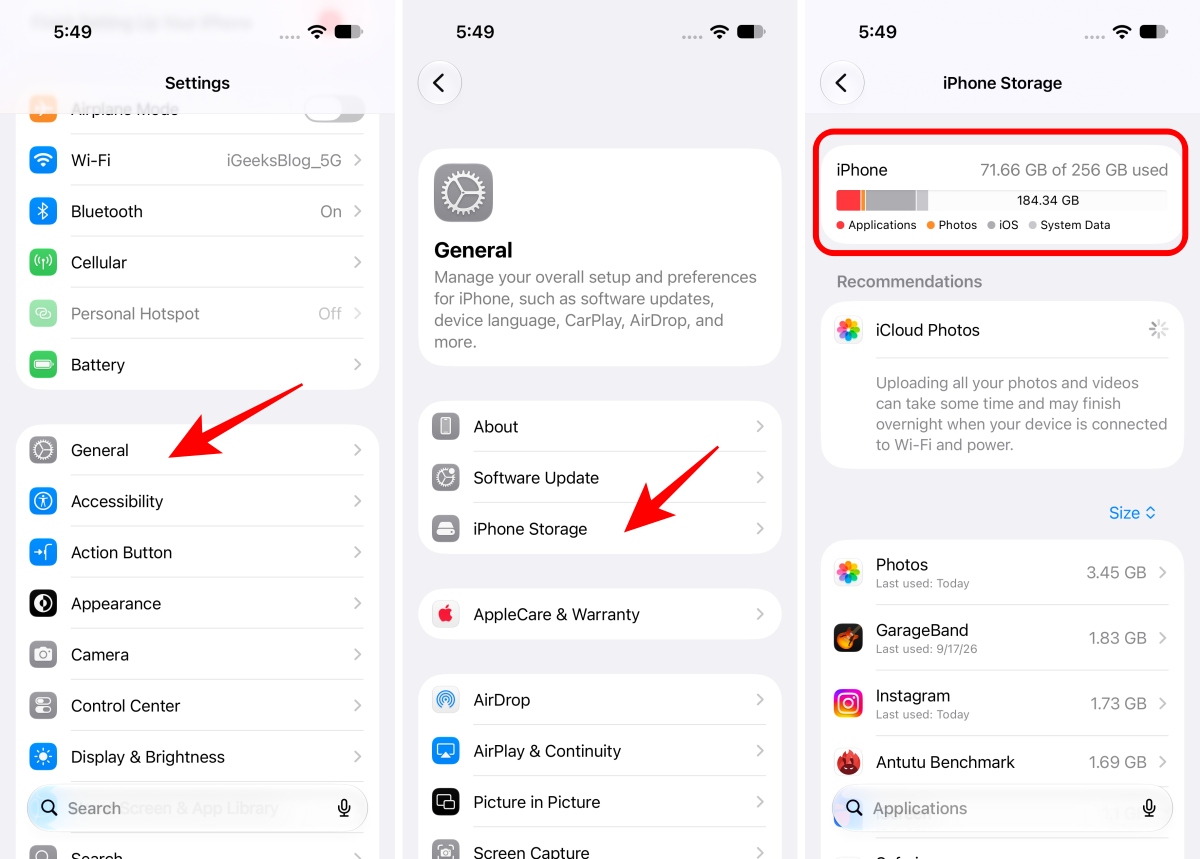
If your iPhone is almost full, free up some space by removing things you don’t need, such as:
You can also enable Offload Unused Apps from the iPhone Storage screen.
After freeing up some storage space, restart the iPhone and check for the update again.
Your iPhone needs an internet connection to download and verify software updates.
While you can download an iOS update via mobile data, I recommend using a reliable Wi-Fi network. It is wiser, faster, and much easier to update your iPhone over a Wi-Fi connection.
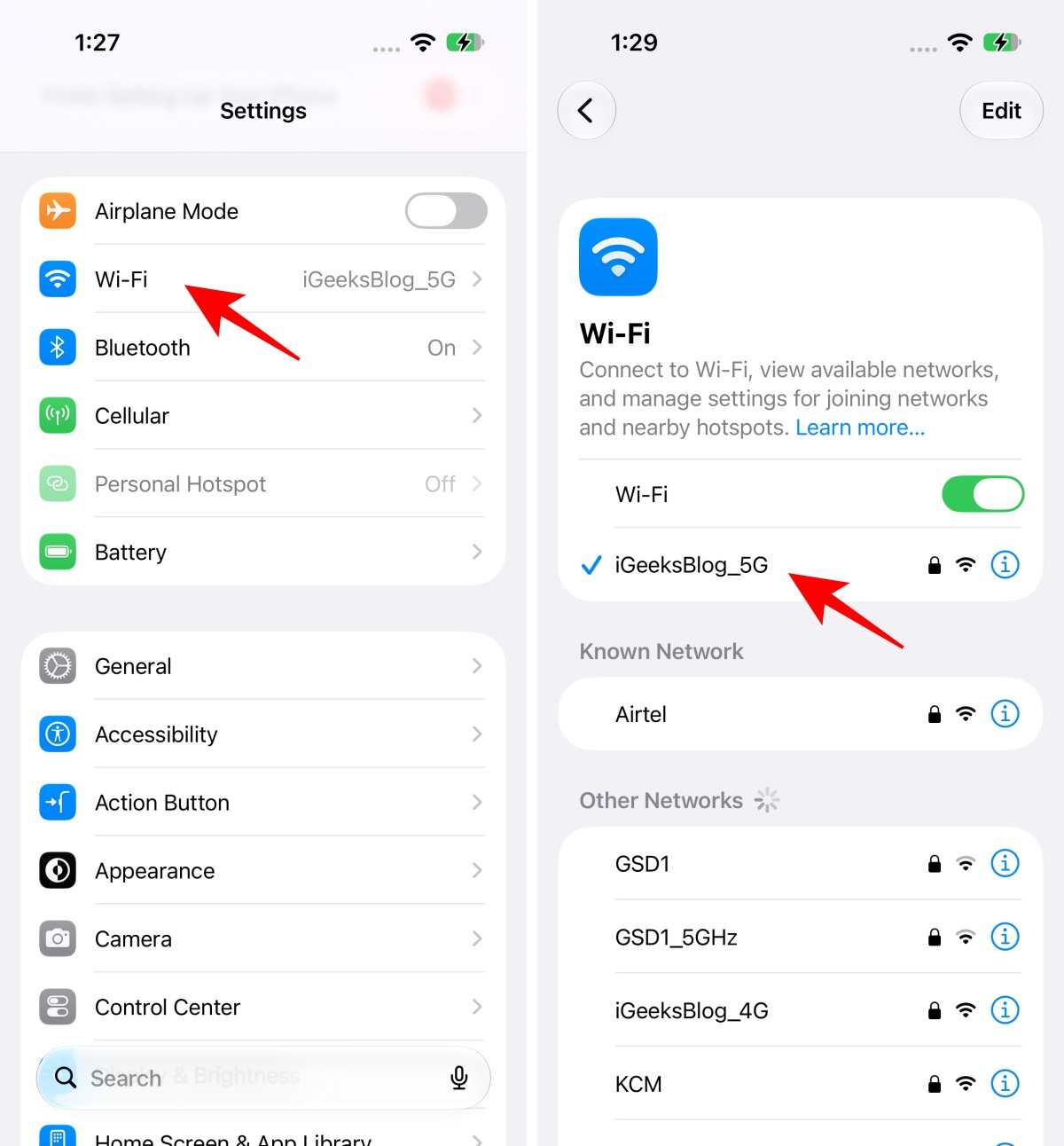
If your Wi-Fi seems slow or unreliable, disconnect from the current network and reconnect to it, or try another Wi-Fi network if one is available. I’d also temporarily disconnect from a VPN or proxy if you’re using one.
If your Wi-Fi works normally but the update continues to get stuck, resetting the network settings is another option. This issue often arises due to conflicting network configurations or faulty internet connectivity during the update process.
By resetting the network settings, you eliminate any potential glitches in your network configuration that may be hindering the update process.
This is one of the most useful fixes if the update has already downloaded but remains stuck on “Preparing Update.” To fix this, re-download the update.
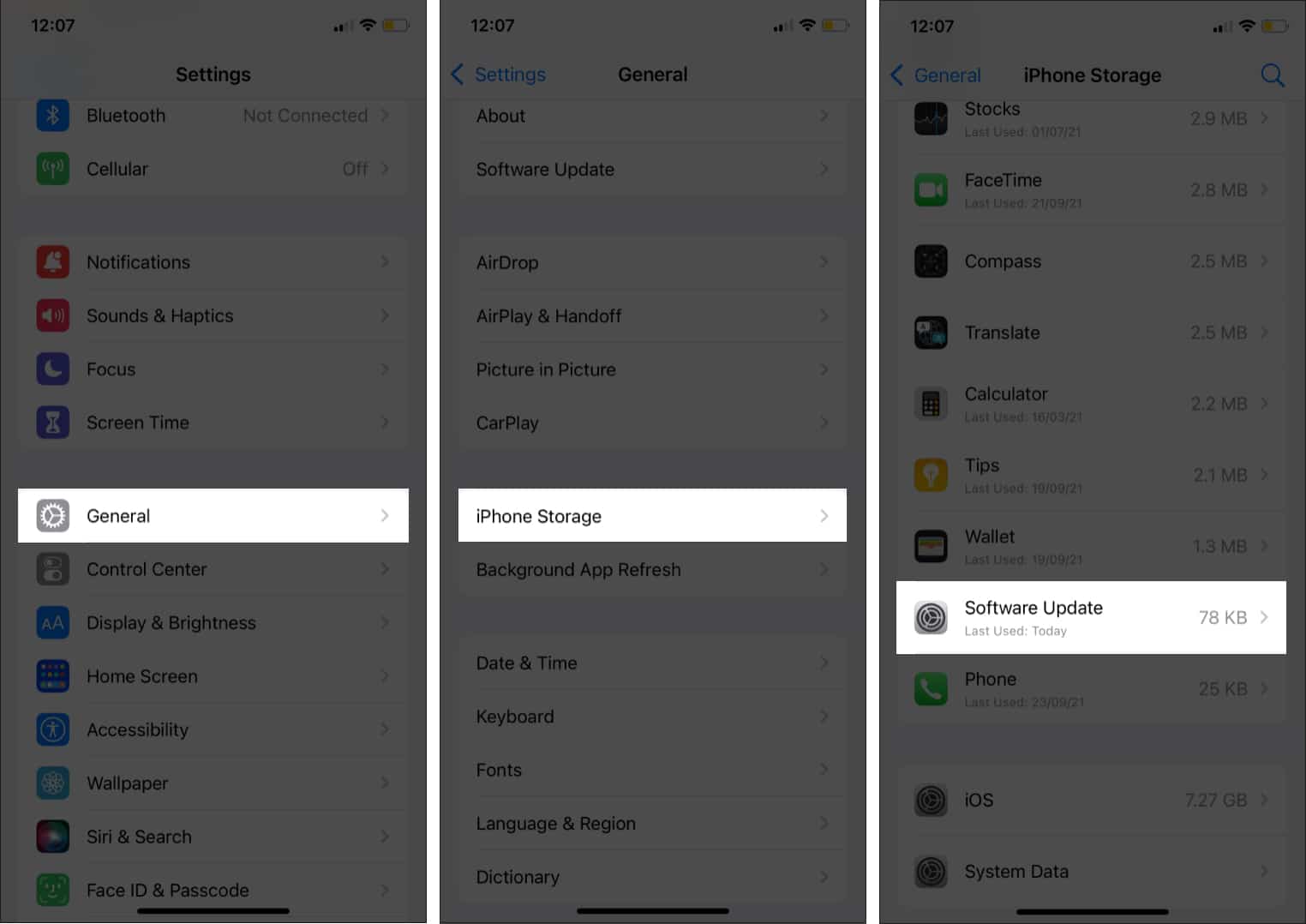
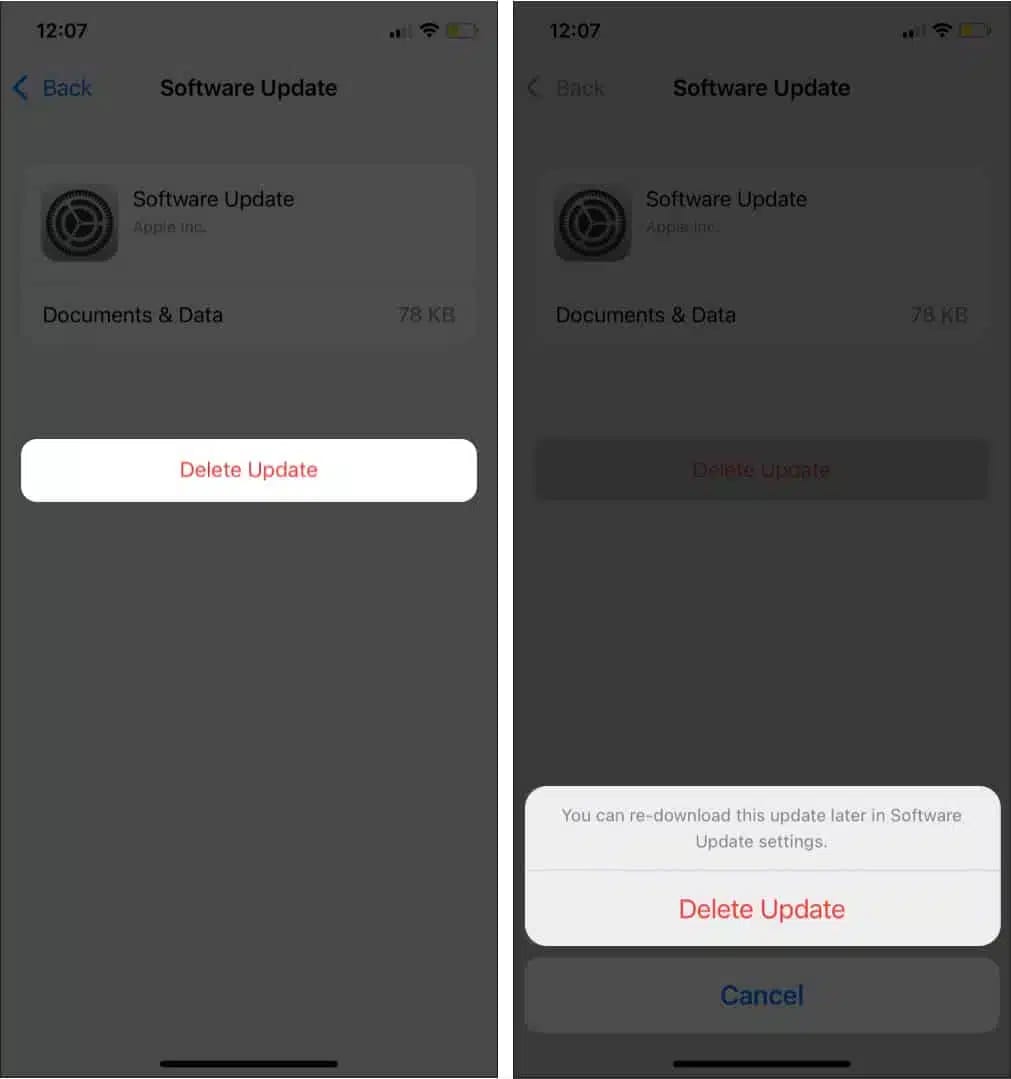

This time, the OTA update should download, prepare, and install without hiccups. Just ensure Wi-Fi is connected and the iPhone is charged or plugged in.
You may also use this method when the update file was incomplete or corrupted.
If the iPhone is genuinely unresponsive rather than simply taking a long time to prepare the update, you should hard reboot it.
This will force the iPhone to restart and remove glitches that were hampering the reinstallation of your iOS update.
If the iPhone continues to get stuck after you’ve tried the above fixes, I’d stop repeatedly attempting the OTA update and switch to a computer.
Learn how to restore your iPhone via Mac or PC. Please note that you will also get an option to Update when you restore.
Try to update first. If this does not bring any luck, you may proceed with the restoration.
Getting stuck on the “Preparing Update” screen can be annoying, but as you’ve seen, it’s usually easy to fix with the steps mentioned above.
Once you get past it, you’ll be able to enjoy all the latest iOS 27 features like Siri AI, AI-powered photo editing tools, Describe a Shortcut, advanced Safari tools, and Liquid Glass customization to make your iPhone feel brand new.
So don’t let a stuck update hold you back; try the fixes above and get ready to explore the best of iOS 27!
Also read:











