
FaceTime Like a Pro
Get our exclusive Ultimate FaceTime Guide 📚 — absolutely FREE when you sign up for our newsletter below.

FaceTime Like a Pro
Get our exclusive Ultimate FaceTime Guide 📚 — absolutely FREE when you sign up for our newsletter below.


Is your iPhone stuck on “Update Requested” while installing iOS 27? I’ll walk you through the fixes that can help, from restarting your iPhone to deleting the update and trying again.
Waiting to try the latest iOS 27 features only to get stuck on the dreaded “Update Requested” message can be frustrating. I’ve found that this usually means the iPhone has started the update process but hasn’t moved on to downloading or preparing the update yet.
The good news is that you don’t need to jump straight to complicated fixes. In most cases, checking your internet connection, restarting your iPhone, or making sure you have enough storage space can get things moving again. In this guide, I’ll share some reliable fixes to clear the “Update Requested” state and get the update installing smoothly.
When you go to Settings > General > Software Update and tap Download and Install for iOS 27, your iPhone has to communicate with Apple’s update servers before the download and OTA installation can proceed.
The “Update Requested” message means your iPhone has started the update process but hasn’t moved on to the next stage yet. A short delay isn’t necessarily a problem, particularly when the update has just been released and many people are trying to download it.
However, if your iPhone remains stuck on “Update Requested” for an unusually long time and nothing happens, it’s worth troubleshooting the connection, storage, or update file.
There are several possible reasons why iOS 27 isn’t moving past “Update Requested”:
If your iOS 27 update is stuck, try the solutions below to resolve the issue. I recommend starting with the simplest solutions before resetting any settings.
Before changing anything, give your iPhone a little time.
Major iOS releases can attract a huge number of users at once, and downloading or preparing a large update can take longer than expected. Apple also notes that download time depends on the update size and your internet speed.
Make sure your iPhone is:
Then leave the iPhone alone for a while and check Settings > General > Software Update again.
If it remains stuck indefinitely, move on to the next fix.
The next step is to force close the Settings app.
Wait a few seconds, reopen Settings, and check if the update starts downloading.
A weak or unstable Wi-Fi connection is one of the first things I would check.
Try these steps to help trigger the iOS 27 download:
You can also test the Wi-Fi connection by opening Safari and visiting a few websites.
If the internet isn’t working reliably, fix the connection before trying the iOS 27 update again.
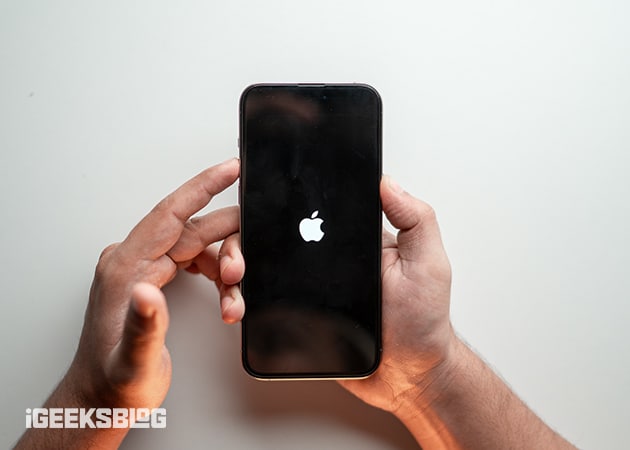
A simple restart can clear temporary software glitches that may be preventing the update from progressing.
On an iPhone with Face ID:
After the iPhone restarts, go to Settings > General > Software Update and then try downloading iOS 27 again.
If your iPhone is completely frozen or doesn’t respond, you can force restart it instead. Press and quickly release Volume Up, press and quickly release Volume Down, then press and hold the Side button until the Apple logo appears.
If iOS 27 has already been partially downloaded, the update file itself could be causing the problem.
You can remove it and start over:
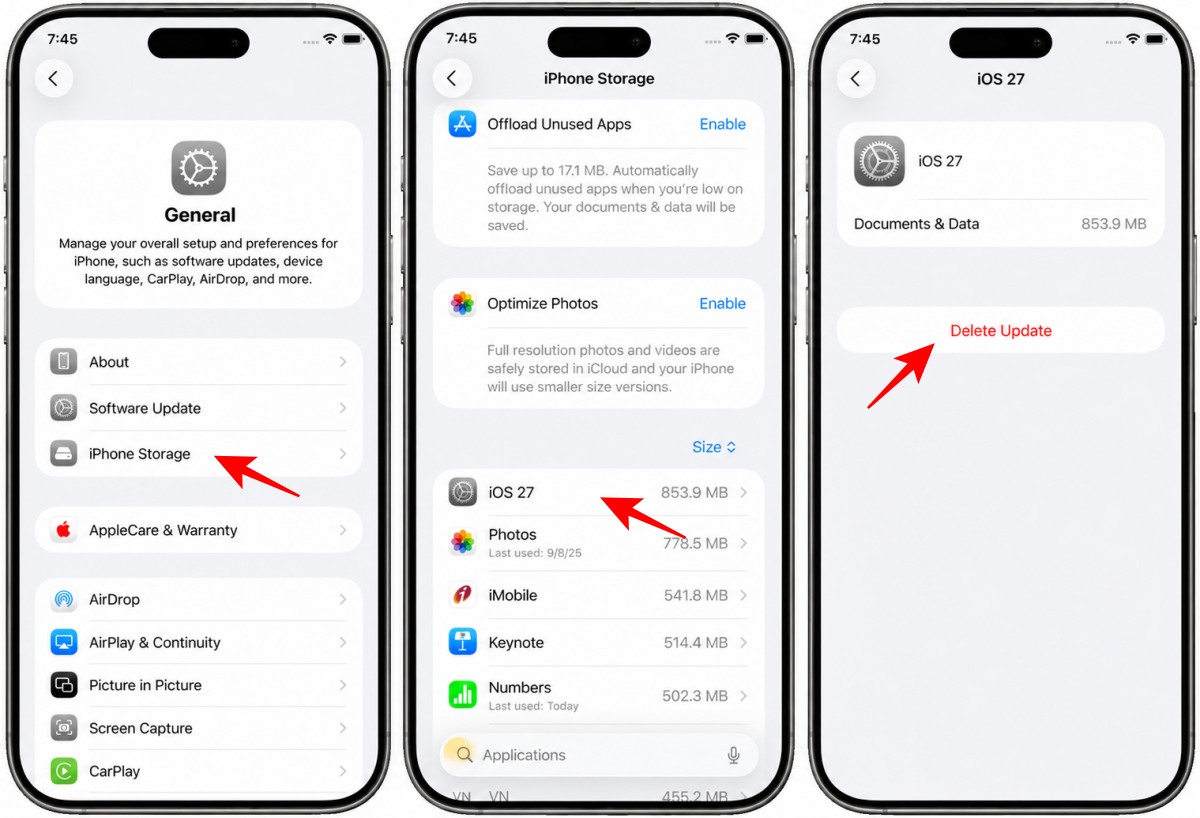
This method helped me when the update repeatedly refused to download or install.
If your iPhone lacks sufficient storage, the update might fail to proceed.
You can also follow our detailed guide on how to free up space on iPhone.
Network glitches can block the update request from proceeding. Here’s how to reset them:
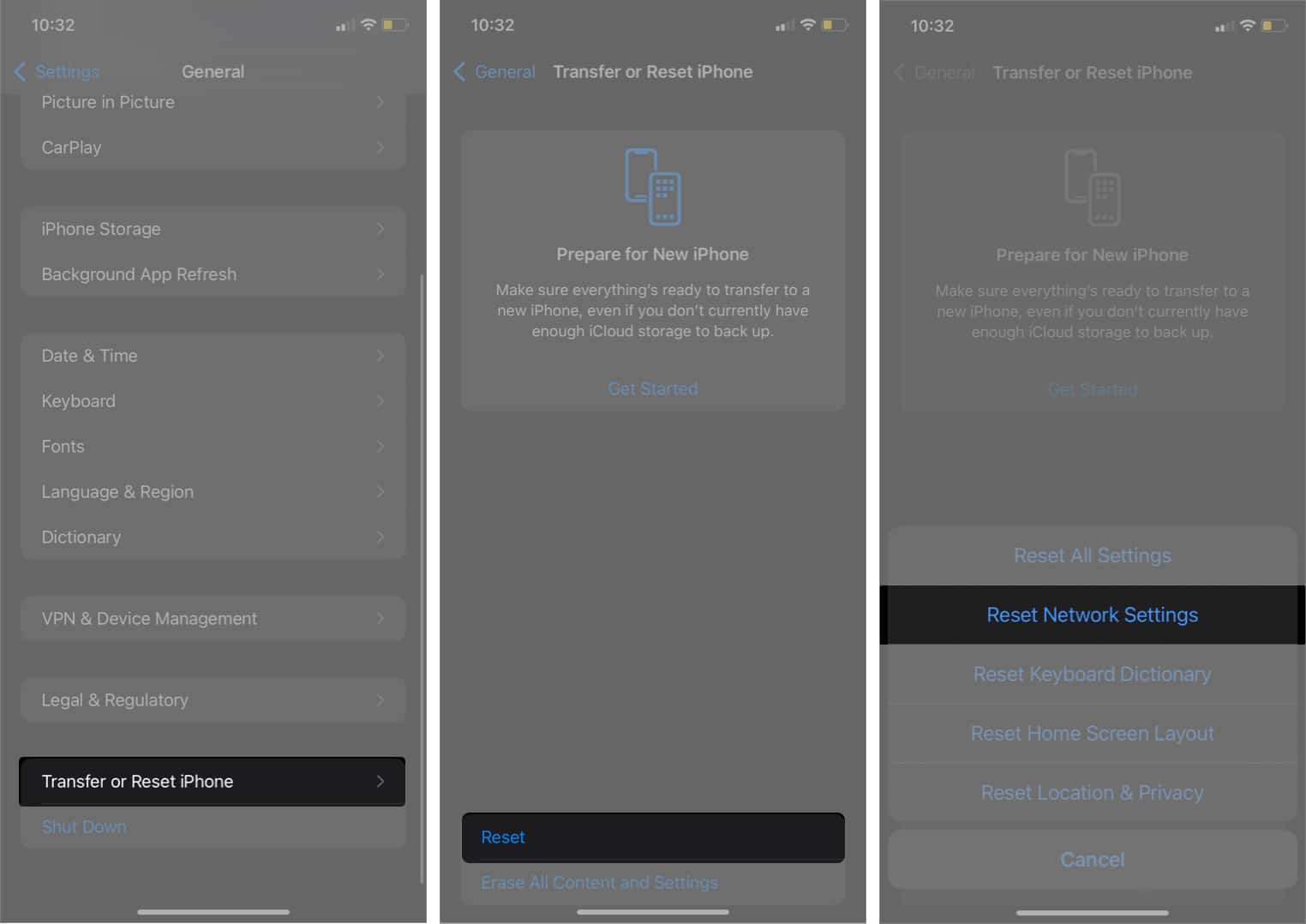
In the rare case that resetting the network is not enough, reset all settings. The steps are the same as above. Just make sure to select Reset All Settings in step 3.
This will remove saved Wi-Fi passwords and custom network configurations.
If the over-the-air update continues to get stuck on “Update Requested,” updating through a computer can be a useful workaround.
Connect your iPhone, back it up, and check for updates. For step-by-step instructions, follow our guide on how to update your iPhone using Finder or iTunes.
Getting stuck on “Update Requested” while trying to install iOS 27 doesn’t necessarily mean something is seriously wrong with your iPhone. In many cases, the update simply needs more time, a more reliable network connection, or a fresh download.
I’d start with the easiest fixes: check Wi-Fi, connect the iPhone to power, restart it, and try again. If that doesn’t work, delete the iOS 27 update from iPhone Storage and download it again.
If you’re still facing trouble, feel free to drop your questions in the comments, and I’ll be happy to help.












