
FaceTime Like a Pro
Get our exclusive Ultimate FaceTime Guide 📚 — absolutely FREE when you sign up for our newsletter below.

FaceTime Like a Pro
Get our exclusive Ultimate FaceTime Guide 📚 — absolutely FREE when you sign up for our newsletter below.


iOS 27 lets you pin your most-used camera tools above the frame. Here are the settings, from 48 MP ProRAW to Night mode, that make the biggest difference.

 ByJignesh Padhiyar and Ava Biswas
With every new iOS update, the iPhone camera gets smarter and more powerful. Even in auto mode, it takes impressive photos. But if you really want professional-level results, you need to tweak a few hidden settings.
The Camera app in iOS 27 lets you choose which tools sit above the frame, so the settings you use most are one tap away. From ProRAW resolution control to Night mode tips, here are the best iPhone camera settings in iOS 27 you should use to take stunning photos.
iOS 27 adds three changes that matter for photos:
The notes in each section below say which iPhone models a setting needs. For a deeper look, see our full breakdown of iOS 27 camera features.
Here’s a breakdown of the most useful settings in iOS 27 and how to use them.
Choose the default resolution for the Main or Fusion camera, or turn on 48 MP, ProRAW, and Resolution Control for more detail. Just head to Settings > Camera > Formats and select your preference.
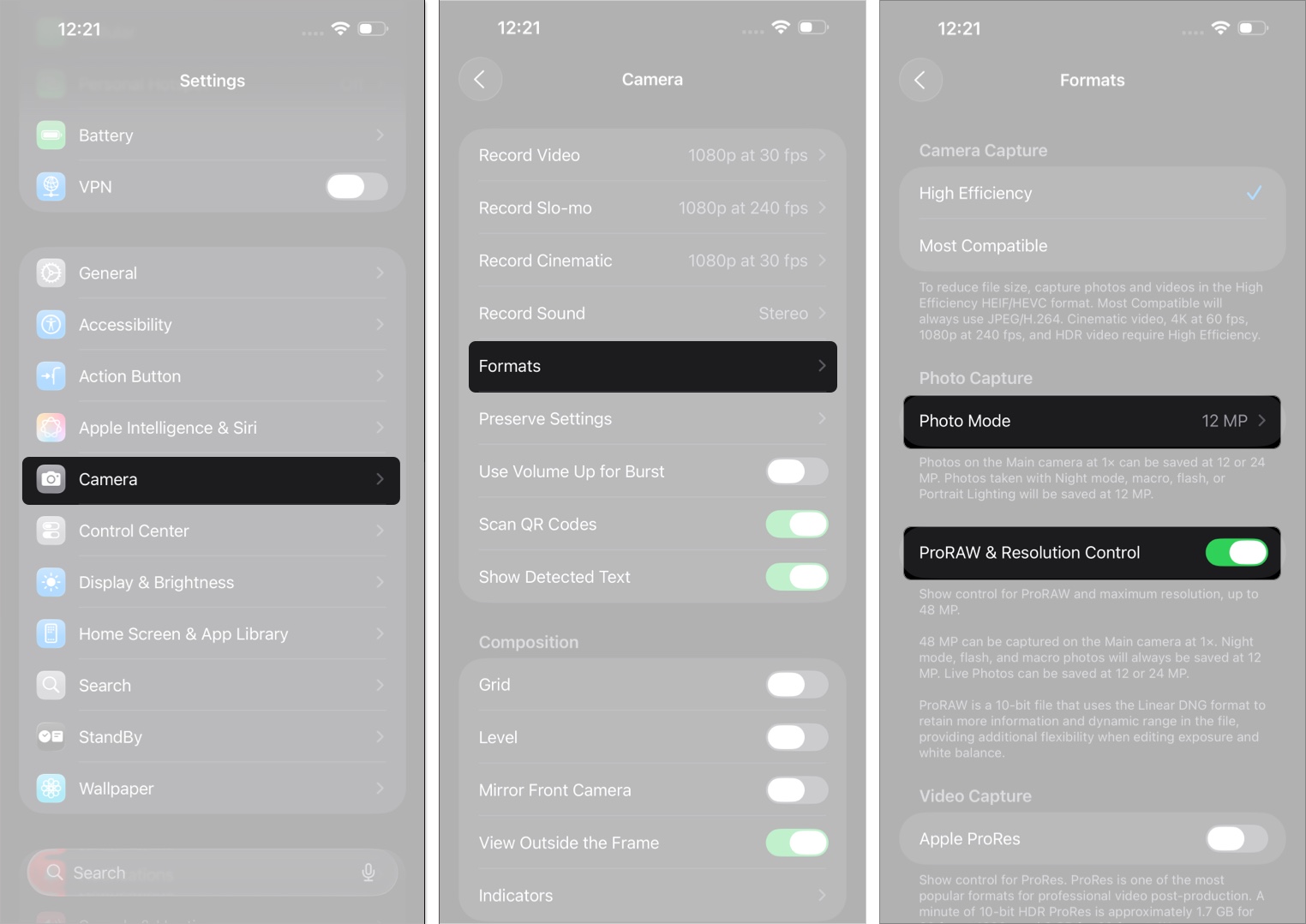
Once ProRAW & Resolution Control is on, tap ProRAW Format in the same menu to set your default format.
Prioritize Faster Shooting is on by default. It adapts image quality when you tap the shutter quickly, so you can take more shots in a row. If you want full quality on every shot, go to Settings > Camera and toggle off Prioritize Faster Shooting. Rapid-fire shots will come a little slower, but each one gets the full processing.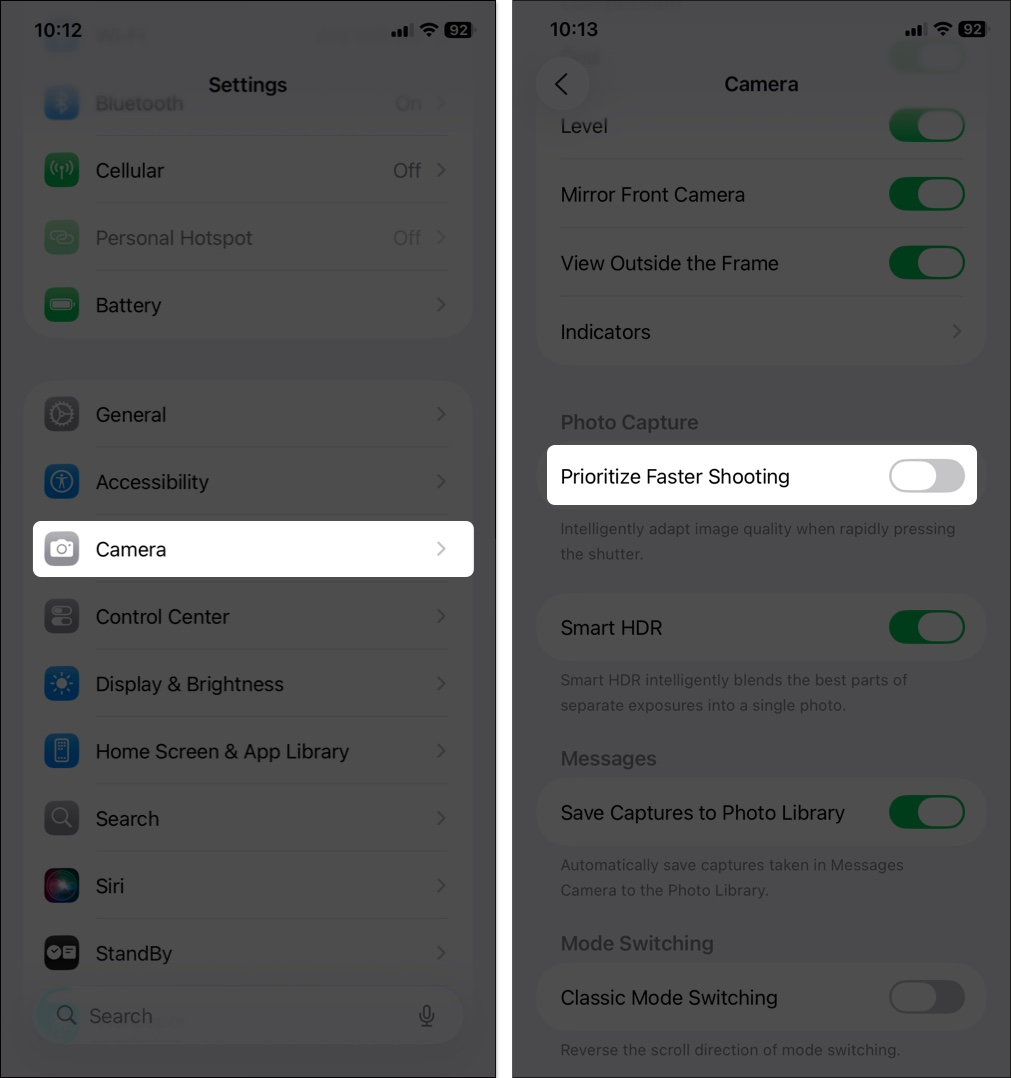
Tap the Camera Controls button or swipe up from the camera modes at the bottom of the screen to reveal the controls. From there, you can toggle options like:
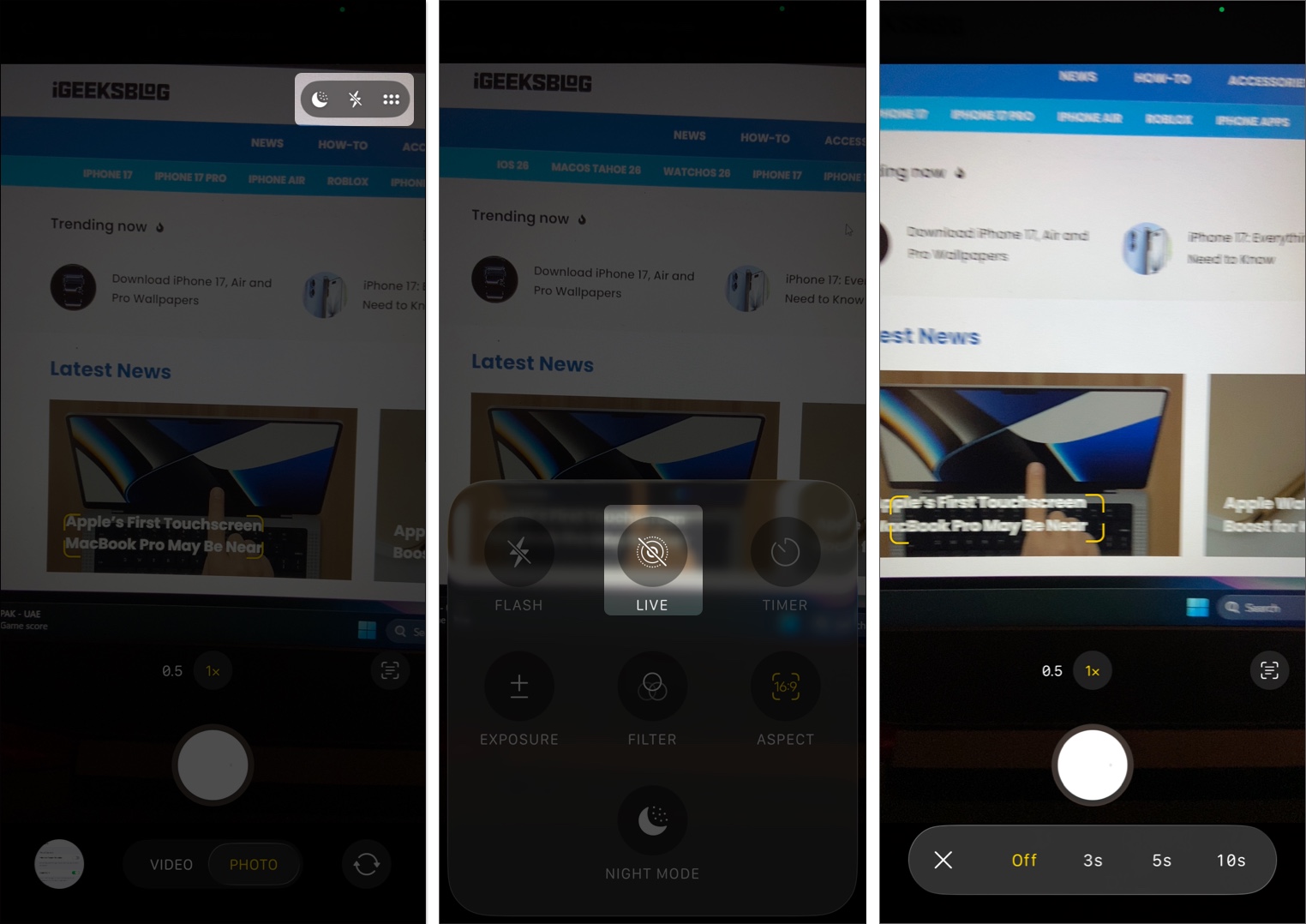
You can also change the Exposure, Photographic Styles, and Aspect Ratio of your photo from here.
Tip: Flash, Live Photo, and Night mode sit above the frame by default, and you can change which tools appear there. To always show the Flash button, go to Settings > Camera > Indicators and turn on Flash.
Your iPhone’s auto exposure isn’t always perfect. For low light or when you want a specific mood, take control by adjusting the exposure manually.
To adjust exposure manually, open the Camera app and tap to focus on your subject. A sun icon will appear next to the focus square. Drag up to brighten or down to darken.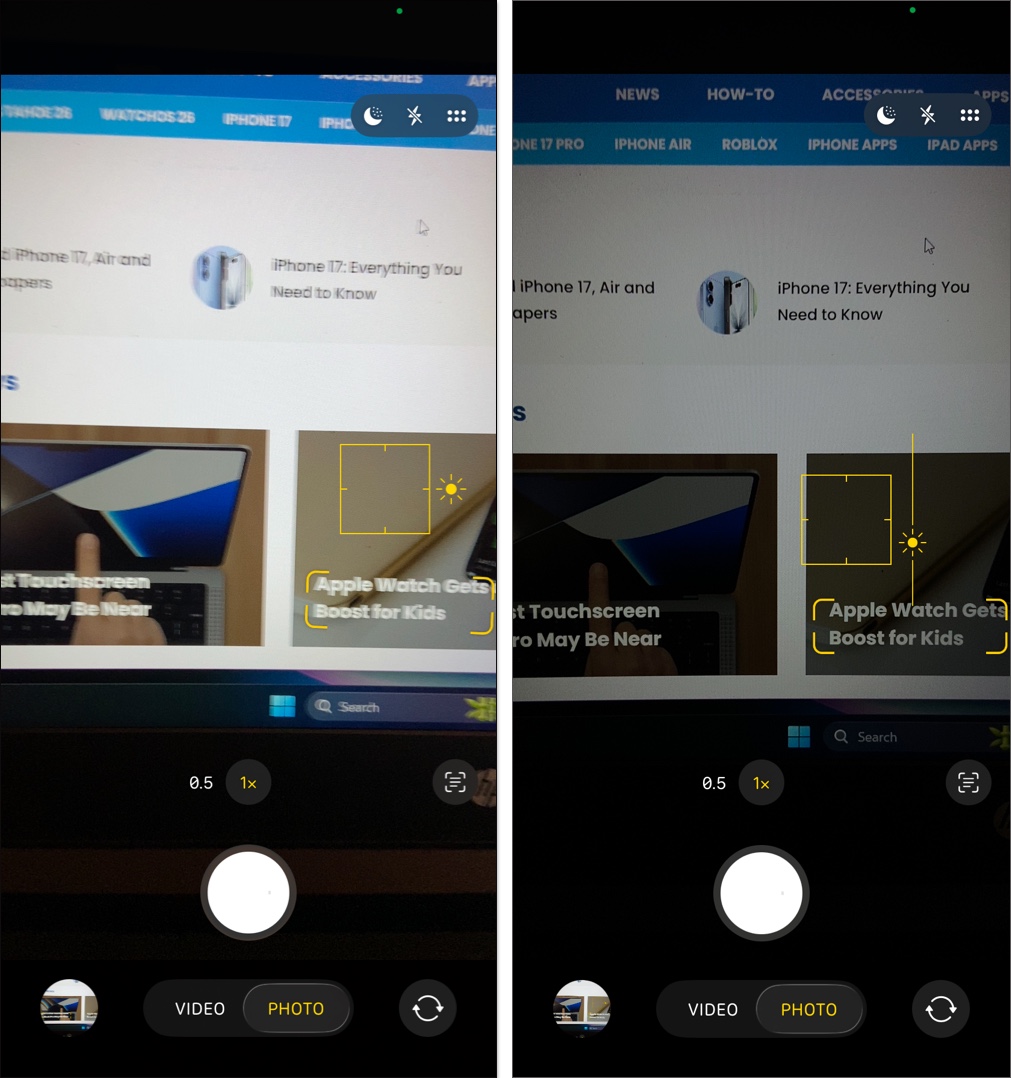
Grid lines in the iPhone Camera app help you frame shots more evenly. Place your subject along the lines or at their intersections for a balanced, visually appealing composition rather than keeping everything centered.
To enable grid lines, go to Settings > Camera and switch on Grid and Level. The next time you open the Camera app, you’ll see a grid overlay to help compose balanced, professional-looking shots.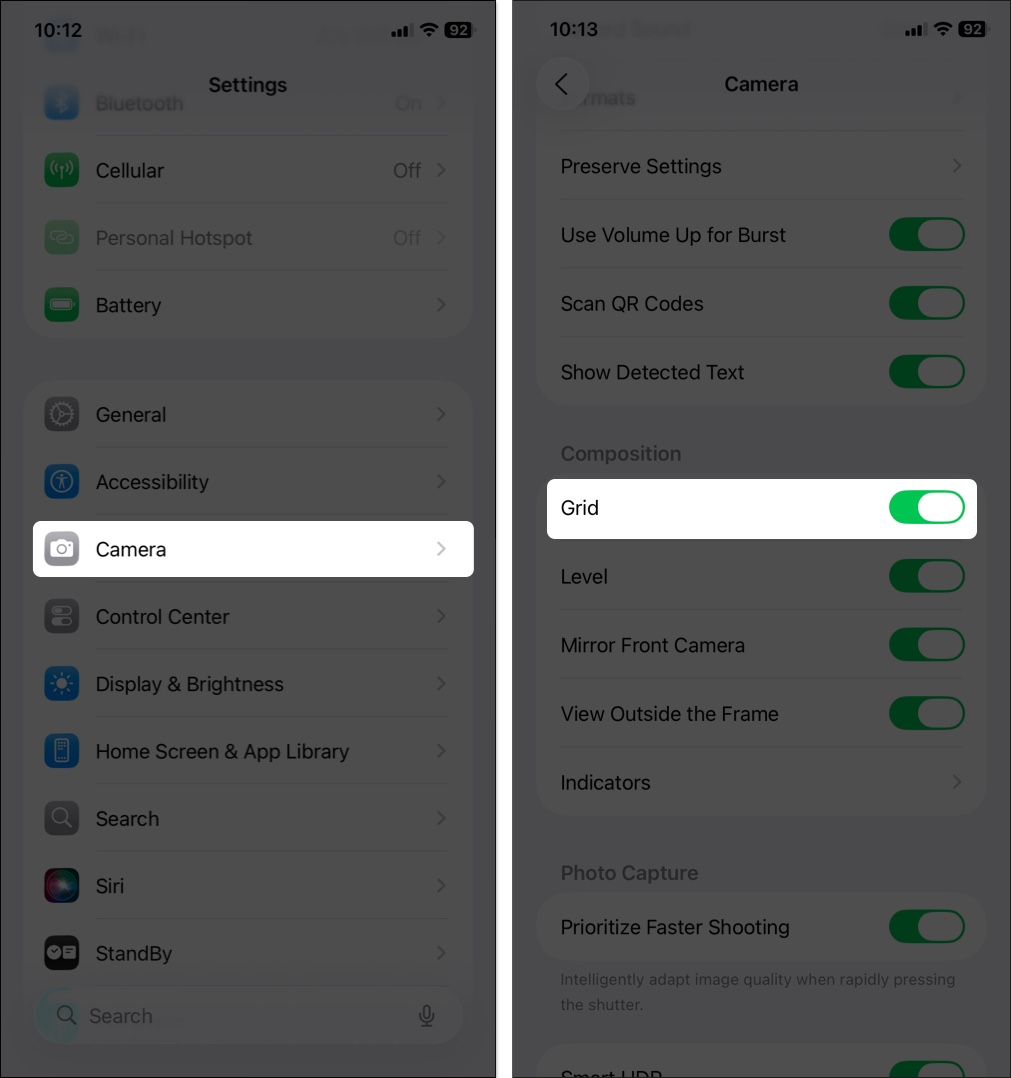
Now let’s get practical. Here are the best settings for different shooting situations, plus a few tips to help you along the way.
Night mode on iPhone helps you shoot clear photos in low light by using longer exposure and smart processing to capture more detail and reduce noise.
Night mode turns on automatically in low light. To turn it off or on, tap the Night mode icon. For more detail, tap Night Mode, then pick one of the exposure options. Your choice is saved for your next Night mode photo.
Use a tripod for even more detailed Night mode photos. If crosshairs appear in the frame, your iPhone has detected movement, so line them up to reduce blur.
Turn off the flash to avoid harsh lighting and let Night mode work naturally. Tap and hold to lock focus and exposure so the camera doesn’t refocus mid-shot, and avoid zooming in, since it can increase noise.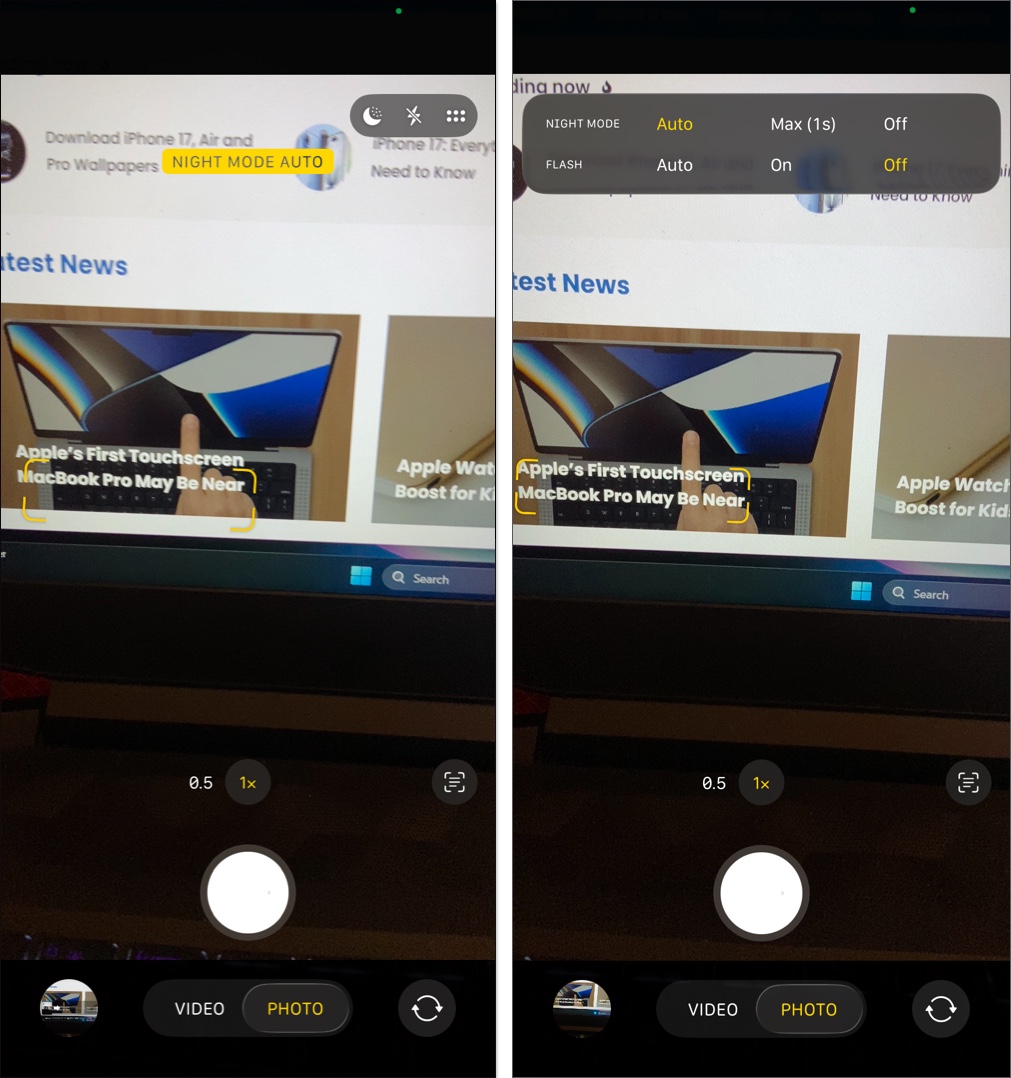
Portrait mode adds a depth-of-field effect, blurring the background while keeping your subject sharp. It’s ideal for portraits and close-ups, and works just as well on objects, not just people.
To use Portrait mode, open the Camera app and swipe to Portrait. Frame your subject, and your iPhone will automatically add the background blur effect.
In Portrait mode, tap Depth and drag the Depth Control slider to adjust the background blur. To change the lighting, drag through the options above the shutter, such as Natural, Studio, Contour, or Stage Light.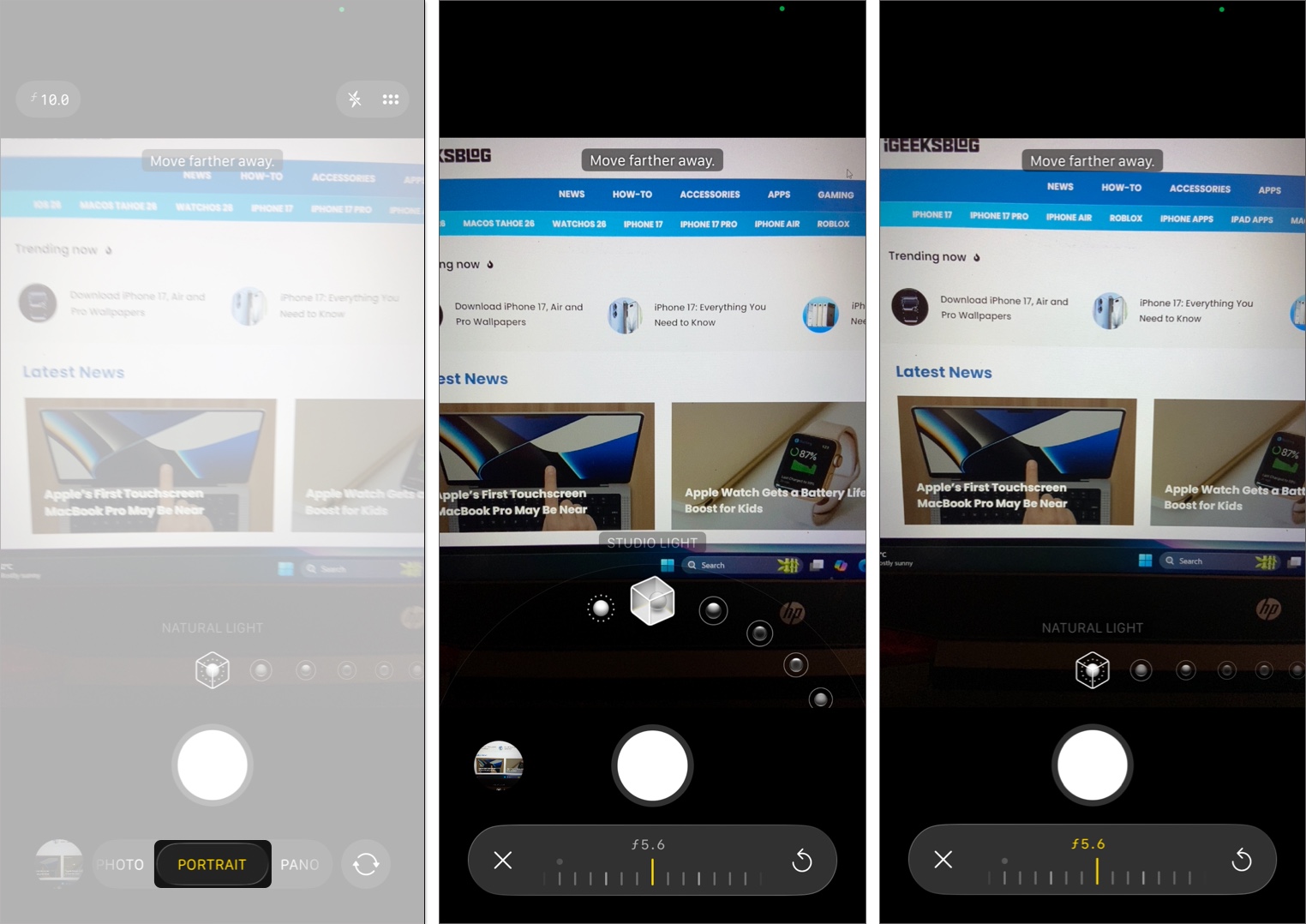
For more control, you can adjust focus and exposure separately, which helps when your subject and background have very different lighting.
Say you’re photographing a coffee cup near a bright window. If you focus only on the cup, it may look too dark compared to the background. By locking focus on the cup and then adjusting exposure, you can brighten it without blowing out the background.
To do this, touch and hold your subject until you see AE/AF Lock. Focus is now fixed. Drag up or down next to the focus square to change exposure (brightness) without affecting focus. Tap the screen to unlock.
Burst mode is perfect for fast action like sports or wildlife, letting you capture multiple shots in quick succession and pick the best one later.
In the Camera app, swipe the Shutter button to the left to start Burst mode, and lift your finger to stop. Then tap the Burst thumbnail to pick the frames you want to keep. For easier access, go to Settings > Camera and turn on Use Volume Up for Burst. After that, you can just hold the Volume Up button to fire off bursts.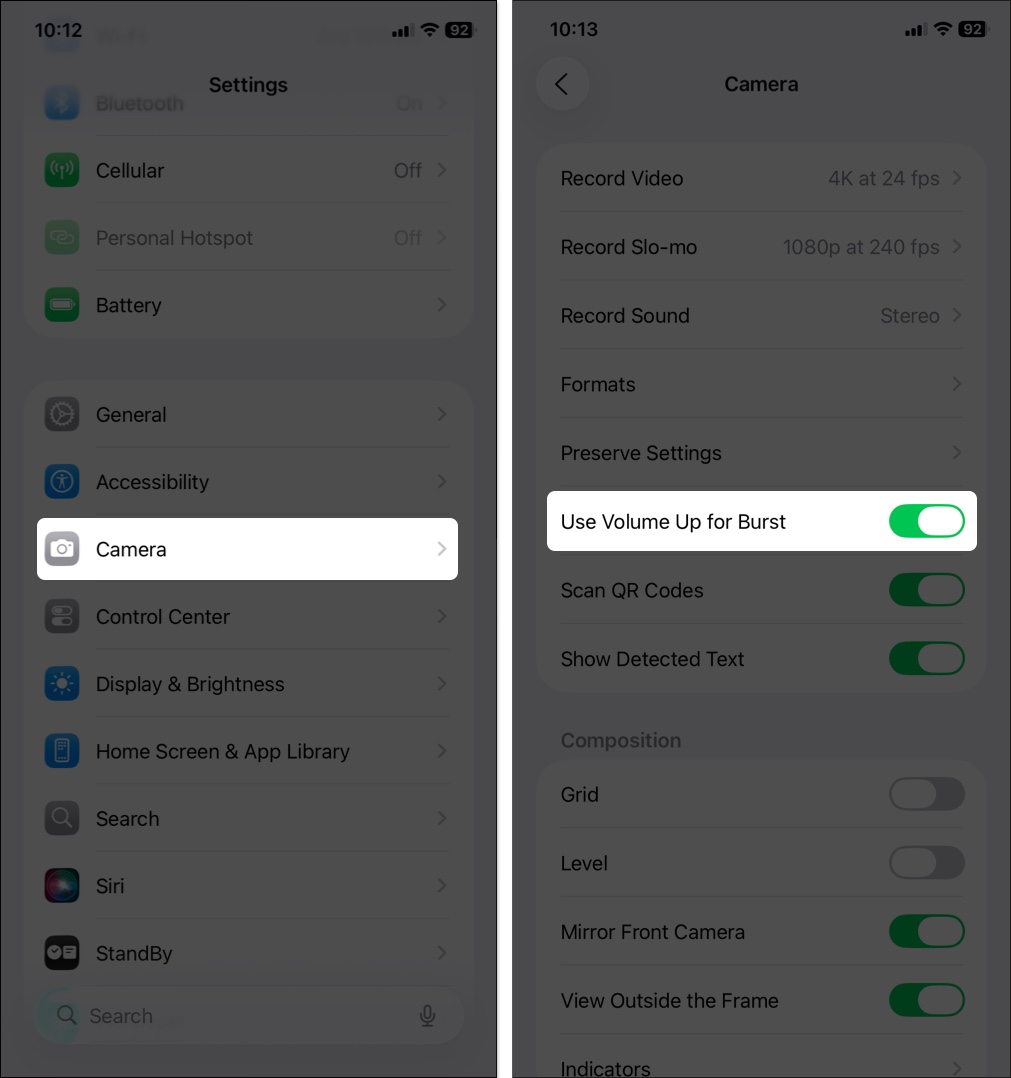
Use Panorama (Pano) mode to capture wide landscapes or cityscapes that don’t fit in a single frame.
Open the Camera app, swipe left to Pano, and tap the shutter to start. Pan slowly in the direction of the arrow, keeping it on the center line, then tap the shutter again to finish. Starting from a darker area helps, and you can pause mid-pan to let exposure adjust before you continue. Move smoothly at a steady pace to avoid wavy horizons or distortions.
When done, review the shot for stitching errors like warped horizons or duplicated people. If needed, try again with steadier, slower movement.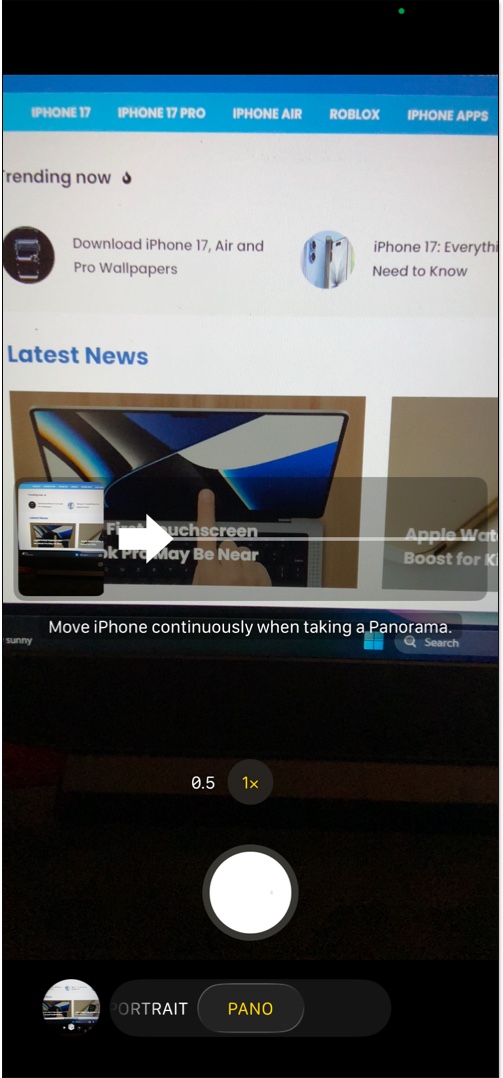
Here are some advanced tips and creative hacks to take your iPhone photography to the next level.
Lens Cleaning Hints warns you when the lens looks smudged, so you can avoid blurry or hazy photos. It works on supported models only. To turn it on or off, go to Settings > Camera and toggle Lens Cleaning Hints. When prompted, gently wipe the lens with a microfiber cloth for sharper images and fewer flares.
The Camera Control button works on iPhone 16, 16 Plus, 16 Pro, 16 Pro Max, 17, 17 Pro, 17 Pro Max, iPhone Air, 18 Pro, 18 Pro Max, and iPhone Duo. The iPhone 16e and 17e don’t have one.
Lightly press it twice to open an overlay with settings such as Exposure, Depth, Zoom, Cameras, Styles, and Tone. Slide your finger to scroll, then lightly press to pick a setting. To choose which settings appear and in what order, go to Settings > Camera > Camera Control > Customize.
If the button stops responding, here’s how to fix Camera Control not working.
With AirPods 4, AirPods 5, AirPods Pro 2, AirPods Pro 3, or AirPods Max 2, you can trigger the shutter remotely. It works well for tripod shots, long exposures, or creative framing.
To set it up:
Then press the stem (or the Digital Crown on AirPods Max 2) to snap a photo or start recording. For the full setup, see how to remotely control an iPhone camera with AirPods.
Even experienced photographers hit snags. Here are common iPhone camera issues and how to fix them.
| Issues | Solutions |
|---|---|
| Dealing with lens flare, glare, and reflections | Try tilting your phone slightly, shading the lens with your hand or a hat, turning off auto flash, and wiping the lens clean. |
| When Night mode fails or produces blurry shots | Mount your iPhone on a tripod for stability and use the timer or a remote shutter to avoid shake. For sharper shots, turn off Night mode and adjust exposure manually. |
| Handling motion blur or shaky shots in handheld conditions | Hold your iPhone with both hands, tuck in your elbows, and use a short exposure or Burst mode to boost your chances of a sharp shot. |
| Battery drain concerns while using high resolution or ProRAW formats | Avoid continuous ProRAW shooting, close background apps, and keep your iPhone charged. Low Power Mode can help save battery but may reduce camera performance. |
By fine-tuning these iPhone camera settings, you can dramatically improve your photos and elevate your photography. With iOS 27, you can put the controls you use most one tap away. It’s all about knowing when to let the iPhone handle things and when to step in.
Experiment with different settings, review your shots, and adjust your approach to see what works best in different lighting and situations. For quick, casual photos, the automatic settings are still your friend.
Did I miss any of your favorite iPhone camera tricks? Share them in the comments!
FAQs
The App Store has no shortage of powerful camera apps with advanced controls and creative features. Popular picks include Halide Mark II, Focos, and Adobe Lightproof. For more options, check out our full comparison of the best iPhone camera apps.
To turn off the camera shutter sound on iPhone, put your iPhone in Silent mode using the Ring/Silent switch, or the Action button or Control Center on newer models. Keep in mind, though, that in some countries this option is restricted by law.
If your iPhone’s front camera isn’t working, it could be due to software glitches or hardware issues. Check out our detailed guide on how to fix the iPhone front camera for step-by-step solutions.











