FaceTime Like a Pro
Get our exclusive Ultimate FaceTime Guide 📚 — absolutely FREE when you sign up for our newsletter below.

FaceTime Like a Pro
Get our exclusive Ultimate FaceTime Guide 📚 — absolutely FREE when you sign up for our newsletter below.


Make WhatsApp voice and video calls on iPhone, Mac, or directly in your browser. Follow the existing steps and learn what Web calling adds, including group calls.

 ByRavi Teja KNTS and Yash Wate
You probably use WhatsApp every day to chat with your friends or family, but when it comes to calling, things can feel a bit scattered. You can actually make free voice and video calls not just on your iPhone but on your Mac and the web, too.
Whether it’s a quick catch-up or a long video chat, WhatsApp makes it simple. Keep reading, and I’ll show you how to make audio and video calls on WhatsApp using all three platforms.
Before we jump into the steps, you need to get a few things sorted:
WhatsApp Web calling is rolling out gradually, so the call buttons may not appear for everyone immediately.
You can start a WhatsApp call on an iPhone using these steps:
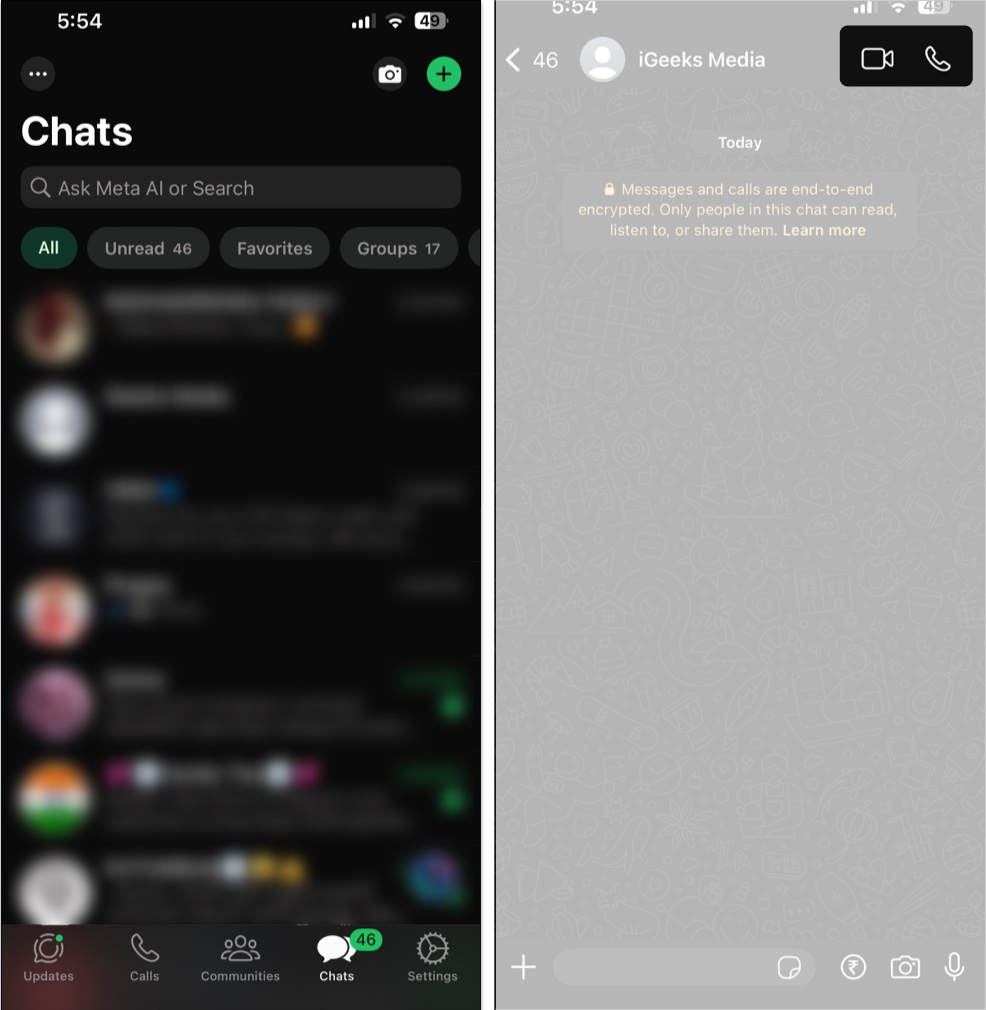
That’s it. You successfully made the call on WhatsApp.
WhatsApp also lets you a call on your iPhone using the following ways:
During the call, you can mute yourself using the microphone icon, switch from voice to video by tapping the camera icon, or end the call by tapping the red button. During a video call, tap on the Share screen icon to even share your screen.
Starting a WhatsApp call on your Mac is pretty much the same as on an iPhone:

You’re now on the call.
Alternatively, you can also place a WhatsApp call on your iPhone using any of these methods:
During the call, you can mute yourself using the microphone icon, turn your camera on or off, click the screen icon to start screen sharing (macOS 12.3+ required), and end the call using the red hang-up button
Related: How to schedule WhatsApp calls on iPhone
WhatsApp Web now supports one-to-one and group audio and video calls without requiring the desktop app.

Once the call connects, WhatsApp shows controls for the camera, microphone, full-screen view, more options, and ending the call.

During a video call, you can keep the call in a floating window while using WhatsApp Web.
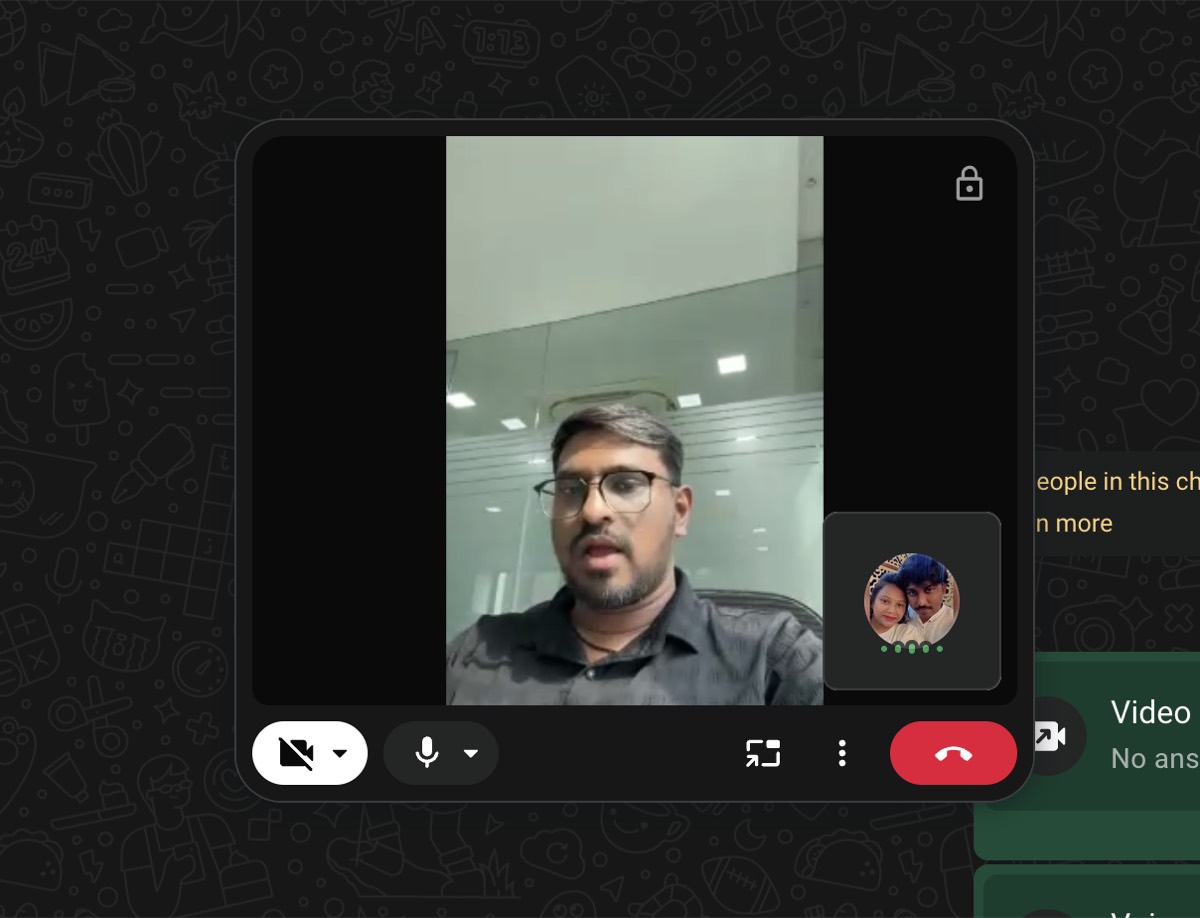
Web calls also support screen sharing, reactions, and a dedicated Calls tab with your call history and favorites. Calls remain end-to-end encrypted, with no time limits or charges.
WhatsApp is also rolling out call transfers for active group calls between devices, waiting rooms for call links, QuickHD video, and noise suppression. These features may not be available to everyone immediately.
For times when you want to get multiple people on a call, you can use any of the three ways below to make a group call on your iPhone, Mac, or WhatsApp Web.
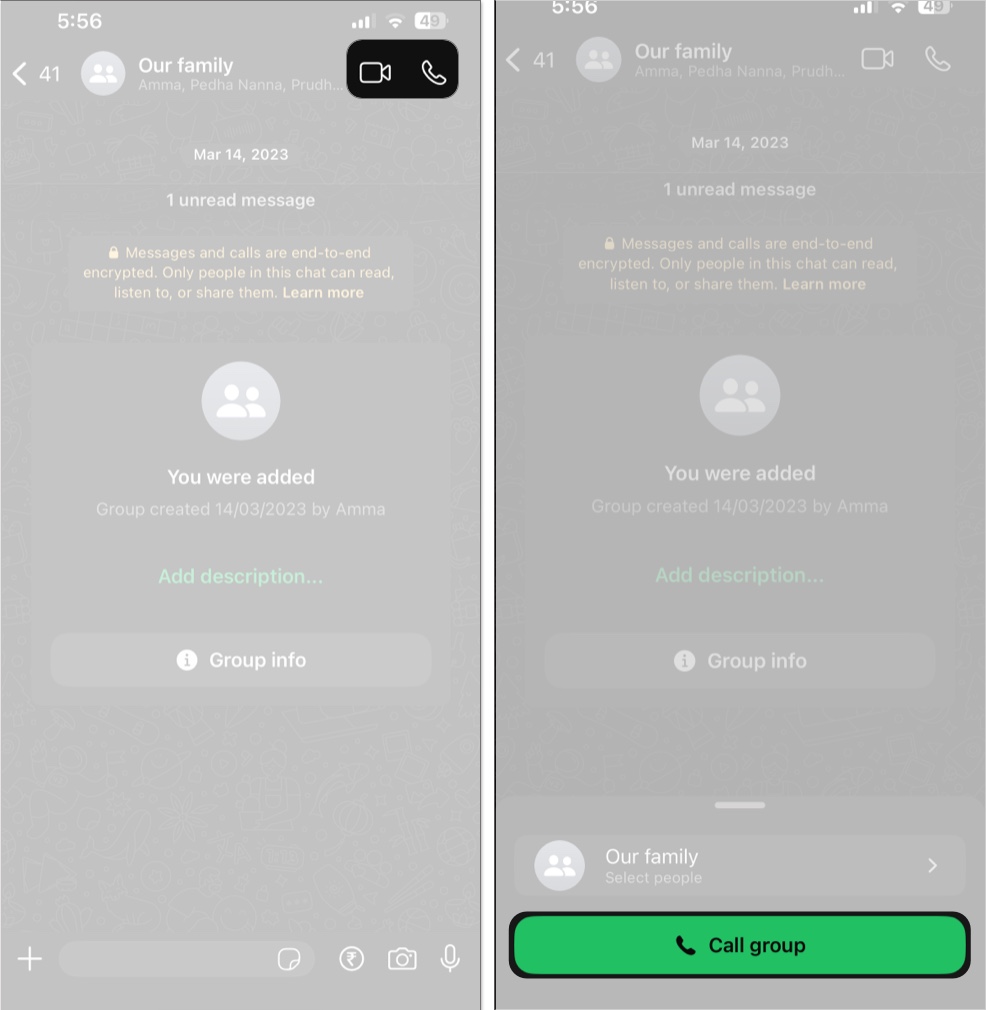
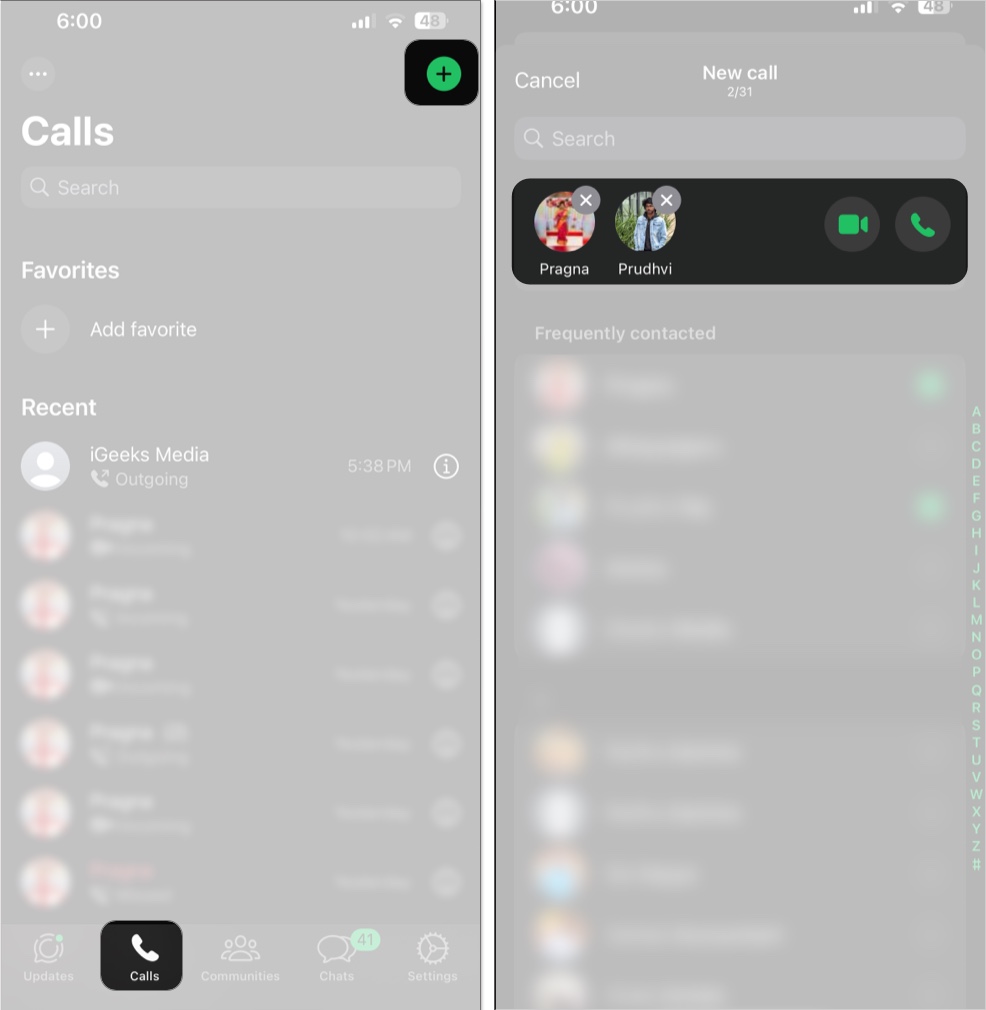
Group calls support up to 32 people. You can mute others (up to 3 times per person) but can’t remove participants mid-call.
Related: How to delete a WhatsApp group
Here are some key things you should know before or during a WhatsApp call:
That’s pretty much everything you need to know about making WhatsApp calls on an iPhone, Mac, and the web. From quick one-to-one chats to full-blown group calls with screen sharing, it’s all built-in to WhatsApp and surprisingly smooth to use once you know where to look. Now that you’re versed, you’re all set to bring your WhatsApp conversations to life.
FAQs
Yes. Once your WhatsApp account is set up, you can make calls using any Wi-Fi or mobile data connection, even without an active SIM card in your device.
Yes. Open the Calls tab and use the dialer to enter any number. If the number is on WhatsApp, you can call them directly. If not, you’ll have the option to invite them to join WhatsApp.
Yes. If the group call is still in progress, you’ll see a “Join” button in the Calls tab or in the group chat. Tap it to join instantly.
No. Screen sharing is only available during video calls. You’ll need to start or switch to a video call to use this feature.
No, WhatsApp doesn’t let you forcibly remove participants from a group call. However, you can mute them temporarily for you. Other users can still listen to them when you mute users on WhatsApp call.
Other WhatsApp-related posts: