FaceTime Like a Pro
Get our exclusive Ultimate FaceTime Guide 📚 — absolutely FREE when you sign up for our newsletter below.

FaceTime Like a Pro
Get our exclusive Ultimate FaceTime Guide 📚 — absolutely FREE when you sign up for our newsletter below.


Master Siri on your Apple Watch with essential voice commands and discover how the new Siri AI features make your smartwatch smarter than ever.
I often reach for my Apple Watch to check the next appointment, set a reminder, or reply to a message while my hands are busy. However, sometimes it is not comfortable to type on such a tiny screen. That is where Siri can be really helpful.
With watchOS 27, Apple is taking this experience further with the new Siri AI experience. Instead of relying only on voice commands, Siri AI is designed to understand more conversational requests, find relevant personal information, and help you complete tasks across supported apps.
In this article, I will provide you with all necessary information about Siri on Apple Watch, from enabling the standard assistant to setting up and using Siri AI. I’ll also explain which Apple Watch models are compatible, how availability works, and what to do if you can’t find the new features.
If you’ve been using Siri on your Apple Watch for a while, you probably already know how useful it is for quick tasks. I find voice commands particularly handy when I don’t want to interrupt what I’m doing just to interact with my watch.
Siri AI takes that familiar experience further. Rather than treating every request as a separate command, it’s designed to understand more natural conversations and help with more complex questions.
| Feature | Standard Siri | Siri AI |
|---|---|---|
| Set timers, alarms, and reminders | Yes | Yes, with supported actions |
| Send messages using voice commands | Yes | Yes, with additional contextual capabilities |
| Ask general questions | Yes | Designed for more conversational answers |
| Find personal information | More limited | Can use relevant context across supported apps |
| Handle complex requests | Best for straightforward commands | Designed to understand more detailed requests |
| Dedicated conversation history | No equivalent dedicated AI conversation hub | Available through the Siri app |
| Device requirements | Supported Apple Watch models | Compatible Apple Watch and Apple Intelligence-enabled iPhone |
| Availability | Depends on language, region, and feature | Beta, subject to additional requirements |
Here’s the important distinction: there is no need to have Siri AI to make your everyday life easier with Siri. If all you want is to set a quick reminder or send a reply without reaching your iPhone, standard Siri can still do the job. Siri AI is more useful when you want to ask follow-up questions.
The first thing I’d check before looking for Siri AI is whether both your Apple Watch and iPhone are compatible. Updating your watch alone doesn’t automatically unlock every Apple Intelligence feature.
Before getting started, make sure your devices meet the following requirements:
If you have an older Apple Watch, don’t assume something is wrong if you can’t find Siri AI. Your watch may still support standard Siri without meeting the requirements for the newer experience.
Apple’s setup process begins on your paired iPhone.
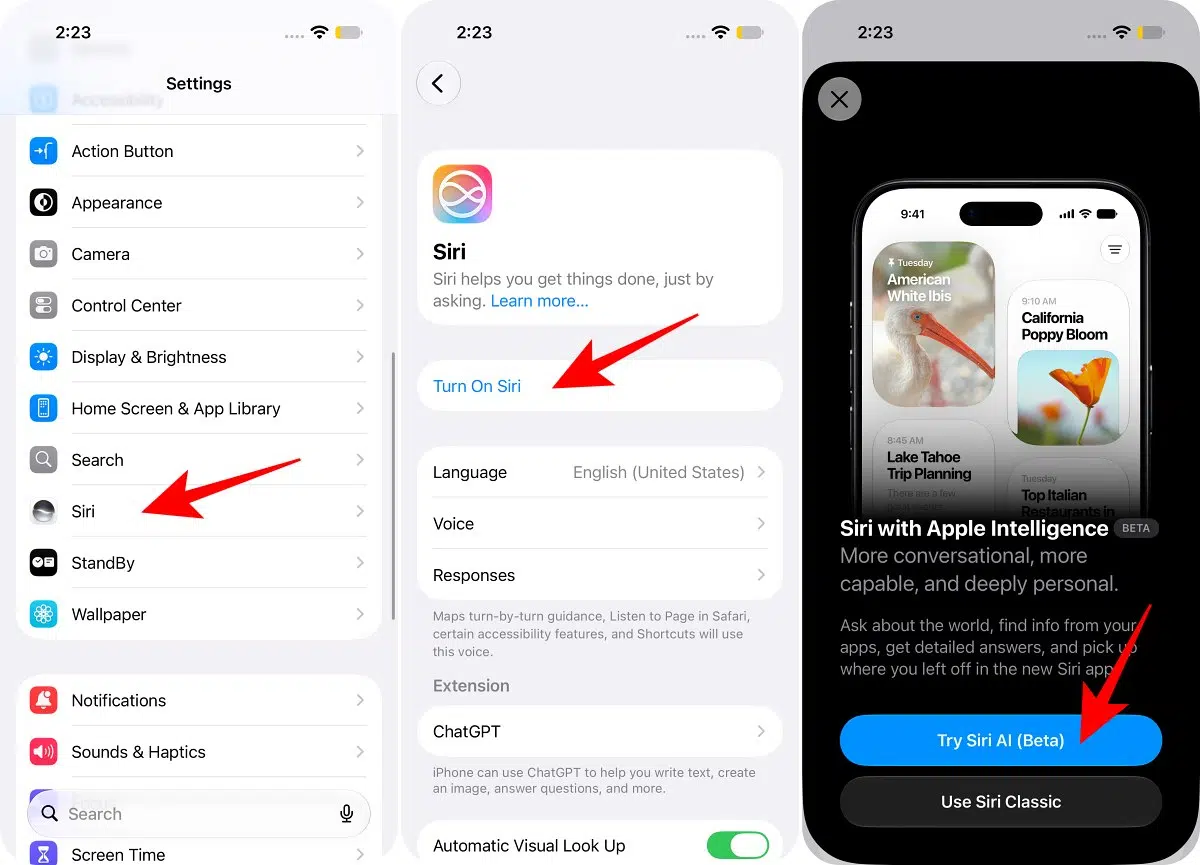
Once setup is complete, Siri AI can become available on supported devices, including your compatible Apple Watch.
A quick troubleshooting tip: If the beta option doesn’t appear, check your iPhone model first and ensure Siri AI is enabled there. Then check software updates, language settings, and regional availability before assuming the feature is broken.
Before trying the newer AI features, I’d recommend checking that standard Siri is working properly. This also gives you a fallback if your Apple Watch doesn’t support Siri AI.
First, ensure that you have enabled Siri on your iPhone by going to Settings > Siri > Turn On Siri and follow the on-screen instructions.
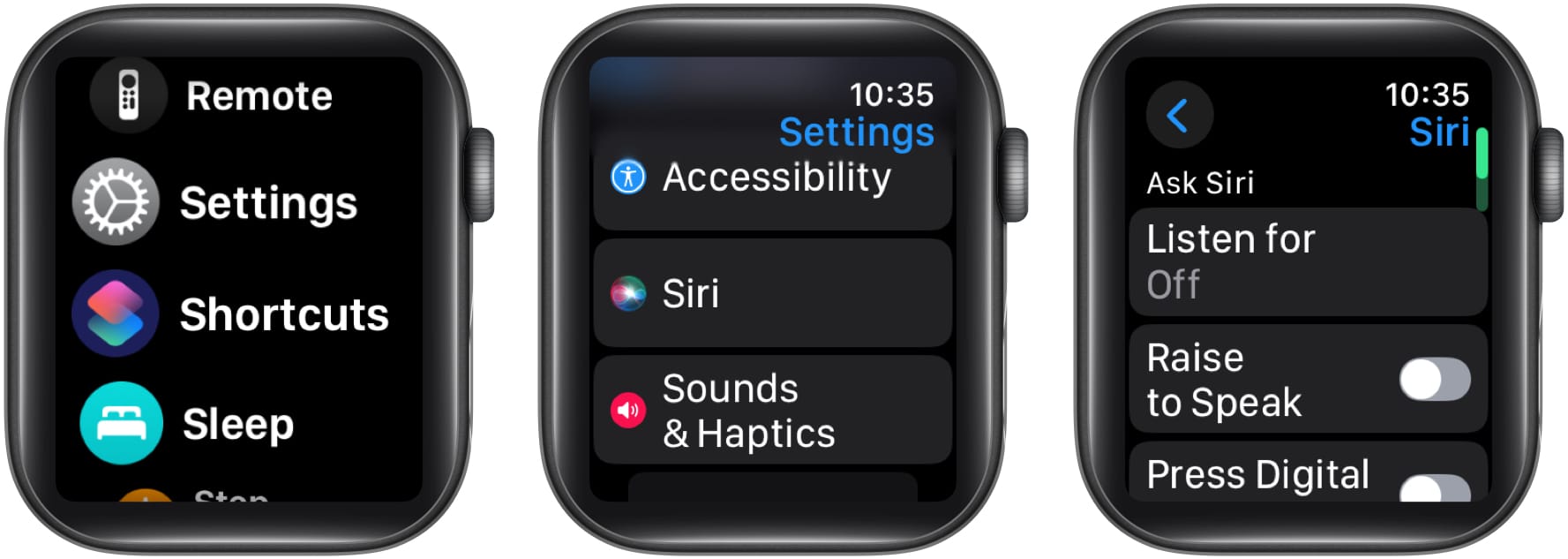

I recommend enabling more than one activation method. Voice activation is convenient when you’re moving around, but it may be better to use the Digital Crown when you don’t want to speak a wake phrase aloud.
Once Siri is enabled, you can activate it in three ways. Your choice will probably depend on where you are and what you’re doing.
This is the quickest option when you can comfortably speak aloud.
Say “Hey Siri” or “Siri,” followed by your request. For example:
I find it helpful to include the important details in the same sentence. For example, saying “Remind me to submit the report at 4 PM tomorrow” provides Siri with much more information than just saying that you want to set a reminder and filling in the details afterward.
The option to use “Siri” without “Hey” isn’t available in every language or region.
There are times when speaking a wake phrase feels unnecessary, especially if you already have your wrist raised to check your watch.
With Raise to Speak, you can bring your Apple Watch toward your face and begin speaking. Your watch can detect the movement and activate Siri.
This is useful when you’re walking, carrying something, or trying to avoid waking Siri on another nearby Apple device. If you find the feature activating accidentally, you can turn it off under Settings > Siri.
When I’m in a quiet place, using the Digital Crown is a practical alternative to speaking a wake phrase.
This method is particularly useful in situations where you want to keep things discreet, such as during a meeting or while sitting in a quiet waiting room.
Note: Once you have activated Siri, you don’t need to look at the screen. Just lower your wrist. The tap will let you know there is a response. To respond to Siri’s query or keep up with the conversation, press down on the Digital Crown and talk.
The most interesting part of Siri AI is how it changes the way you can phrase a request. Instead of memorizing a specific command, you can describe what you’re trying to find or do.
Imagine you’re planning a trip and want a quick answer without taking your iPhone out of your pocket. You can ask Siri AI a question and then follow up with another question to explore the topic.
For example:
The advantage is the conversational approach. You can build on the previous question rather than starting from scratch every time.
This is where personal context can make a difference. We’ve all had situations when we remember saving something but can’t remember whether it was in Notes, Messages, or another app.
Siri AI is created to assist in searching for relevant information across supported apps when the necessary access is available.
For example, you could ask:
Rather than opening several apps and searching manually, you can describe the information you’re looking for.
The results depend on what’s actually stored on your devices, which apps are supported, and the permissions you’ve granted. If Siri can’t access the relevant information, you may still need to open the app yourself.
Sometimes, the hardest part of using a small screen is navigating multiple menus just to make a simple change.
Siri AI is designed to make supported actions easier by letting you describe what you want to do.
For example:
The assistant may be able to use relevant context to understand the request and carry out a supported action.
I would still recommend checking the result when a request changes a calendar event, shares information, or affects someone else.
Another useful addition is the dedicated Siri app on Apple Watch. It brings conversations together, making it easier to return to a topic instead of starting over each time.
To use it:
You can also pin conversations you want to access more easily. Supported conversations can continue across compatible Apple devices, so you don’t necessarily have to finish everything on your watch.
This can be particularly helpful for ongoing tasks, such as planning a trip or working through a series of related questions.
Even if you don’t have access to Siri AI, standard Siri still handles the everyday tasks that make an Apple Watch convenient.
There’s nothing more awkward than having a voice assistant speak aloud when you’re trying to keep things quiet. Fortunately, you can control when Siri responds verbally.
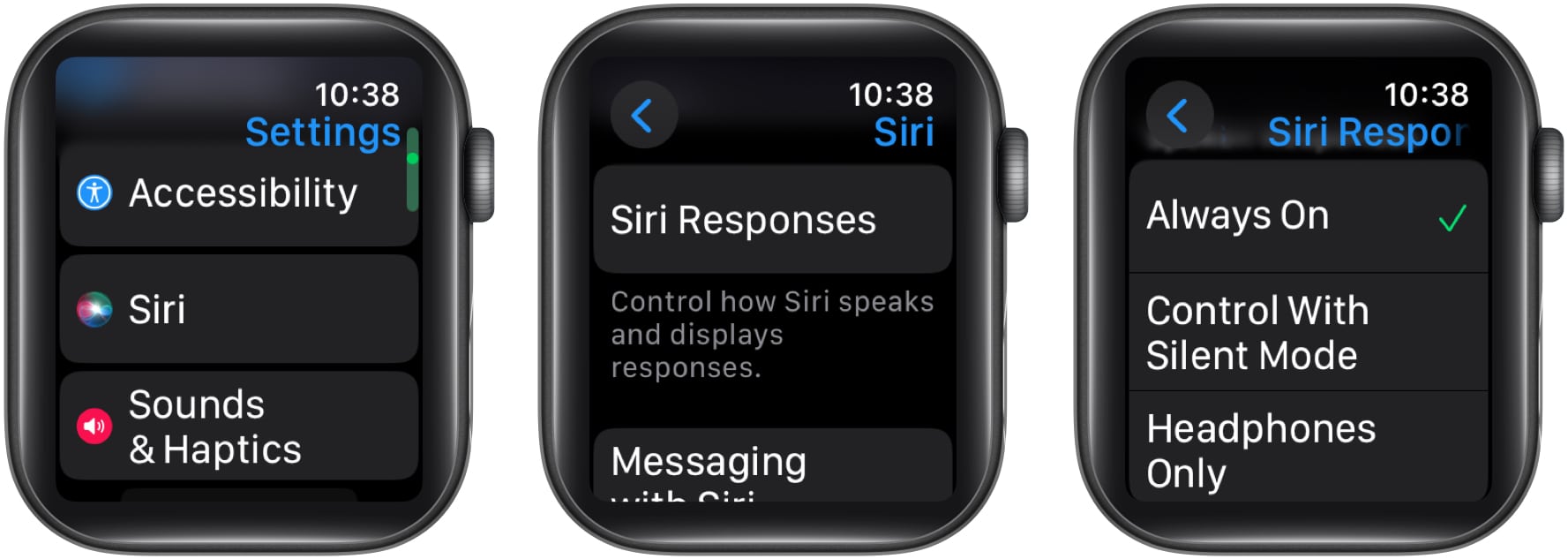
Select the method which better fits your everyday routine. If you frequently use your watch in meetings or public places, controlling spoken responses can make a real difference.
If you often leave your iPhone in your bag or pocket, announcements can help you stay informed without constantly checking your screen.
Open the Siri settings on your Apple Watch or paired Apple device and configure Announce Calls and Announce Notifications. Adjust these features to match your preferences and the devices you use.
When typing feels inconvenient, try saying: “Send a message to Alex saying I’ll be there in 10 minutes.” Review the message if prompted, then tap Send or follow Siri’s instructions.
It’s one of the most convenient ways to make the Apple Watch really hands-free while you walk or have your hands busy with other stuff.
If you suddenly remember something you need to do later, you don’t have to open the Reminders app and fill in every field.
Say something like: “Hey Siri, remind me to submit the report at 4 PM tomorrow.” You can also add items to lists by saying, “Add milk to my grocery list.”
The more specific you are about the task and timing, the easier it is to create the reminder you actually need.
Instead of scrolling through your apps, say: “Open Workout.”
You can replace Workout with another installed app. This is a small convenience, but it becomes particularly useful when you want to get something done quickly.
If you want to look something up without taking out your iPhone, ask Siri a question. Depending on the request, it may display relevant information or web results that you can open for more details.
The results and level of detail may differ between standard Siri and Siri AI.
Have you ever heard a song playing in a café and wanted to know what it was before it ended? Activate Siri and ask, “What’s this song?”
Siri can use Shazam-powered music recognition to identify supported songs playing nearby.
If you’re looking for a new fitness app or game, ask Siri to help you find relevant apps.
For example, say, “Find Apple Watch fitness apps.”
The results depend on the request and the search features available on your device.
For me, the appeal of Siri has always been convenience. Setting a timer, sending a quick message, or creating a reminder without navigating a tiny screen can make everyday tasks feel much simpler.
Siri AI builds on that convenience by making it more conversational to ask questions, find relevant information, and complete supported tasks. Its dedicated app also makes it easier to return to previous conversations.
However, you don’t need the newest AI features to get value from your Apple Watch. Standard Siri remains useful, especially if you mainly rely on voice commands for quick actions.
If you have a compatible Apple Watch and iPhone, it’s worth exploring Siri AI. Keep in mind it’s a beta experience, and availability depends on your device, language, and region.
FAQs
Standard Siri can do some tasks without your iPhone nearby, as long as your watch has the necessary network connectivity. Siri AI has additional requirements and needs a compatible Apple Watch paired with an Apple Intelligence-enabled iPhone. The iPhone must be nearby for the supported experience.
Yes. Older compatible Apple Watch models can continue using standard Siri, even if they don’t support the new AI experience.
Check your Apple Watch and iPhone compatibility first. Then confirm both devices run compatible software, your language is supported, and the feature is available in your region. If the option is still missing, restart both devices and try to enable it.
Some requests require network connectivity, especially those involving online information or server-side AI processing. Other supported actions may use information available on the device. The requirements depend on the feature and request.
Read more on Apple Watch: