FaceTime Like a Pro
Get our exclusive Ultimate FaceTime Guide 📚 — absolutely FREE when you sign up for our newsletter below.

FaceTime Like a Pro
Get our exclusive Ultimate FaceTime Guide 📚 — absolutely FREE when you sign up for our newsletter below.


Is your iPhone stuck on the charging screen and refusing to boot up? This guide walks you through simple checks and advanced fixes to get it working again.

 ByAnkur Thakur and Vikhyat
The iPhone stuck on the charging screen is a dreaded issue that has baffled countless iPhone users, especially when they’re in a hurry. While it isn’t uncommon to panic when your expensive iPhone refuses to boot up and only shows the charging icon, you shouldn’t. This issue can usually be fixed with a few simple steps unless physical damage is involved.
This post details all possible troubleshooting tips to resolve the iPhone stuck on the charging screen issue and get your iPhone back to working condition.
When you connect your powered-off iPhone to a charger, the charging screen (a battery icon with a cable or a red battery symbol) appears. Once the charging screen appears, your iPhone is supposed to charge normally, then power on automatically after a few seconds. But if it doesn’t, this means your iPhone is receiving power but isn’t booting into iOS.
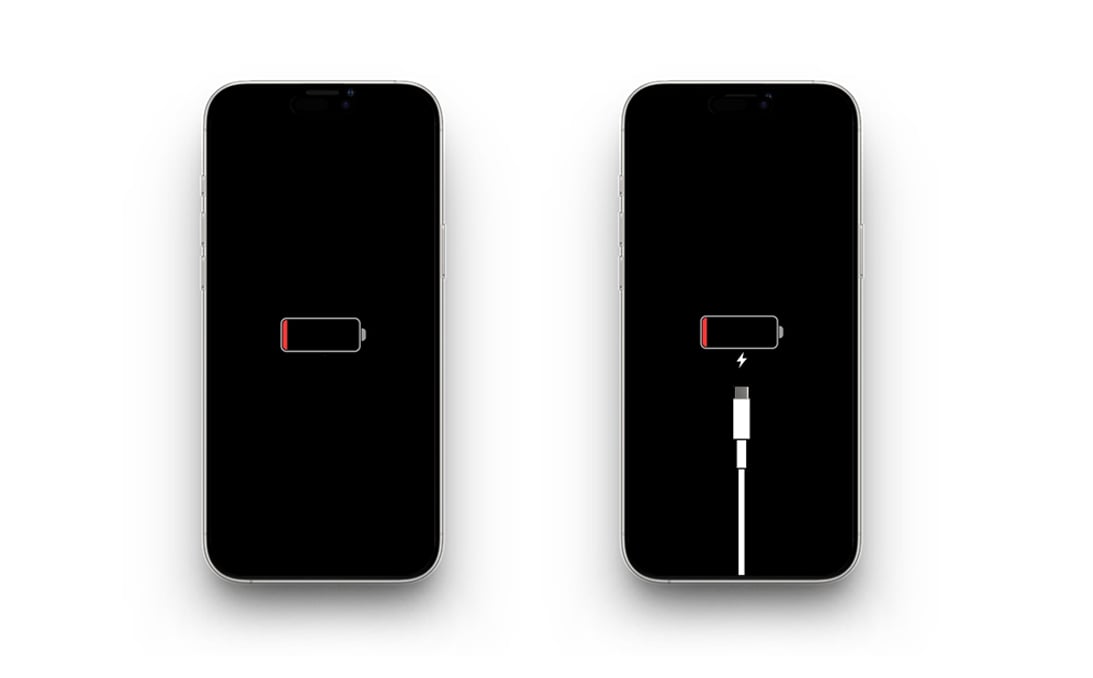
Before attempting to fix the issue, it is essential to understand why it occurred in the first place. While your iPhone should power on automatically after a few seconds of plugging it into a charger, if it doesn’t, the issue may be due to:
Before exploring more complex solutions that require extra effort, try running these simple checks to eliminate common causes.
Sometimes, the issue might lie with the cable and adapter you’re using to charge the iPhone, rather than the iPhone itself. If you’re using a non-MFi-certified cable or power adapter—or one with wear and tear—consider replacing it with a new MFi-certified one.
Related: Best USB-C Power Adapters for iPhone
Plug your iPhone into a Mac or PC. If it shows up in Finder (macOS Catalina or later) or iTunes (older macOS or Windows), the system is responsive, and you can restore the iPhone if needed.
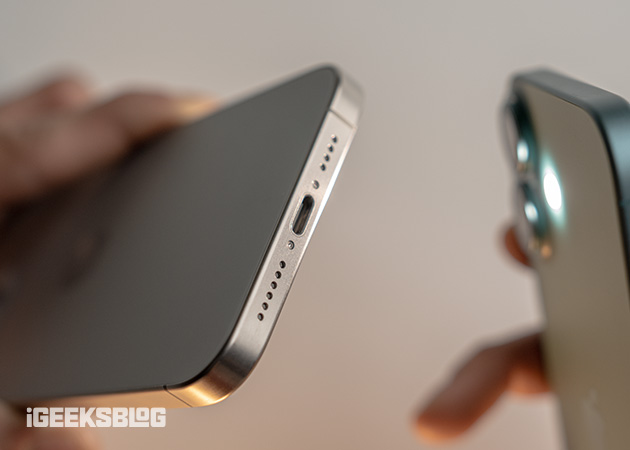
Over time, dirt, dust, or lint can accumulate inside the charging port, preventing the cable from connecting properly and leading to charging issues.
Use a flashlight to inspect the port for any dust or lint and clean it gently with the appropriate tools.
While the iPhone automatically boots up after a few seconds of plugging into a charger, it can take a significant amount of time before showing any sign of life if the battery is fully drained.
If the quick checks are unable to resolve the iPhone Stuck on the Charging Screen issue, try these tech-savvy solutions instead.
More often than not, a force restart can jolt your iPhone out of the frozen charging screen by eliminating the software bugs or glitches causing it. Here’s how you can force restart your iPhone:
Instead of plugging your iPhone into a charger, connect it to your Mac via an MFi-certified cable. If your Mac detects the iPhone but it still fails to turn on, a software glitch may be the issue. In such cases, using Recovery Mode to reinstall iOS can help.
Once your iPhone is in Recovery Mode, you’ll have two options:
If updating your iPhone via Recovery Mode doesn’t resolve the issue, try recovering your iPhone using DFU Mode. Device Firmware Update (DFU) mode bypasses most software layers and allows deep-level restores. However, make sure to use it only if Recovery Mode fails.
If you’re hesitant about data loss due to a DFU mode restore, you can use third-party tools such as ReiBoot by Tenorshare, Dr.Fone – Repair, and iMyFone Fixppo. These tools can help you resolve iOS system issues, including the charging screen issue, without wiping your data. However, make sure to download them from official websites and follow the on-screen instructions.
Tried everything, but the issue persists? This may indicate a hardware issue with your iPhone. In such cases, we recommend contacting Apple Support through the Support app or website or visiting your nearest Apple Authorized Service Provider.
If your iPhone is under warranty or covered by AppleCare+, you may also be eligible for a free repair.
Even though you now know how to troubleshoot the iPhone stuck on the charging screen issue, it’s always better to take preventive measures to avoid it from happening again.
While an iPhone getting stuck on the charging screen is undoubtedly frustrating, it doesn’t always mean disaster. With the right knowledge and a bit of technical competence, you can often revive it without needing a repair.
FAQs
It usually means your battery is fully drained. However, if it doesn’t turn on after charging for 30 minutes, there may be a deeper issue.
A completely drained iPhone should show signs of life within 15–30 minutes of charging with a working cable and adapter.
If your device is under warranty or AppleCare+, and it’s not due to accidental damage, Apple may repair or replace it.
If your iPhone is recognized in Finder/iTunes and responds to Recovery Mode or DFU Mode, it’s likely a software issue. If not, it may be a hardware failure.
Don’t miss these related reads: