FaceTime Like a Pro
Get our exclusive Ultimate FaceTime Guide 📚 — absolutely FREE when you sign up for our newsletter below.

FaceTime Like a Pro
Get our exclusive Ultimate FaceTime Guide 📚 — absolutely FREE when you sign up for our newsletter below.


Apple’s watchOS 27 is here with Siri AI, standalone Workout Buddy, and more. Check compatibility and follow our guide to update your Apple Watch today.
 ByVikhyat
Apple has released watchOS 27, bringing some of the biggest changes to the Apple Watch in recent years. The update introduces Siri AI, a smarter and more conversational Siri experience, along with a dedicated Siri app that lets you revisit previous conversations and start new ones right from your wrist.
Moreover, the Workout Buddy now works independently of the iPhone, the new dynamic app grid makes it easier to find your most-used apps, and a new single-tap gesture lets you interact with Smart Stack widgets using one hand. watchOS 27 also expanded Cycle Tracking support for perimenopause and menopause.
If you have a compatible Apple Watch, there is plenty to explore in watchOS 27. But before you install it, you should first check whether your Watch and paired iPhone meet Apple’s requirements. Here’s everything you need to know about watchOS 27 compatibility and how to update your Apple Watch.
While Apple typically provides 5 years of software updates for Apple Watch, watchOS 27 no longer supports the Apple Watch Series 8, Series 7, Series 6, first-generation Ultra, or second-generation SE.
Here’s a complete list of Apple Watch models that support watchOS 27:
So, if you have an Apple Watch Series 8 or older, you cannot install watchOS 27. Your Watch will remain on the latest version supported by that model.
There is another important requirement that is easy to overlook.
To update to watchOS 27, you need:
This means simply owning a compatible Apple Watch isn’t enough. Your paired iPhone must also meet Apple’s requirements.
Before I start any Apple Watch update, I prefer to get everything ready first. It saves a lot of frustration if the update takes longer than expected.
Here’s what you should check:
Not necessarily.
Apple allows compatible Apple Watch models to download and install watchOS updates directly from the Watch itself. However, the Watch still needs to meet Apple’s compatibility requirements, and using the paired iPhone remains the more convenient option for many users.
One of the easiest things about recent watchOS versions is that I don’t always need to reach for my iPhone to start an update.
If your Apple Watch is connected to Wi-Fi, you can update it directly.
Follow these steps:
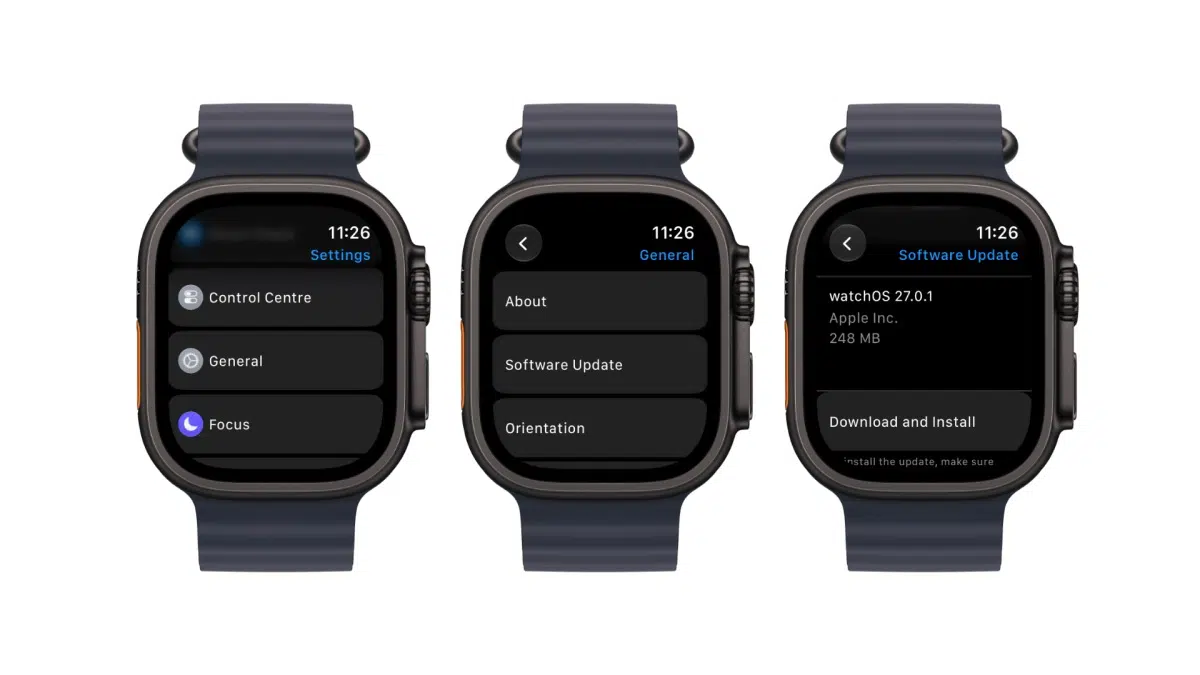
The installation can take some time, so I wouldn’t start the update right before leaving home or heading to work.
For most people, updating through the iPhone is probably the simplest method. Whenever an Apple Watch update is available, your paired iPhone will notify you.
If you intend to update through the iPhone, follow these steps:
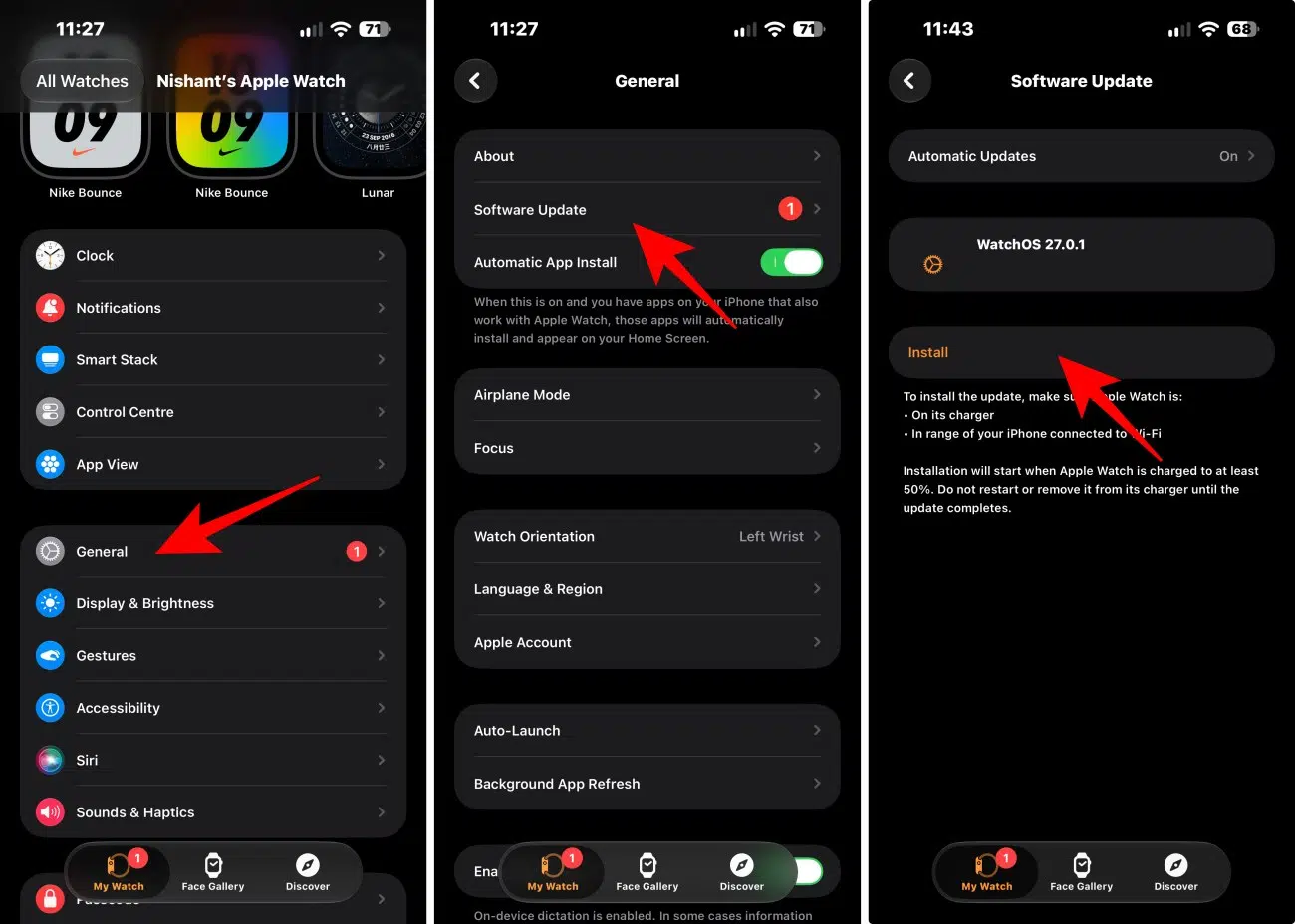
Note: Once the installation starts, don’t restart, turn off, or disconnect the iPhone or Apple Watch unless Apple specifically instructs you to do so. The Watch may restart several times during the update. That’s normal, so don’t panic if the screen goes dark or the Apple logo appears.
If you don’t see watchOS 27 under Software Update, don’t immediately assume something is wrong.
I would check these things first:
Updating to watchOS 27 is a simple way to bring new features, smarter tools, and useful improvements to your Apple Watch. Once you confirm that your Watch and iPhone are compatible, the installation only takes a few steps.
With features like Workout Buddy, smarter Siri, the redesigned app grid, improved Smart Stack, new health features, and Liquid Glass refinements, there is plenty to explore after the update.
So, is your Apple Watch ready for watchOS 27, or are you still wondering which new feature you should try first?