FaceTime Like a Pro
Get our exclusive Ultimate FaceTime Guide 📚 — absolutely FREE when you sign up for our newsletter below.

FaceTime Like a Pro
Get our exclusive Ultimate FaceTime Guide 📚 — absolutely FREE when you sign up for our newsletter below.


If your Apple Watch battery is draining quickly after updating to watchOS 27, you’re not alone. Here’s how to fix the issue and extend your watch’s battery life.

 ByDarryl Dsouza and Ava Biswas
Have you also noticed your Apple Watch battery draining faster after upgrading to watchOS 27? I’ve been there and can assure you that it’s a temporary issue. Apple says that tasks related to an update can continue running in the background, and some new features can also quietly consume more power than you might realize.
However, if your Apple Watch is still draining unusually fast after a few days, there might be a persistent battery problem. Here are the settings I’d change first.
Apple has introduced a more proactive approach to battery management. With watchOS 27, the Apple Watch can identify features you don’t frequently use and temporarily pause them to extend battery life.
When this happens, you’ll receive an Extending Battery notification explaining which feature has been paused. You can also turn that feature back on from the notification if you need it.
Apple says the battery-saving system can pause features such as:
This means you don’t necessarily need to hunt through multiple settings yourself. You can also enable Low Power Mode if you want your Apple Watch to survive until the end of the day.
Tip: If your battery started draining immediately after installing watchOS 27, don’t start changing any settings. Some tasks related to the update continue running in the background and temporarily affect battery life. I recommend waiting a few days and then checking the battery again. The draining could settle down on its own.
Always-On Display is convenient because I can glance at my watch without raising my wrist. But if battery life is my priority, it’s one of the first features I’d sacrifice.
Apple says Always On is available on Apple Watch Series 5 and later, Apple Watch SE 3, and Apple Watch Ultra and later. The display dims when your wrist is down, but disabling Always On completely can improve battery life.
How to disable Always On:
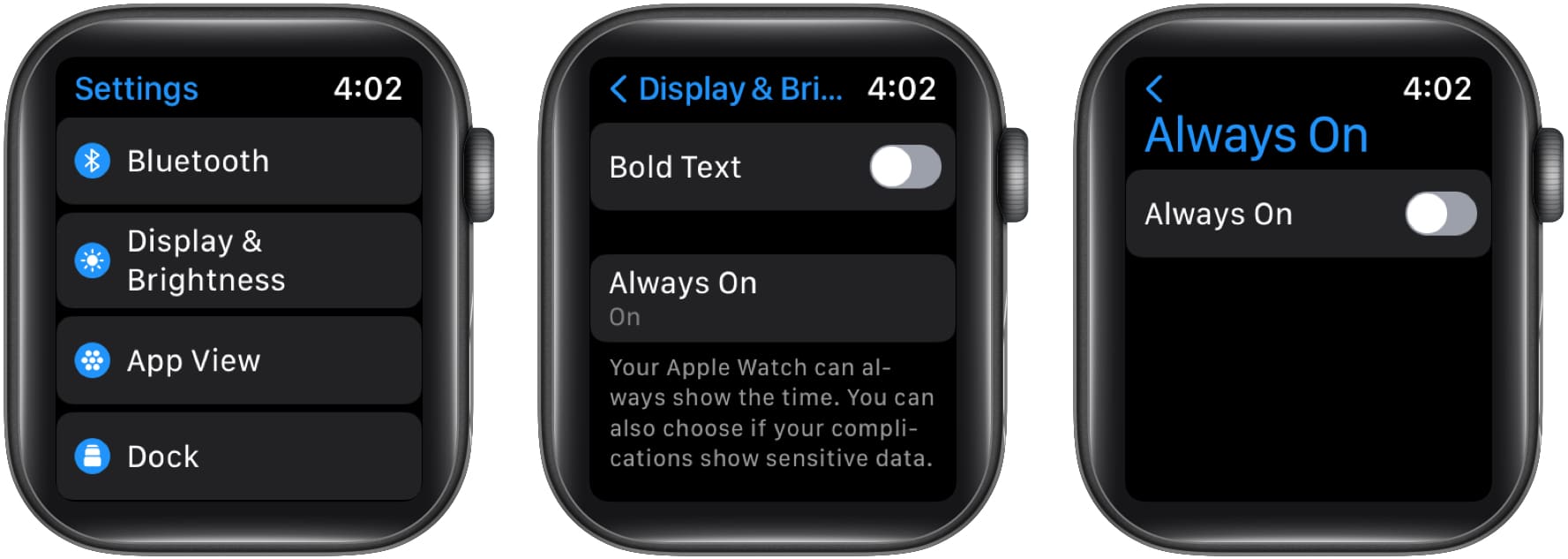
Low Power Mode also disables Always On automatically.
Tip: I wouldn’t disable Always On unless you actually need the extra battery. It’s a convenience feature, not necessarily something you need to turn off on every Apple Watch.
If you frequently move your wrist while working, exercising, or simply going about your day, the display can wake up more often than you realize.
Turning off Wake on Wrist Raise prevents the display from activating every time you raise your wrist.
Here’s how to do it,
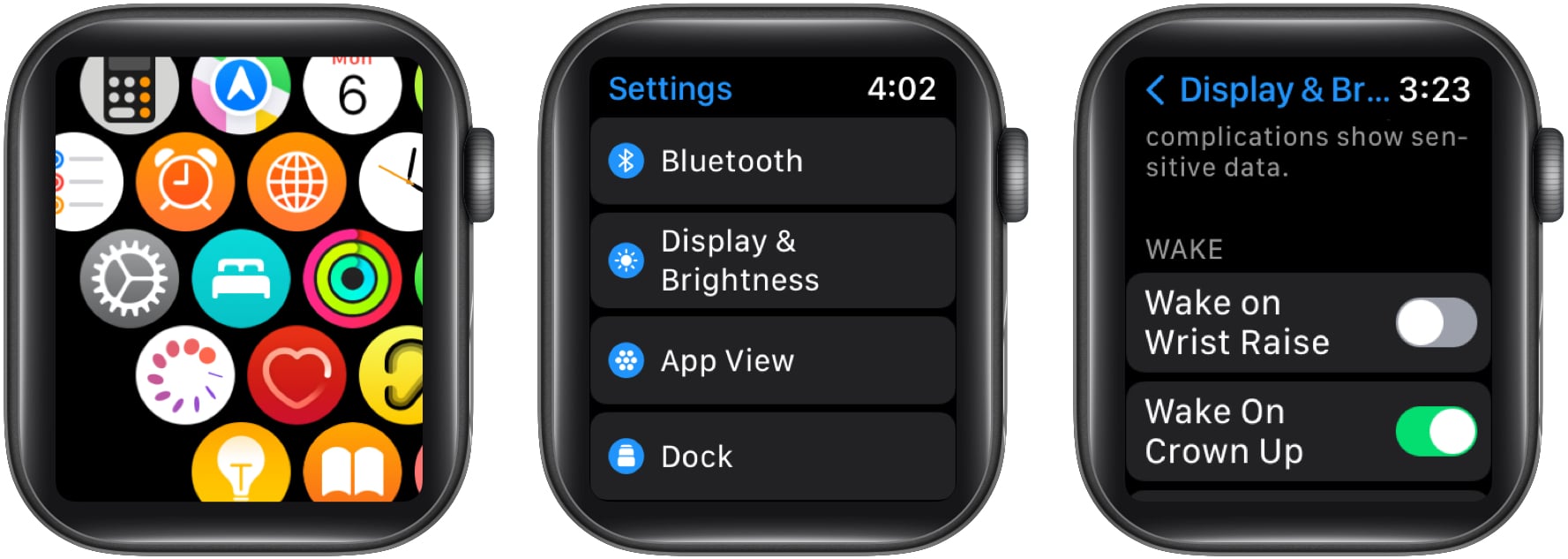
I’d consider this an optional battery-saving step rather than a must-do. If you frequently check your watch, the convenience you lose may not be worth the relatively modest battery savings.
Background App Refresh allows apps to check for updates and new information even when you’re not actively using them. Apple specifically recommends limiting this feature if you’re trying to maximize Apple Watch battery life.
Here’s how to do it,
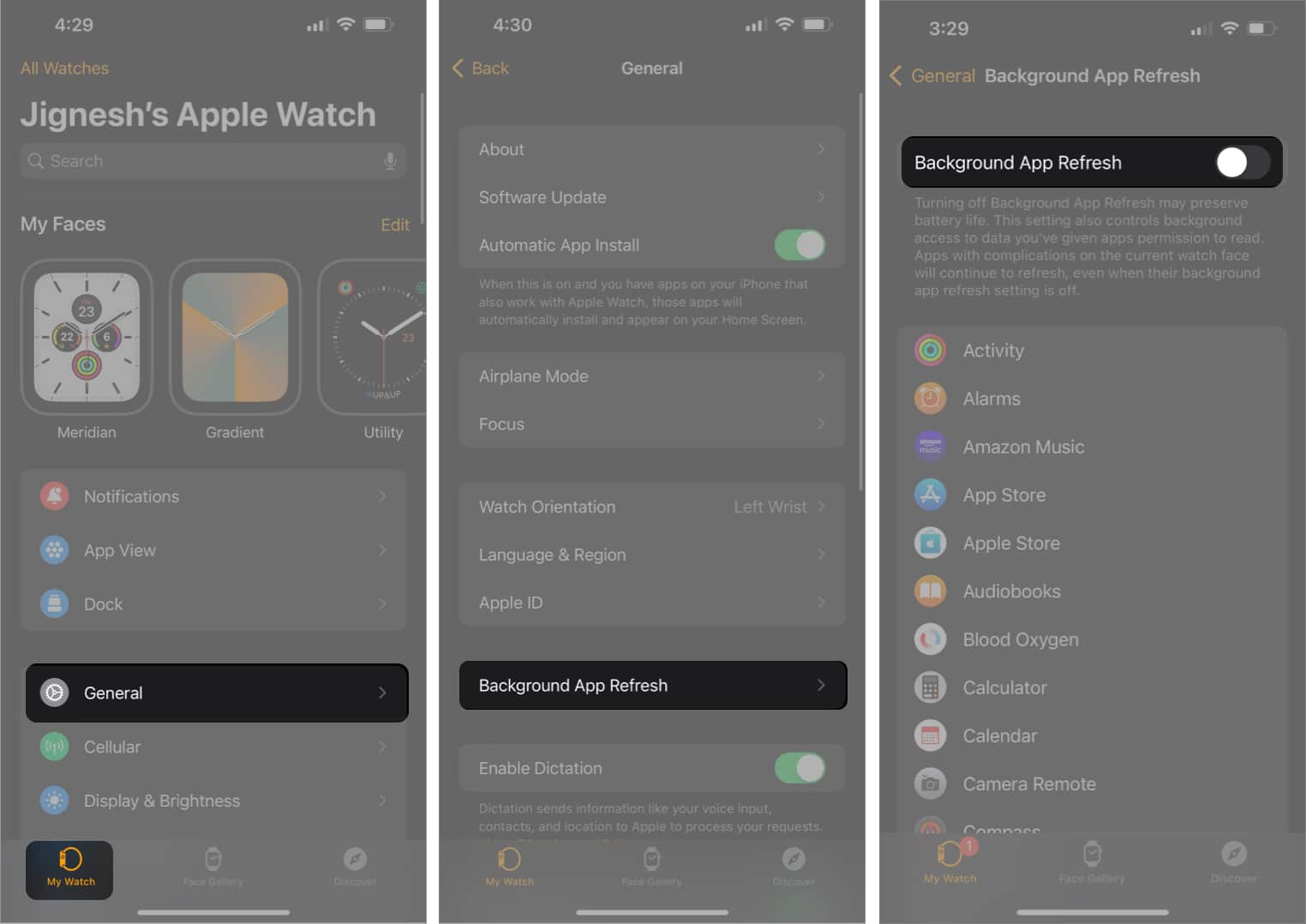
Alternatively, you can leave it enabled and disable it only for individual apps.
There’s one important catch: apps with complications on your current watch face can continue to refresh even when their Background App Refresh setting is disabled.
So if you’re still seeing battery drain, consider simplifying your watch face and removing complications you don’t actually use.
I find notifications to be one of those Apple Watch features that can quickly become excessive.
Every unnecessary notification can activate the display and trigger haptic feedback. If dozens of apps are allowed to alert you throughout the day, the constant interruptions aren’t particularly useful—and they can contribute to unnecessary battery use.
Here’s how to reduce notification permissions,
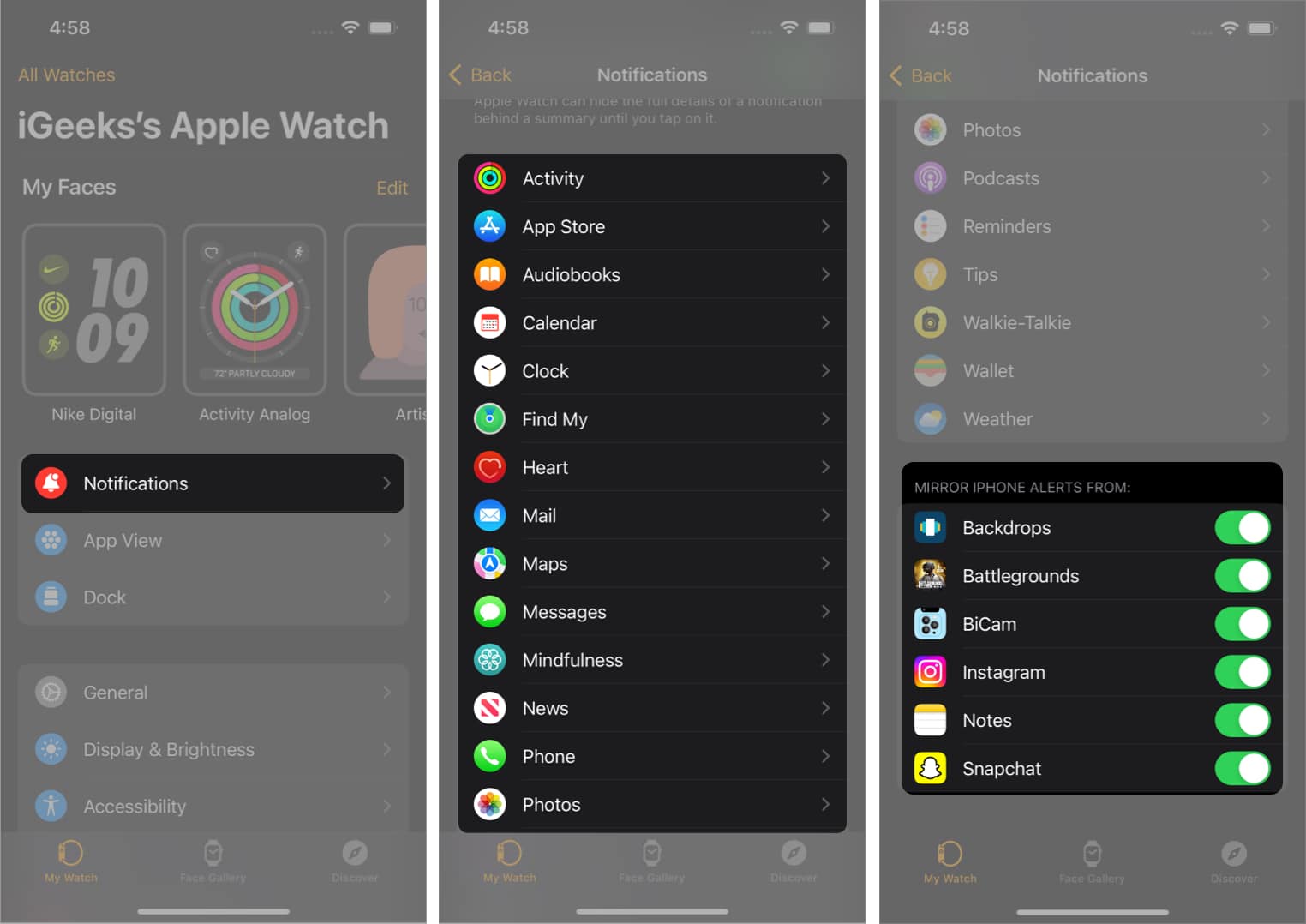
I’d keep notifications for calls, messages, calendar events, and other genuinely important apps while removing everything else.
Sometimes the problem isn’t watchOS at all. The battery itself may simply be getting old.
Apple Watch batteries are consumable components, and their capacity decreases as they chemically age. Apple provides a Maximum Capacity reading so you can see how your battery compares with when it was new.
Here’s how to check Apple Watch battery health:
You can also use the Battery section to view recent battery usage and charging information.
If the watch reports that the battery needs service, changing display settings or disabling notifications isn’t going to fix the underlying problem.
As I already mentioned, the Apple Watch is a tool for notifying users. However, you can make do with either sound or haptic feedback, which acts as an indicator when you receive a notification. Here’s how you can disable Haptic feedback on your Apple Watch,
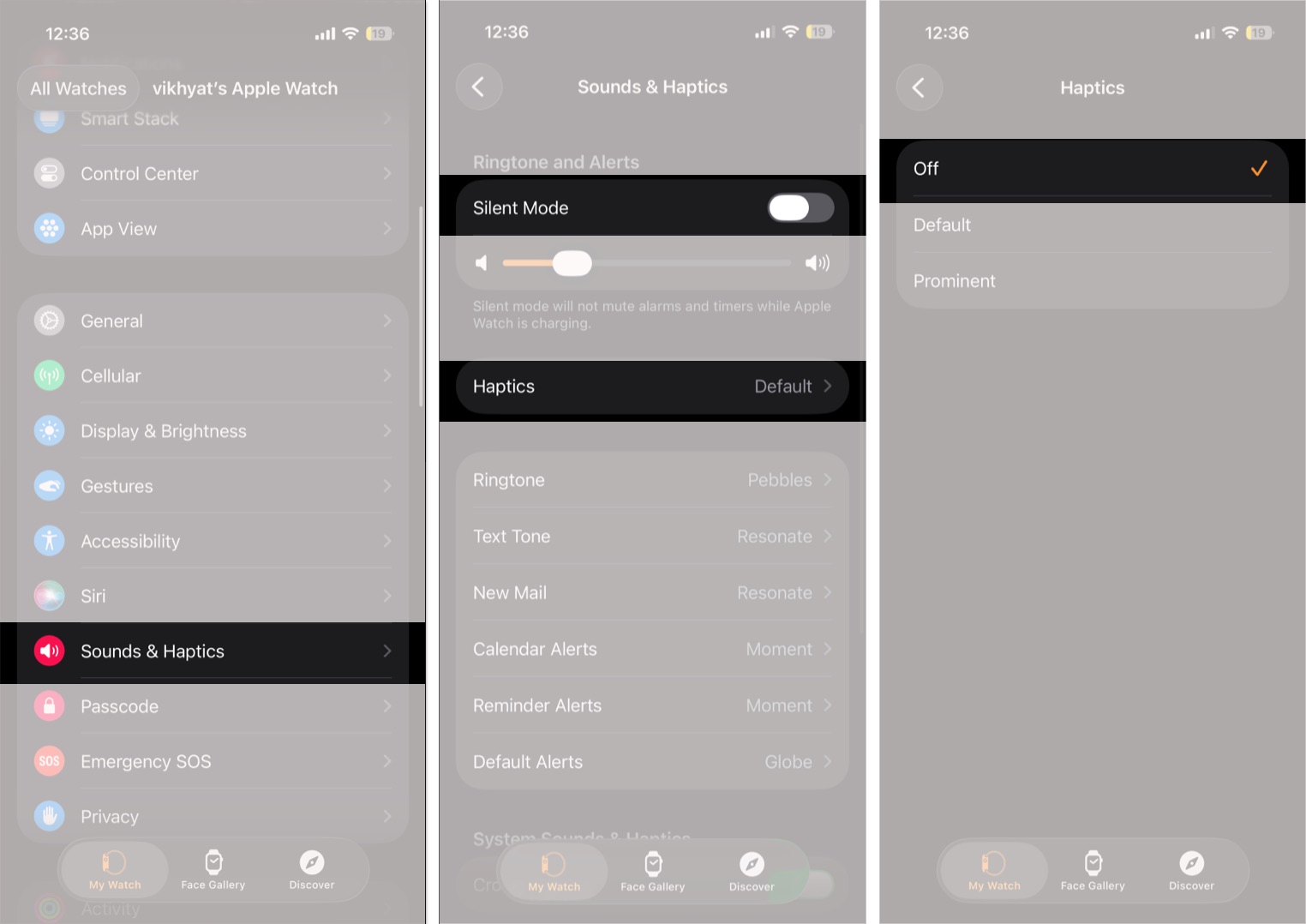
Connectivity can also affect battery life.
Apple says Wi-Fi and cellular connections use less battery when the signal is strong. If you’re in an area with consistently weak Wi-Fi or cellular coverage, the watch may consume more power while trying to maintain a connection.
If you’re going to spend a long period somewhere with poor coverage, consider using Airplane Mode when you don’t need connectivity.
This is especially worth remembering if you have a cellular Apple Watch.
The watchOS version running on your Apple Watch might be infested with bugs that could lead to battery draining. Apple is renowned for fixing bugs quickly, and if a software bug leads to battery drain, any further updates of watchOS might help. Here’s our step-by-step guide on updating watchOS on your Apple Watch.
I wouldn’t call every battery drop after watchOS 27 a software bug. Apple itself notes that background tasks can temporarily affect battery life after an update, so the first thing I’d do is give the watch a few days before making major changes.
If the drain continues, I hope these steps help improve your Apple Watch’s battery life. And if you’re using a newer Apple Watch, watchOS 27 now makes some of this easier by automatically suggesting battery-saving changes when it detects that extending battery life would be useful.
If you have any other queries about the battery life of your Apple Watch, leave a comment below, and I’ll do my best to provide a solution.
Read more: