FaceTime Like a Pro
Get our exclusive Ultimate FaceTime Guide 📚 — absolutely FREE when you sign up for our newsletter below.

FaceTime Like a Pro
Get our exclusive Ultimate FaceTime Guide 📚 — absolutely FREE when you sign up for our newsletter below.


If your Apple Watch won’t update to watchOS 27, here’s how to fix it and install the latest features quickly.
Apple’s watchOS 27 brings plenty of new features to the Apple Watch, including smarter Siri, a redesigned app grid, improved Smart Stack interactions, and new health and fitness features. But getting the update installed isn’t always as smooth as expected.
If your Apple Watch is stuck on “Unable to Check for Update,” “Unable to Install Update,” or the update simply refuses to download, don’t worry. I’ve put together the most useful solutions to fix the watchOS 27 update issue and get your watch running the latest software in no time.
Before troubleshooting, confirm that your Apple Watch and iPhone meet the minimum system requirements for watchOS 27.
If your Apple Watch or iPhone doesn’t meet these requirements, the watchOS 27 update won’t appear.
Once you’ve confirmed compatibility, ensure these basic conditions are met before updating:
These simple checks can solve many update problems without requiring you to reset anything.
A restart is one of the first things I’d try if watchOS 27 refuses to install. Temporary software or connection problems can sometimes prevent the update from working correctly.
Since your watch updates through the iPhone’s Watch app, restart both devices.
Restart Apple Watch
Restart iPhone
If a standard restart doesn’t help, try performing a hard reboot on your iPhone.
After both devices restart, open the Watch app and go to General → Software Update to check again.
Insufficient storage is one of the most common reasons why watchOS updates fail. The update file needs adequate space to download and install.
On your Apple Watch, go to Settings → General → Storage and wait a moment for the Watch to calculate how much storage is being used.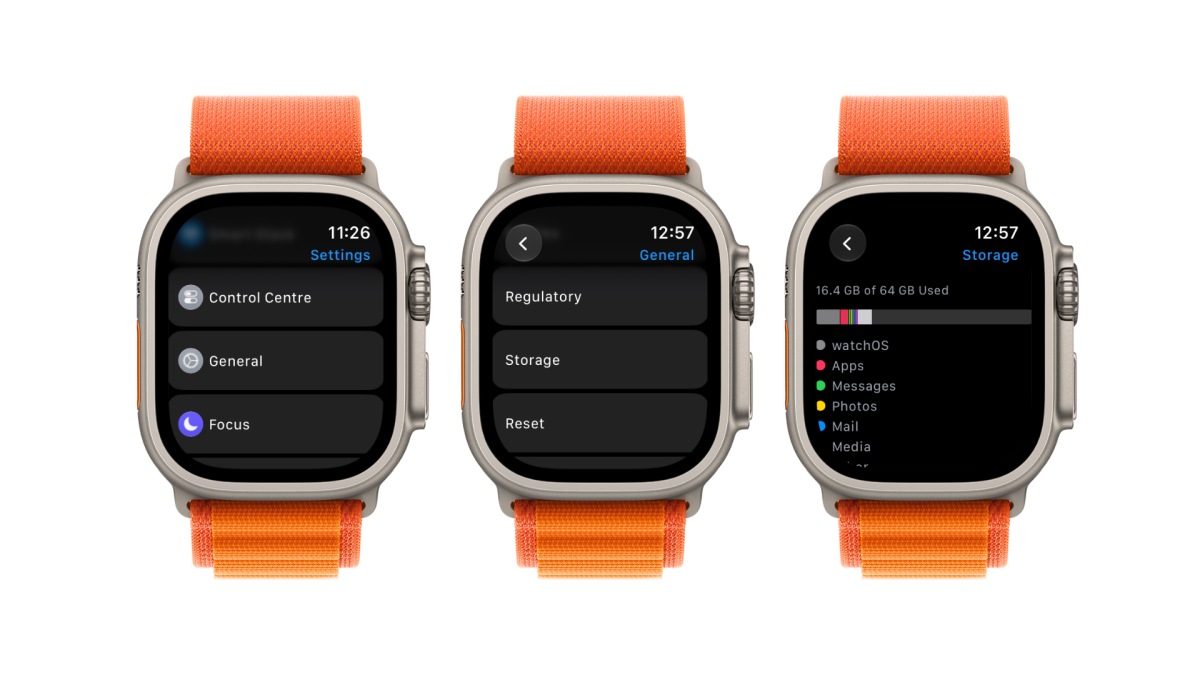
If you’re running low on space, remove things you no longer need, such as:
Once you’ve cleared up space, restart your Apple Watch and try installing watchOS 27 again.
Sometimes the problem has nothing to do with your Apple Watch.
If Apple’s update servers are experiencing heavy traffic or an outage, you may see errors when trying to download watchOS 27.
Check Apple’s System Status page and check the “watchOS Software Update” section.
If Apple is experiencing an outage, there’s not much you can do from your end. Wait for the service to return to normal and then try the update again.
If you’ve tried everything above and the update still won’t install, you can try unpairing and pairing your Apple Watch again.
This creates a fresh connection between your iPhone and Apple Watch and can resolve persistent syncing or communication problems.
Before doing this, make sure your Watch is backed up. Your iPhone should automatically create a backup of your Apple Watch when you unpair it.
Once you’ve unpaired the Watch, pair it with your iPhone again and check for the watchOS 27 update. I would only try this after the simpler fixes have failed.
A factory reset should be your last resort, especially if you’re troubleshooting an update problem.
It removes your personal data and settings from the Apple Watch, so make sure you have a backup before proceeding.
To erase the Watch directly:
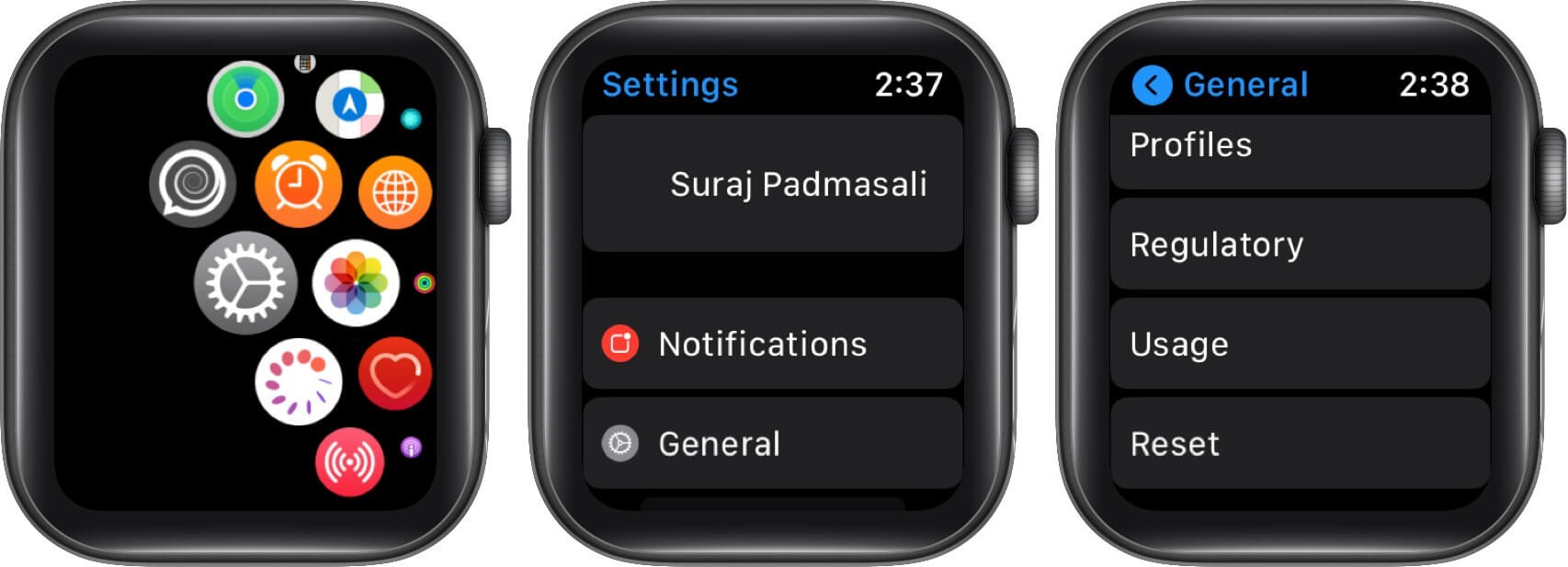
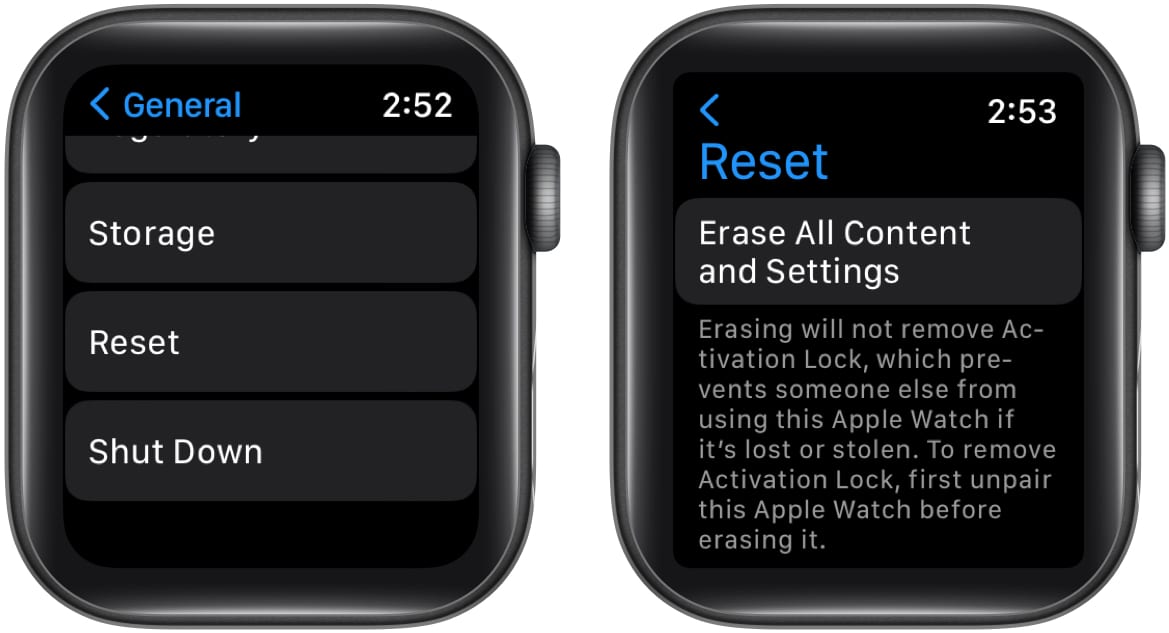
After the reset, set up your Apple Watch again and check whether watchOS 27 is available.
If you’re still unable to install the update after a reset, I’d recommend contacting Apple Support rather than repeatedly resetting the Watch.
And that’s it; these are the most reliable ways to fix the “Unable to Update watchOS 27” issue on your Apple Watch.
We hope these troubleshooting steps help you get back on track and enjoy all the exciting new features Apple packed into watchOS 27. If you’ve found a different method that worked for you, share it in the comments below — it might help someone else too.