FaceTime Like a Pro
Get our exclusive Ultimate FaceTime Guide 📚 — absolutely FREE when you sign up for our newsletter below.

FaceTime Like a Pro
Get our exclusive Ultimate FaceTime Guide 📚 — absolutely FREE when you sign up for our newsletter below.


Discover how to extend your Apple Watch battery life, which features Low Power Mode disables, and how to enable it in watchOS 27.

 BySajid Shaik and Ava Biswas
Even though newer Apple Watch models offer better battery efficiency, they may not last through a long trip, a camping weekend, or a day full of workouts. GPS tracking, cellular connectivity, and frequent notifications can all affect how long the battery lasts.
Apple introduced Low Power Mode with watchOS 9 to help users extend their Apple Watch battery life without giving up access to the entire device. It reduces power consumption by limiting certain background activities, sensors, and display features.
In this guide, I’ll explain what Low Power Mode does, which Apple Watch models support it, and how to turn it on in watchOS 27.
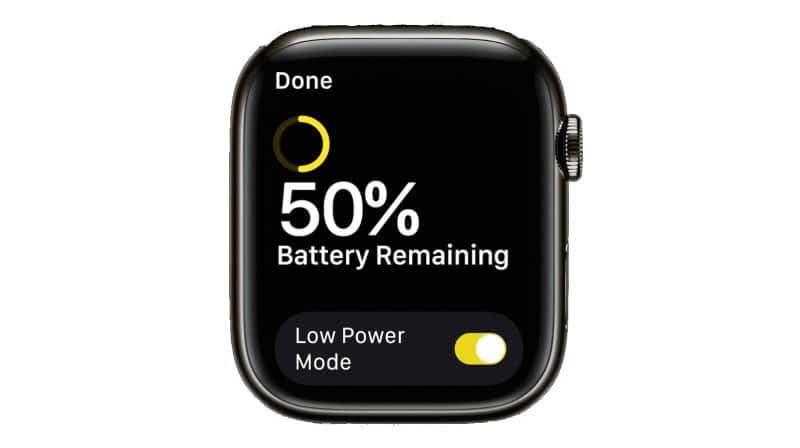
Low Power Mode is a built-in battery-saving feature that reduces the power your Apple Watch consumes. It disables or limits selected features so your watch can last longer between charges.
Depending on your Apple Watch model, battery condition, settings, and usage, Low Power Mode can significantly extend battery life. For example, you may get up to 38 hours of battery life for the Apple Watch Series 12 with Low Power Mode enabled. The rugged Apple Watch Ultra 4 offers up to 84 hours of battery life.
I find Low Power Mode particularly useful when I want to preserve battery life during travel or outdoor activities but still need access to the watch’s essential functions.
As I mentioned before, Low Power Mode turns off certain features and reduces background activity. However, it doesn’t disable everything. Some features stop working entirely, while others work less frequently or take longer to respond.
Here’s what changes when you enable Low Power Mode on your Apple Watch.
Features that are turned off:
Features that are turned off when your iPhone isn’t nearby
Low Power Mode also changes how your Apple Watch handles connectivity when your paired iPhone isn’t nearby.
Features that are affected but not completely turned off
If you rely on health measurements, notifications, or automatic workout reminders, consider these limitations before enabling Low Power Mode for an extended period.
Low Power Mode is a software feature, so you don’t need the latest Apple Watch to use it. You need a compatible model running watchOS 9 or later.
The following Apple Watch models support Low Power Mode:
Important: Supporting Low Power Mode doesn’t mean every model can install watchOS 27. Older watches may continue to use the feature on an earlier compatible version of watchOS.
If your Apple Watch is running watchOS 9 or later, you can enable Low Power Mode from Control Center. The following steps also apply to supported models running watchOS 27.
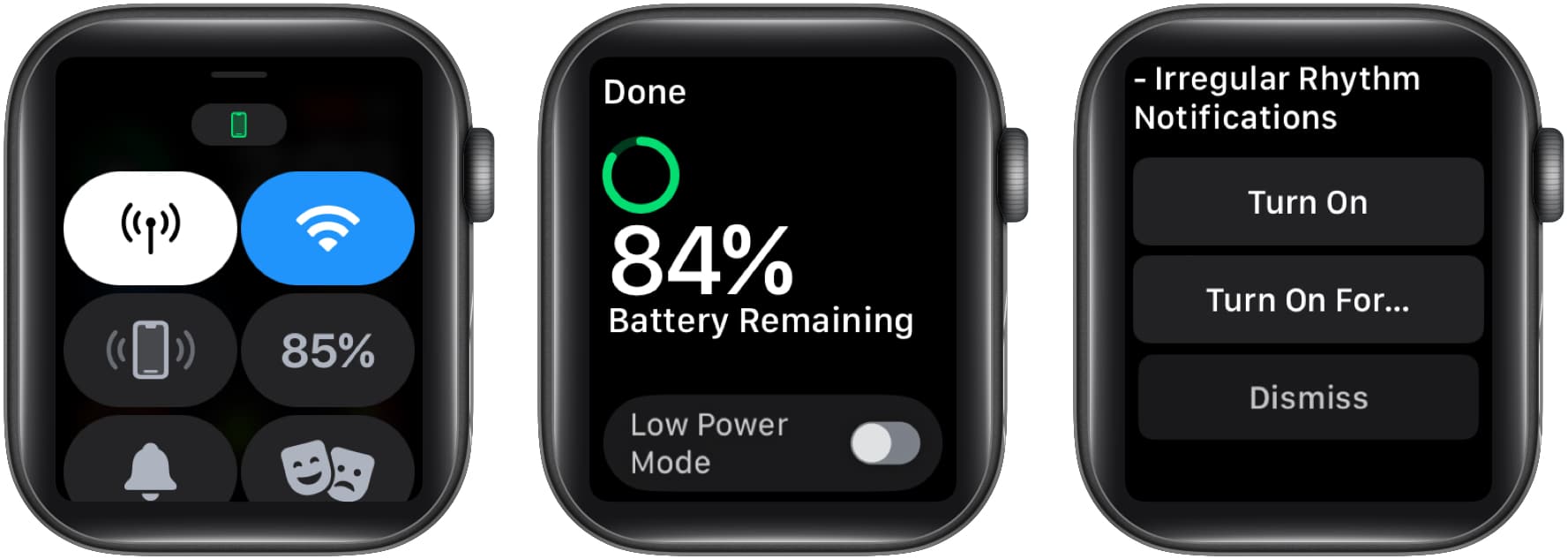
When you enable Low Power Mode without selecting a multi-day duration, it generally turns off automatically once the battery charges to 80 percent. If you select a specific duration, the mode can remain enabled for that duration.
When Low Power Mode is active, you’ll see a yellow indicator. The battery percentage control, charging indicator, and Nightstand Mode display also use yellow to indicate the power-saving state.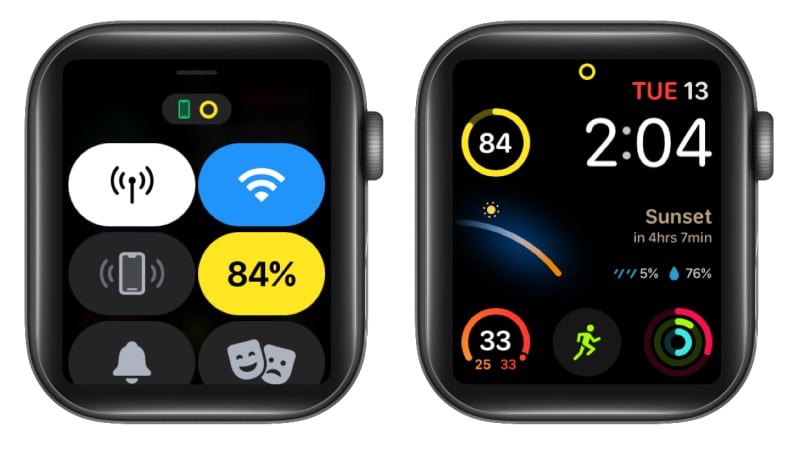
You can also enable Low Power Mode directly from the Settings app.
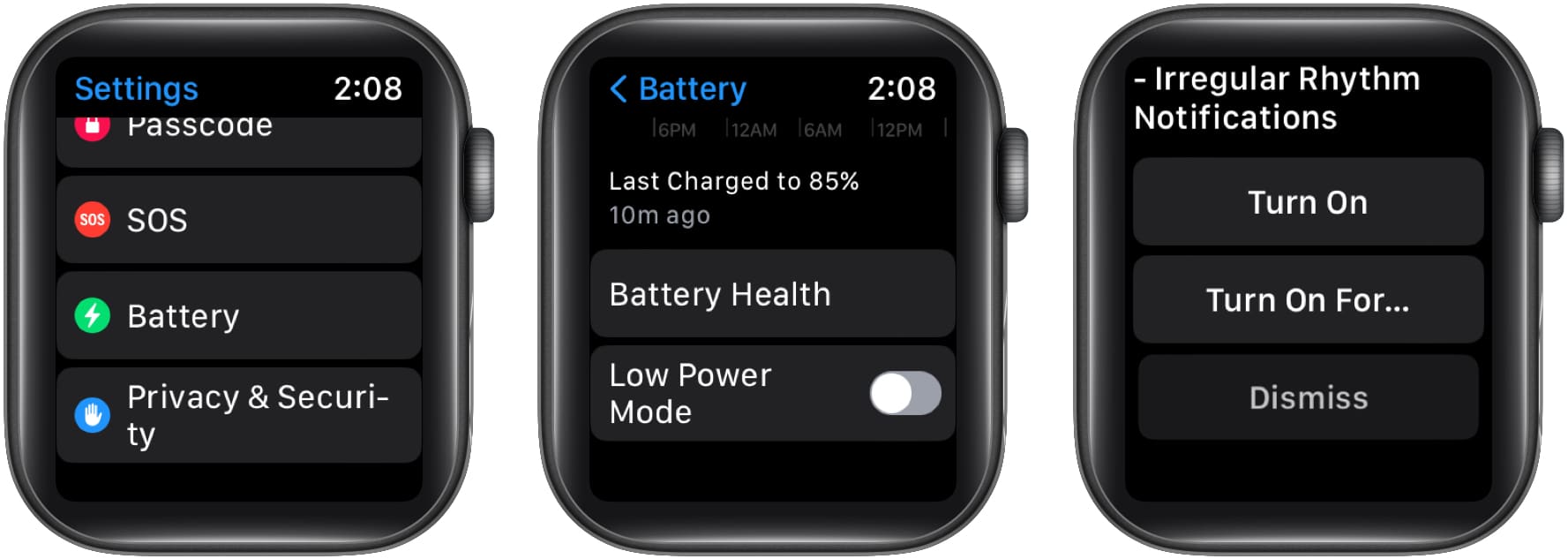
This method is useful if you’re already adjusting your battery settings and want to enable Low Power Mode without opening Control Center.
Note: Your Apple Watch can prompt you to enable Low Power Mode when the battery level drops to 10 percent or lower. Enable it immediately or dismiss the prompt if you want to continue using your watch normally.
Workouts can consume significant battery power, particularly when you use GPS tracking or other sensors for extended periods. Apple Watch lets you configure Low Power Mode to activate automatically during workouts on watchOS 27.
Here’s how to enable it:
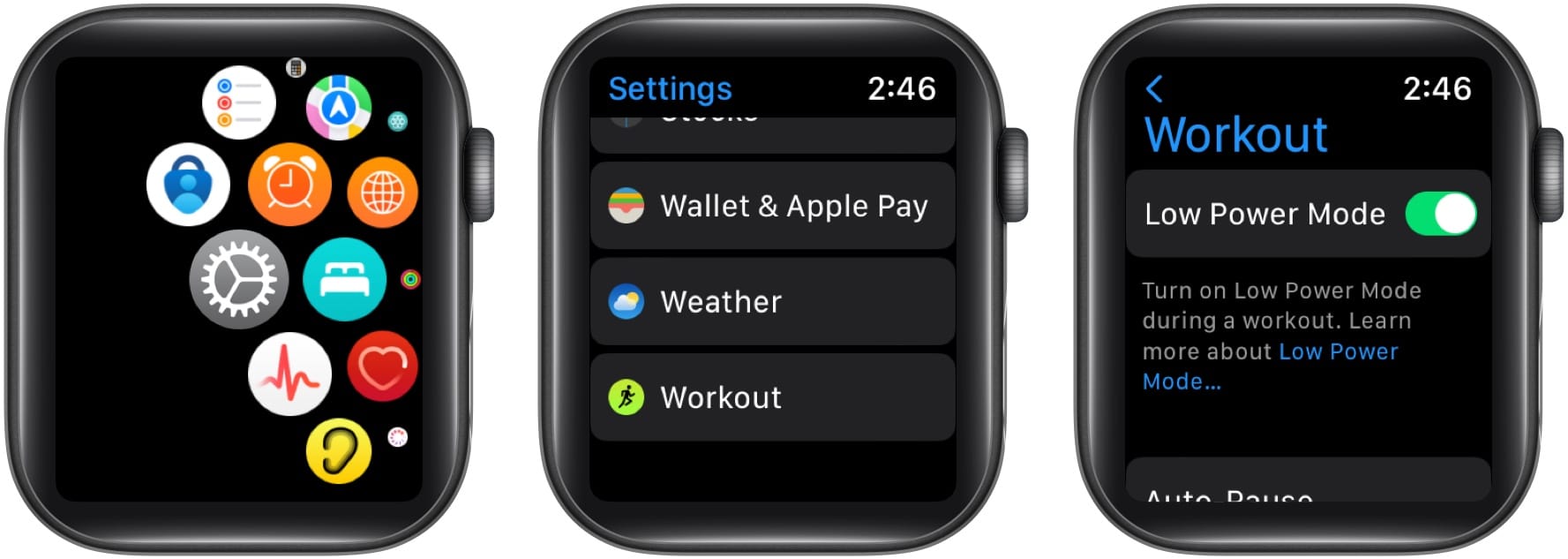
Your Apple Watch will then use Low Power Mode during workouts, helping extend battery life during longer exercise sessions.
Some workout measurements, including heart rate and pace, can continue to be recorded. However, certain background measurements and notifications may be limited, so check your workout settings if you depend on specific metrics.
When you no longer need to conserve battery, you can return to normal operation.
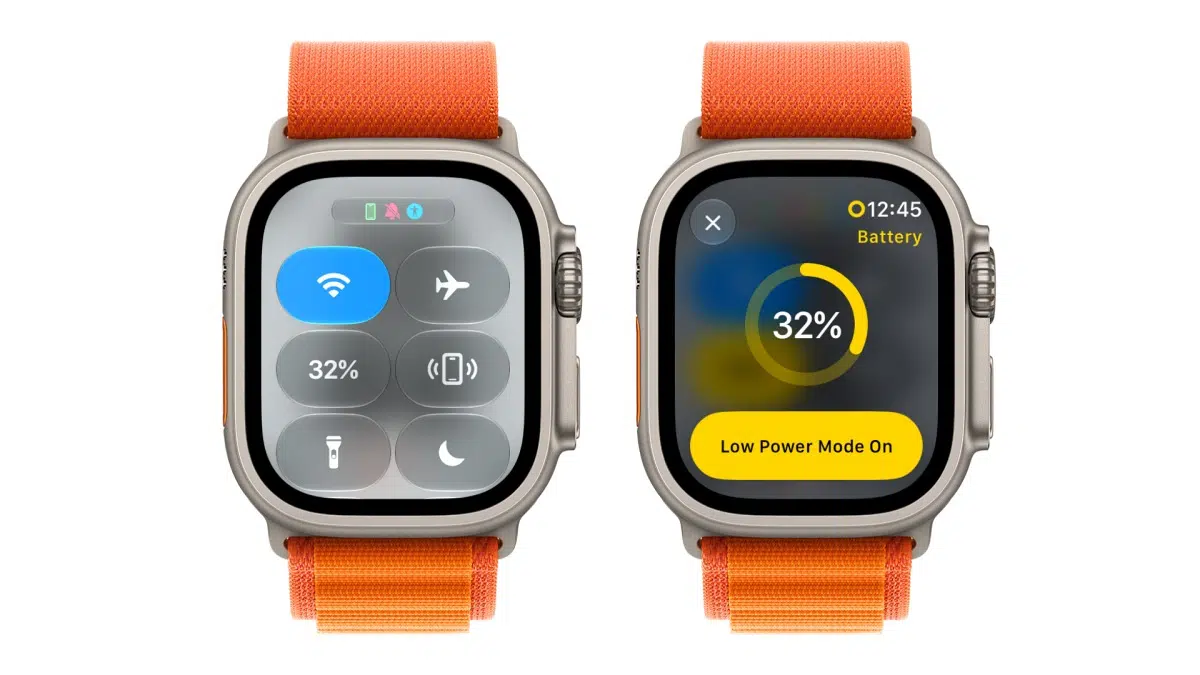
You can also open Settings > Battery and disable Low Power Mode there.
Your Apple Watch will resume its normal feature behavior, subject to your usual settings and the capabilities of your model.
Low Power Mode remains one of the most useful Apple Watch features for anyone who wants to extend battery life without giving up access to the entire device. It can be particularly helpful when traveling, camping, exercising outdoors, or spending a long day away from a charger.
With support across older compatible watches and newer models running watchOS 27, you don’t need to buy a new Apple Watch just to use this feature.
My recommendation is simple: enable Low Power Mode when battery life matters more than having every background measurement and notification available immediately. For everyday use, you can turn it off whenever you want your Apple Watch to operate normally.
Read more: