FaceTime Like a Pro
Get our exclusive Ultimate FaceTime Guide 📚 — absolutely FREE when you sign up for our newsletter below.

FaceTime Like a Pro
Get our exclusive Ultimate FaceTime Guide 📚 — absolutely FREE when you sign up for our newsletter below.


Always On is on by default on Series 5 and later, SE 3 and every Ultra. Here’s how to switch it back on, hide apps, and manage battery drain.
I’m amazed by how much information my Apple Watch can pack into its small screen, especially when using the Modular watch face, which shows information from five different apps. And it gets even better, as I can check the watch face on my Apple Watch without having to wake up the display, thanks to the Always On feature.
On supported models, Always On is turned on by default. Here’s how to enable it on your Apple Watch if you disabled it previously and customize it to serve you better.
Always On is a feature that keeps the watch face on your Apple Watch visible at all times, so you can glance at important information without waking up the display.
When enabled, your Apple Watch shows a simplified version of your watch face whenever your wrist is down. This means essential information, such as the time, notifications, and complications, is visible but with decreased brightness and a lower refresh rate.
Then, as soon as you lift your wrist or tap the screen, your Apple Watch displays the regular watch face with all complication data at full brightness. You can then interact with the watch screen like you normally do.
Apple lets you configure what you want to see in Always On mode on your Apple Watch. Most complications refresh once a minute, whereas complications that display live data, such as Compass and Noise, won’t be active. Apple Watch Series 10 and later and Apple Watch Ultra 3 and later update more often while your wrist is down, and supported watch faces can even show a ticking seconds hand. However, the time is always shown in Always On mode.
Always On works on Apple Watch Series 5 and newer, Apple Watch SE 3, and every Apple Watch Ultra. The first- and second-generation Apple Watch SE don’t have it. Here’s the full list:
watchOS 27 runs on Series 9 and later, SE 3, and Ultra 2 and later. Older models in the list above stay on an earlier watchOS, so their settings screens may look a little different from the steps below.
There are two ways to enable or disable the Always On display feature on an Apple Watch. You can either enable it on the Apple Watch directly or use the Apple Watch app on your iPhone.
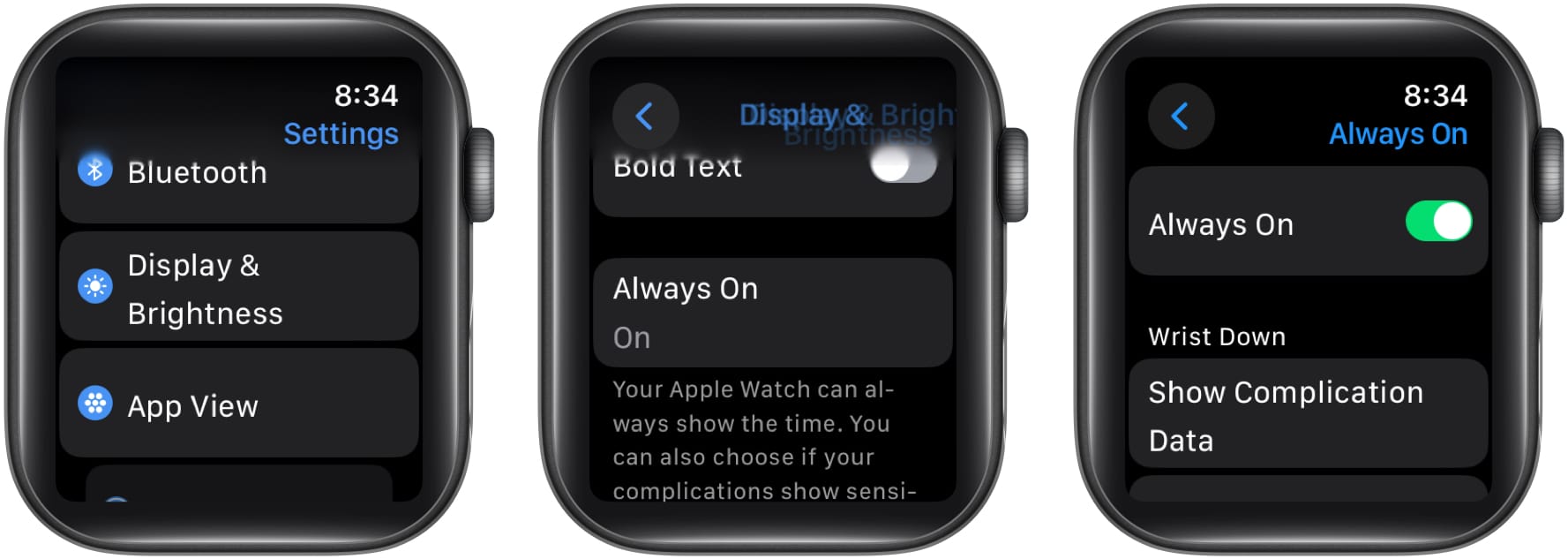
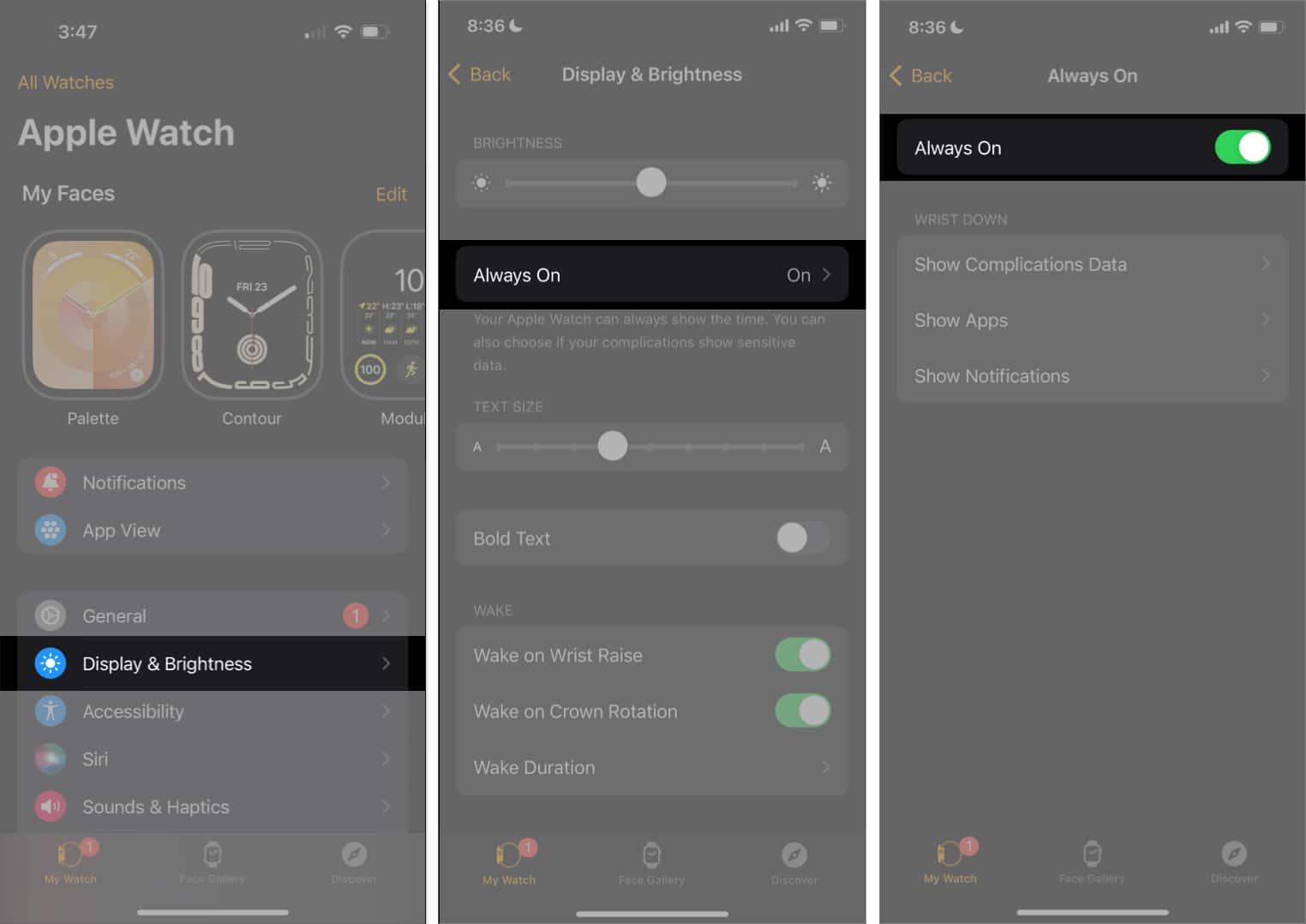
You can repeat the above steps and disable the toggle to turn off Always On.
When your Apple Watch is in Always On mode, it displays notifications, complications, or the most recently active app by default. However, you can customize and control what you want to see. Plus, you can choose which apps can appear and display complications and notifications when your wrist is down.
This helps you control the information you see in Always On mode and keep it clutter-free. You can customize these settings on your Apple Watch or in the Apple Watch app on your iPhone.
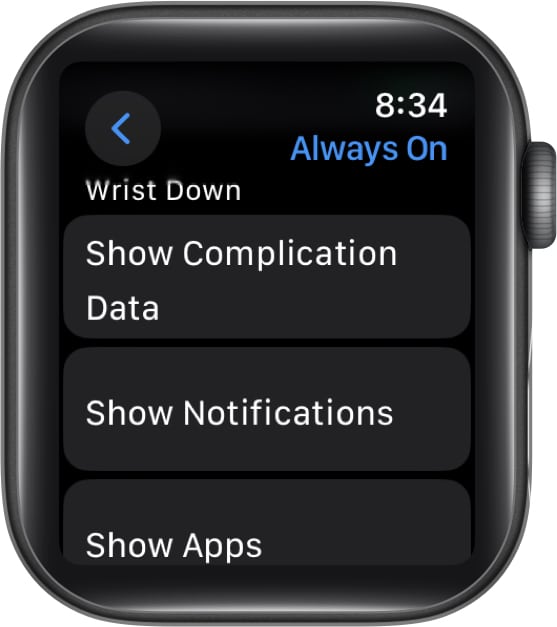
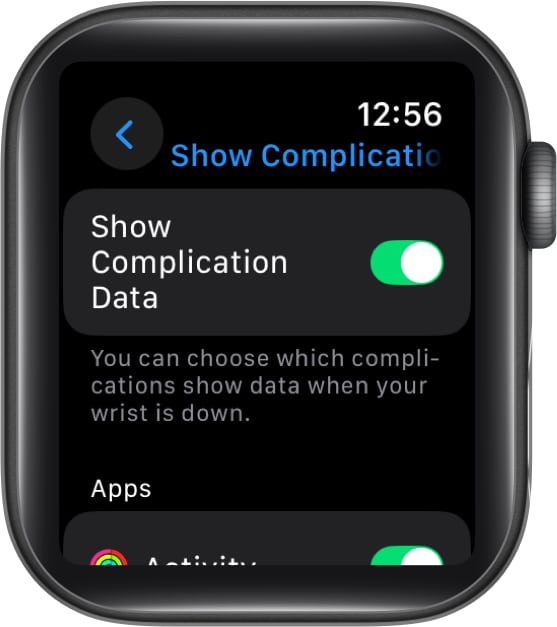
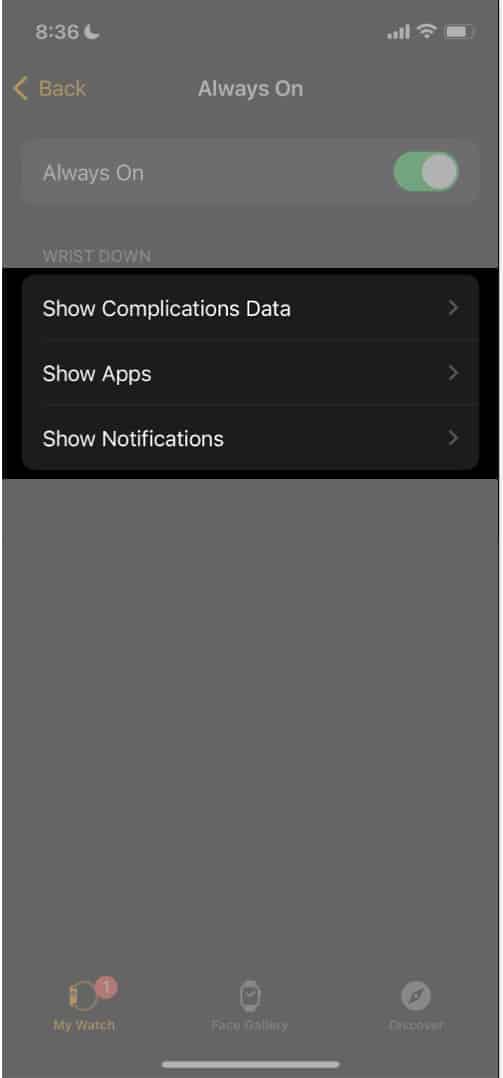
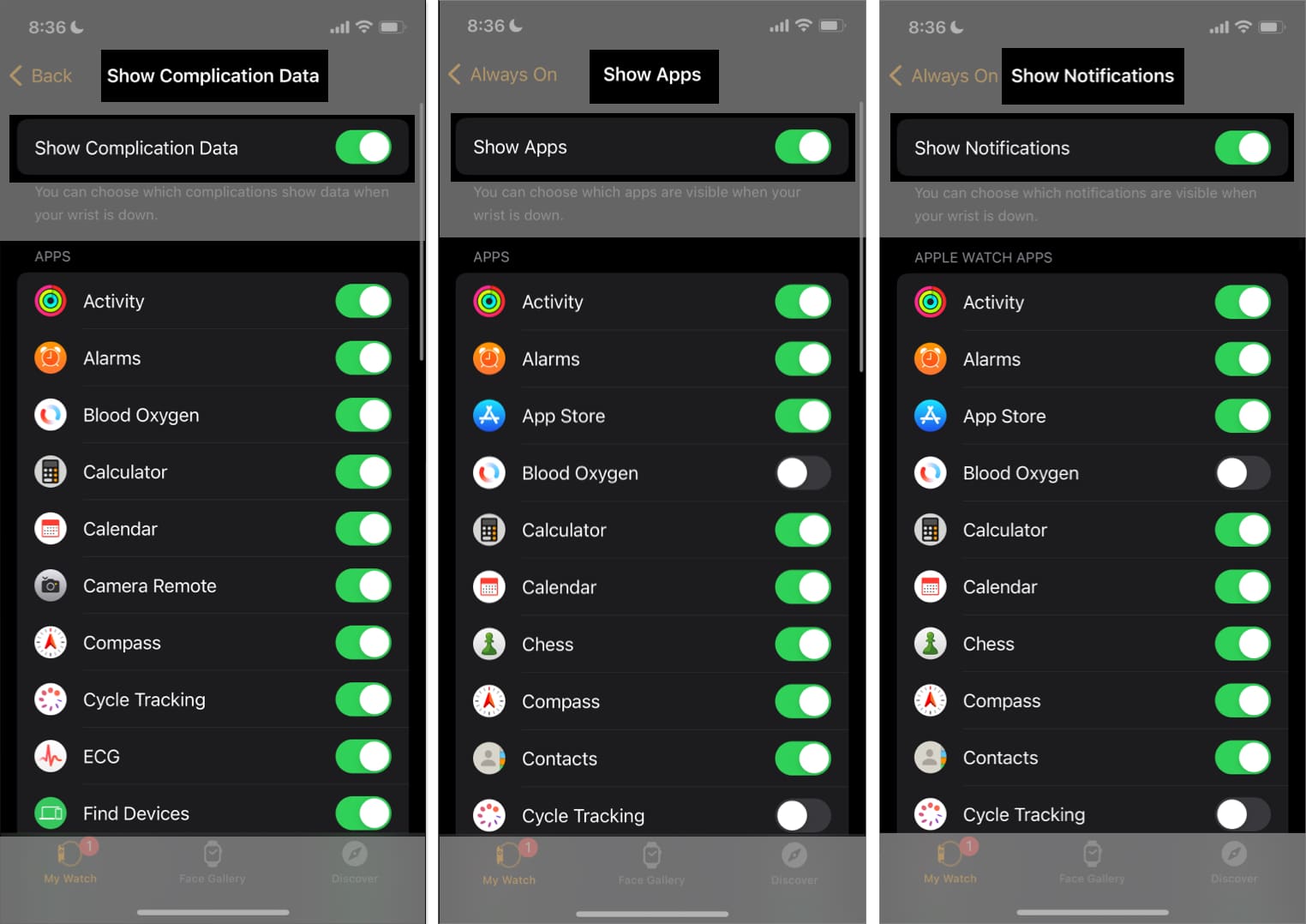
You might be wondering if enabling the Always On display affects the battery of your Apple Watch. It can be a valid concern if your Apple Watch is already old and struggles to last an entire day due to poor battery health.
The truth is, Always On does increase battery consumption. That’s expected of a feature that keeps the display on all the time. That said, the feature dims the display and lowers its refresh rate to optimize battery life. Further, the Always On display turns off automatically when you enable Low Power Mode or Theater Mode on your Apple Watch.
My Apple Watch lasts an entire day without Always On mode. When it is enabled, the battery is fully drained by late evening, so it lasts only about 75 percent of the day. However, this isn’t a standard estimate of the battery drain while using the Always On display. That depends on your model, your Apple Watch’s battery health, and your usage patterns. Based on your experience, you can decide whether to turn off the Always On display if it isn’t necessary or keep it on all the time.
I keep the Always On display enabled at all times since I find it quite helpful in several scenarios in my everyday life. If it helps you decide how to use the feature, here are a few practical situations when you might want to enable Always On.
We hope this article helps you enable the Always On feature and check information without having to interact with your Apple Watch. Similarly, there’s another feature that lets you control your Apple Watch without having to touch the display. You can use a few hand gestures to perform actions on your Apple Watch. So do check that out as well!
FAQs
There could be several reasons. However, you can easily troubleshoot the Always On display when it’s not working on your Apple Watch to get it working again.
The display dims in Always On mode to conserve battery life. Keeping the screen at full brightness constantly would drain the battery much faster. Therefore, Apple has designed the Always On feature to tone down the brightness when your Apple Watch is idle.
As mentioned earlier, the Always On feature simplifies the visuals of the watch face and displays essential information when it is idle. Therefore, in Always On mode, the watch face may not appear as it normally does.
Read more: