
FaceTime Like a Pro
Get our exclusive Ultimate FaceTime Guide 📚 — absolutely FREE when you sign up for our newsletter below.

FaceTime Like a Pro
Get our exclusive Ultimate FaceTime Guide 📚 — absolutely FREE when you sign up for our newsletter below.


Tired of your iPhone switching audio to your car speakers? This simple iOS setting keeps your AirPods connected and your audio exactly where you want it.
Whenever I head out while listening to music or taking a call on my AirPods, the audio instantly switches to my car’s speakers as soon as it connects. It used to annoy me, especially when a private call suddenly played out loud in front of someone.
I finally found a fix. There’s a setting on iOS 26 called Keep Audio with Headphones, and once I turned it on, my audio stayed on my AirPods even when my car connected. Here’s how you can find and enable it on your iPhone.
By default, your iPhone prioritizes newly connected audio devices. So when your car’s Bluetooth or CarPlay connects, it takes over playback from your AirPods.
This setting changes that behavior. Your iPhone continues playing audio through your AirPods even if another device connects. This works for music, podcasts, phone calls, FaceTime, and any audio you’re playing.
It’s not limited to cars either. The same behavior applies when your iPhone connects to nearby Bluetooth speakers, TVs, or sound systems.
Follow these steps to enable it:
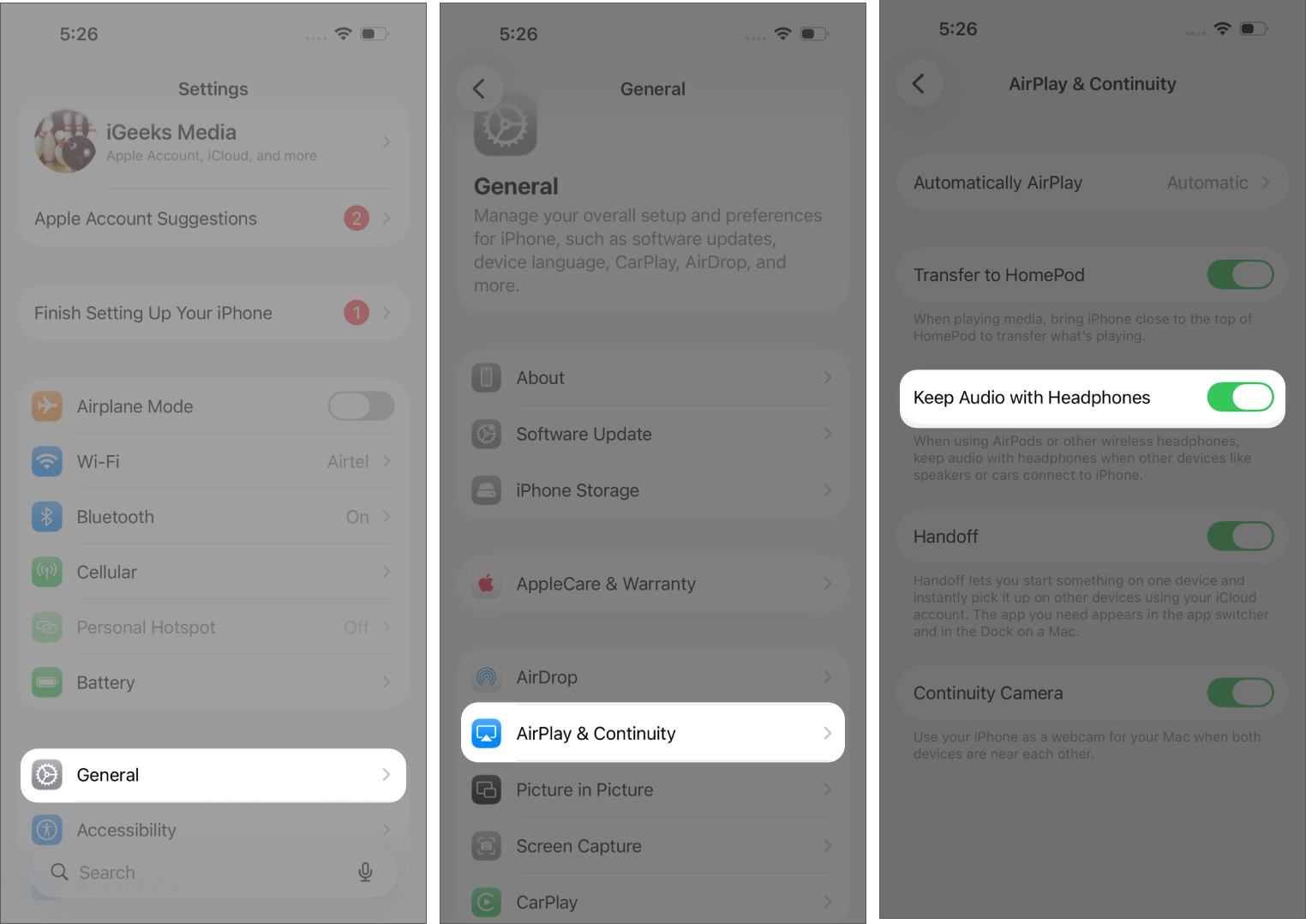
After turning it on, your iPhone handles audio more predictably when multiple devices are connected. Here’s what changes:
It also helps in other situations, like when someone else starts your car while you’re on a call or when a nearby speaker turns on.
Sometimes, using your car’s speakers makes more sense for navigation, hands-free calls, or better sound while driving. In those cases, you can switch manually.
Here’s how:
Alternatively, you can put your AirPods back in their case, which usually makes your iPhone switch to the next available audio output.
Related: Apple CarPlay Not Working? 11 Easy Fixes That Actually Work
While it’s clear what this setting does, it’s just as important to understand what it doesn’t do:
If you regularly use AirPods around your car or multiple Bluetooth devices, this setting gives you better control over your audio. It removes those random interruptions and makes audio switching feel intentional instead of automatic.












