FaceTime Like a Pro
Get our exclusive Ultimate FaceTime Guide 📚 — absolutely FREE when you sign up for our newsletter below.

FaceTime Like a Pro
Get our exclusive Ultimate FaceTime Guide 📚 — absolutely FREE when you sign up for our newsletter below.


Battery drain after iOS 27 can be frustrating, but it isn't always a sign of a problem. Here's why it happens and the settings I use to improve battery life.
Following every major iOS update, iPhone users worldwide have increasingly reported inconsistent battery drain. The same reports appeared right after iOS 27 rolled out on September 14, 2026. While it feels like something is wrong with your iPhone, most of what happens in the first few days is normal background housekeeping, not a faulty battery.
This post explains why battery drain happens after iOS 27 and the practical fixes that actually improve battery life, based on Apple’s current support guidance.
There are a few common reasons your iPhone may use more power than usual right after updating:
As with iOS 18 and iOS 26, Apple says a temporary impact on battery life and thermal performance is normal immediately after a major update. In its current battery support document, Apple explains that if tasks related to the update are still ongoing, opening Settings → Battery will show an Insight labeled Ongoing iOS Update or Ongoing Device Setup.
That is your cue to wait.
iOS 27 is supported on iPhone 11 and later and iPhone SE (2nd gen and later). New iPhone 18 models ship with iOS 27 preinstalled, so they don’t show the same update-related drain. If you updated an older iPhone, early beta testing showed iOS 27 is notably smoother than iOS 26 on devices like iPhone 11 Pro Max thanks to the performance cleanup, which also helps battery over time by reducing unnecessary CPU/GPU work.
Apple notes battery drain after updating is often temporary, but these settings help while the system settles and for everyday use afterward.
Starting with iOS 26 and continuing in iOS 27, Apple shows smarter tools in Settings → Battery that surface real-time insights into what’s actually draining power.
Open Settings → Battery and look for:
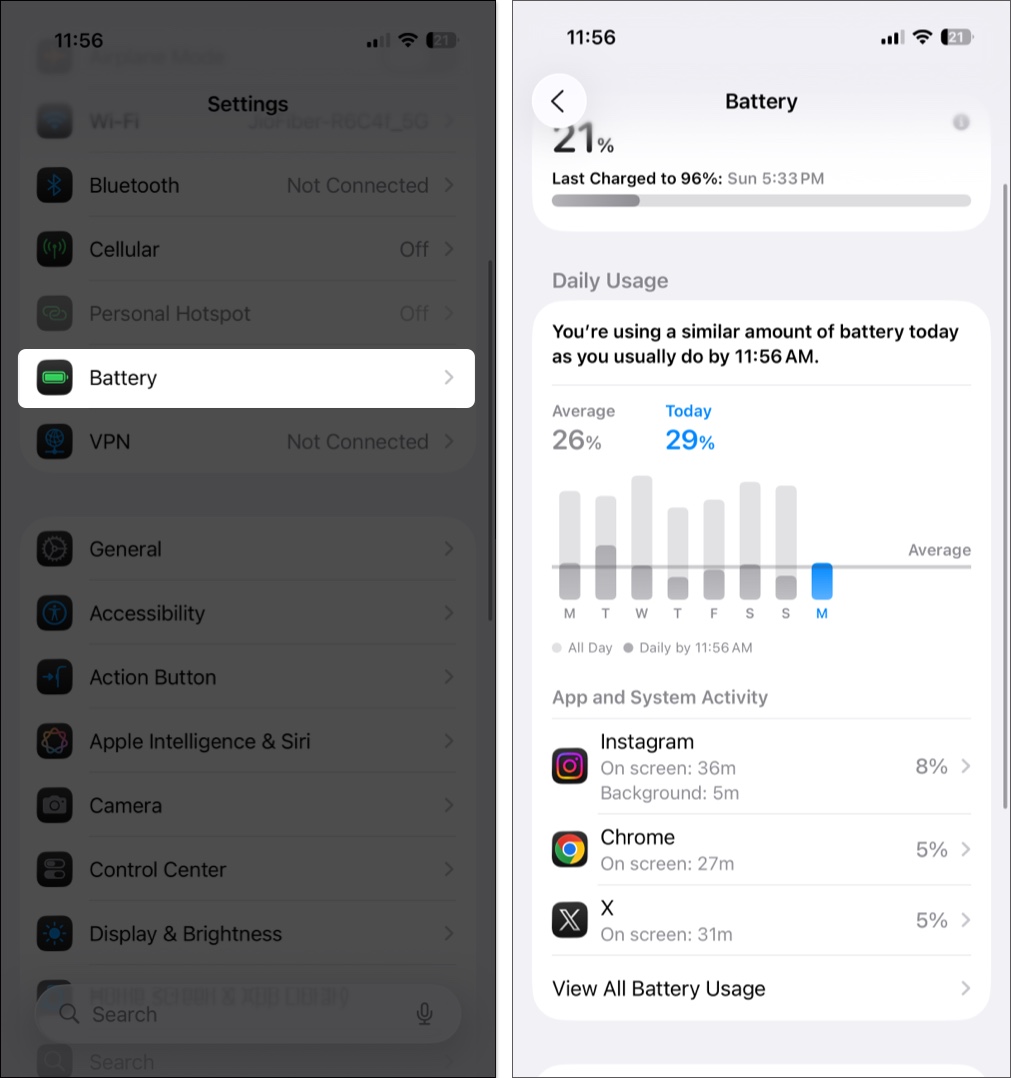
If one app shows far higher background usage than others, it may be poorly optimized for iOS 27 or stuck running. Force-quit it, update it from the App Store, or remove it if you don’t need it.
Adaptive Power is Apple’s smarter, low-touch battery helper introduced in iOS 26. There is no new battery toggle in iOS 27, so this is still the best automatic setting to leave on.
When enabled, it uses on-device intelligence to predict days when you use more power than usual, then gently lowers screen brightness (about 3%), limits background activity, and throttles performance slightly to conserve power. If your battery hits 20%, it can automatically turn on Low Power Mode. Otherwise, your iPhone behaves normally.
Here’s how to enable Adaptive Power in iOS 27:
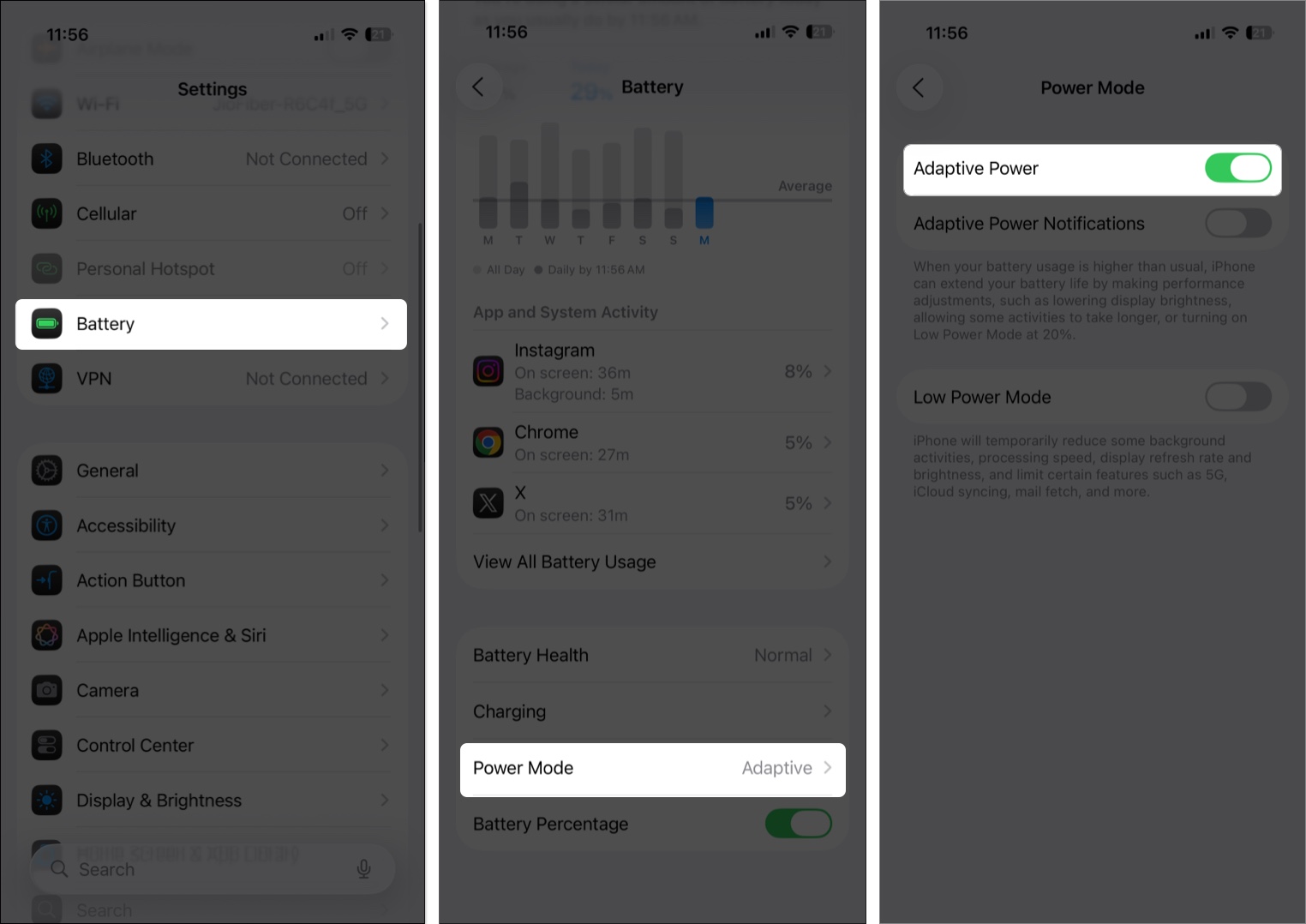
Note: Adaptive Power requires iOS 26 or later and is available on iPhone 17 models, iPhone Air, all iPhone 16 models, and iPhone 15 Pro / iPhone 15 Pro Max. On iPhone 17, iPhone 17 Pro, iPhone 17 Pro Max, and iPhone Air, it is on by default. On older supported models, you need to turn it on manually.
Compared to Low Power Mode, Adaptive Power is far more conservative. Use Adaptive Power as your daily set-and-forget, and Low Power Mode when you need maximum conservation.
Right after a major release like iOS 27, most developers push App Store updates to optimize for the new system. The iOS 27-optimized version runs more efficiently with fewer background bugs.
Open App Store → Profile icon → Available Updates and update everything, especially banking, VPN, keyboard, camera, and work apps. Then restart your iPhone once to let everything settle.
This setting lets apps refresh data in the background. Even with Apple’s optimizations, it still drains battery heavily.
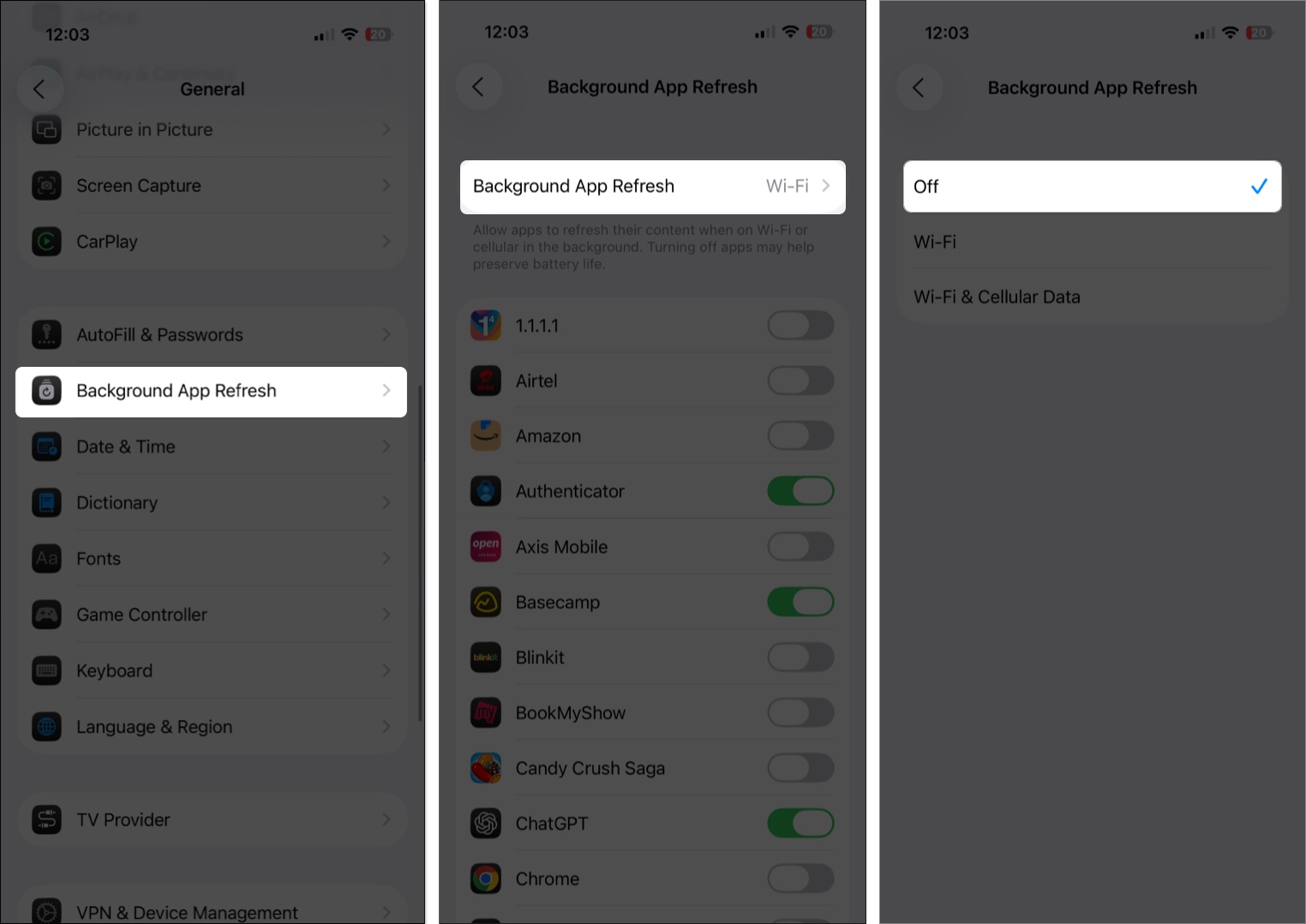
If you want a middle ground, leave it on and turn it off per-app for apps you rarely need fresh.
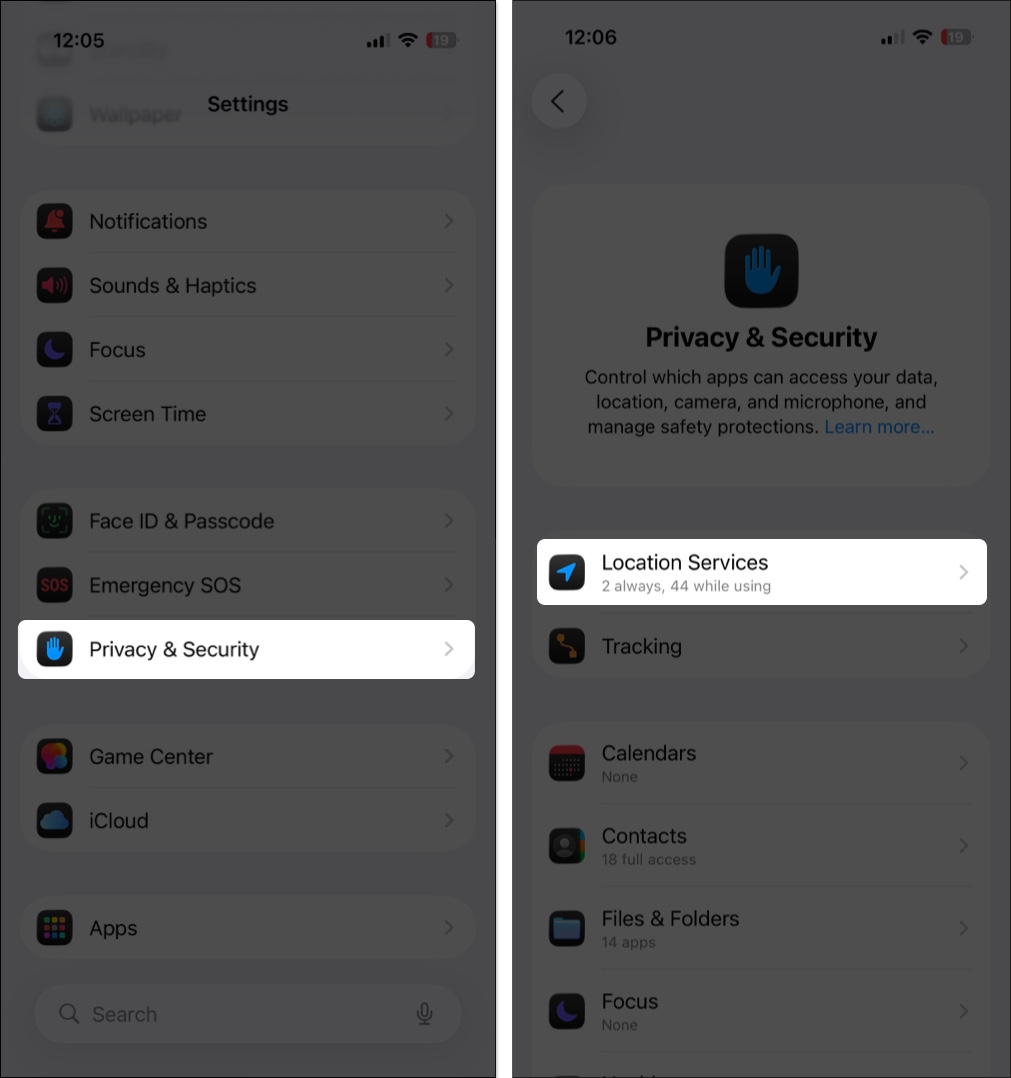
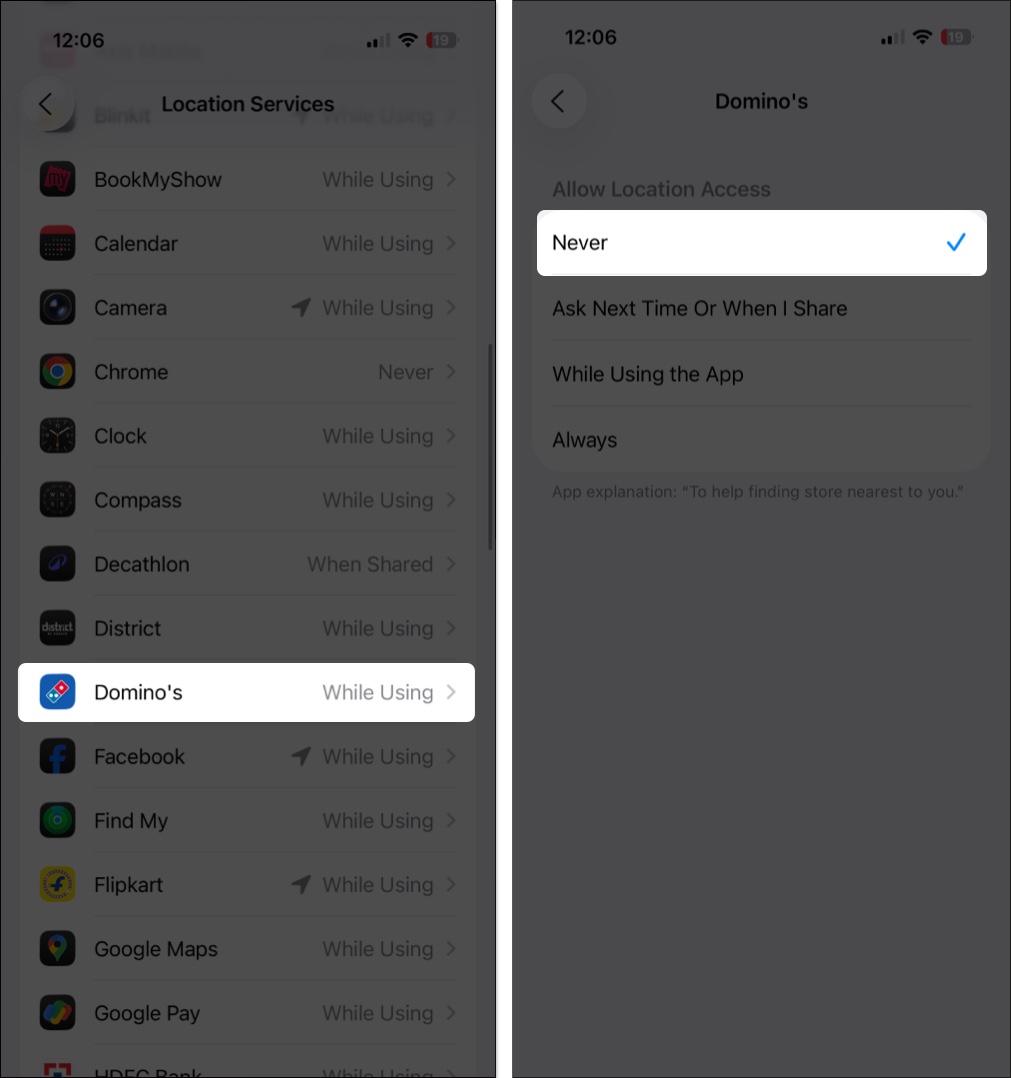
Apps like food delivery, ride-hailing, and Weather can request constant location, which is one of the biggest GPS-related drains.
Always On Display looks great on Pro models, but keeping the screen lit when you’re not using the phone still costs power.
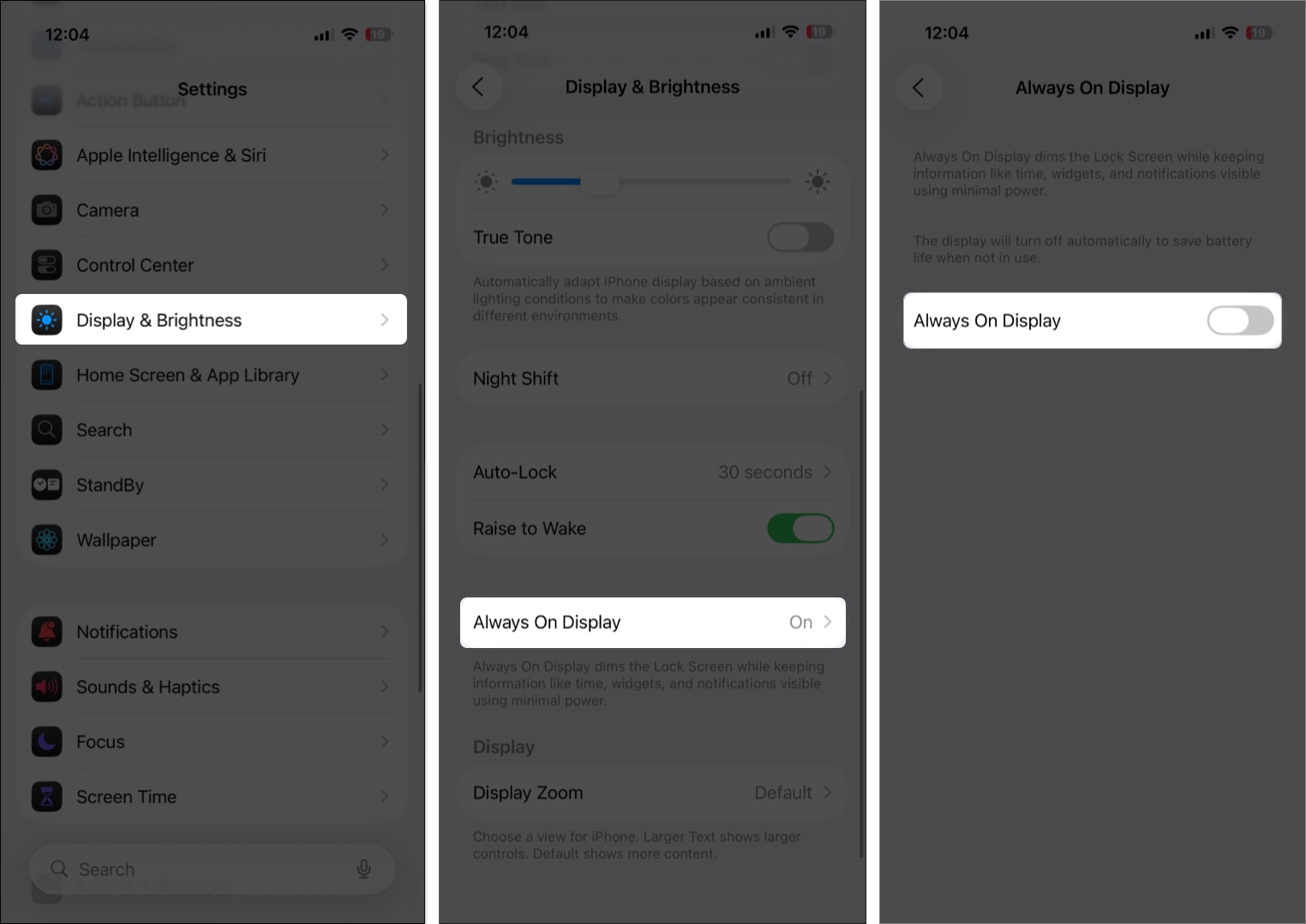
If you prefer to keep it, iOS 27 lets you keep AOD, but you can reduce its wallpaper/wallpaper dimming impact and pair it with Adaptive Power rather than running it full-brightness all day.
Low Power Mode is still the fastest way to extend battery when you’re low. It reduces 5G usage (on most models), limits display refresh to 60Hz on ProMotion devices, pauses iCloud Photos temporarily, and turns off Mail Fetch and Background App Refresh.
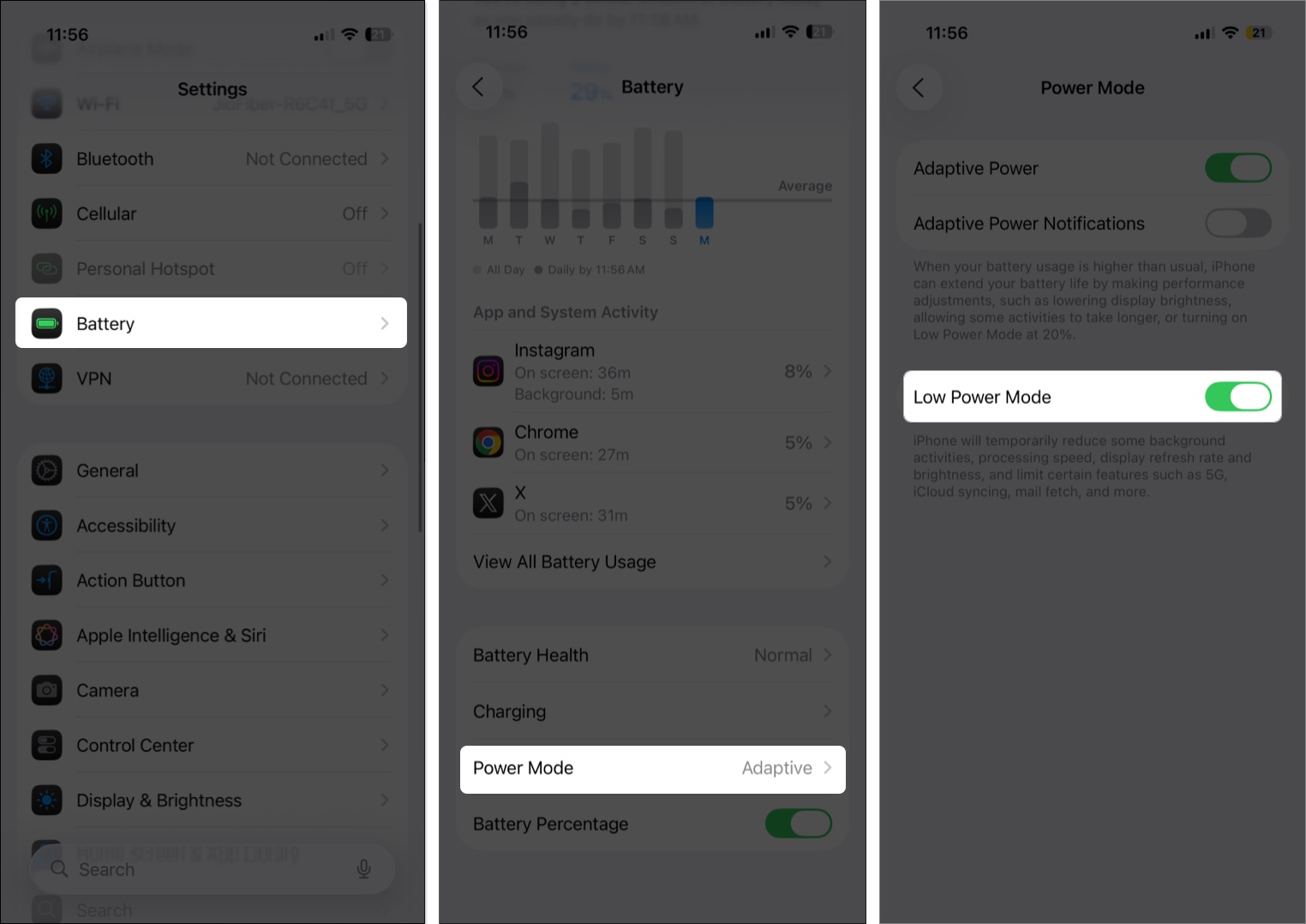
You can also add Low Power Mode to Control Center or ask Siri to turn it on. It automatically turns off when you charge above 80%. If you want it earlier than 20%, create a Shortcuts automation: Shortcuts → Automation → Battery Level → Turn on Low Power Mode.
You can’t stop battery aging, but you can slow it. iOS now offers two related controls in Settings → Battery → Charging:
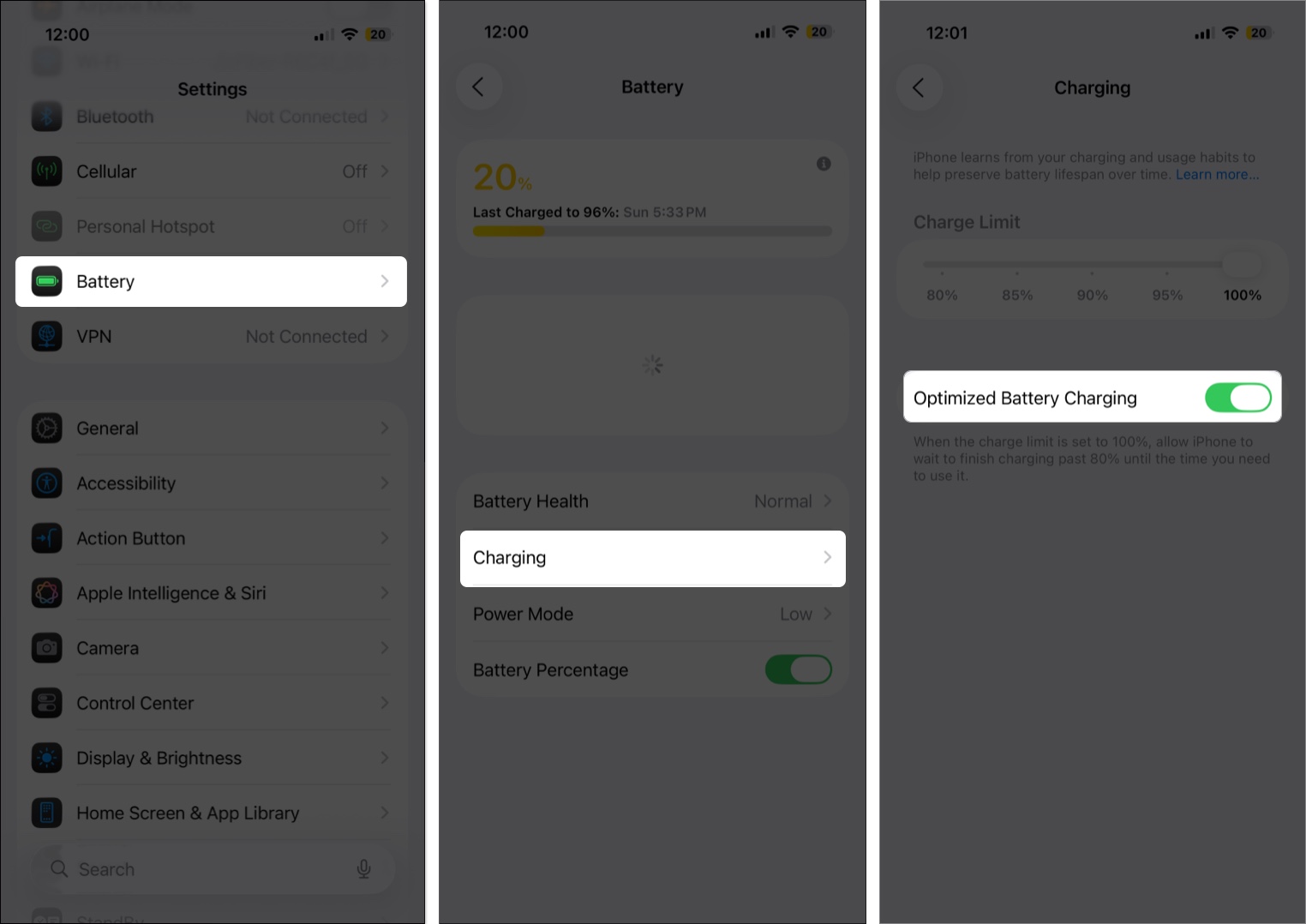
If your Battery Health is already below ~85%, capping the limit and avoiding overnight heat helps most.
You do not need to constantly swipe away apps. iOS manages them well. But if Battery shows an app stuck in the background after the iOS 27 update, swipe it away or restart the iPhone. A single rogue app accounts for many post-update complaints more than the system itself.
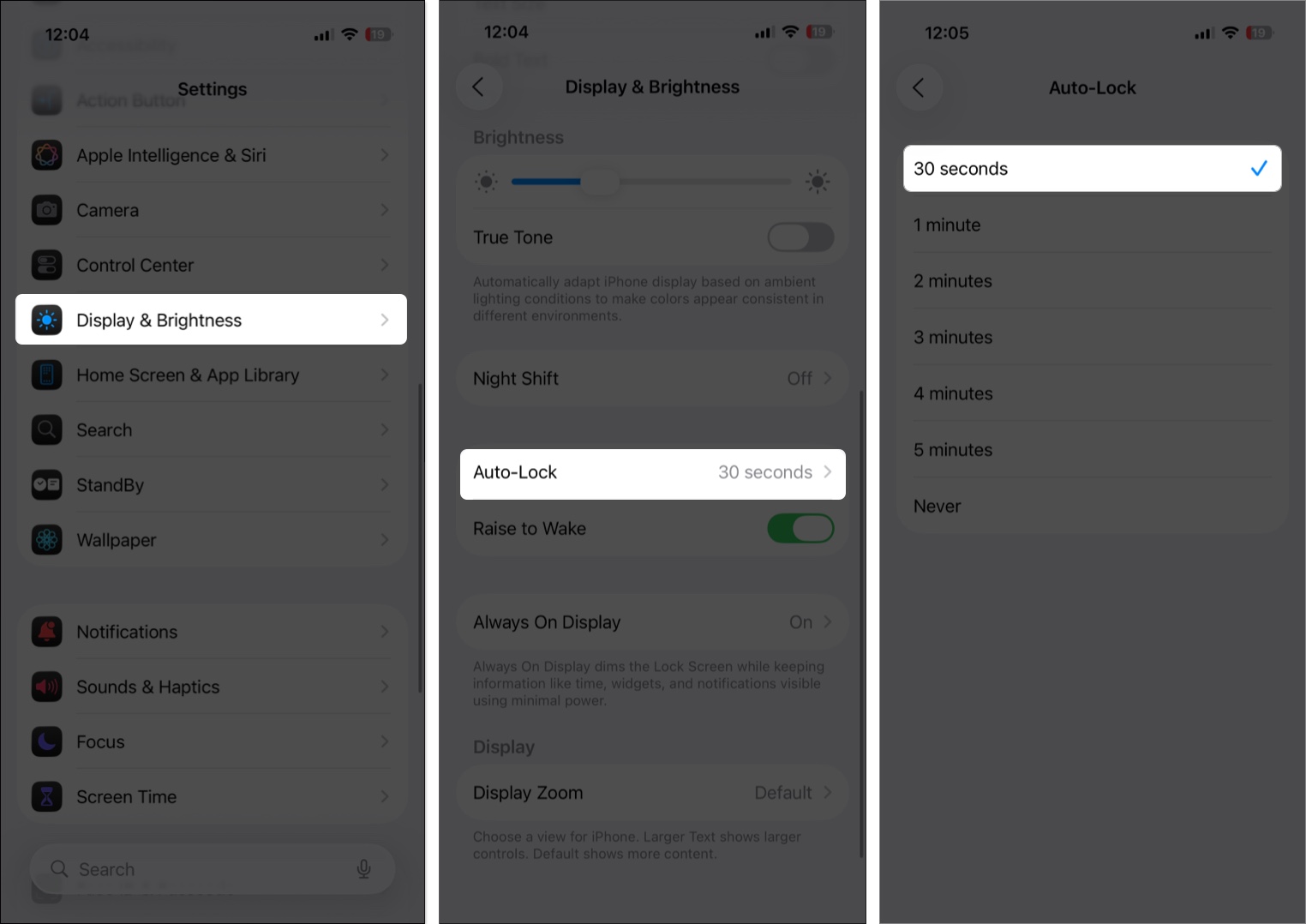
Your display is the biggest consumer of power. Shorter auto-lock means less drain when you set the phone down.
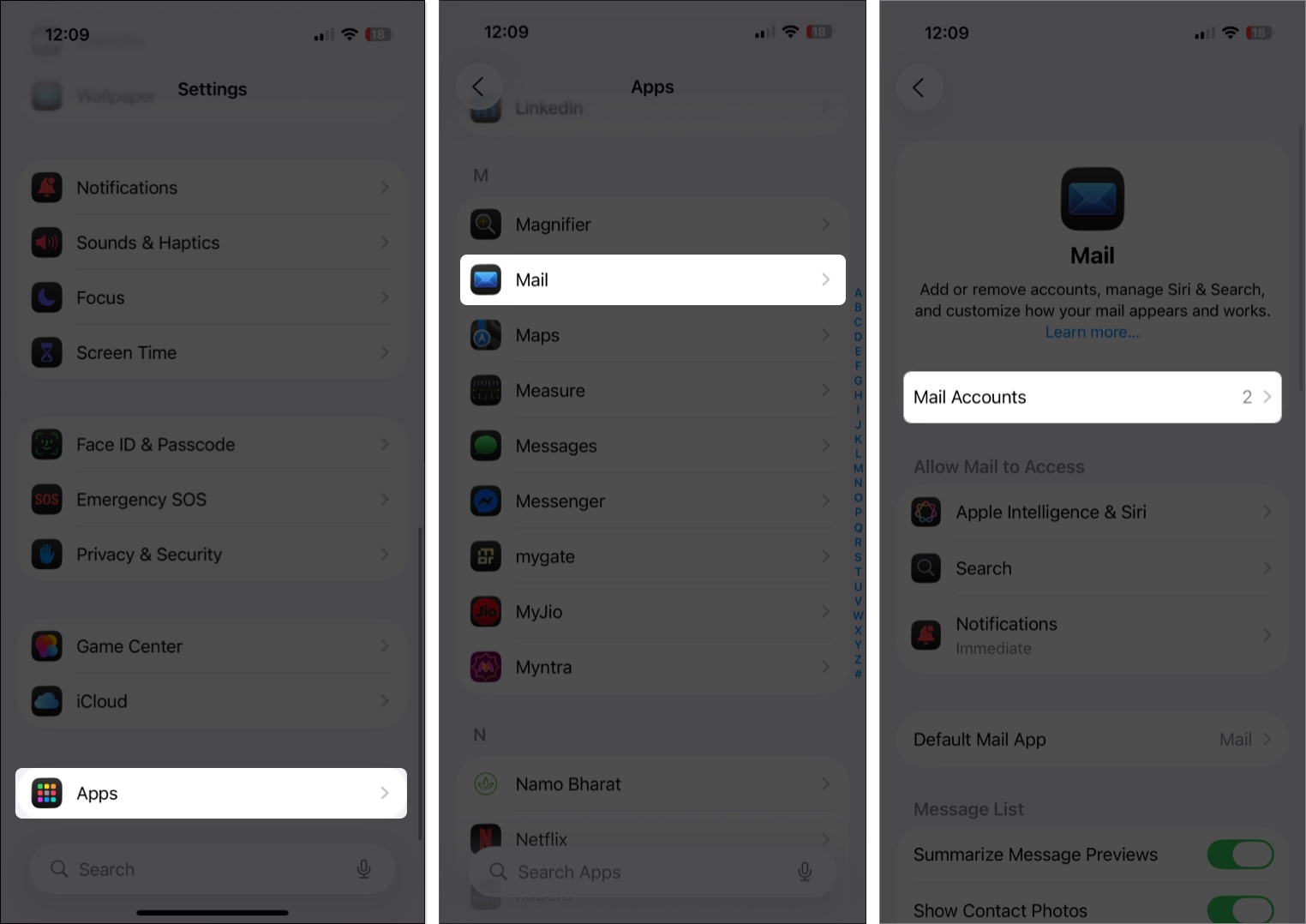
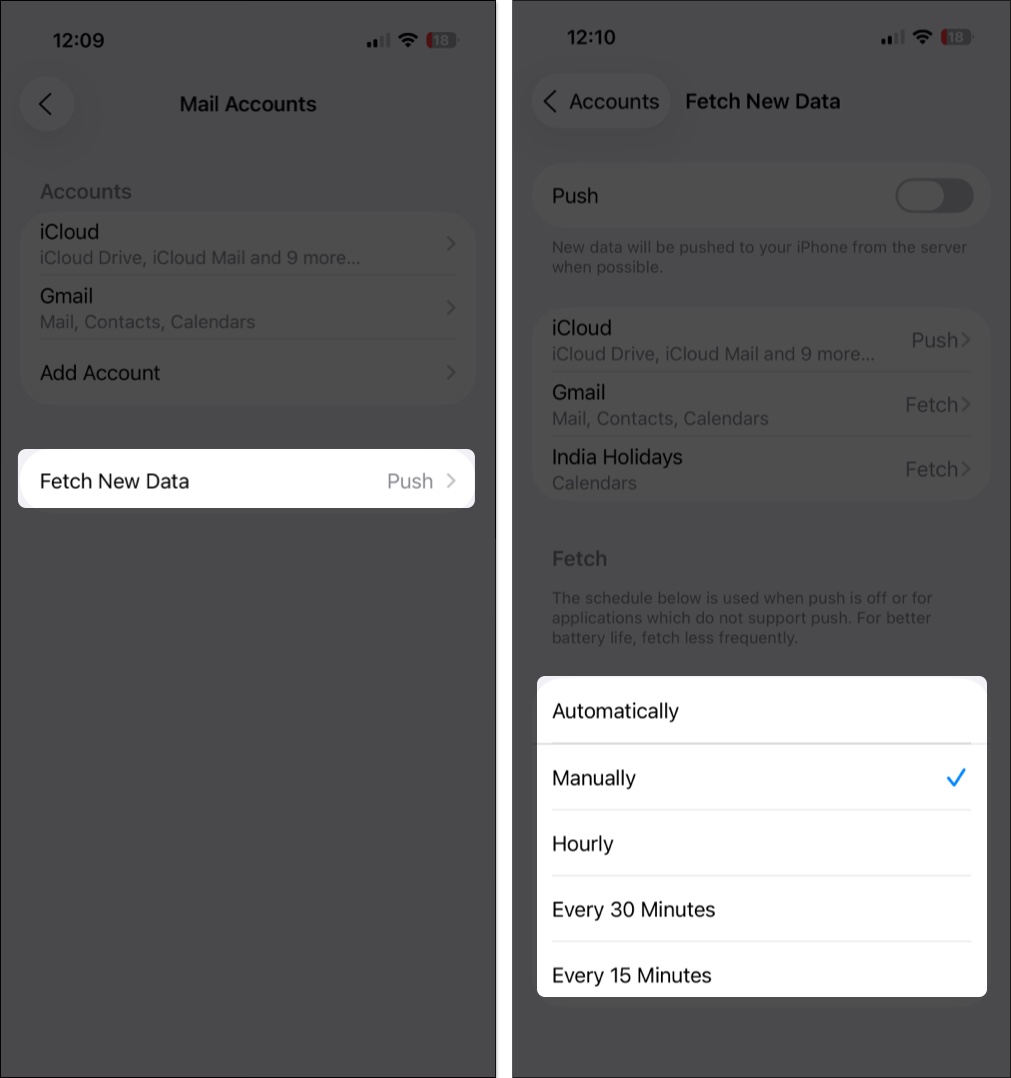
How often your iPhone checks Mail and Calendar matters. Push keeps waking the radio.
These are long-tested fixes, and with iOS 27’s performance focus, they matter even more on older hardware where battery capacity is already lower.
Battery drain right after iOS 27 is frustrating, but in most cases Apple expects it to be temporary. It usually lasts 2 to 3 days of indexing, Siri AI model setup, and app updates. Check Battery Insights for Ongoing iOS updates before changing everything else. If the issue persists after that window, the steps above, especially Adaptive Power, Background App Refresh limits, Location limits, and Low Power Mode, will bring your battery life back toward normal.
Have you noticed your iPhone battery draining faster after iOS 27? Which fixes helped you most? Share your experience in the comments below.
Don’t miss: