FaceTime Like A Pro (eBook)

Get our exclusive Ultimate FaceTime Guide 📚 — absolutely FREE when you sign up for our newsletter below.

How to enter DFU mode on iPhone and iPad: Detailed guide for every model

DFU mode is the deepest restore your iPhone or iPad offers. Here are the exact button steps for every model, including iPhone 18 Pro, plus how to restore and exit.

If you’ve ever felt lost or frustrated by DFU mode, I totally understand. You’re not alone, and I’m here to help. When your iPhone runs into those stubborn software issues that a simple restart or even Recovery Mode can’t fix, DFU mode (Device Firmware Update) is your ultimate solution.

In this guide, I’ll walk you through everything you need to know about DFU mode and how to enter it on any iPhone or iPad model, with expert timing tips, troubleshooting advice, and clear, friendly guidance to help you succeed, even if it’s your very first time.

What is DFU mode on iPhone, and when should you use it?

DFU mode, which stands for Device Firmware Update, is like hitting the reset button on a deeper level for your iPhone or iPad. It’s the most thorough way to restore your device because it lets your iPhone connect to Finder or iTunes without loading iOS or even the bootloader.

Basically, it gives your device a clean slate.

Your Complete iOS 26 Playbook:

Get our exclusive Ultimate iOS 26 Guide 📚 — absolutely FREE when you sign up for our newsletter below.

[convertkit form=6147905]

You’d only need to use DFU mode in more serious situations, such as:

  • Your iPhone is stuck on the Apple logo or keeps restarting in a loop
  • Updates or restores keep failing, even in Recovery Mode
  • You want to downgrade to an older iOS version (as long as Apple is still signing it)
  • Your device is completely unresponsive or isn’t showing up when you connect it to your computer

Tip: DFU mode is a powerful option, but it should only be used when other troubleshooting steps haven’t worked. For most users, Recovery Mode is sufficient.

DFU mode vs. Recovery mode: What’s the difference?

FeatureDFU Mode (Device Firmware Update)Recovery Mode
Screen AppearanceStays completely black, with no logo or iconShows the “Connect to computer” screen with a cable and computer icon
Access LevelLowest level: the Boot ROM waits for a restore over USB, before iOS or the bootloader loadsStarts the bootloader (iBoot), then shows the “Connect to computer” screen
When to Use ItFor advanced restores, changing firmware, or downgrading iOSFor regular restores or software updates
What Your Computer SaysSays the iPhone is in “Recovery mode” and needs a restore, even though it’s in DFUOffers “Update” or “Restore” options
RisksHigher risk: if something goes wrong, you could damage your deviceLower risk: safer for most people to use

How to tell which mode you’re in:

  • DFU Mode: The screen stays black with no logo or icon. When you connect it, Finder or iTunes still reports an iPhone in Recovery mode, which is normal for DFU.
  • Recovery Mode: The screen shows the cable and computer icon. Finder or Apple Devices offers an Update or Restore option.

Necessary Precautions Before Using DFU Mode

  1. Back up your data: DFU mode wipes everything from your device, including your photos, apps, messages, and settings. So before you do anything, make sure to back up your iPhone or iPad. You don’t want to lose important stuff by accident.
  2. Check Firmware availability: You can only install iOS versions that Apple is still signing. If you try to install an older version that’s no longer allowed, you’ll get an error. Always check which iOS versions are currently available before you start.
  3. Be careful with Water damage: If your device has been exposed to water, don’t try DFU mode on your own. It could make things worse or even damage your phone further. It’s safer to take it to a professional repair technician first.
  4. Use the right tools: Stick to an Apple-certified cable and make sure Finder, the Apple Devices app, or iTunes is up to date. Cheap cables or outdated software can cause connection problems or failed restores.
  5. Have a stable internet connection: If your internet drops or the firmware download takes more than 15 minutes, your device might exit DFU mode, and you’ll have to start over. A good, steady connection helps avoid frustrating interruptions.
  6. Be patient: Getting into DFU mode isn’t always easy. It might take a few tries, even if you’ve done it before. That doesn’t mean your iPhone is broken. It’s just a tricky process. Take your time and carefully follow each step.

How to identify your iPhone or iPad model

Not sure which iPhone or iPad you have? No problem. Check out our guide on how to identify your iPhone model for detailed instructions, or look for simple clues like whether your device has a Home button. Once you know your model, follow the step-by-step instructions made for your specific device.

How to put iPhone into DFU mode: Step-by-step for every model

Learn how to enter DFU mode on iPhone 18 Pro, iPhone 18 Pro Max, iPhone Air, iPhone 17 Pro, 17, 17e, 16e, 16, 15, 14, 13, 12, 11, XS, XR, iPhone 8, SE 2020/2022, iPhone 7 series, older iPhones like 6s, and iPads with Face ID or Home button.
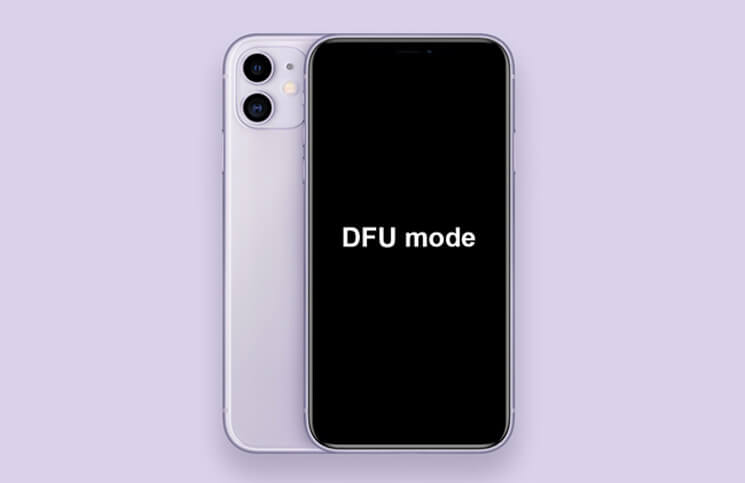
For iPhone 8 and newer (iPhone Air, iPhone 18 Pro, and iPhone 18 Pro Max)

  1. Use an Apple-certified cable to connect your iPhone to your Mac or Windows computer.
  2. Open Finder on a Mac with macOS Catalina or newer, the Apple Devices app on a Windows PC, or iTunes on a Mac running macOS Mojave or earlier.
  3. Quickly press and let go of the Volume Up button.
  4. Quickly press and let go of the Volume Down button.
  5. Press and hold the Side (Power) button until the screen goes black.
  6. When the screen turns black, keep holding the Side button and also press and hold the Volume Down button for 5 seconds.
  7. After 5 seconds, let go of the Side button but keep holding the Volume Down button for another 10 seconds.
  8. If the screen remains black and Finder or iTunes indicates that it has found an iPhone in recovery mode, your phone is now in DFU mode.

Put iphone 11 11 pro 11 pro max into dfu mode

Tip: If you see the Apple logo, you held the Side button too long. Try again and release it a little sooner.
For iPhone 7 and 7 Plus

  1. Connect your iPhone to your computer.
  2. Open Finder or iTunes.
  3. Press and hold both the Side (Power) button and the Volume Down button for 8 to 10 seconds.
  4. Release the Side button, but keep holding the Volume Down button for about 5 seconds.
  5. The screen should stay black, and Finder or iTunes will detect your device.

Put iphone 7 and 7 plus into dfu mode

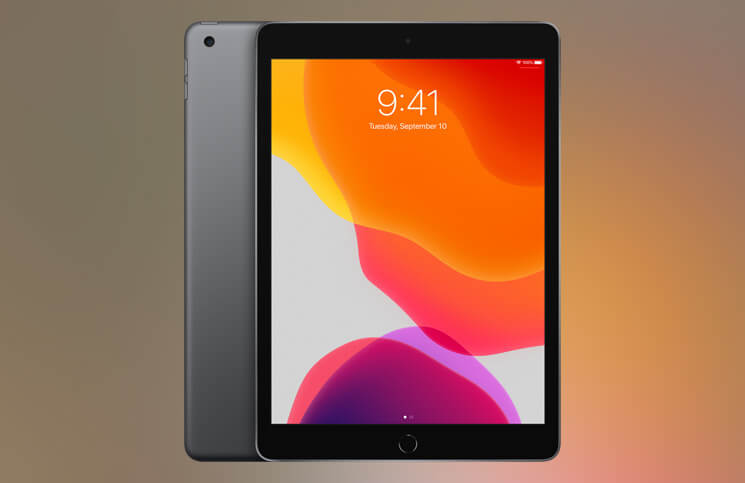
For iPhone 6s, 6s Plus, or Earlier (and iPads with Home Button)

  1. Plug your device into your computer.
  2. Open Finder or iTunes.
  3. Hold down both the Home button and the Top (or Side) Power button for 10 seconds.
  4. Let go of the Power button, but keep holding the Home button for 5 more seconds.
  5. If the screen is still black and Finder or iTunes finds your device, you are in DFU mode.

Put an ipad that has a home button in dfu mode

For iPads with Face ID

  1. Connect your iPad to your computer.
  2. Open Finder or iTunes.
  3. Quickly press and release the volume button nearest to the Top button, then quickly press and release the volume button farthest from the Top button.
  4. Press and hold the Top (Power) button for three seconds.
  5. Keep holding the Top button, then press and hold the Volume Down button as well. Hold both for 10 seconds.
  6. Release the Top button, but keep holding the Volume Down button for five more seconds.
  7. If the screen stays black and Finder/iTunes detects your iPad, you’re in DFU mode.

Put ipad with face id in dfu mode

DFU mode success checklist

ModelDFU Success (Screen)DFU Failure (Screen)Computer Message
iPhone 8 and newerBlackApple logo/cable iconRecovery-mode prompt
iPhone 7BlackApple logo/cable iconRecovery-mode prompt
iPhone 6s/SE (1st gen)BlackApple logo/cable iconRecovery-mode prompt

The screen should remain black. If you see a logo or picture, try again. Finder or iTunes may show “recovery mode” even when you are in DFU mode. This is normal as long as your screen stays black.

What to do after entering DFU mode on iPhone

  1. Finder or iTunes will display a message saying your device is in “recovery mode.”
  2. Even in DFU mode, the pop-up may say “recovery mode.” As long as your device’s screen is black, you’re in DFU mode.
  3. Click OK in the pop-up, then select Restore iPhone (or Restore iPad).
  4. Your computer will download the latest available iOS version and restore your device. This may take some time.

Important: Restoring in DFU mode erases all data and settings. Only backups made with the same or earlier iOS version can be restored. Backups from a newer iOS version will not work.

Tip: Ensure your internet connection is stable during this process. If the download is interrupted, your device may exit DFU mode, and you’ll need to start over.

How to exit DFU mode

Exiting DFU mode is safe and straightforward; no special software or tools are required. Just follow the steps below for your device model to restart your iPhone or iPad and return to normal operation.

For iPhone 8 or newer, SE 2020/2022, and iPads with Face ID:

  1. Quickly press and release the Volume Up button (on iPad, the volume button nearest the Top button).
  2. Quickly press and release the Volume Down button (on iPad, the volume button farthest from the Top button).
  3. Press and hold the Side (or Top) button until you see the Apple logo.

For iPhone 7 and 7 Plus:

  • Press and hold both the Side (Power) button and the Volume Down button until the Apple logo appears.

For iPhone 6s or earlier and iPads with Home button:

  • Press and hold both the Home button and the Side (or Top) Power button until the Apple logo appears.

What to expect: Your device should restart and display the Apple logo. If it doesn’t, check your cable and try the steps again.

When to seek professional help

If DFU mode does not resolve your issue, or your phone has been water-damaged or subjected to physical harm, it’s best to contact Apple or an authorized service provider. They are trained to diagnose and fix your phone safely. Attempting to do it yourself can result in further complications or even void your warranty. By seeking professional service, your phone has the best chance of being restored correctly.

Questions or feedback?

Still have questions or need help? Feel free to drop a comment below. We’re always here to help you make the most of your Apple devices! We love hearing from you and supporting your journey.

You’ve totally got this! With a bit of patience and the right steps, you’ll be a pro at using DFU mode on any iPhone or iPad. And if you ever get stuck, just reach out. We’ve all been there, and we’re more than happy to lend a hand.

FAQs

Why can’t I get my iPhone into DFU mode?

Take a moment to double-check your cable and USB port, then restart both your device and computer. Remember, timing matters here! If you spot the Apple logo, try releasing the buttons sooner next time. Don’t worry if it takes a few tries. Everyone goes through this, so keep going and don’t get discouraged!

Will entering DFU mode delete my data?

Just putting your device in DFU mode will not delete your data. But if you restore your device while in DFU mode, all your data and settings will be erased.

Does DFU mode affect my eSIM?

Usually, your eSIM profile remains on the device after a DFU restore; however, it’s always recommended to back up important information and keep your carrier’s eSIM details handy before restoring.

My device isn’t detected in DFU mode. What should I do?

Check that Finder, the Apple Devices app, or iTunes is up to date. Try using another cable, port, or computer. If the problem continues, your device might need to be repaired.

Can I downgrade my iOS version using DFU mode?

Yes, but only if Apple is still signing the version you want to install.

How do I know if I’m in DFU mode or Recovery Mode?

DFU mode: The screen is entirely black, but your computer recognizes the device. Recovery mode: The screen shows a cable or computer icon.

Does DFU mode fix all iPhone issues?

DFU mode is helpful, but it cannot fix problems caused by broken parts or water damage. If DFU mode does not work, get help from a professional.

Related articles worth reading:

Add Igeekblog as a preferred source on Google

Jibin Joseph
Jibin Joseph

Jibin Joseph is an editor at iGeeksBlog and has excellent attention to detail. He is a voracious reader, with interests ranging from philosophy and history to geopolitics and tech. When not reading or correcting grammar, you’d find him engaging in discussions about football. You can follow him on Twitter and Instagram at @4ibin.

Articles: 94

Leave a Reply

Your email address will not be published. Required fields are marked *