FaceTime Like a Pro
Get our exclusive Ultimate FaceTime Guide 📚 — absolutely FREE when you sign up for our newsletter below.

FaceTime Like a Pro
Get our exclusive Ultimate FaceTime Guide 📚 — absolutely FREE when you sign up for our newsletter below.


Restarting our iPhones is the first thought that comes to our mind whenever we encounter any issue. This is because simply restarting your iPhone can often fix issues like app crashes, sluggish performance, or connectivity problems. While restarting an iPhone is a straightforward process, it is not uncommon for new iPhone users to get confused.
Whether you just picked up the new iPhone 18 Pro or iPhone 18 Pro Max, you are waiting on the foldable iPhone Duo, you own an iPhone 17 series, iPhone Air, or an older model with a Home button, continue on this read to learn how to restart your iPhone.
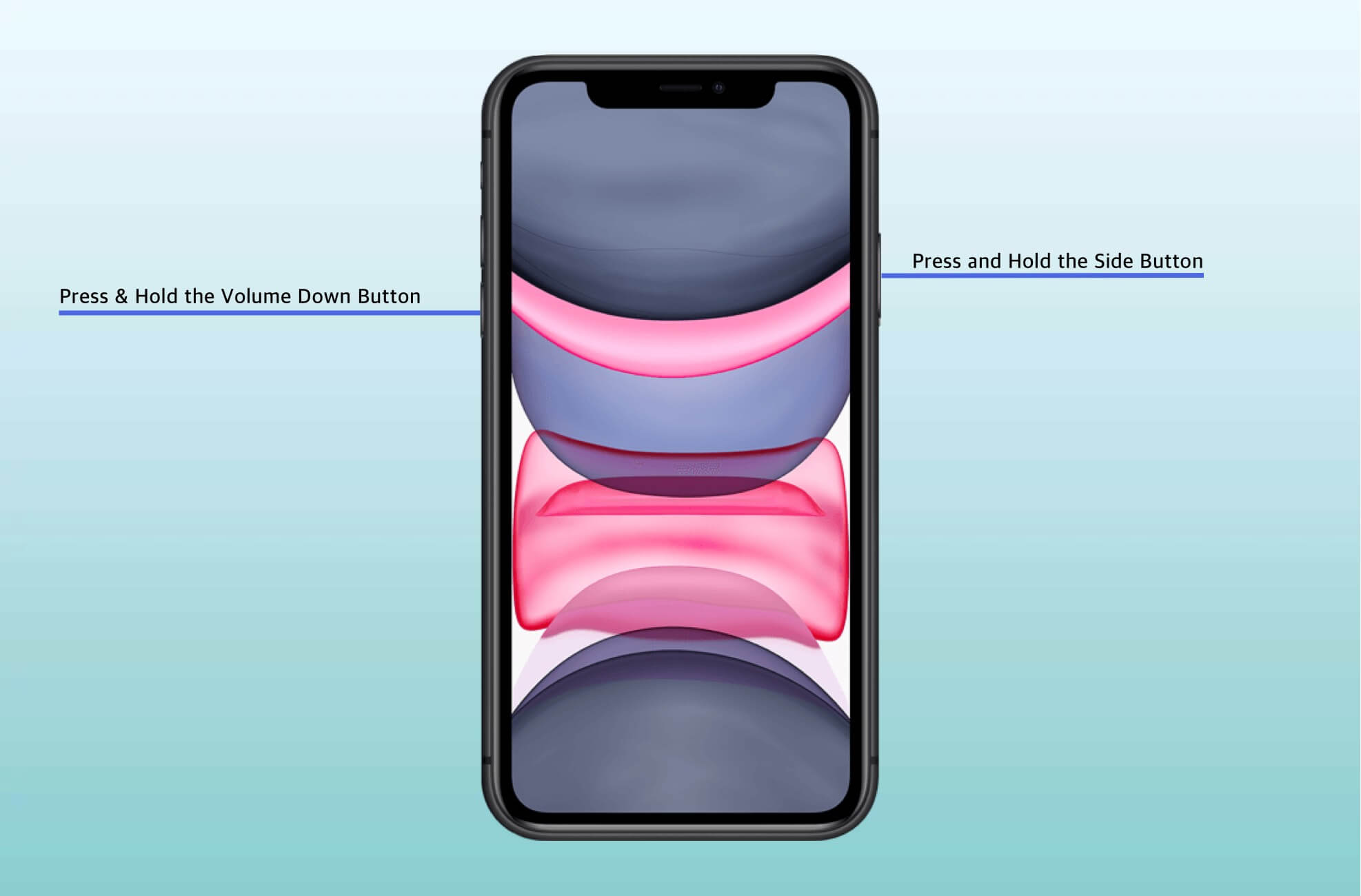
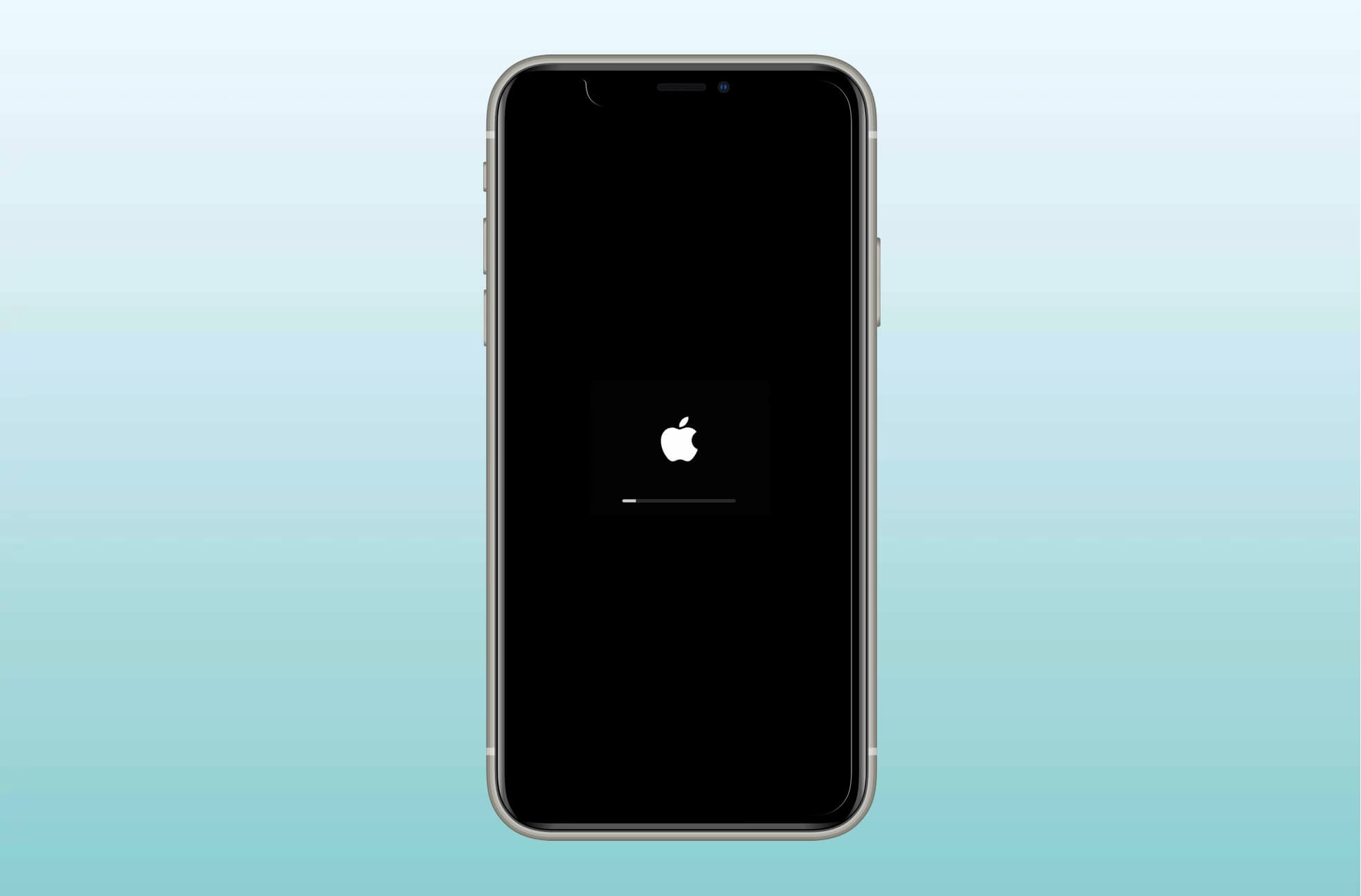

iPhone Duo is the one model in the 2026 lineup that breaks the usual layout. It has no Face ID at all. Apple built Touch ID into the Side button instead, so the same button you press to sleep the phone is also the one that unlocks it, whether the device is folded shut or opened out to the 7.6-inch inner display. The volume buttons sit on the top edge rather than the left side.
The power slider still works the same way:
Because Touch ID lives in that button, rest your finger on it lightly rather than jabbing at it, otherwise you may just trigger an unlock attempt. If you would rather not hunt for two buttons on a folded phone, the Control Center method and the Settings method further down both work on iPhone Duo as well.
The second-generation iPhone SE, iPhone 8/8 Plus, iPhone 7/7 Plus, iPhone 6s/6s Plus, iPhone SE 1st Gen, iPhone 6/6 Plus, iPhone 5s/5c/5, and all iPads with Home button have the same method of restarting.
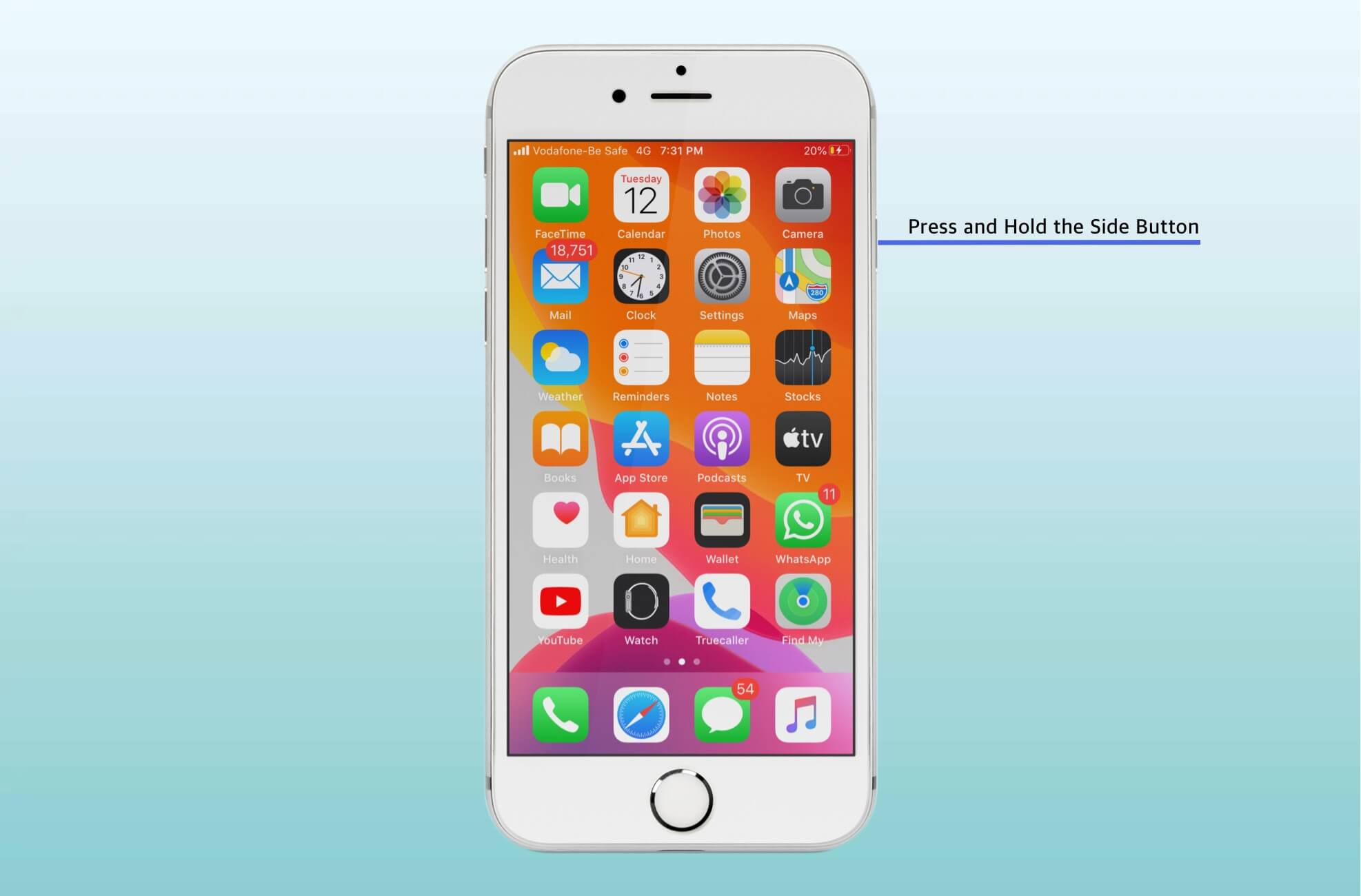
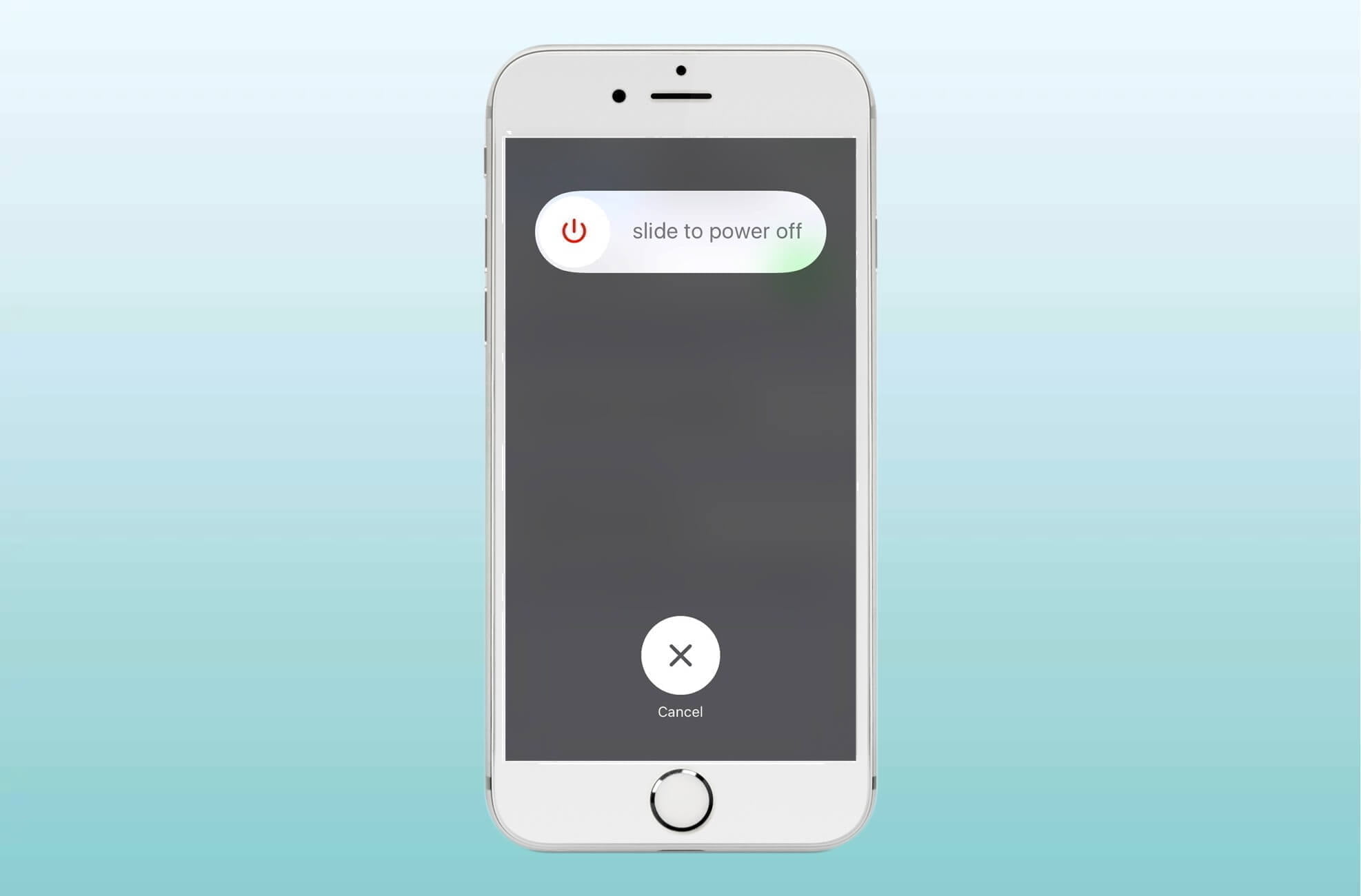
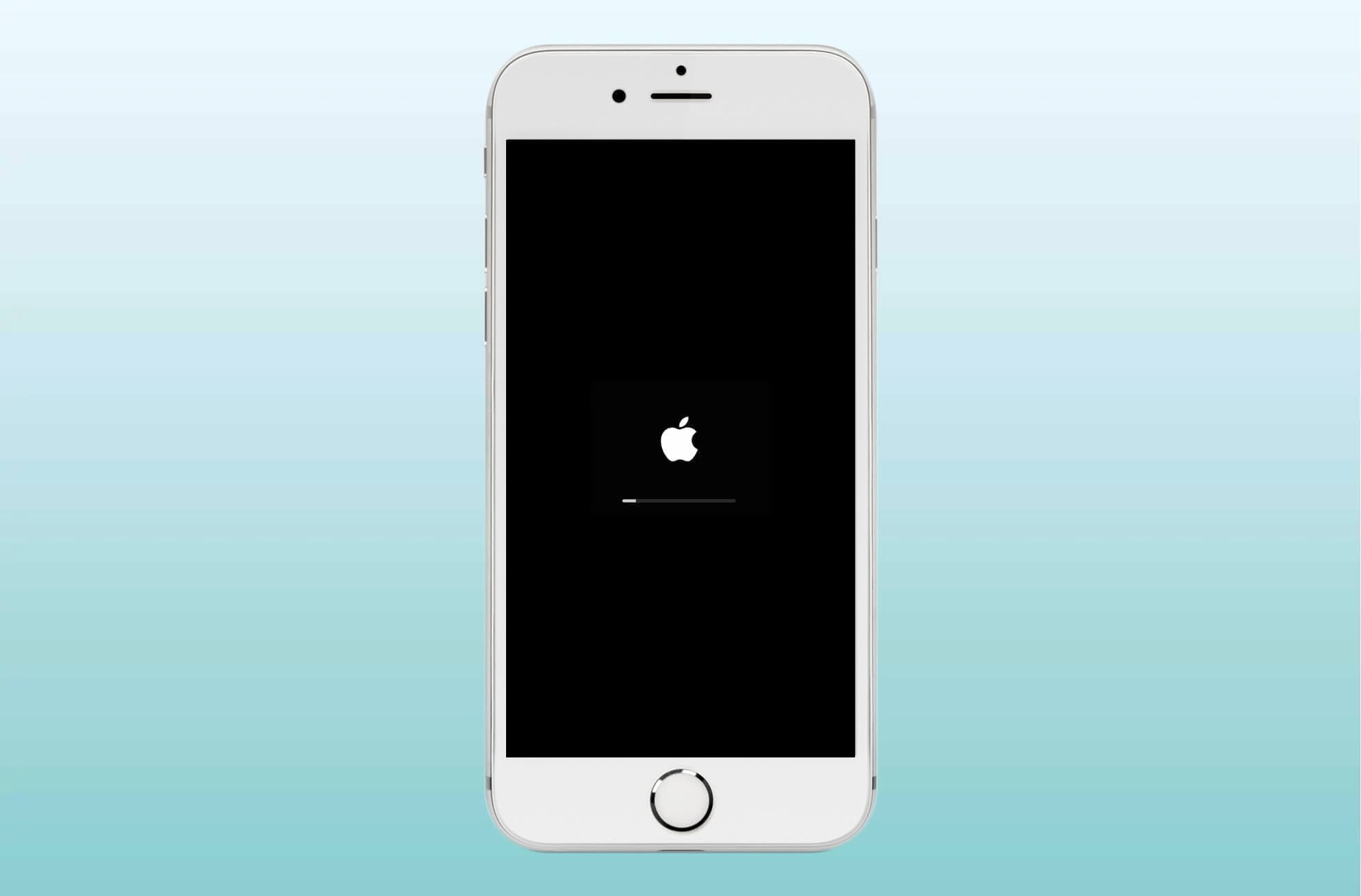
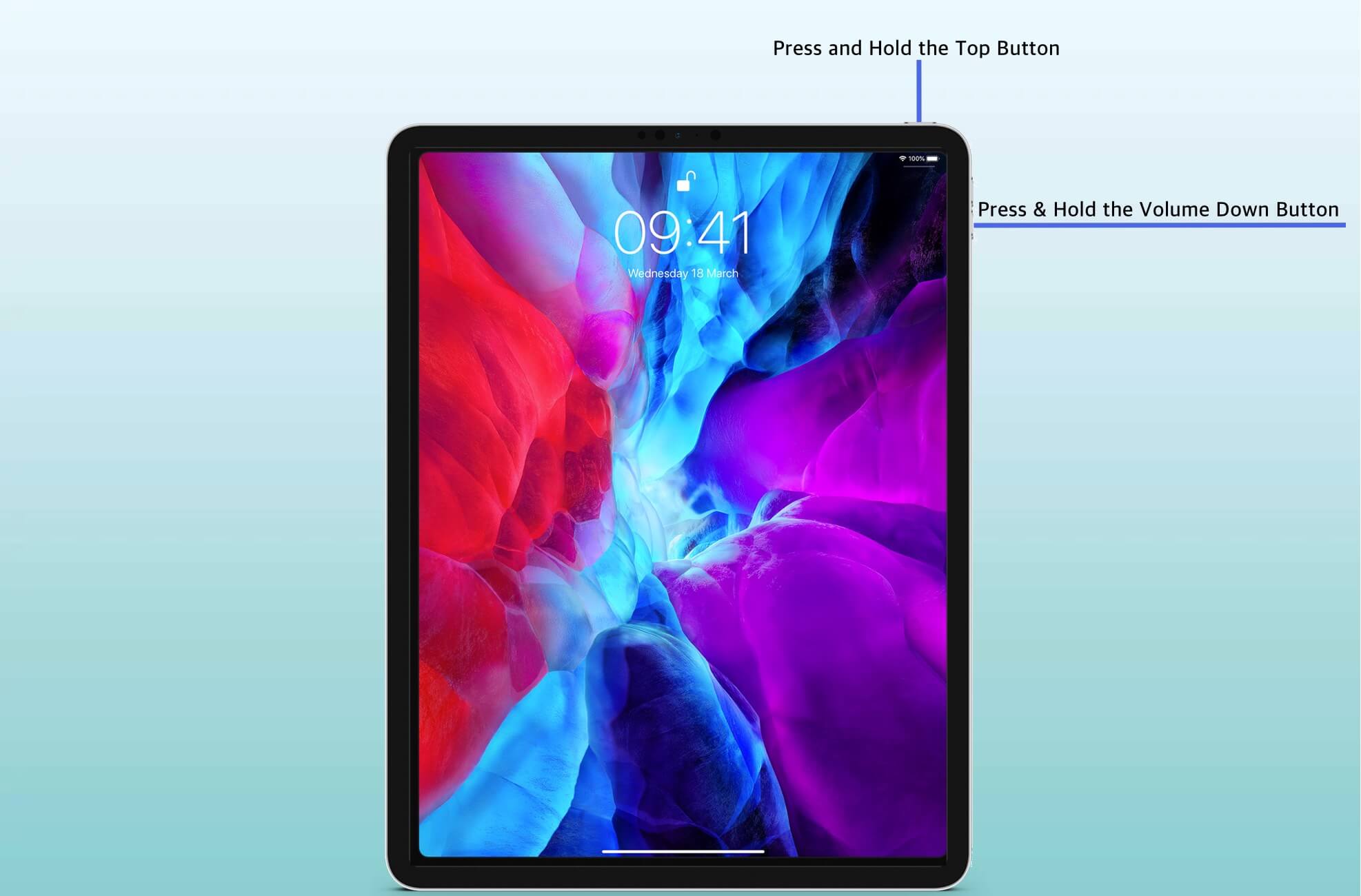
If you have iPad Pro 12.9-inch 4th or 3rd generation, iPad Pro 11-inch original or 2nd generation, then the process to restart is almost the same as iPhones with Face ID. Take a look.
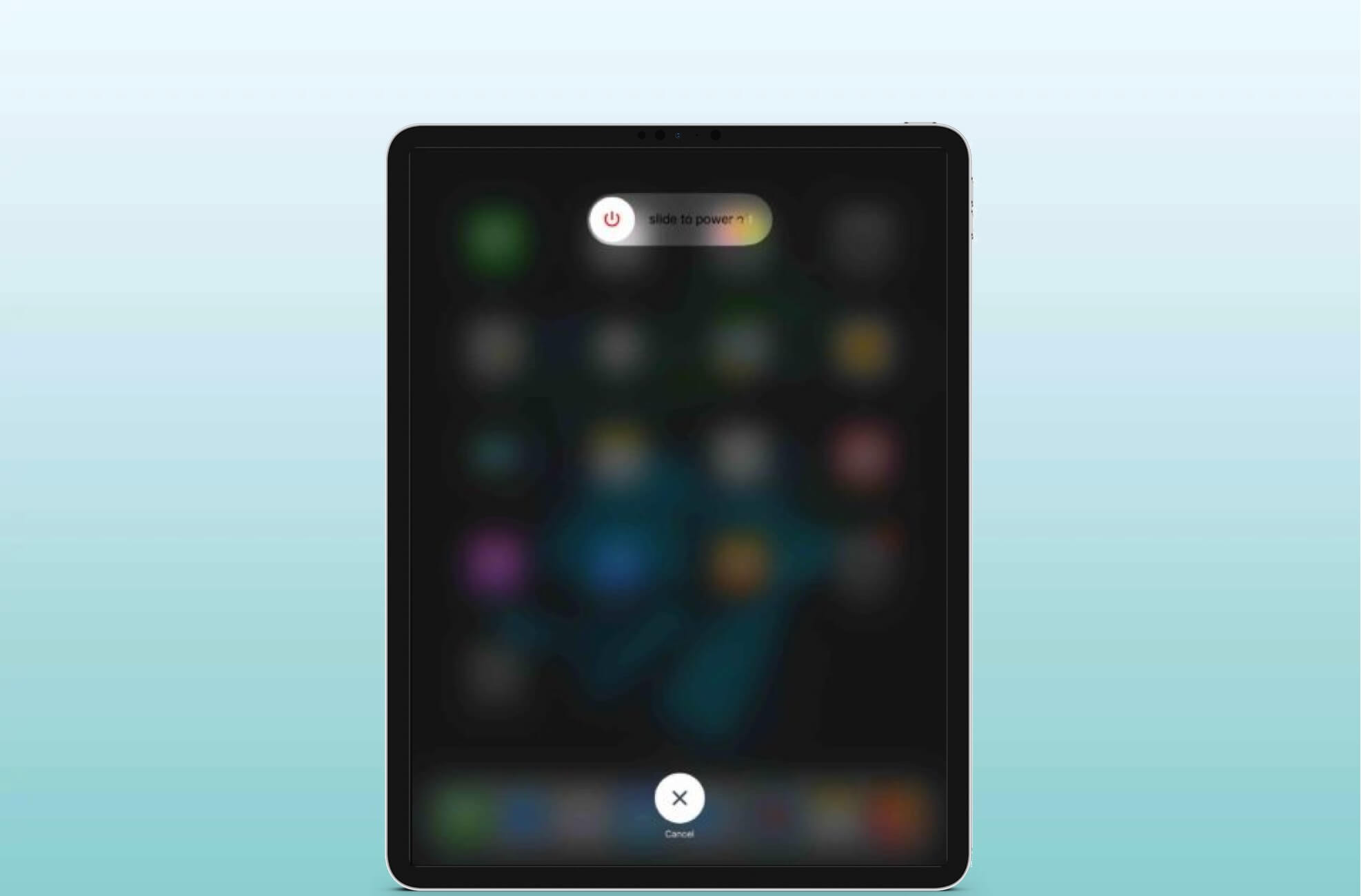

That’s all, mate!
This is the standard way in which you can restart any iPhone or iPad. However, it is also possible to restart your device without the power or home buttons. Finally, if a simple restart or force restart is not able to resolve a problem you’re encountering, then you may have to use Recovery mode or DFU mode. Let us know in the comments below if you have any other questions.
You may like to read: How to set up auto reply to text messages on iPhone