FaceTime Like a Pro
Get our exclusive Ultimate FaceTime Guide 📚 — absolutely FREE when you sign up for our newsletter below.

FaceTime Like a Pro
Get our exclusive Ultimate FaceTime Guide 📚 — absolutely FREE when you sign up for our newsletter below.


Confused by Instagram chats that keep disappearing? Learn how to switch off Disappearing Messages, prevent future messages from vanishing, and troubleshoot common chat issues in just a few steps.
 ByVikhyat
I don’t use disappearing chats very often, so I was surprised when one of my Instagram conversations kept clearing itself every time I left the chat. At first, I thought it was a bug because nothing looked unusual. The messages would appear while I was chatting, then disappear the next time I opened the conversation.
After checking the chat settings, I realized Disappearing Messages was turned on. Once I turned it off, new messages stayed in the conversation as expected.
If your Instagram chats are doing the same thing, you don’t need to reinstall the app or start a new conversation. Here’s how to disable the feature and what to do if your messages are still disappearing afterward.
Disappearing Messages is an optional privacy feature that automatically removes new messages after they’ve been seen and you leave the conversation. New messages are meant to be temporary, disappearing after they’ve been seen and you leave the conversation.
The feature works on a per-conversation basis, which means turning it off in one chat won’t affect your other conversations.
If you prefer to keep your messages, you can disable it at any time.
If your messages keep disappearing, you don’t have to dig through Instagram’s settings. You can turn it off directly from the conversation in a second.
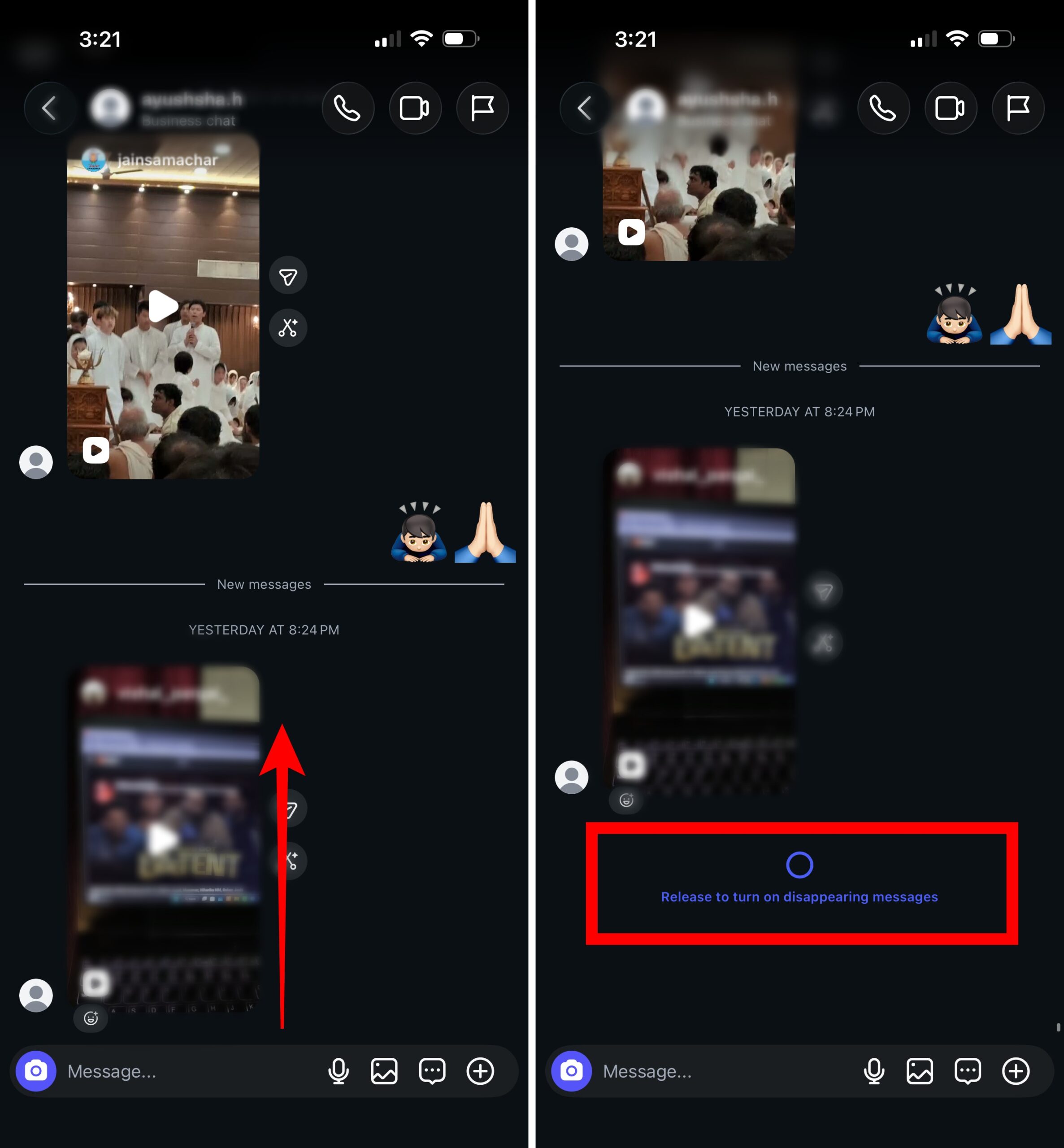
If the swipe doesn’t work:
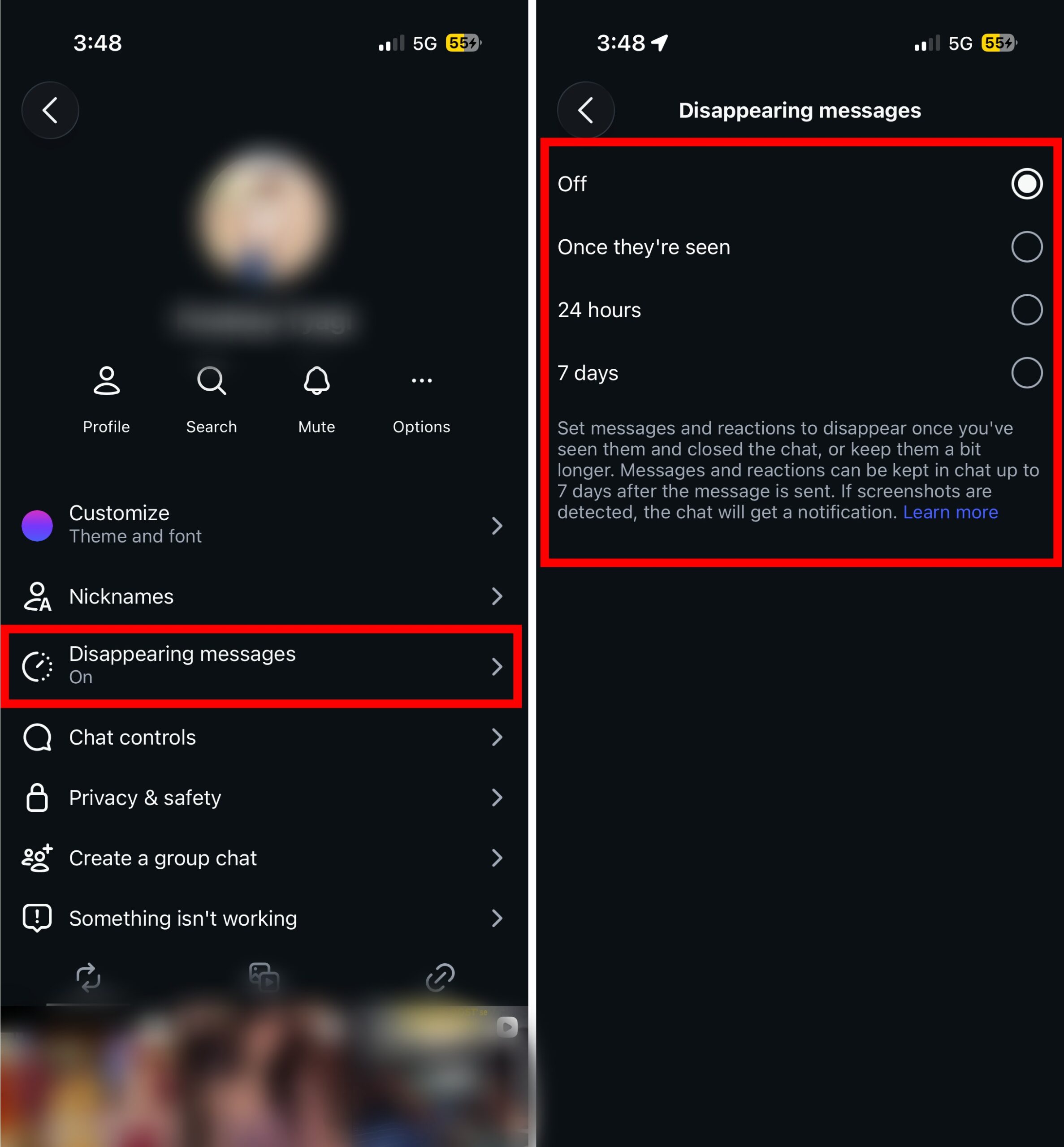
After disabling the feature, I sent a few test messages and closed the chat several times to make sure everything was working normally. The messages stayed in the conversation each time I reopened it.
Turning off Disappearing Messages doesn’t restore messages that have already been removed. It simply prevents future messages from disappearing automatically.
If the setting is already off and your chats still aren’t behaving normally, here’s what I’d check next.
1. Update Instagram
Instagram changes its messaging features regularly. Running an older version of the app can cause missing settings or unexpected behavior.
Install the latest version from the App Store or Google Play Store, then check the conversation again.
2. Restart Instagram
Sometimes Instagram doesn’t apply the change straight away. Close Instagram completely, reopen it, and return to the conversation before testing again.
3. Make sure you’re looking at the right chat
Disappearing Messages are controlled separately for each conversation.
If multiple chats are affected, you’ll need to disable the feature in each one individually.
4. Check whether messages were unsent
It’s easy to mistake disappearing messages for unsent ones.
Anyone in the conversation can remove a message they’ve sent. Those messages won’t come back, even if Disappearing Messages is turned off.
5. Sign out and sign back in
If chat settings seem stuck or aren’t updating, logging out and back into Instagram can refresh your account data.
Yes. Since Disappearing Messages is a chat setting, anyone in the conversation can turn it back on. If your messages start disappearing again, check whether the feature has been re-enabled.
In my case, the fix only took a few seconds. Once I turned off Disappearing Messages, new messages stayed in the chat as expected. If your conversations keep clearing after you leave them, this should be the first setting you check.
If your Instagram conversations keep disappearing every time you leave the chat, checking this setting should be your first step. In most cases, it solves the problem in less than a minute.
Did this fix your disappearing Instagram chats? Let us know what worked for you, or share any issue you ran into in the comments.
Read our other Instagram guides: