FaceTime Like a Pro
Get our exclusive Ultimate FaceTime Guide 📚 — absolutely FREE when you sign up for our newsletter below.

FaceTime Like a Pro
Get our exclusive Ultimate FaceTime Guide 📚 — absolutely FREE when you sign up for our newsletter below.


Don't downgrade just yet! Fix rapid battery drain, overheating, and sleep-mode issues after the macOS 27 update.

 ByMahit Huilgol and Ava Biswas
If your MacBook suddenly started losing battery much faster after installing macOS 27 Golden Gate, I wouldn’t immediately assume that the battery itself has gone bad.
I started looking into the issue after seeing multiple user reports about post-update battery drain on Mac. A major macOS upgrade can temporarily make a Mac work much harder in the background, while genuine bugs, incompatible apps, excessive display activity, or sleep/wake problems can create much more serious drain.
So, before you start changing random settings, I’ll share the reasons behind the macOS Golden Gate battery drain issue and provide solutions to fix it.
With the release of macOS 27 Golden Gate, many users have reported unusual battery drain. Online forums like Reddit are flooded with complaints about Mac batteries depleting faster than expected. One MacBook Pro owner reported losing almost all of the battery while the Mac was closed in a bag.
The average battery life of a MacBook after a full charge ranges from 10 to 12 hours. However, after the update, many users experienced a 2-3% battery drop in a few minutes and significant lag in their MacBook Air. So, macOS Golden Gate is blamed for reduced battery life.
While macOS updates often bring new features and improvements, they can sometimes introduce bugs or changes that impact battery performance. Some common complaints include rapid power loss during normal use, excessive drain in sleep mode, and apps consuming more power than before.
However, Apple typically addresses such issues by pushing fixes in the next update. On the other hand, macOS is not always at fault. After installing macOS 27, several other factors might contribute to the battery drain issue.
macOS 27 can cause temporary battery drain, but that doesn’t mean it’s permanently reducing your MacBook’s battery life.
Here are the most common possibilities:
All these processes can temporarily increase CPU activity and battery consumption.
Apple also says that an Apple-silicon Mac can recalibrate its maximum battery capacity after a software update. During this process, the Mac may temporarily run on battery power even while connected to AC power.
However, there is a difference between temporary post-update activity and abnormal battery drain. If your MacBook continues losing charge rapidly several days after installing macOS 27, becomes unusually hot, or loses a large amount of battery while sleeping, it needs troubleshooting.
Try these simple and effective solutions to fix battery drain issues on macOS 27 and improve your Mac’s battery life. Work through the methods below to find what’s causing the excessive battery usage.
If you installed macOS 27 recently, don’t immediately assume something is broken.
Your Mac may spend considerable time processing files, rebuilding search indexes, analyzing photos, syncing iCloud data, and completing other background tasks. This can make the Mac feel warmer than usual and cause faster battery drain.
I recommend leaving your Mac connected to power and allowing it to sit for a few hours. If you have a large SSD, a large Photos library, or a lot of iCloud data, the process can take longer.
You can also open Activity Monitor → CPU and look for unusually active background processes.
The important thing is to compare battery performance after the background work settles, rather than judging macOS 27 based on the first few hours after installation.
This is the first diagnostic step I’d recommend.
Instead of guessing which setting is draining your battery, let macOS show you.
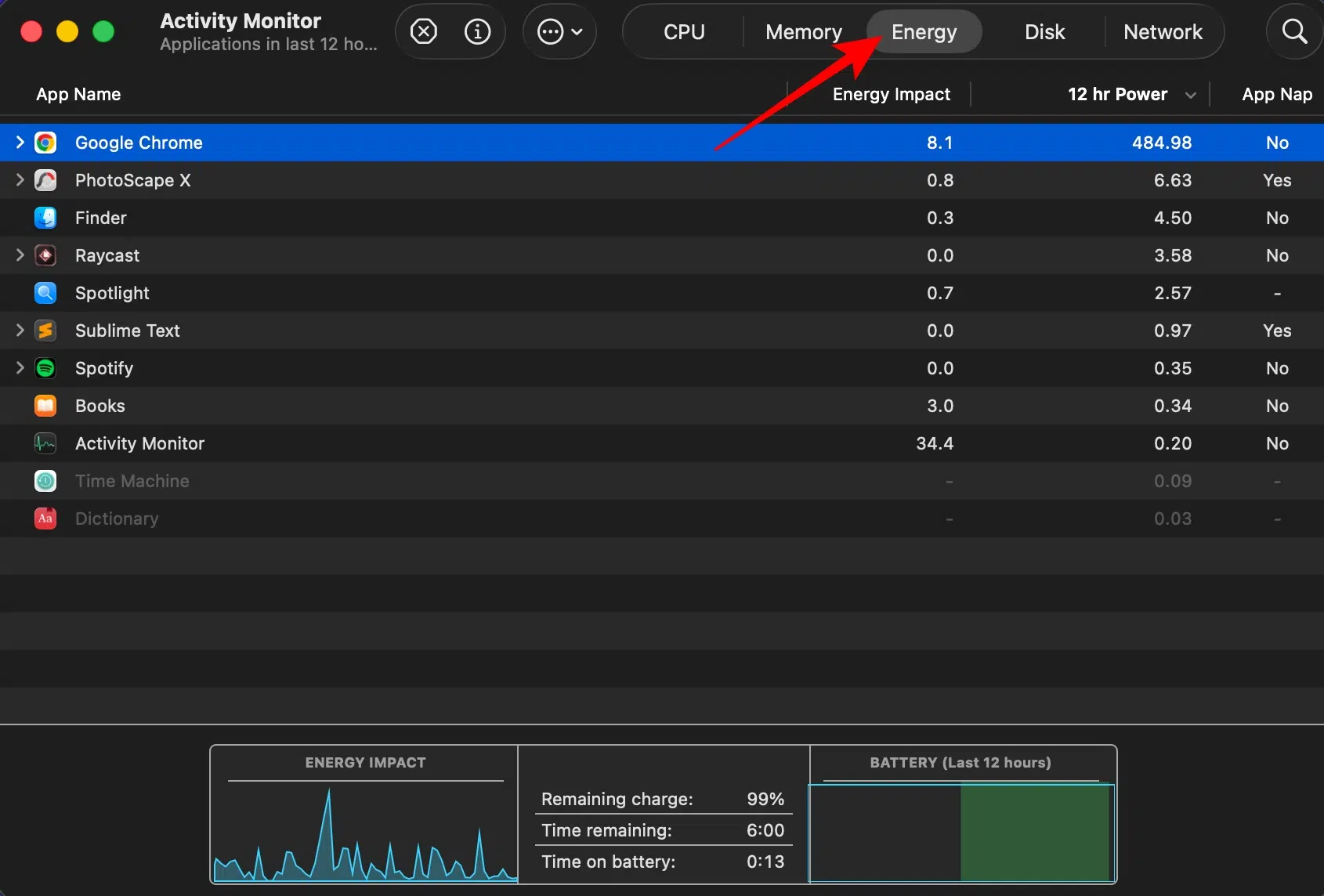
If you find an application consistently at the top of the Energy list, select it, then click the close icon at the top and quit it normally. Now check whether battery usage improves. This is much more useful than simply closing random apps.
Before blaming Golden Gate, check your battery’s physical condition. Apple explains that battery capacity naturally decreases as the battery chemically ages.
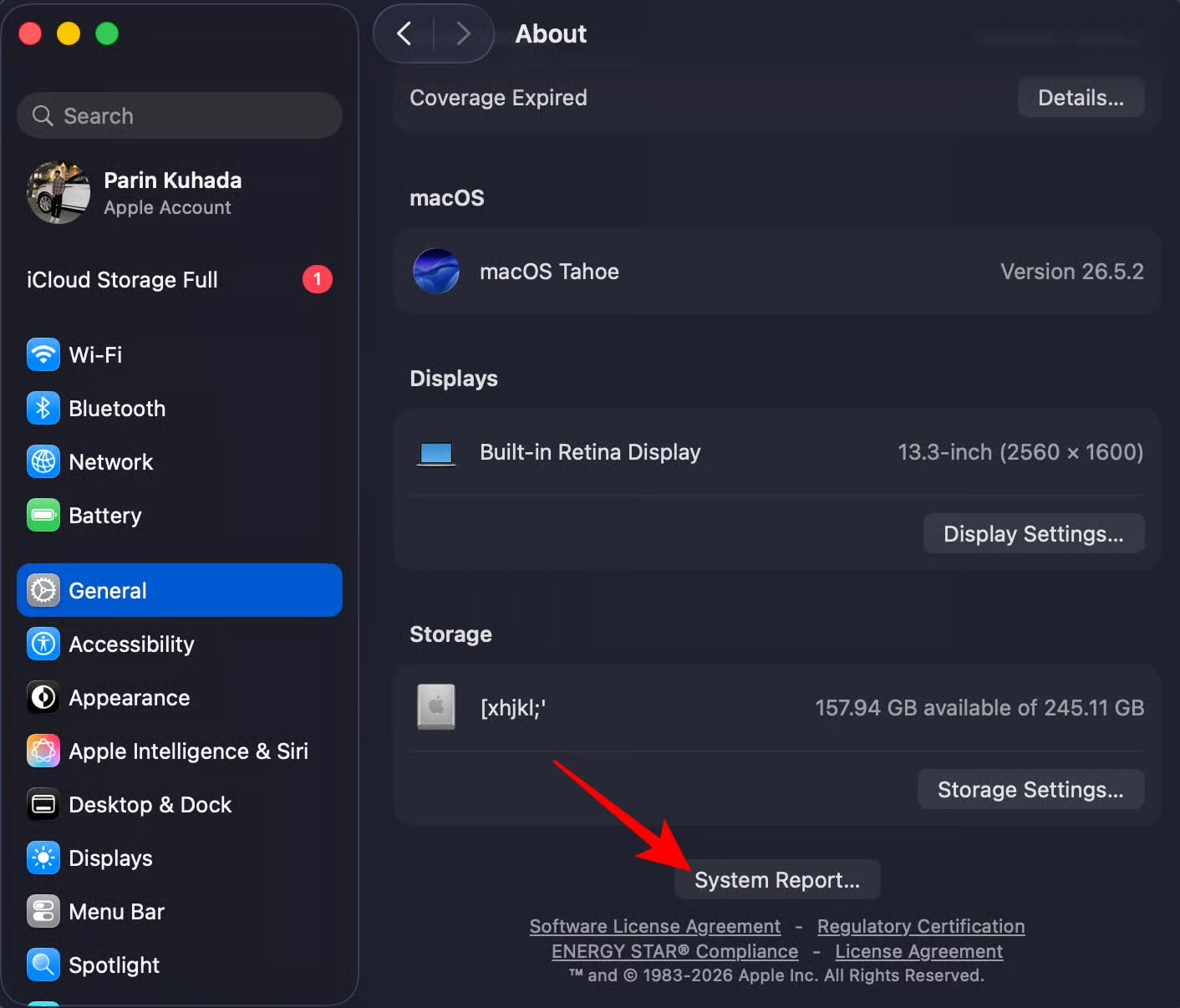
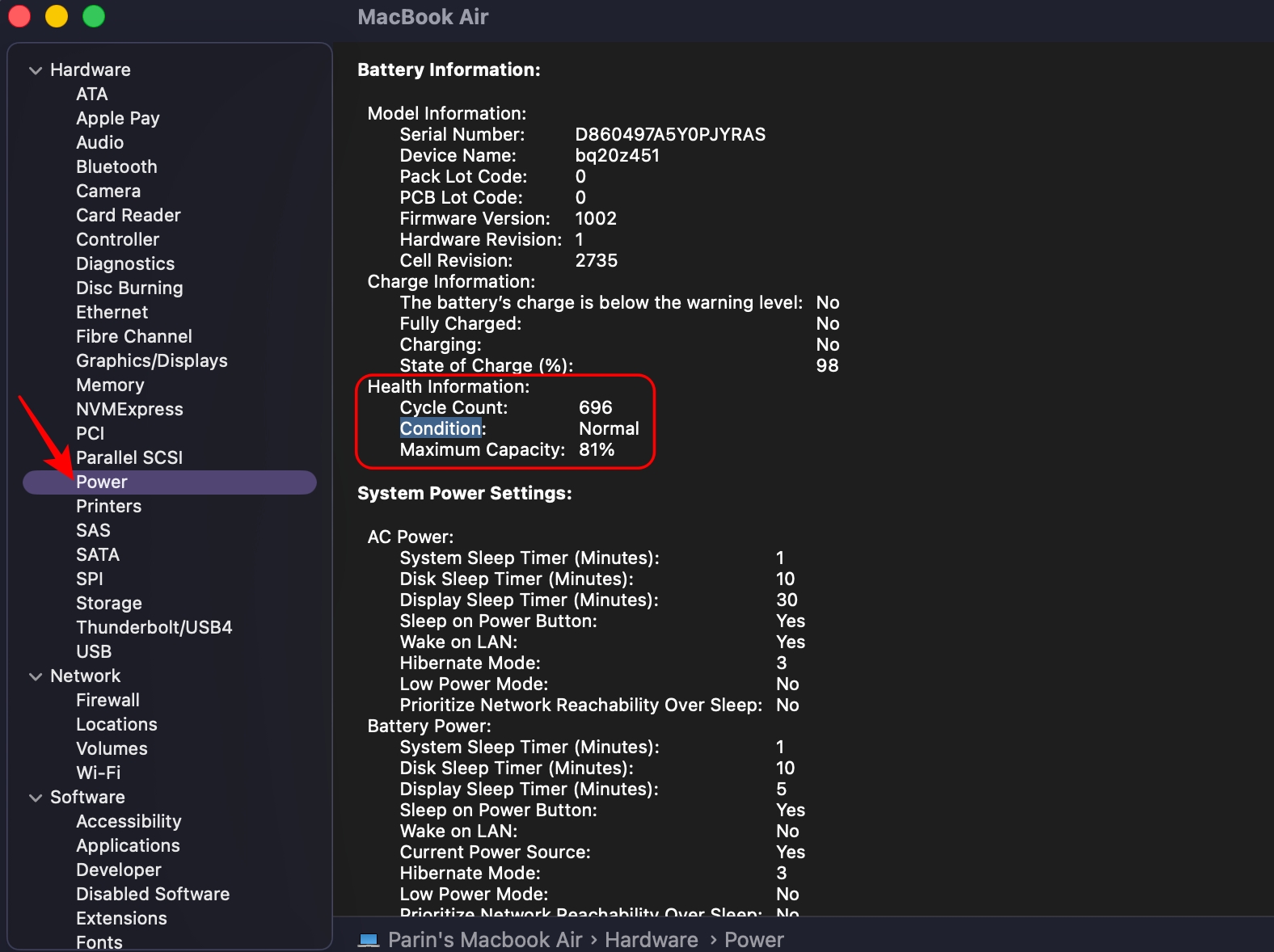
If your battery is already significantly degraded, a macOS upgrade may simply make the reduced runtime more noticeable. So, based on the alert, you must act accordingly.
Note: On average, a Mac can swiftly go through 1000 charge cycles. This should also give you some idea about your MacBook’s battery condition.
If I need to stretch battery life while working away from a charger, Low Power Mode is one of the first settings I use.
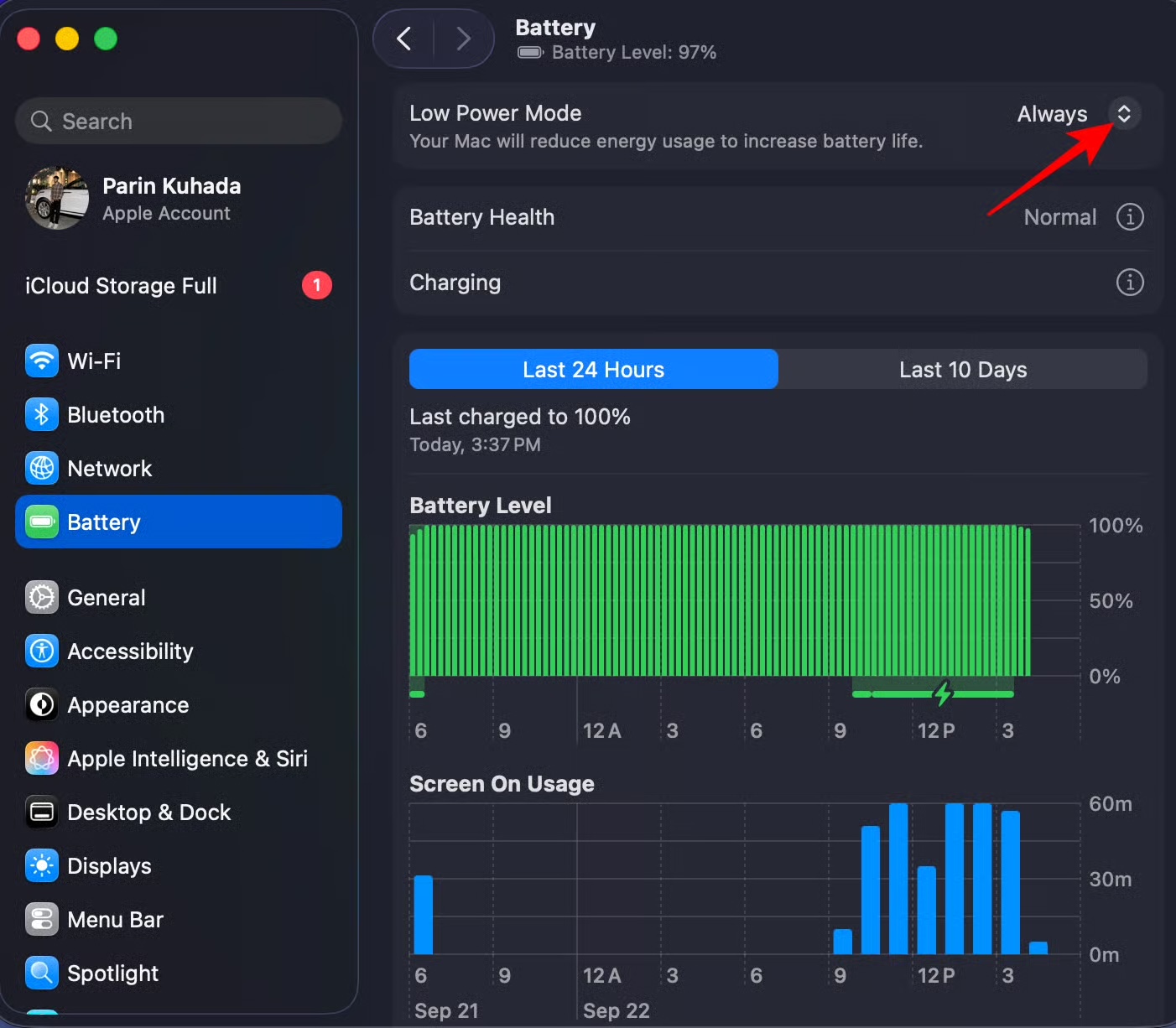
It limits background activities and optimizes device performance to maximize battery life.
I wouldn’t leave my Mac permanently in Low Power Mode because it slightly affects certain functionalities such as automatic updates or email fetch frequency. Instead, use it when you’re traveling, working away from a charger, or troubleshooting unusually high energy consumption.
One of the notable visual changes in macOS 27 is that Apple gives you more control over Liquid Glass.
If your Mac appears to be using unusually high graphics resources after the upgrade, reducing the transparency is worth testing.
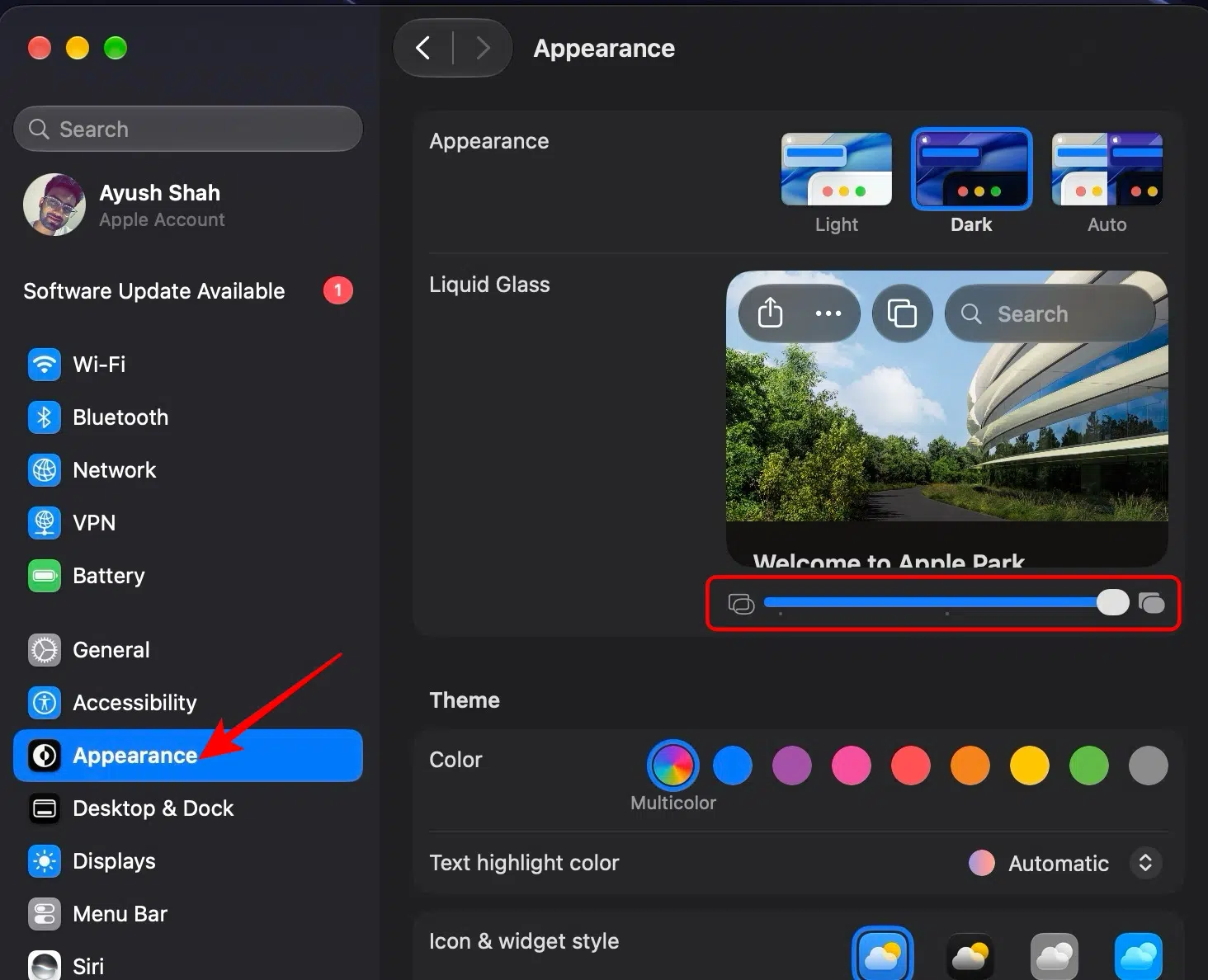
For a more opaque appearance, open System Settings → Accessibility → Display and toggle on Reduce Transparency.
I find this solution ideal when Activity Monitor shows unusually high WindowServer activity or your Mac is struggling with the interface.
The display is still one of the easiest things to control when you need more battery life. If you’re working indoors, you usually don’t need the screen at maximum brightness.
To reduce brightness:
You can also configure display-related behavior through System Settings → Displays. Consider enabling dark mode whenever possible, as it uses less energy compared to light mode.
Also, ensure you don’t use Live wallpaper on your Mac, as they can consume much power to show the animation. With these display customizations in place, your MacBook will optimize energy and consume less battery effectively.
Some apps continue running background processes even when you’re not actively using them. Moreover, if you have several startup apps, they can contribute to unnecessary battery consumption when your MacBook restarts.
This is particularly common with cloud-storage apps, VPN software, security tools, creative software, communication apps, menu-bar utilities, and hardware drivers.
To fix this issue, you should remove some of these apps and extensions.
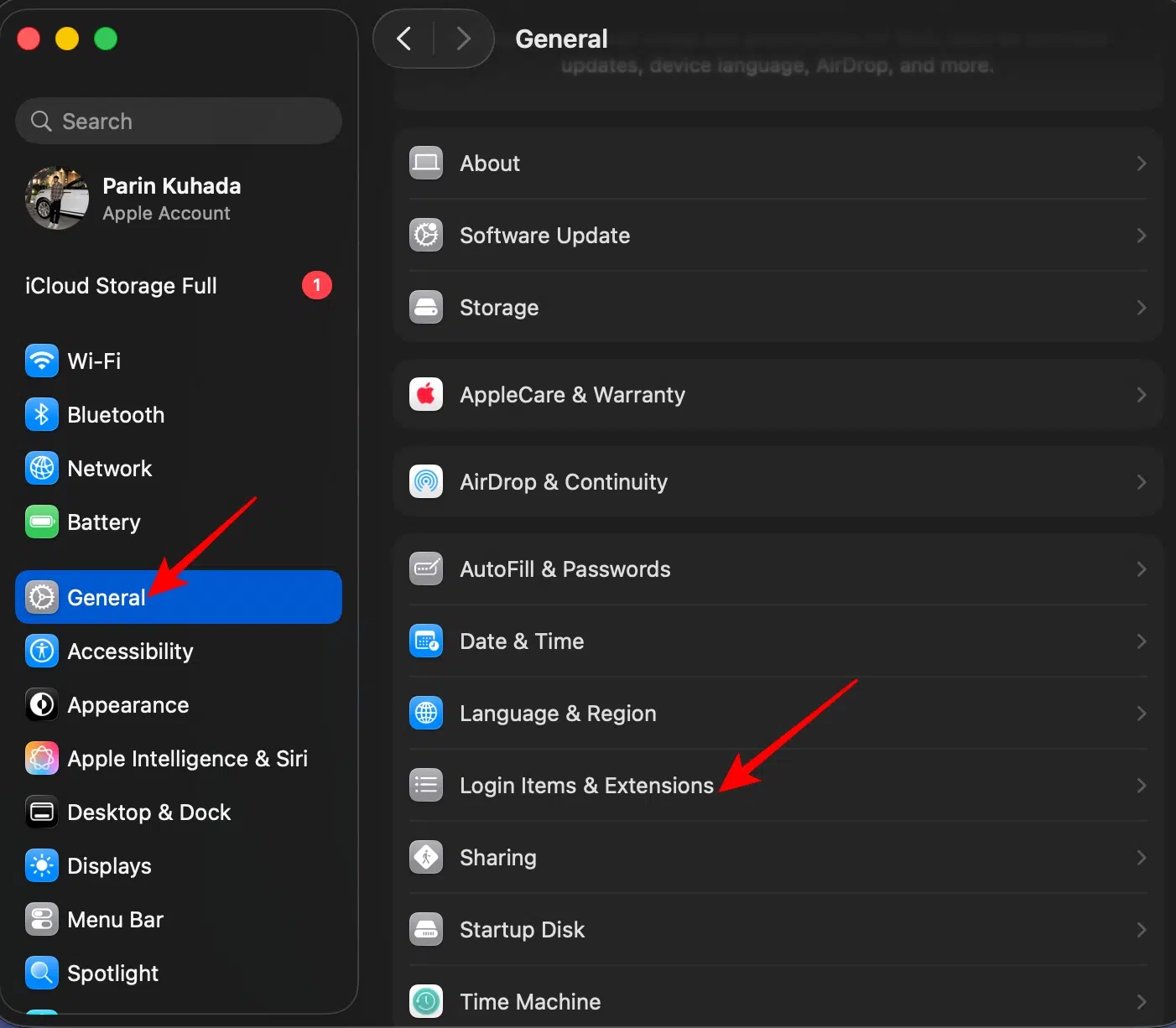
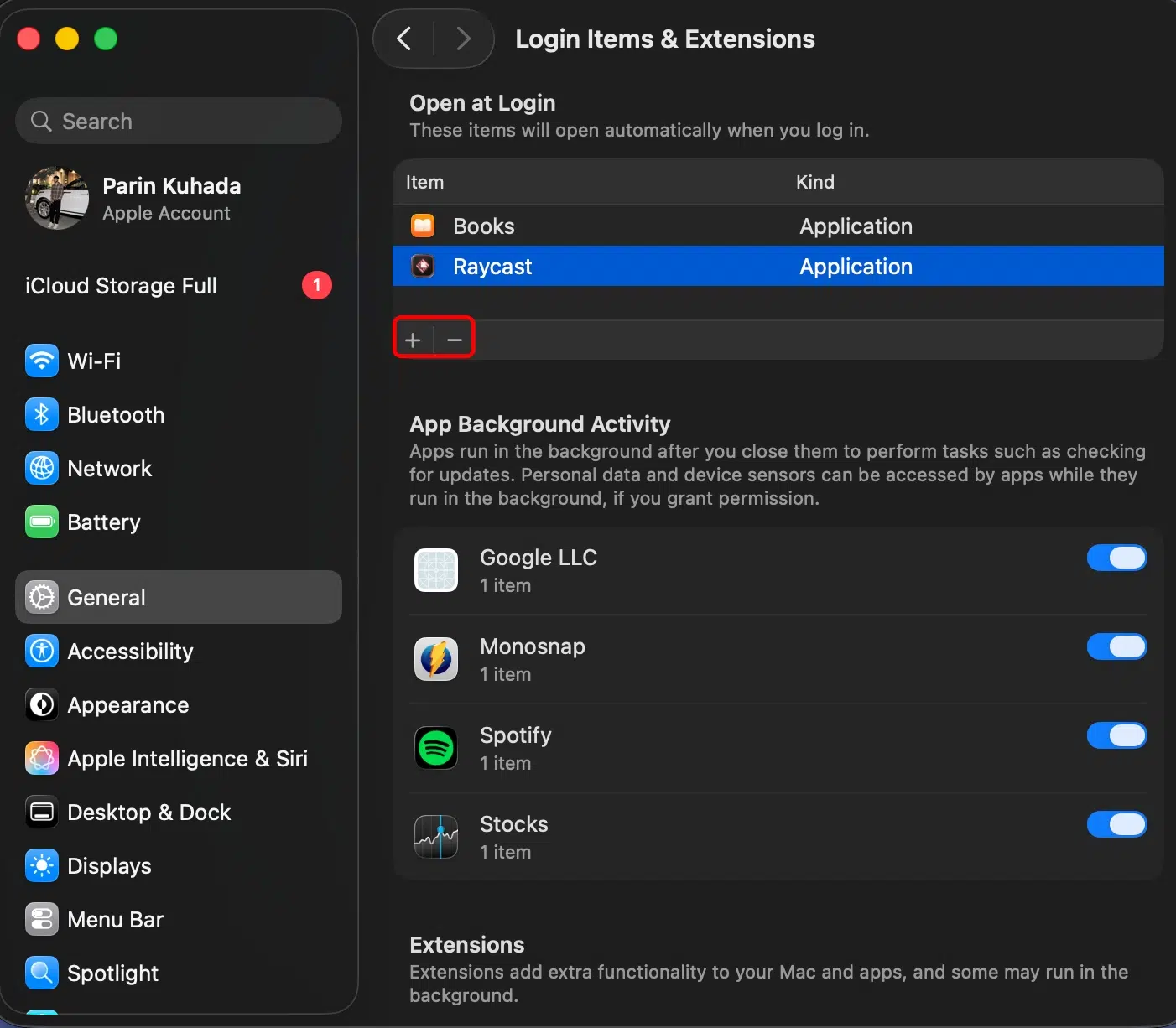
However, be cautious and don’t disable the necessary system software or essential utilities required for the device’s operation.
By disabling the redundant startup apps, your MacBook can conserve battery for longer periods without compromising functionality. It may look like a simple adjustment, but it will help you manage your MacBook’s power in the long run.
This step is particularly important with macOS 27.
Golden Gate is the first macOS release that supports Apple-silicon Macs only, and the release introduces compatibility changes that developers need to account for. Apple also says macOS 27 is the final general-purpose macOS release supporting Rosetta 2 for Intel-based Mac apps.
Early compatibility reports already show why checking your apps matters.
Therefore:
If your battery problem started immediately after a particular app launched an update, that app is worth investigating first.
Open browser tabs consume a surprising amount of memory and processing power, especially when they contain dynamic content, such as ads or auto-refreshing feeds.
This is especially true if you leave YouTube, Google Docs, web-based AI tools, social media feeds, etc., open.
Here’s how you can address this issue:
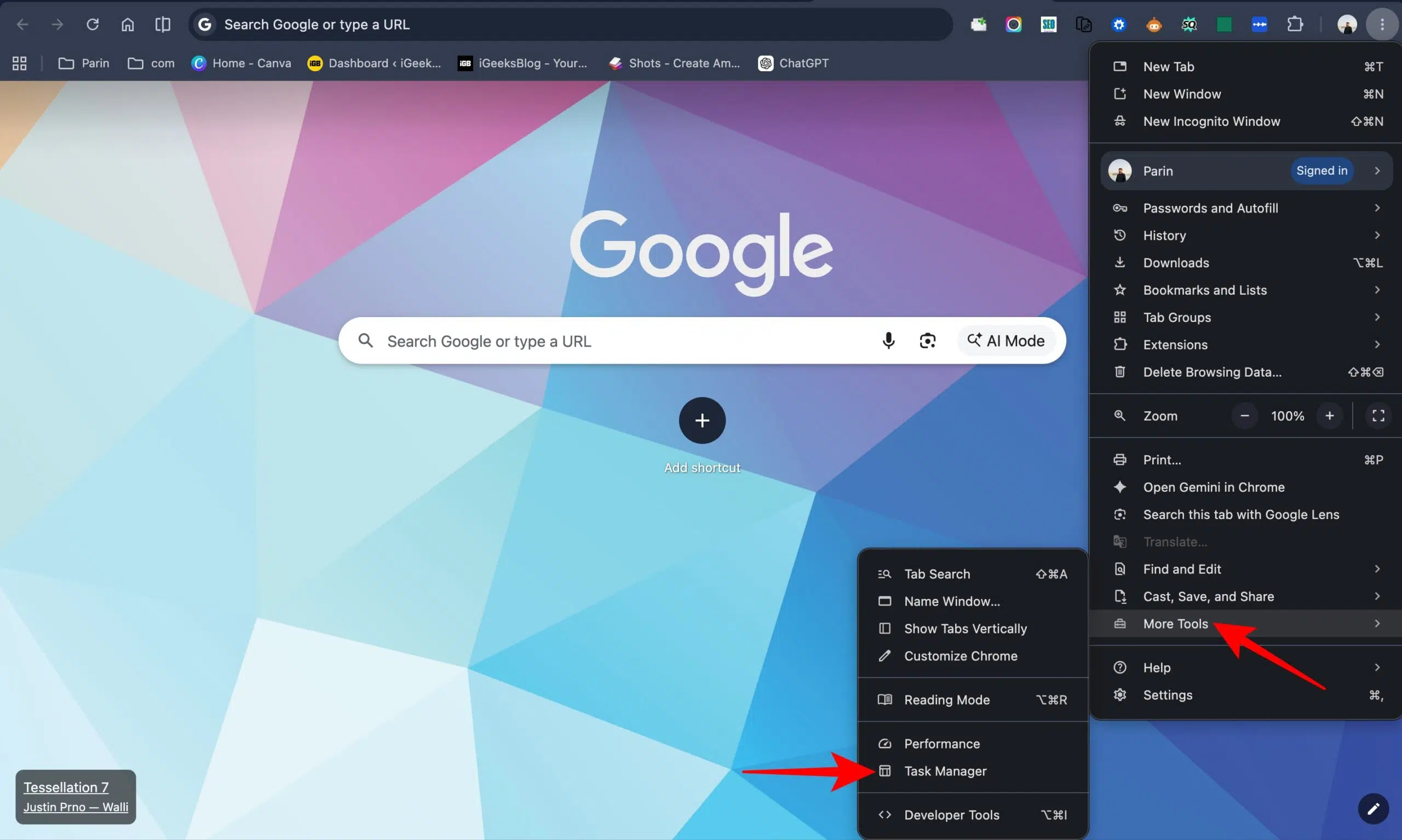
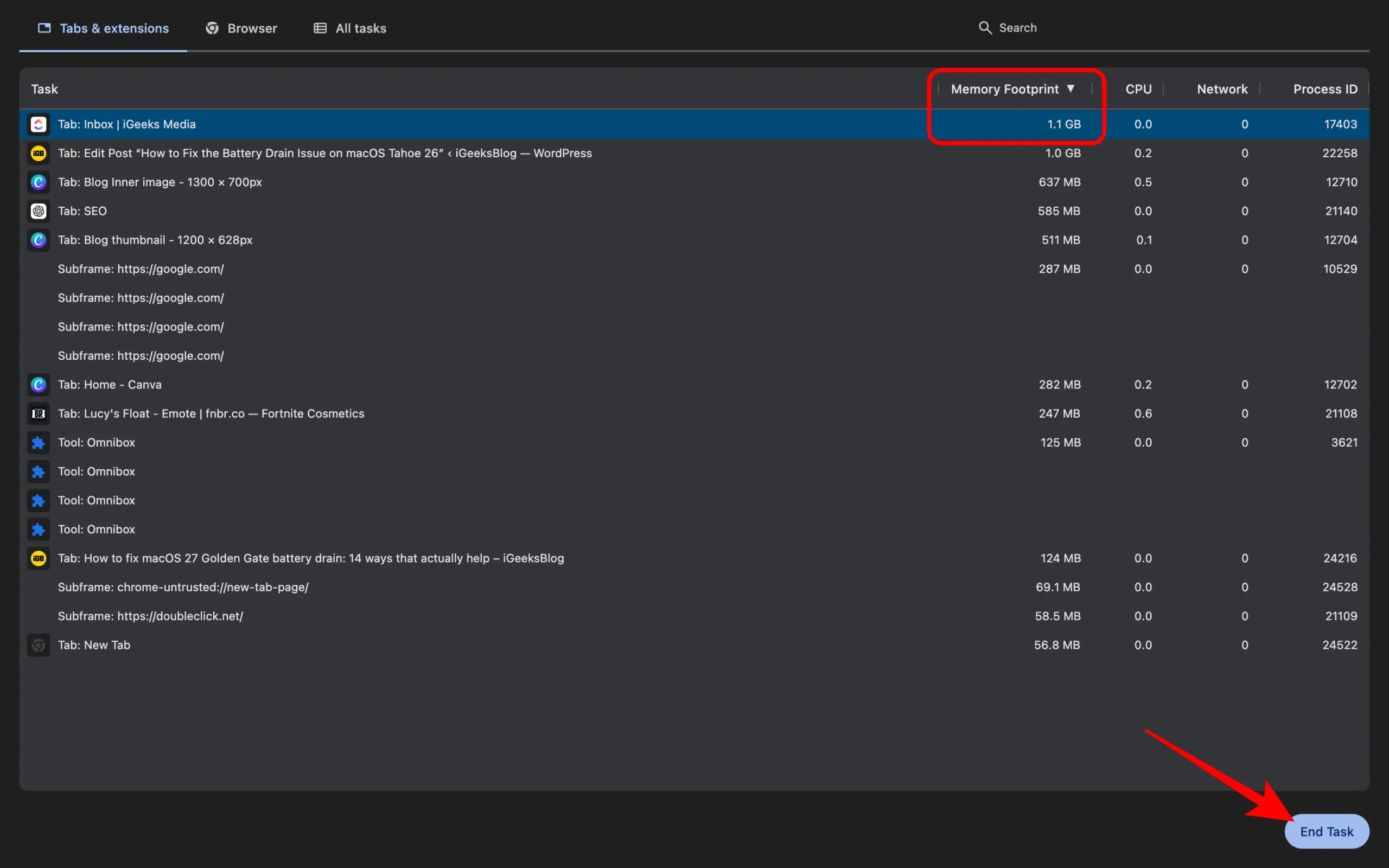
If you want to revisit a webpage later, bookmark it instead of leaving the tab open. Also, make it a habit to close tabs you’re no longer actively using. This will free up system resources and reduce strain on your Mac’s battery.
Tip: Chrome browsers are known to significantly impact Mac battery life. Try switching to Safari. It has a built-in feature called Tab Purging, which suspends inactive tabs automatically.
Bluetooth accessories and connected devices can all affect power consumption when constantly syncing or engaged in high-energy operations, such as transferring large files.
If you’re troubleshooting battery drain, temporarily disconnect everything you don’t need. Pay particular attention to external monitors.
A MacBook connected to multiple displays may use more graphics resources than it does with the built-in display alone. If your Mac gets hot and drains quickly while connected to a monitor, disconnect the monitor for a while and compare the results.
The same applies to:
You don’t have to permanently stop using them.
If you’re using add-ons like AirPods, unpair them when you’re finished. This will avoid automatic pairing when such devices are near your Mac.
Moreover, if you’re fond of using Bluetooth accessories like a mouse or keyboard, disconnect them when not in use. We often tend to leave devices connected, which can cause them to run out of battery, including both the Mac and its accessories.
Location Services can allow apps to periodically determine your Mac’s location.
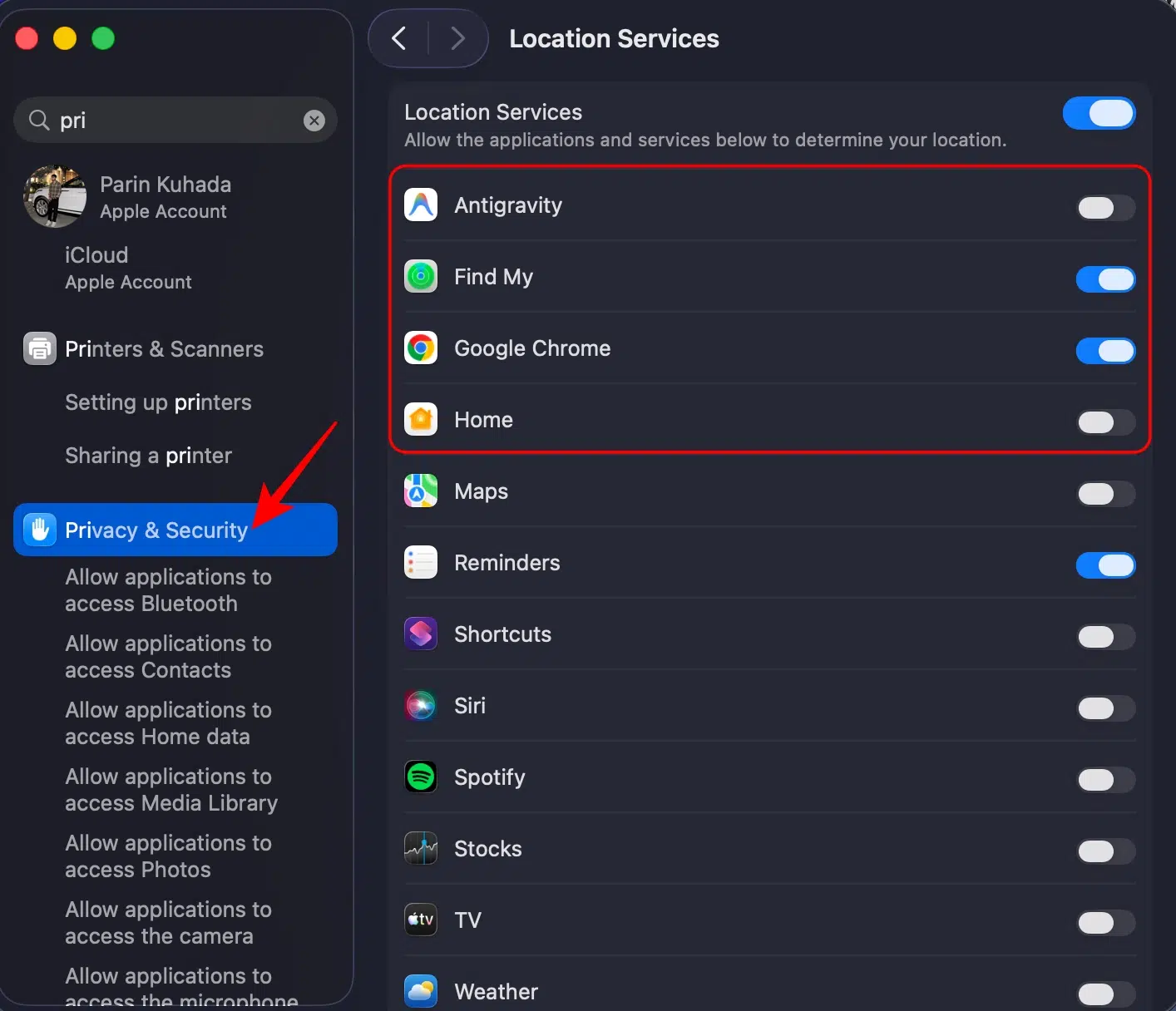
I wouldn’t recommend disabling Location Services system-wide unless you have a specific reason. Instead, remove access from apps that don’t genuinely need it.
It’s simple, but don’t overlook it.
After a major operating-system upgrade, restarting can clear temporary processes and give system services a clean start.
I especially recommend trying this if:
If the problem disappears after restarting but returns later, that’s a useful clue that a background process or application may be involved.
This is one of the most important steps because macOS 27 is still very new.
Apple’s official macOS 27 update page says its updates improve stability, performance, and compatibility and recommends them for all macOS 27 users.
However, I would not install a developer or public beta simply because you’re experiencing battery drain. Beta software can introduce additional bugs and make troubleshooting more difficult.
Stick to the latest stable release unless you specifically understand the risks of beta software.
If you’ve tried the software fixes and your Mac still loses battery unusually quickly, check for a hardware problem.
Apple Diagnostics can help identify problems with components such as the battery, especially when it isn’t behaving normally.
Because macOS 27 supports Apple-silicon Macs, don’t blindly follow old Intel-Mac instructions that tell you to hold the D key.
On an Apple-silicon Mac:
If Diagnostics reports a hardware problem, software tweaks aren’t going to fix the underlying issue.
Overnight battery drain deserves its own section because it can be much more frustrating than normal battery drain.
If your MacBook has 70–80% battery before you close the lid and wakes up with a dramatically lower percentage several hours later, I would investigate the sleep behavior rather than simply turning off Wi-Fi and Bluetooth.
Open Activity Monitor → Energy and look at the Preventing Sleep column.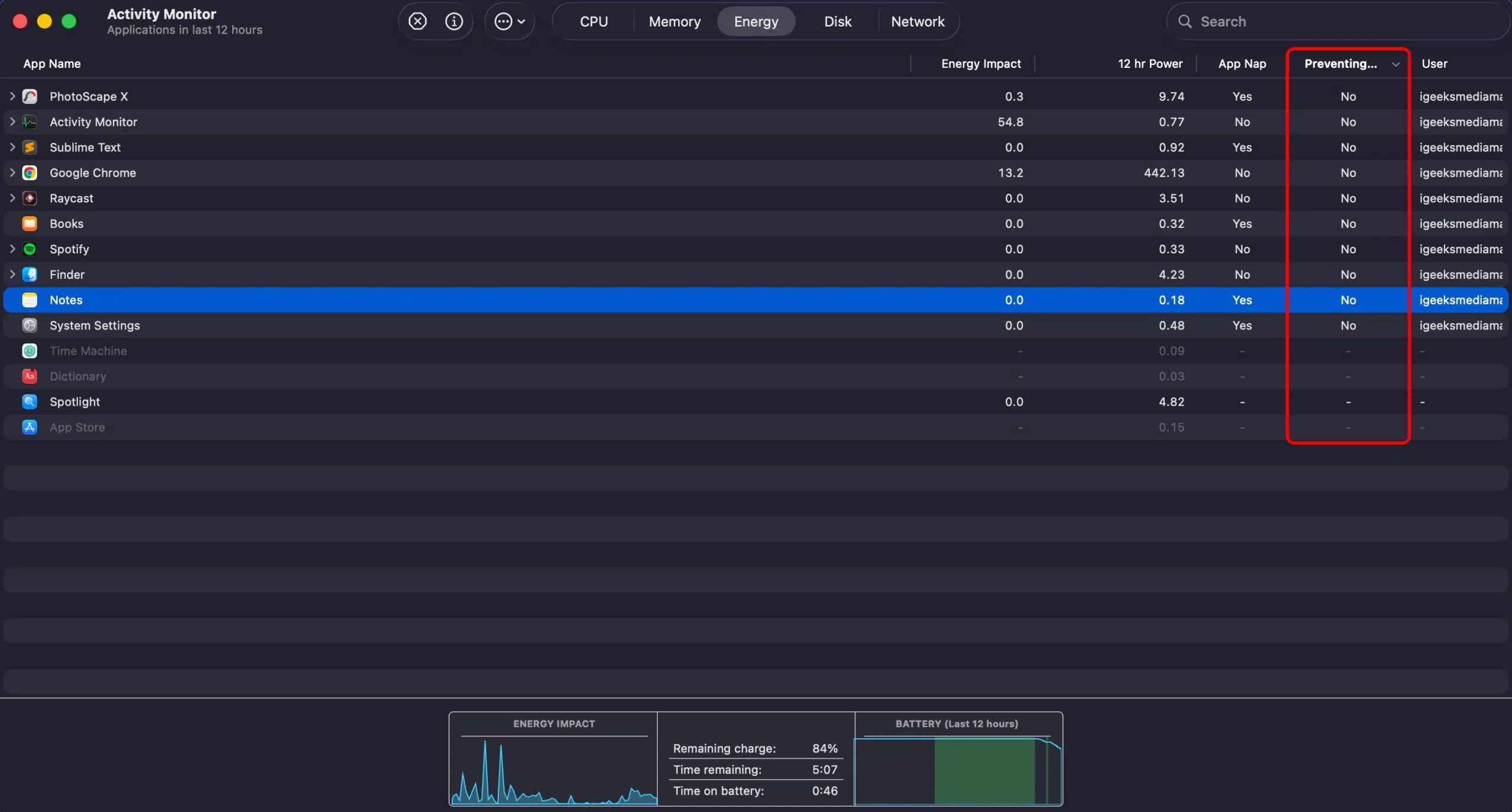
Apple specifically provides this column to show whether an application is preventing your Mac from sleeping.
If you find an app marked Yes, close it and see whether the overnight drain improves.
This is particularly useful for:
macOS provides battery-usage information through System Settings → Battery. You can review battery use over the previous 24 hours or 10 days on supported Macs.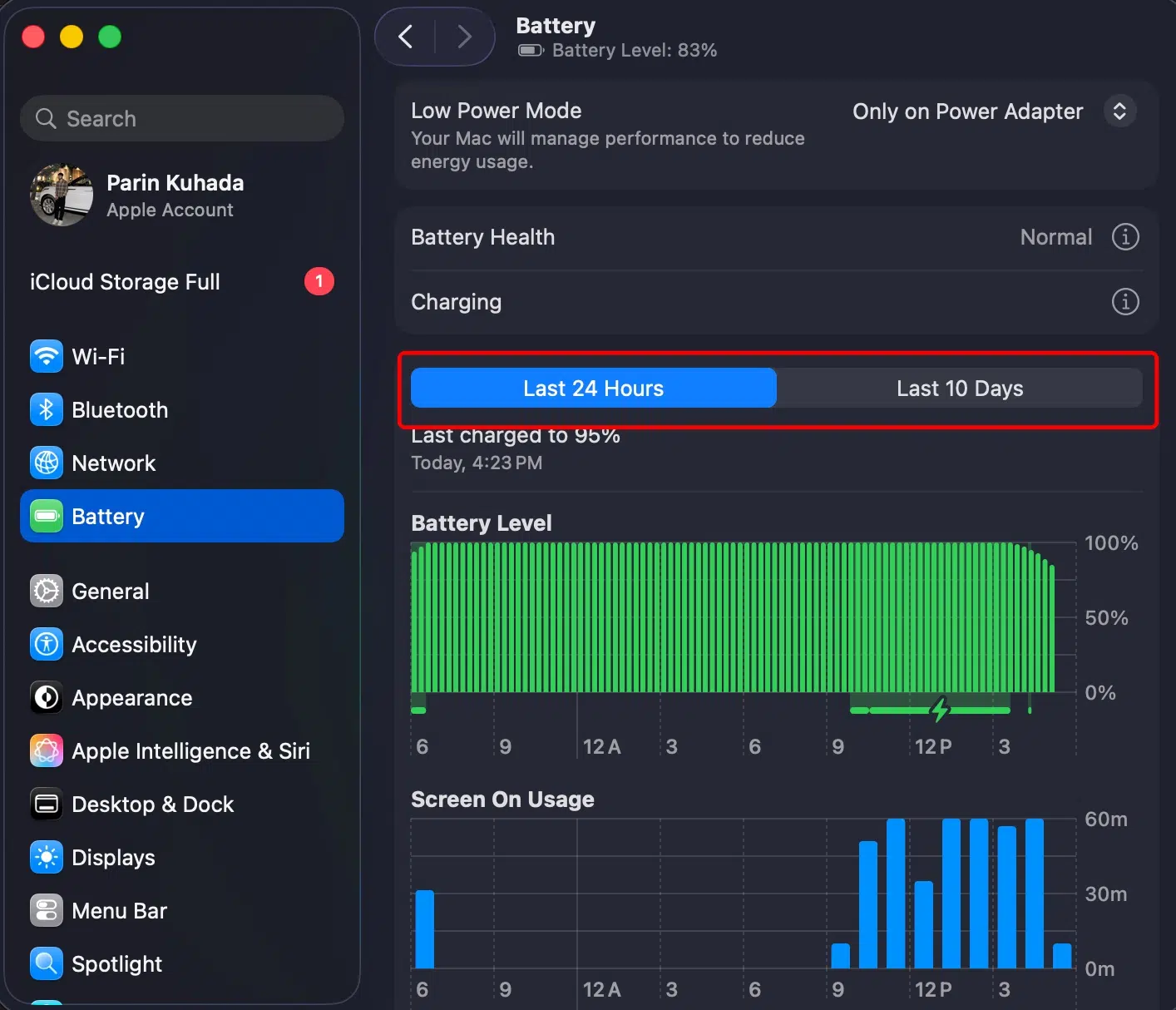
Look for an unusual period where the battery dropped sharply.
If the graph shows a major decline while the Mac should have been sleeping, investigate what was running around that time.
For one night, try closing the MacBook with:
If overnight battery drain suddenly improves, reconnect the accessories one at a time to identify the culprit.
Before closing the lid, look at Activity Monitor.
If you see a process consuming significant CPU or Energy Impact even though you’re not using the Mac, quit the associated application and monitor the result.
You don’t need to force-quit every application every night. The goal is to identify the process that is actually causing the problem.
This is especially important if you’re seeing sleep-related problems.
One recent macOS 27 user reported that their MacBook became extremely hot while closed inside a bag after repeatedly waking during sleep. Again, that’s an individual report, not evidence that every MacBook running Golden Gate behaves this way.
If your MacBook feels unusually warm before you put it away, give it time to cool down first.
If you repeatedly find the Mac hot inside your bag after sleep, don’t ignore it.
A warm Mac after a demanding workload isn’t necessarily a problem.
A MacBook that becomes very hot while supposedly asleep is different.
I’d troubleshoot it in this order:
Don’t immediately start changing low-level pmset settings or force-enable an alternative hibernation mode.
Those Terminal commands are advanced power-management configurations, and they aren’t the first thing I’d recommend for an average Mac user troubleshooting Golden Gate.
Not as your first solution.
A reinstall is a much bigger step than changing a battery setting or updating an application.
I’d consider reinstalling macOS 27 only if:
Before reinstalling macOS, make a complete backup using Time Machine or another trusted backup solution.
Also remember that reinstalling macOS won’t repair a physically degraded battery.
If Battery Health says Service Recommended, deal with the battery rather than repeatedly reinstalling the operating system. Apple says that status means the battery’s ability to hold charge is lower than when new or that it isn’t functioning normally.
If Golden Gate has broken an application or workflow you depend on, reverting to an earlier macOS version may be an option, but I wouldn’t recommend treating it as the first battery-drain fix.
First, determine whether the problem is actually caused by macOS 27.
If a third-party application is responsible, updating or removing that application is much simpler than wiping the Mac.
Also remember that macOS 27 is the first macOS release to drop support for Intel Macs, while Apple Silicon Macs remain the supported hardware platform.
If your MacBook battery started draining quickly after installing macOS 27 Golden Gate, don’t panic and don’t start changing every power setting at once.
The first thing I’d do is give the Mac some time to finish its post-update work. Then I’d open Activity Monitor → Energy and find out what’s actually consuming power.
Most importantly, don’t assume every battery complaint is a macOS bug. A major software update, an incompatible application, a background process, and an aging battery can all produce very similar symptoms.
And because macOS 27 Golden Gate is still in its first days of public availability, the situation is likely to change as Apple releases additional point updates.