FaceTime Like a Pro
Get our exclusive Ultimate FaceTime Guide 📚 — absolutely FREE when you sign up for our newsletter below.

FaceTime Like a Pro
Get our exclusive Ultimate FaceTime Guide 📚 — absolutely FREE when you sign up for our newsletter below.


Safari on your iPhone might not be fully using the smooth 120Hz ProMotion display. I discovered a hidden setting that can affect scrolling performance, and changing it instantly made browsing feel faster and smoother.
 ByVikhyat
If you bought a Pro iPhone for its silky smooth 120Hz ProMotion display, here’s something Apple doesn’t really tell you. Safari doesn’t always render webpages at the same high frame rates your ProMotion display can support.
That’s right. Your iPhone may support refresh rates of up to 120Hz, but Safari includes a feature flag that limits webpage rendering to around 60fps by default. This can make scrolling through websites feel less fluid than navigating apps or other parts of iOS.
After disabling the setting on my iPhone, the difference was immediately noticeable. Text-heavy websites felt smoother, and scrolling finally matched the fluidity I expected from a ProMotion display.
Apple introduced ProMotion with the iPhone 13 Pro, allowing the display to dynamically refresh at up to 120Hz. In theory, this means animations and scrolling should look incredibly smooth.
While the display itself can refresh at 120Hz, webpages may still be rendered closer to 60fps. That means content updates less frequently during scrolling, reducing some of the smoothness ProMotion is capable of delivering.
At 60Hz, the screen updates every 16.7 milliseconds. At 120Hz, updates happen every 8.3 milliseconds. That means webpages can react to your scrolling input twice as frequently, reducing motion blur and making movement appear much more fluid.
If you’ve ever switched between Safari and Chrome and felt that Safari seemed slightly sluggish without knowing why, this setting is likely the culprit.
If you own a ProMotion iPhone, you can disable the limit through Safari’s hidden Feature Flags menu. Here’s how:
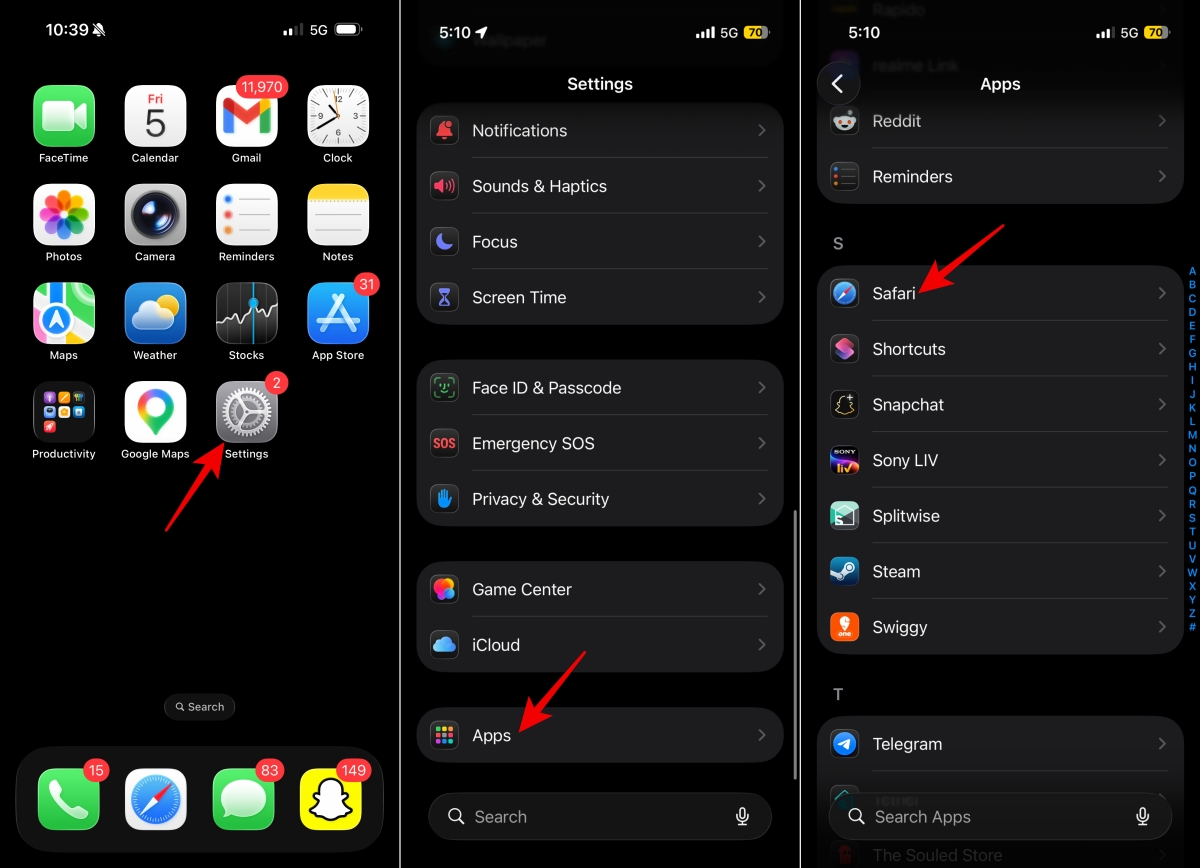
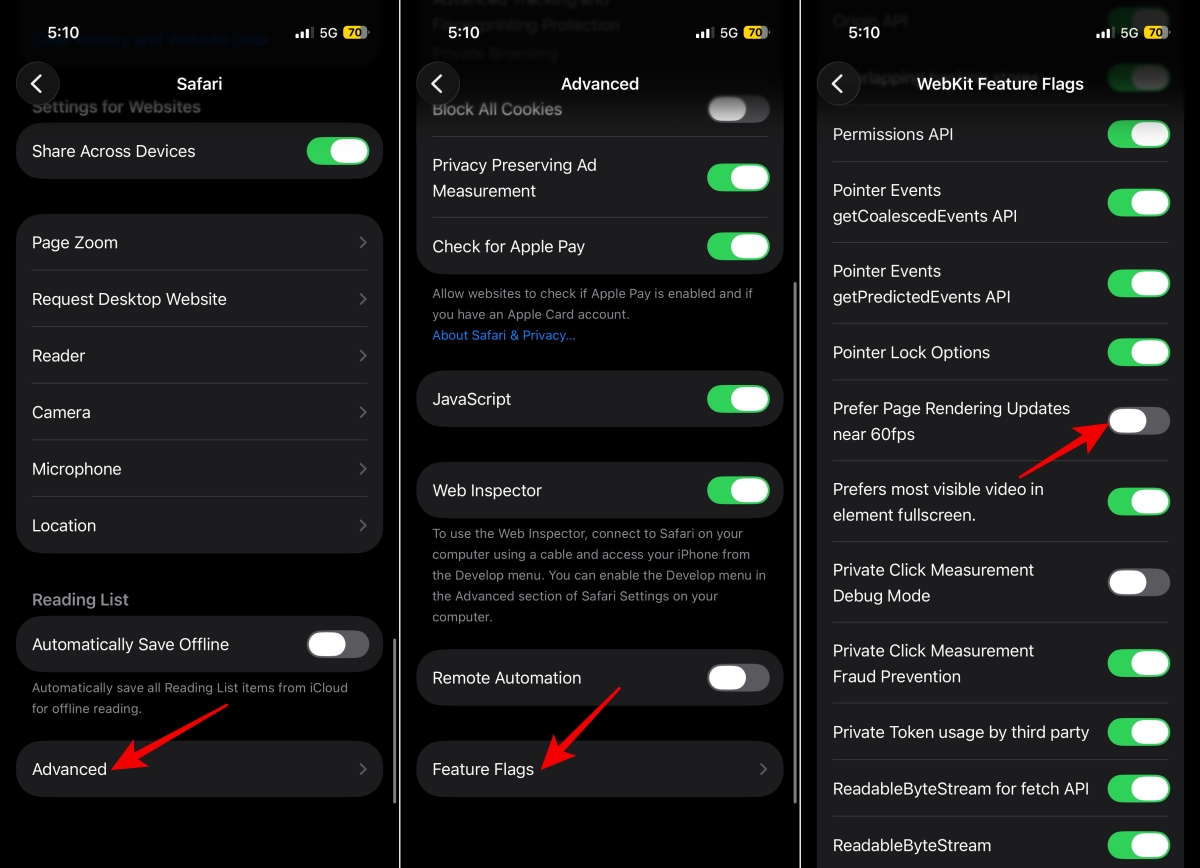
Interestingly, this isn’t just an iPhone issue. If you own a MacBook Pro with a ProMotion display, Safari also limits webpage rendering to around 60fps by default.
The good news is that Apple includes the same hidden option on macOS.
How to enable 120Hz Safari browsing on Mac:
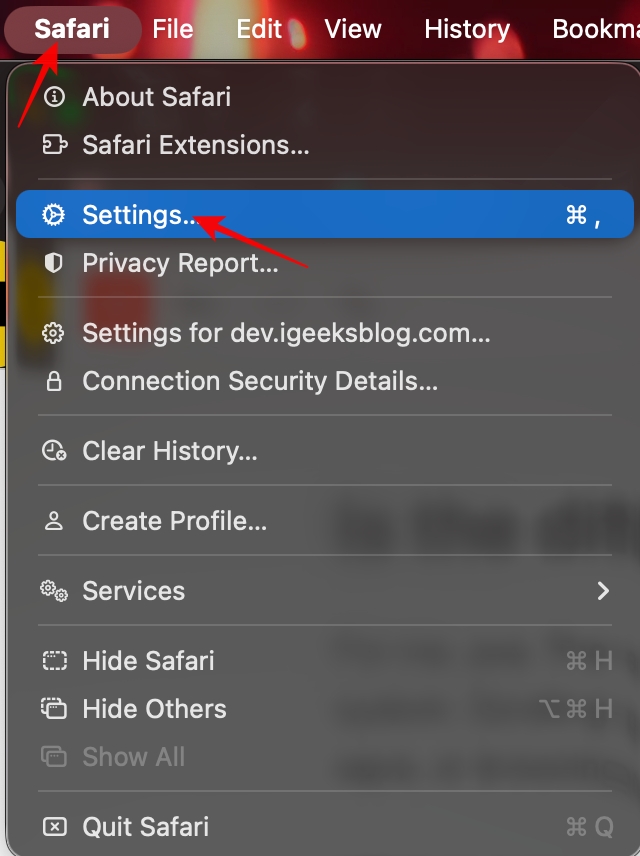
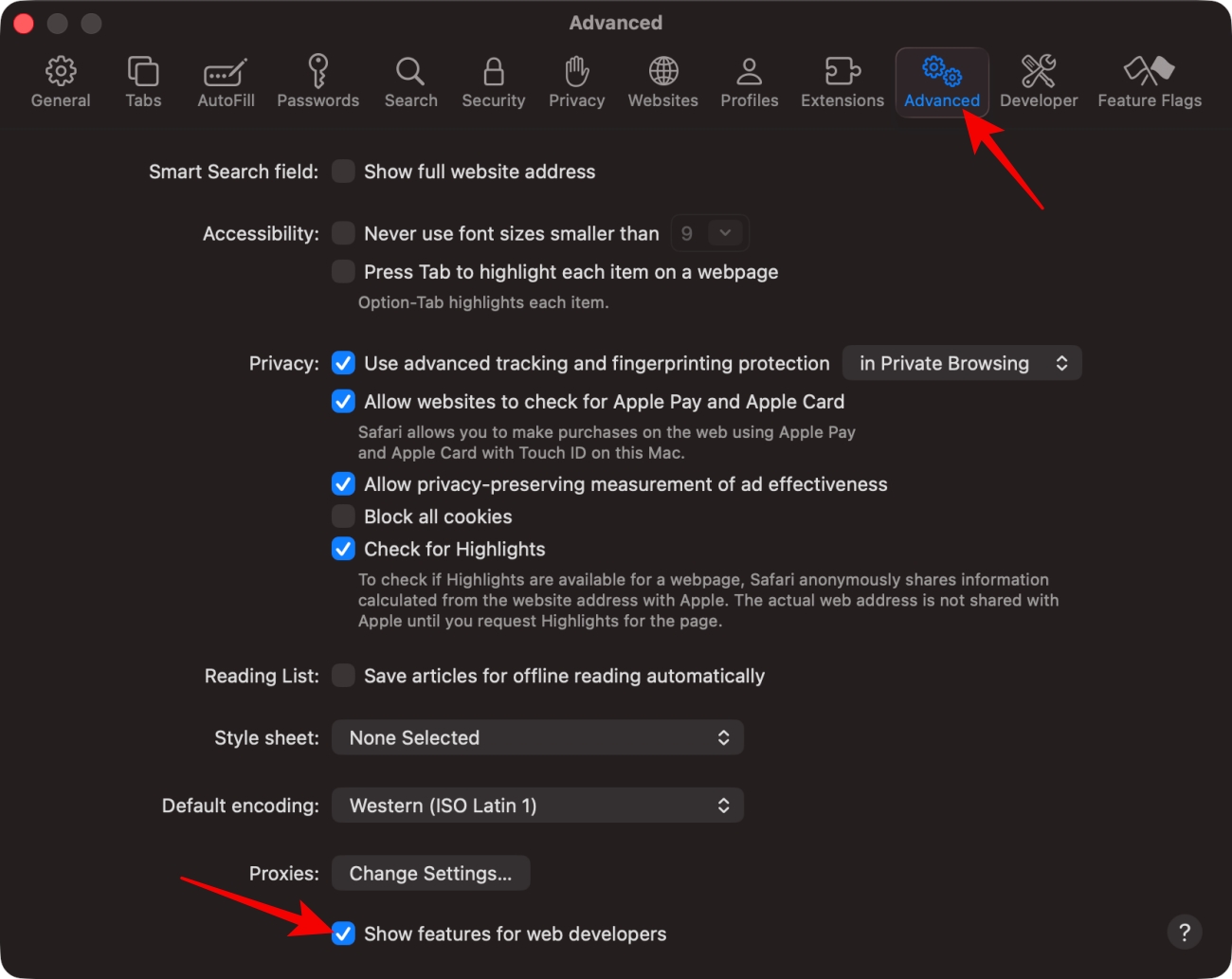
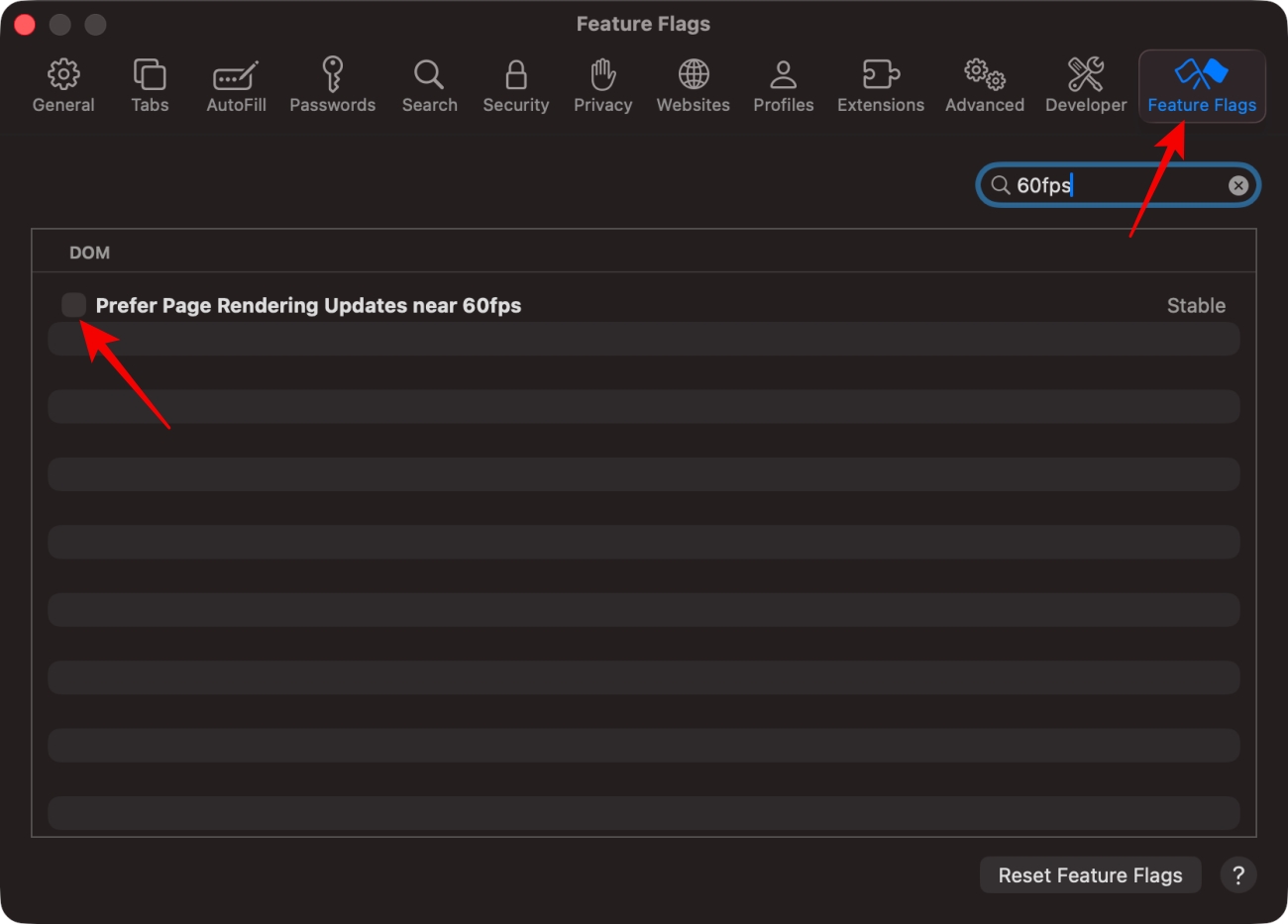
This tweak benefits Macs with ProMotion displays, including:
If you’re using a 120Hz external display with your Mac, you may also notice smoother scrolling after enabling the setting.
Just like on iPhone, the improvement is easiest to spot when scrolling through long articles, documentation, forums, and other text-heavy webpages.
For me, yes. The first thing I noticed was that Safari felt much more in line with the rest of the system. Scrolling through websites felt just as smooth as navigating iOS, switching between apps, or browsing social media.
If you’ve ever opened the same webpage in Chrome and thought it somehow felt smoother than Safari, there’s a good chance this setting is why.
The difference won’t blow everyone away, but on a ProMotion device, it feels like the experience Apple should have enabled from day one.
There’s a reason Apple likely keeps this setting enabled by default.
Rendering webpages at higher frame rates can increase power consumption. If higher rendering rates remain active for long browsing sessions, battery life could take a small hit.
In my experience, the smoother scrolling is worth the trade-off, but your mileage may vary.
The difference isn’t dramatic, but it’s noticeable. Once enabled, Safari feels more responsive when scrolling through webpages and better matches the fluidity of the rest of iOS and macOS.
If you own a ProMotion iPhone or MacBook, this hidden toggle is worth experimenting with to see if the smoother browsing experience outweighs any potential battery impact.
Did Safari feel smoother after making this change? Share your experience in the comments below.