FaceTime Like a Pro
Get our exclusive Ultimate FaceTime Guide 📚 — absolutely FREE when you sign up for our newsletter below.

FaceTime Like a Pro
Get our exclusive Ultimate FaceTime Guide 📚 — absolutely FREE when you sign up for our newsletter below.


Apple’s new Siri AI features won’t appear automatically on every iPhone. Here’s what you need to do to enable them and check if your device is supported.
 ByVikhyat
Installed iOS 27 on your iPhone expecting Apple’s all-new AI-powered Siri, but still seeing the familiar Siri experience? You’re not alone.
Apple has officially released iOS 27, and Siri AI is now rolling out as a beta. But updating isn’t enough to unlock the latest Apple Intelligence features. From hardware limitations to language settings and regional restrictions, there are several reasons why Siri AI may still be missing on your iPhone.
The good news? Most of them are easy to check. Here’s everything you need to know if Siri AI is still missing from your iPhone.
Unlike other iOS 27 features that become available immediately after an update, Siri AI is part of Apple’s phased rollout. That means installing iOS 27 doesn’t automatically replace the existing Siri experience.
If the new Siri isn’t showing up on your iPhone, it’s usually because one of the eligibility requirements hasn’t been met. Here’s what you should check.
The first thing to check is your iPhone model. Running the latest iOS 27 update doesn’t automatically make your iPhone compatible with Siri AI.
While iOS 27 can be installed on iPhone models starting with the iPhone 11 series, Apple Intelligence requires significantly more on-device processing power. As a result, the new Siri experience is limited to supported iPhones, including the iPhone 15 Pro/15 Pro Max and iPhone 16 or later models.
Before trying anything else, make sure your device is one of the supported models.
Just like Apple Intelligence at launch, the new Siri AI experience is available through a waitlist. Eligible users must request access, and once Apple approves the request, the required AI models are downloaded to the iPhone in the background.
After the download is complete, the upgraded Siri experience becomes available automatically. Here’s how:
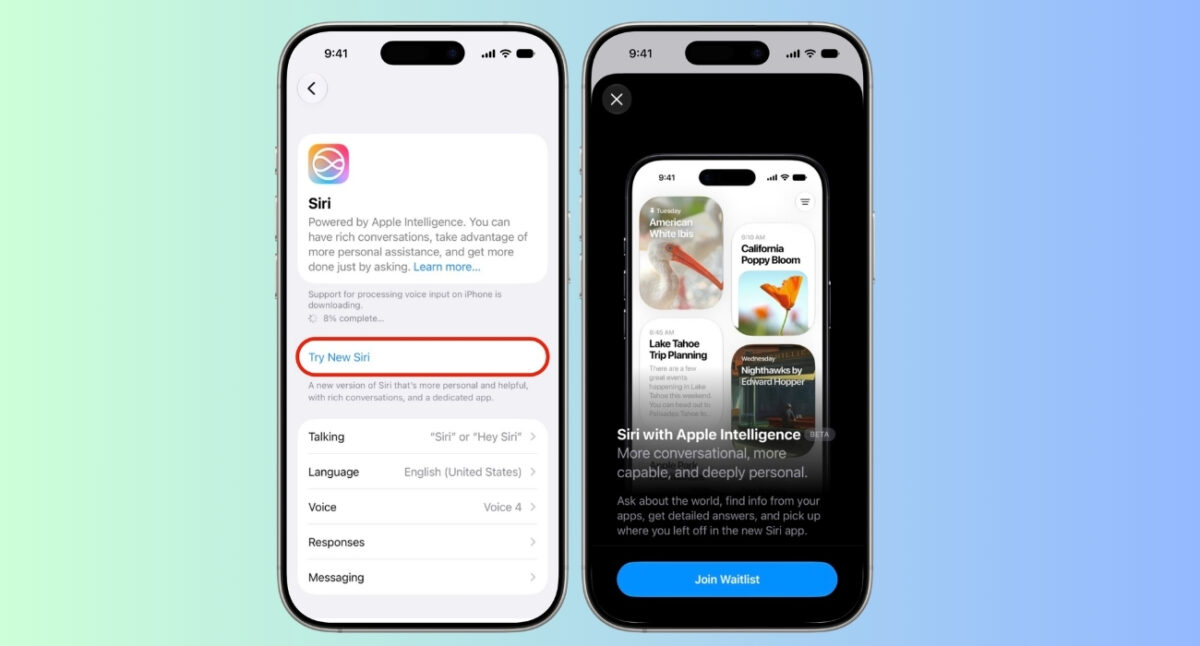
A successful waitlist request changes the New Siri section in Settings to “Joined Waiting List.” That’s the only confirmation you’ll get until Apple approves your account.
Joining the waitlist doesn’t guarantee immediate access. Apple is enabling the new Siri gradually, with support limited to select regions and Siri languages during the beta period.
If the Joined Waiting List status isn’t changing, try switching Siri Language to English (U.S.) from Settings > Siri > Language. Several users have reported that these settings make the Join Waitlist option appear and help them receive access sooner.
Apple also says support for:
is coming in October as previewed in the iOS 27.2 beta. So, you can enjoy your personal digital assistant in your own language.
Regional availability is another important factor.
Apple says Siri AI will not initially be available in the European Union on iOS, iPadOS and watchOS. Apple is working on bringing the feature to those platforms while addressing regional requirements.
However, Siri AI and other new Apple Intelligence features are not currently available in China while the company works through regulatory requirements.
So if you’re in a region where Siri AI hasn’t been enabled yet, try changing your Region to United States from Settings > General > Language & Region. Once Apple expands support to your region, you can switch back to your preferred settings without losing access.
After Apple approves your request, you will get a notification that it’s available. The “Joined Waiting List” message disappears from the Siri AI (Beta) section, and the features begin appearing on your iPhone.
Your iPhone will automatically download the required AI models in the background, so you don’t need to enable anything manually.
Apple doesn’t leave much room for guesswork once your waitlist request is approved. The first sign is inside Settings > Siri, where the Joined Waiting List status is replaced by a Try New Siri option.
A quick glance is enough to tell the difference. The familiar full-screen Siri animation is replaced by a Dynamic Island interface that includes a Search or Ask field for both voice and text interactions.
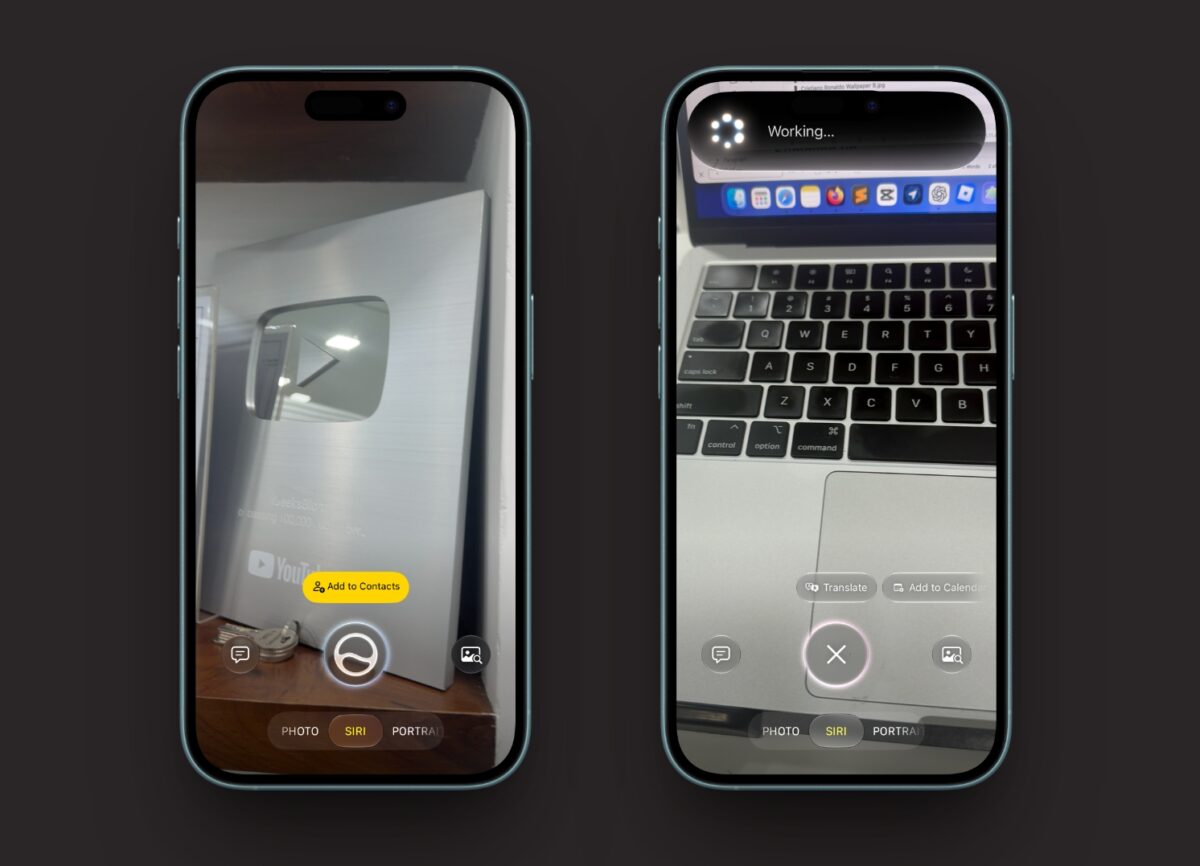
You’ll also find a dedicated Siri app that keeps your conversations in one place, as well as a Siri tab inside the Camera app, letting you ask questions about whatever you’re pointing the camera at. If none of these additions are available, your iPhone is still running the older Siri experience.
Even though iOS 27 is now publicly available, Siri AI itself is still being released as a beta. That means Apple can continue changing the feature, its availability, and how individual capabilities work.
Apple has also warned that some Apple Intelligence features relying on server-side models are subject to daily usage limits. Those limits can vary based on factors such as request complexity, system demand and Apple’s policies.
So if a particular Siri AI feature doesn’t behave exactly as expected, that doesn’t necessarily mean there’s something wrong with your iPhone.
Installing iOS 27 is only the first step toward getting Apple’s new Siri AI experience. If the feature isn’t showing up, check whether your iPhone is supported, join the Siri waitlist, and make sure Apple Intelligence is available in your region and preferred language.
Once your request is approved, Apple will notify you and roll out the new experience automatically. Until then, the Joined Waiting List status in Settings is the only indication that your request is in the queue.
Did the new Siri AI show up after joining the waitlist? Share your experience in the comments.
You might also like: